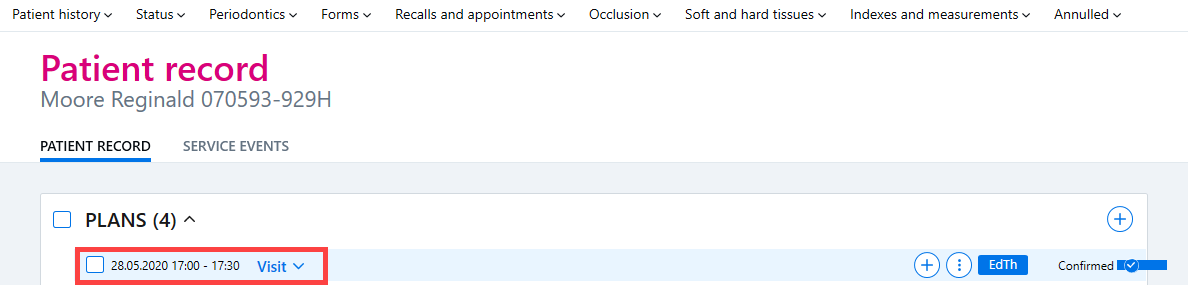
If a treatment plan is drawn up for the patient, you can switch from the patient record to the calendar in order to book a time for the planning visit, or alternatively the appointment can be added to the appointment list if the appointment is being handled centrally.
Booking an appointment from the calendar
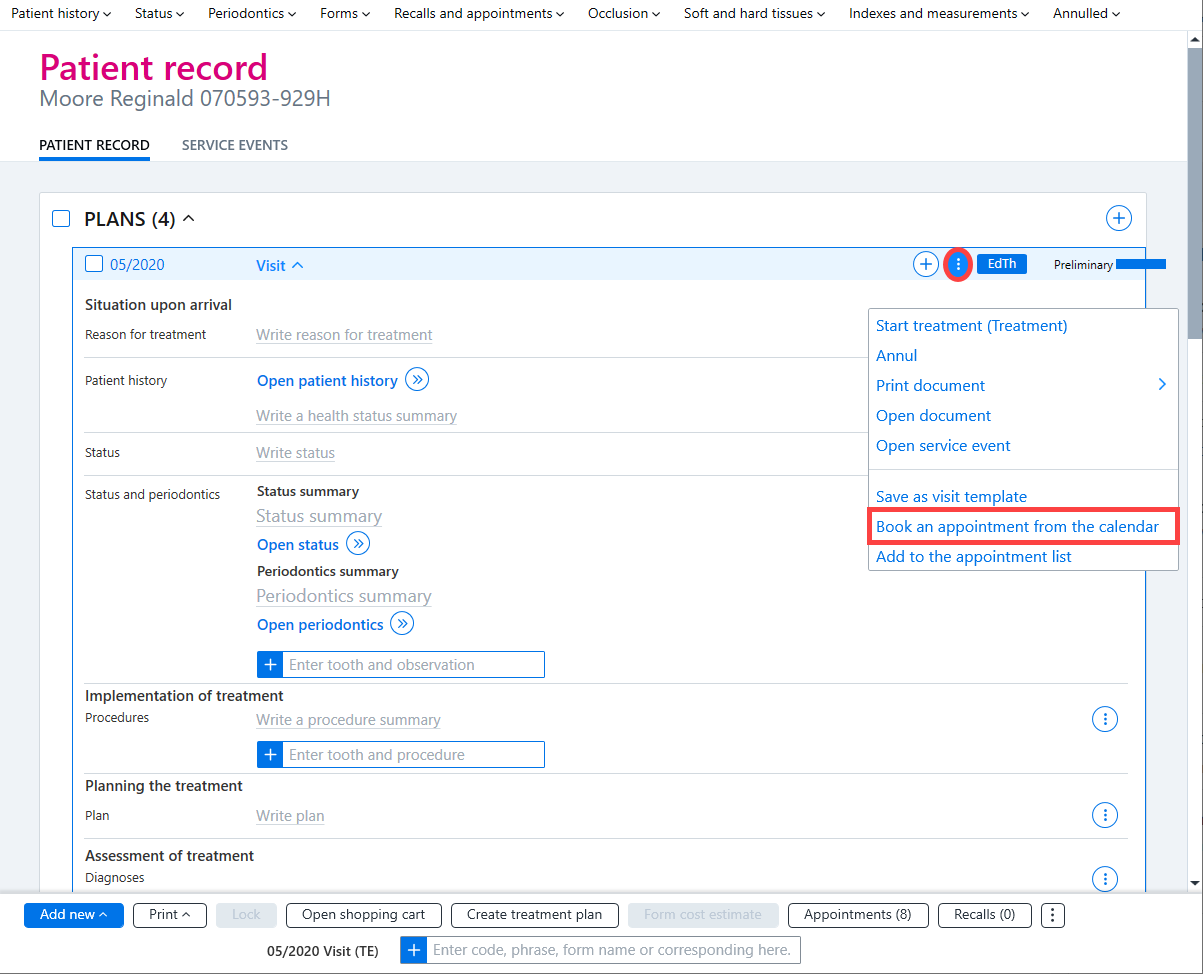
Click the Additional functions button for the planning visit and select Book an appointment from the calendar. Next, the program will switch to the calendar, where the appointment can be created as normal.
Adding to the appointment list
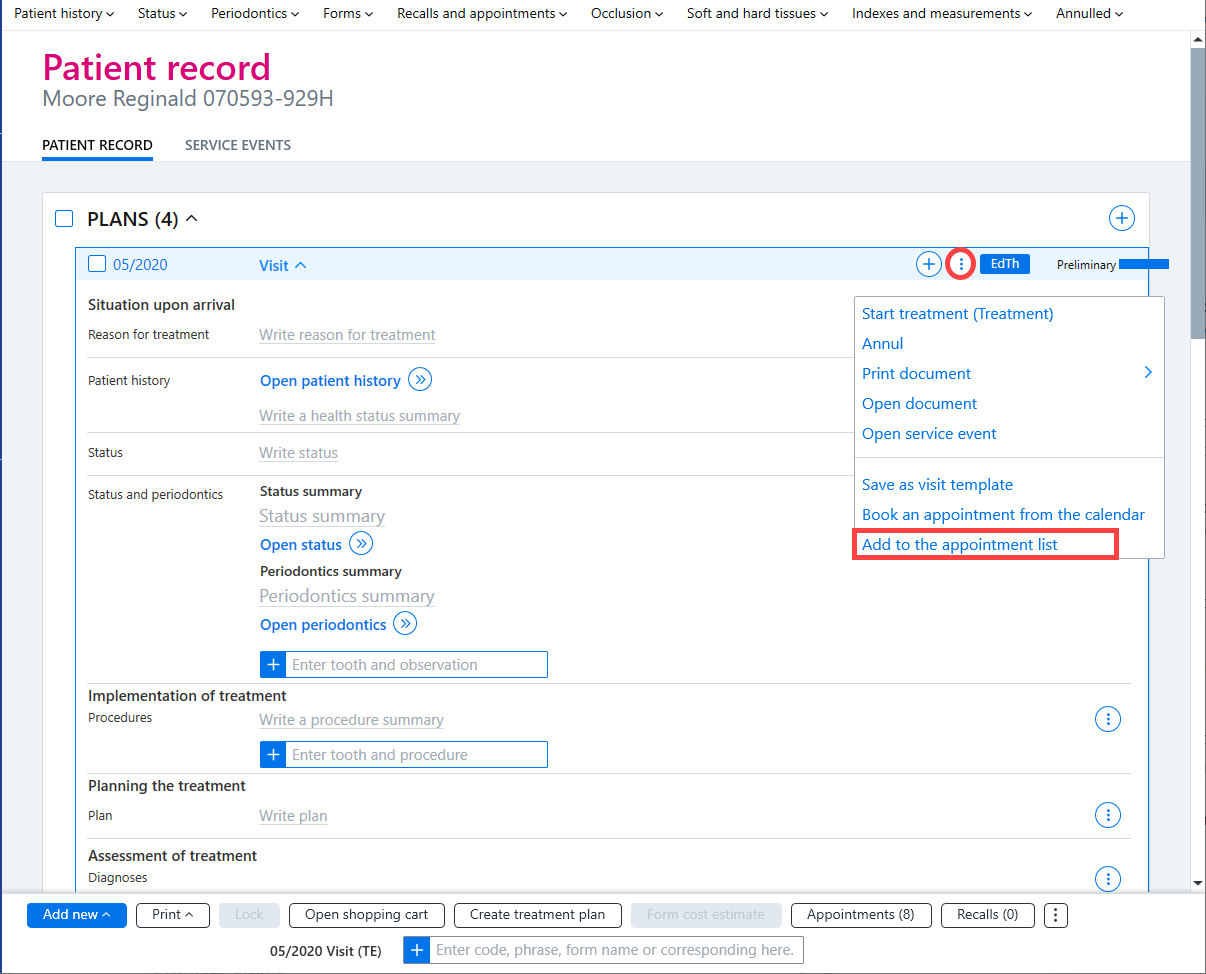
Click the Additional functions button for the planning visit and select Add to the appointment list.
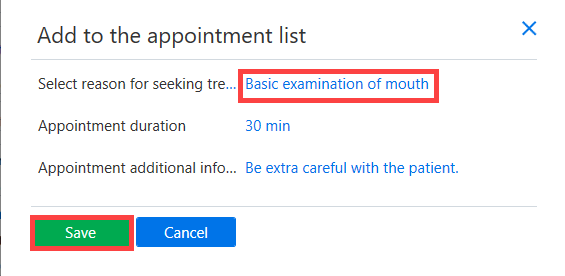
Next, add the reason for seeking treatment and check the duration. If necessary, additional information can be entered. Click Save to finish.
Once the plan has been recorded on the appointment list, the Recalls and appointments section on the control panel displays information about planned visits that do not have an appointment. The number of visits awaiting an appointment is displayed in the middle of the orange box (0 | 1 | 0).
To book an appointment, click on the Recalls and appointments button in the Control Panel and then click on the planned visit.
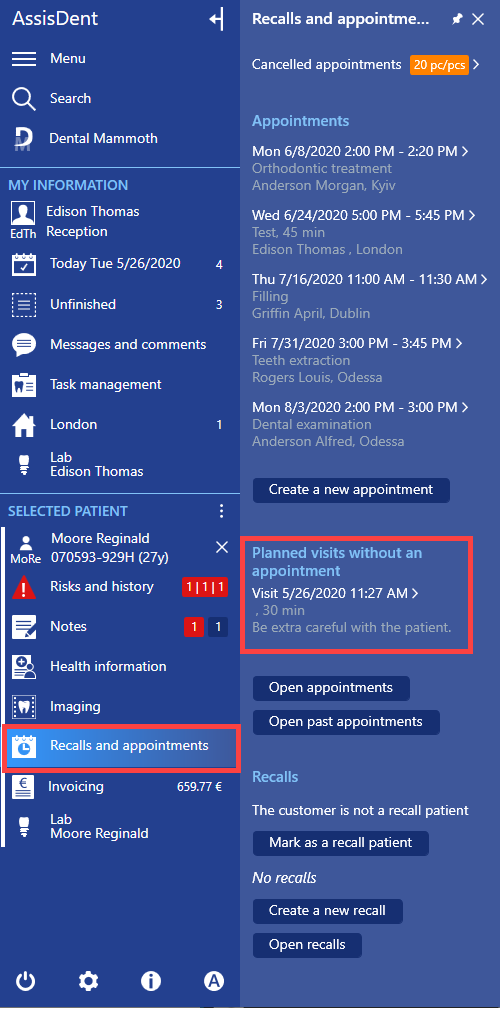
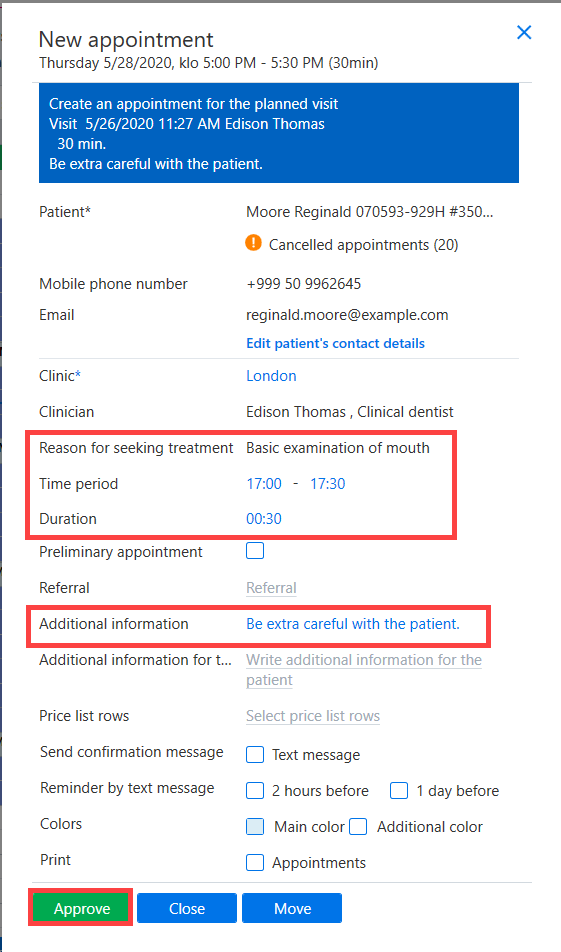
The program then switches to the calendar, where you can book the appointment by clicking on an appropriate time in the calendar. The reason for seeking treatment, appointment duration and additional information are automatically added to the appointment, which is created by clicking Accept.
Once the appointment has been scheduled, the appointment time is then displayed for the planned visit.