System settings
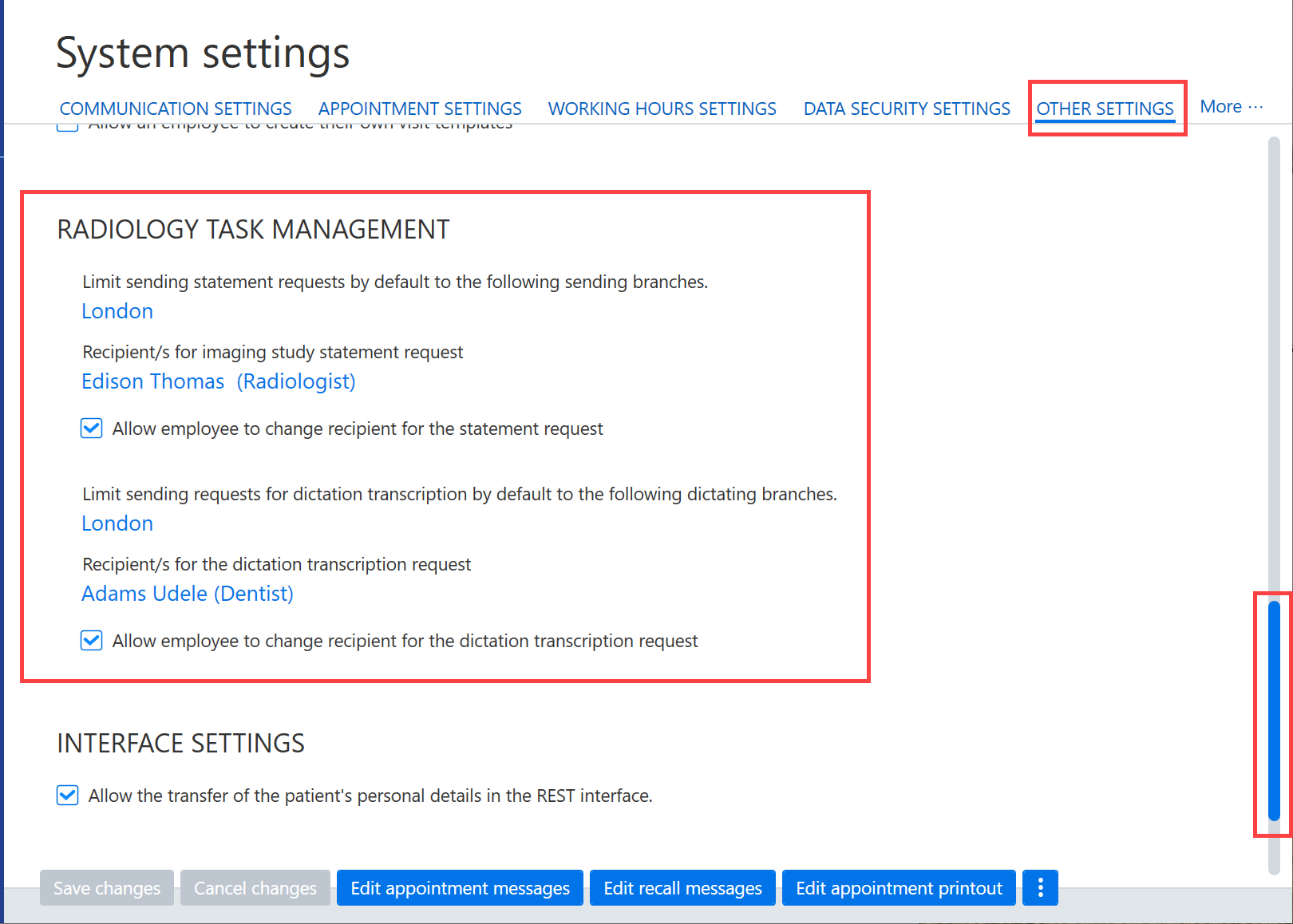
To enable the Radiology job queue, you must check the default settings for the Radiology job queue. These settings can be found in System settings under the Other settings tab.
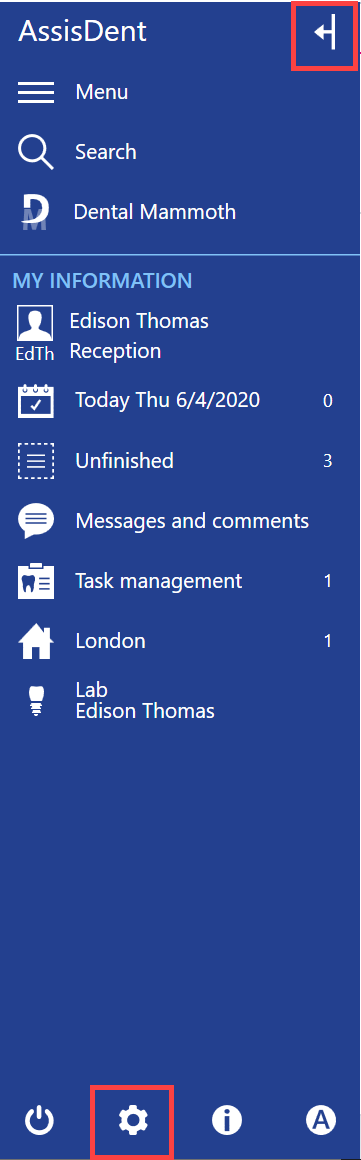
Access the AssisDent system settings from the System settings button on the control panel.
Add the recipients for the imaging study statement request, such as radiologists (group).
Add also the recipients for the radiologist’s dictation transcription requests.
In addition, the employee groups in question can be allowed to change the recipients of a request for a statement or transcription if needed.
By default, you can also restrict the sending of the statement and transcription requests to specific clinics.
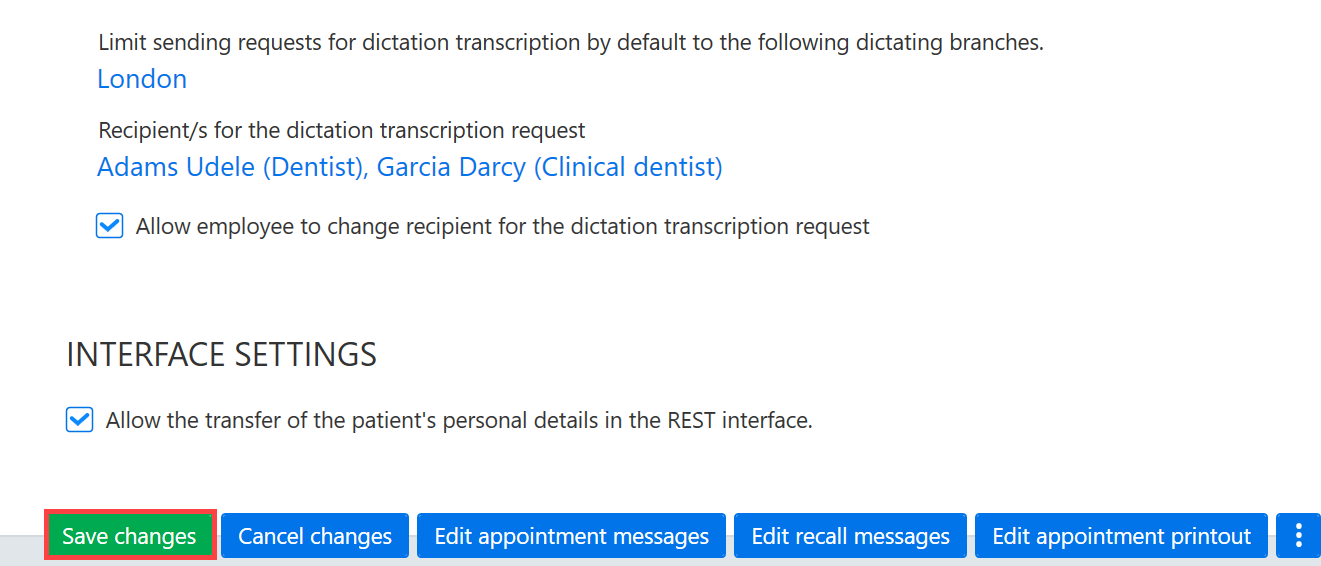
Finally, save the changes by clicking Save changes.
My AssisDent
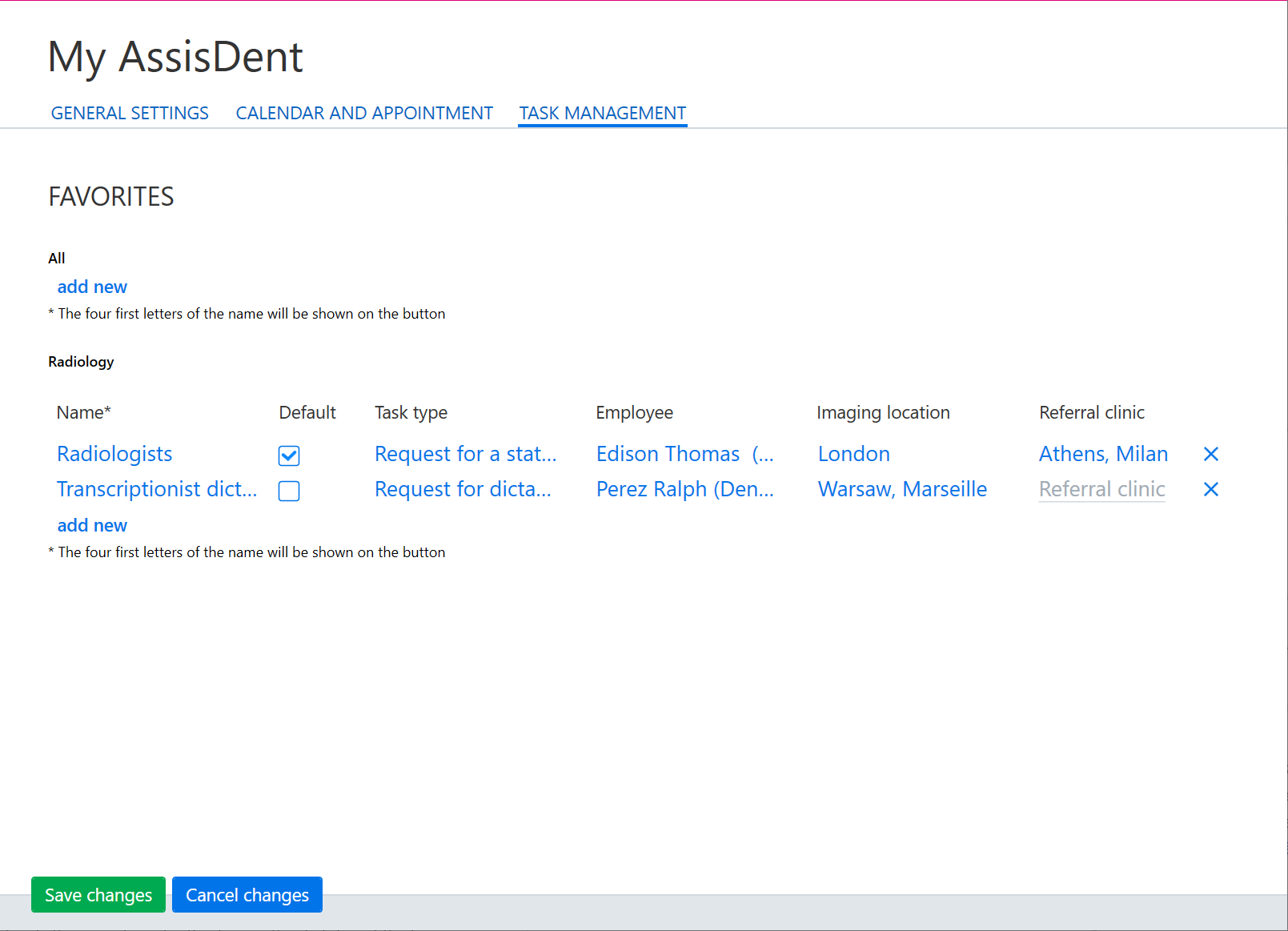
In the My AssisDent settings, you can add favorites buttons to the Radiology job queue just as you can to the calendar.
First, access the My AssisDent settings from the A icon on the control panel and then select the Task management tab.

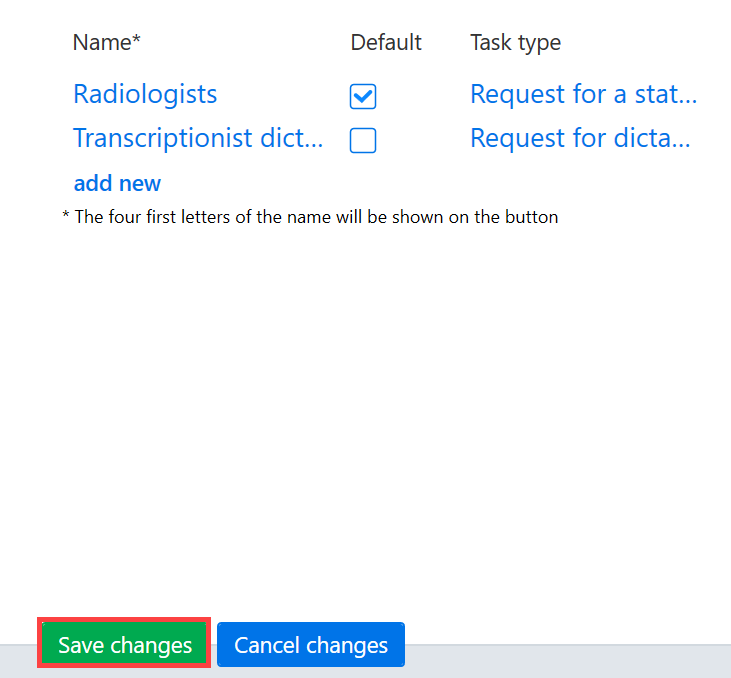
Favorites can then be created by selecting Add new. Set the name for the favorites button and the desired filters, such as task type, employee, imaging location and referral location. Using the Default boxes, you can select which view is opened by default.
Click Save changes to finish.
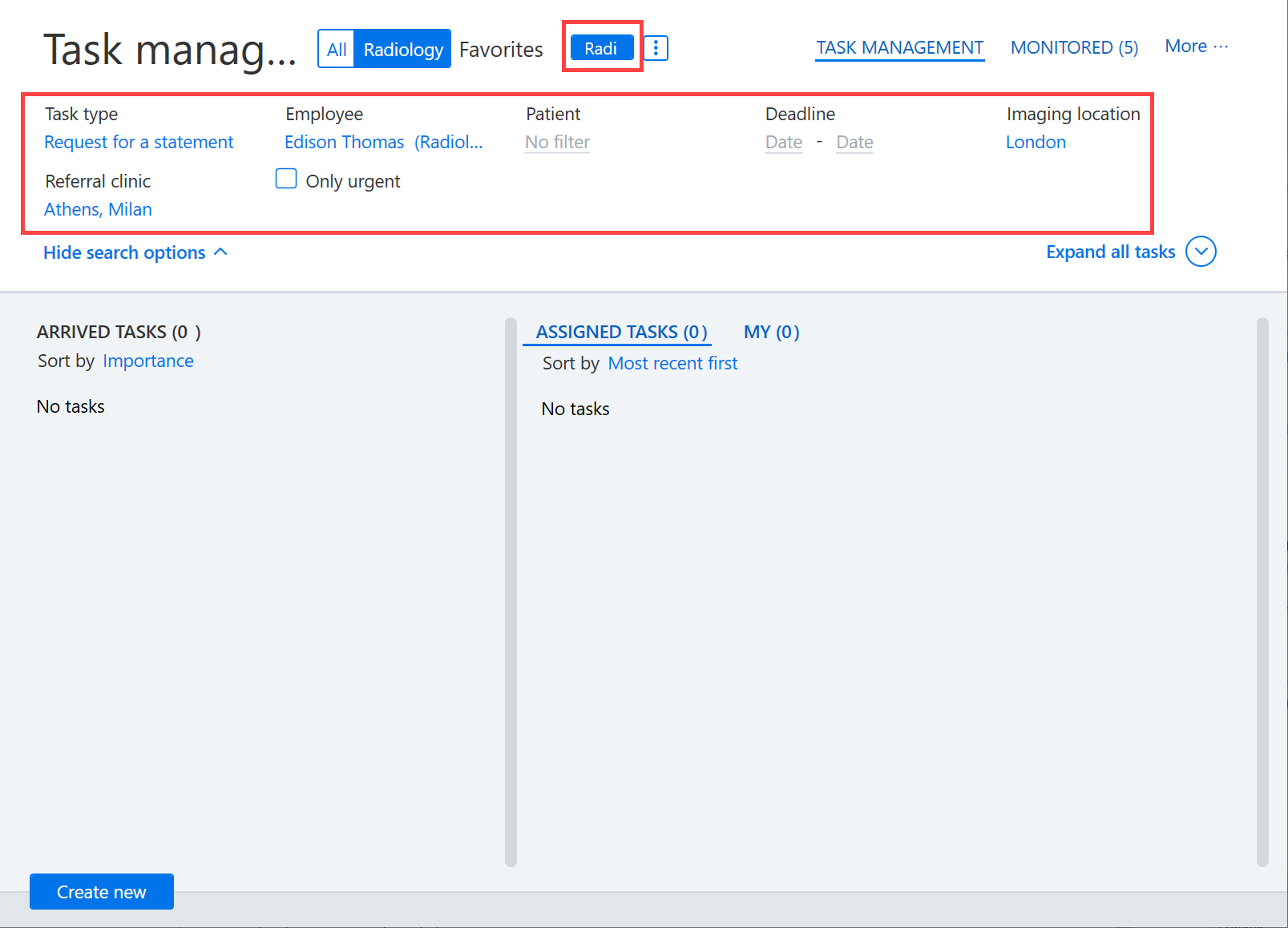
The program creates a Favorites button for the Radiology job queue which automatically filters the tasks in the job queue using the filters configured for the button.
After all the settings have been checked, the Radiology job queue is then ready for use. You can read more on this topic here.