Creating periodontics entries
The periodontics status view can be accessed from the Periodontics button at the top of the patient record or by clicking Open periodontics on the visit view. In order to open the periodontics status for the first time, the visit must first be opened.
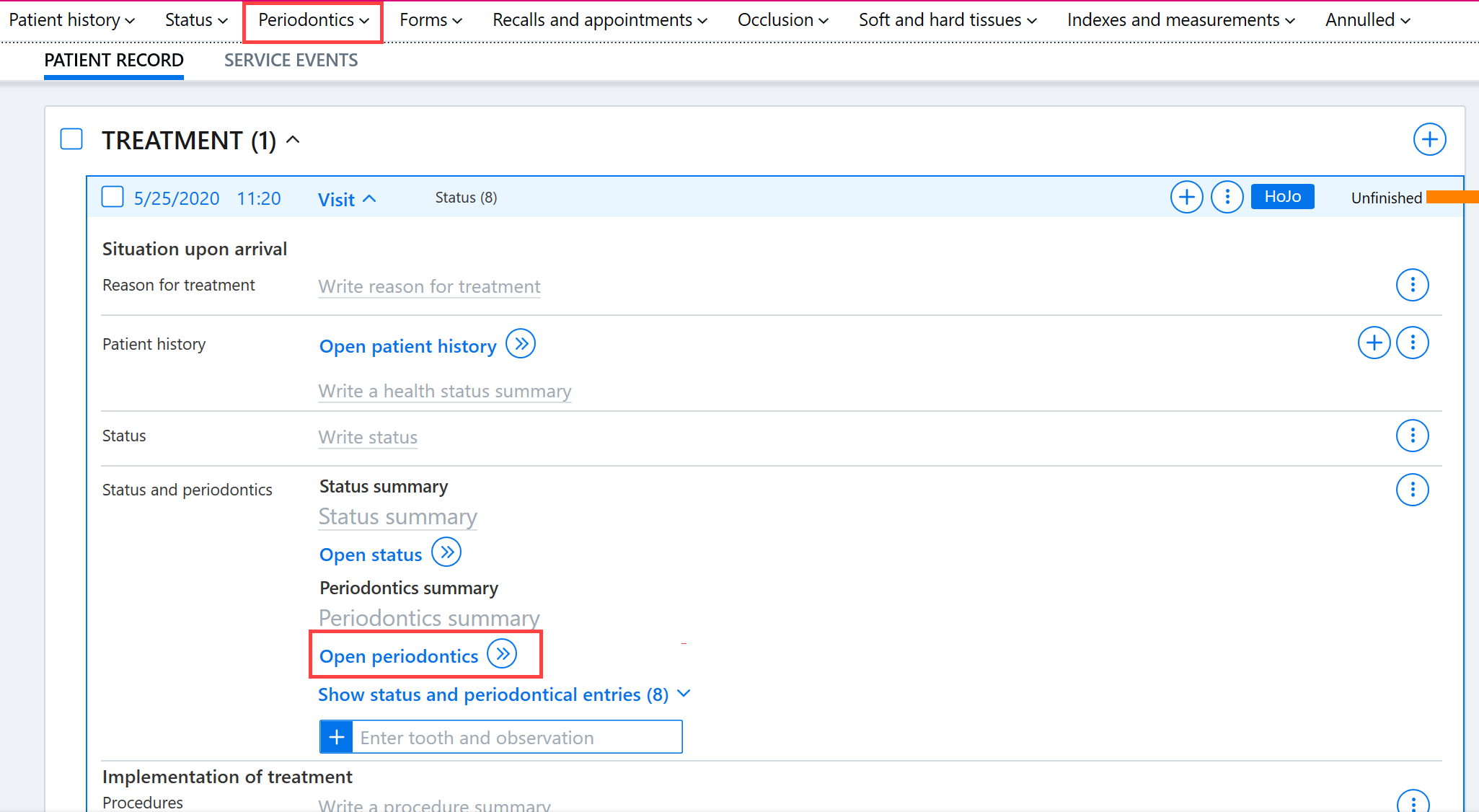
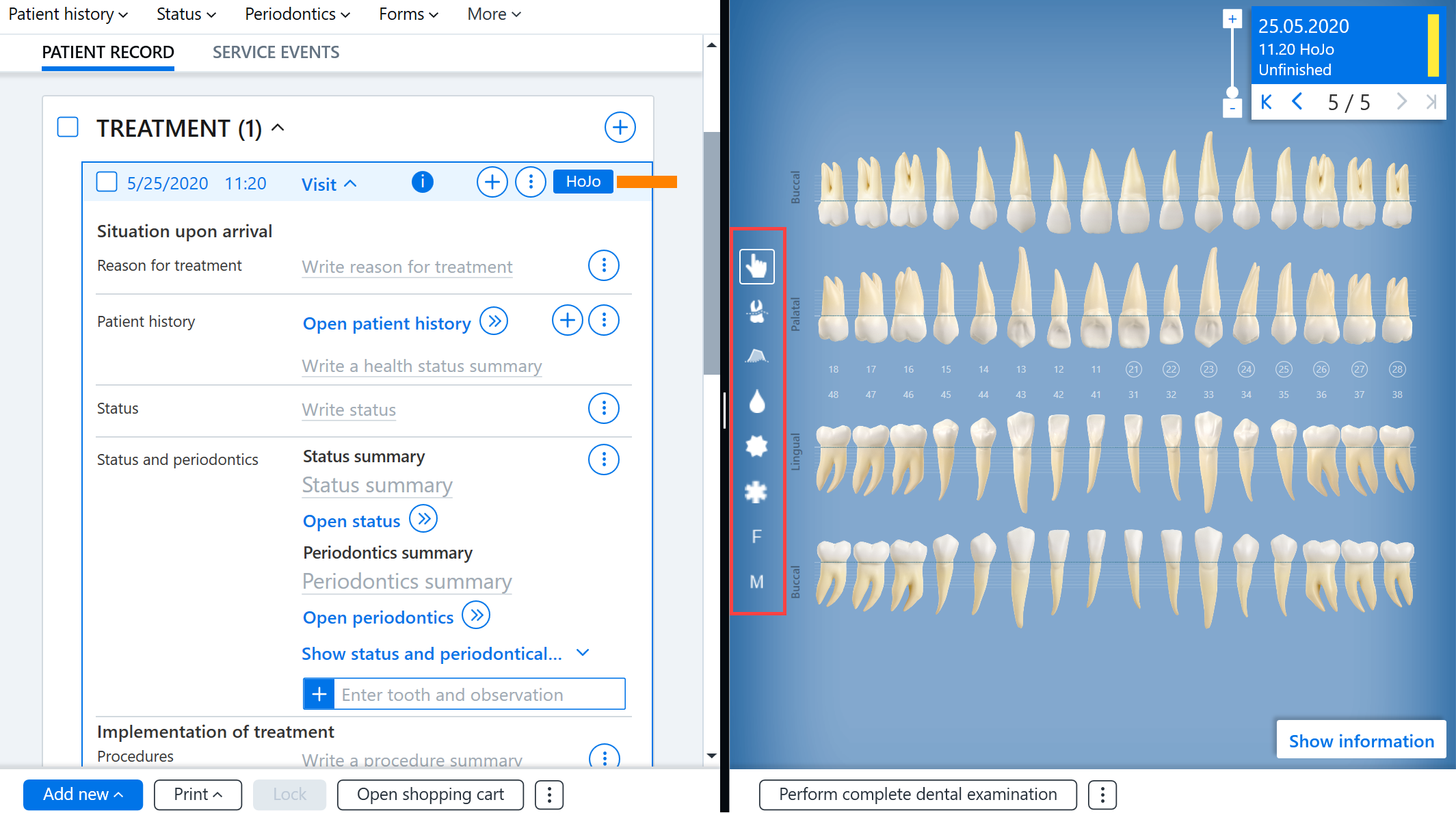
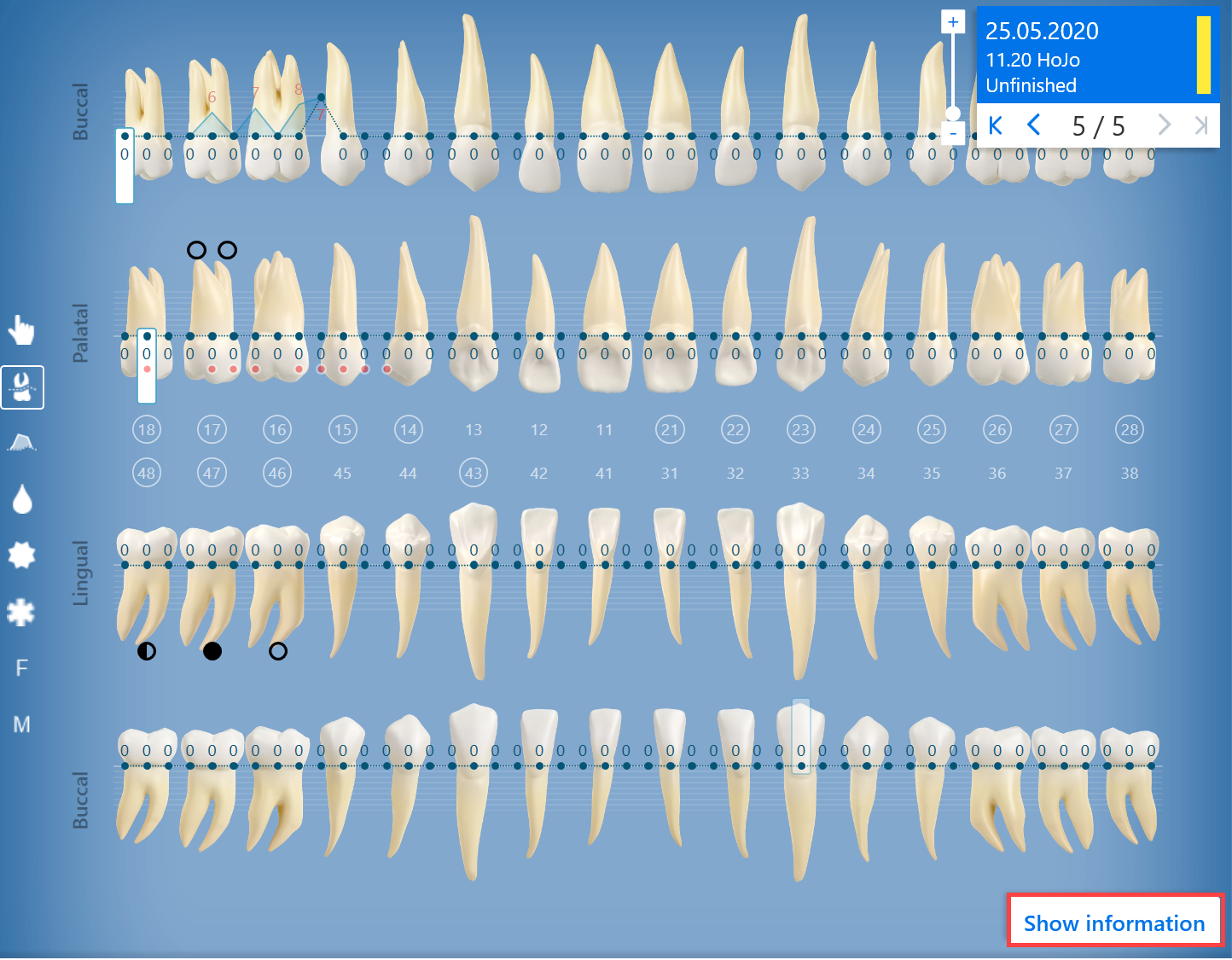
The periodontics status opens in a new panel. Tools for annotating are displayed on the left side of the periodontics status. To see the tool name, hover over the tool. Click to select a tool. First, select the desired tool and then make the entries for the tooth.
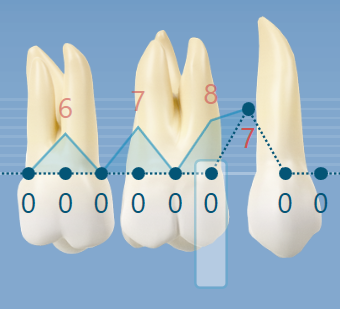
Recessions and gingaval pockets can be recorded either by dragging the circles with the mouse or by selecting the desired circle and entering the number on the keyboard. The keyboard arrow key can be used to move between the circles.
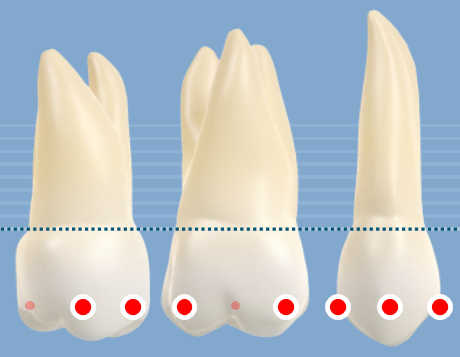
Bleeding, calculus, and plaque entries are made either by clicking on an individual circle or by pressing and dragging the mouse over a series of circles.
Furcation and mobility entries are made by clicking on the entries until the desired one is shown.
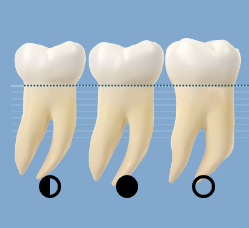
All entries made in the periodontics status are saved automatically.
Creating periodontics entries using the keyboard
The periodontics status can also be entered using the keyboard. Click the keyboard letter abbreviation to activate the desired tool:
r = Recession
g = Gingival pocket
b = Bleeding
d = Dental calculus
p = Plaque
There is no keyboard support for furcation and mobility, so these are recorded using the mouse.
Removing periodontics entries
To remove entries from the periodontics status, you must select the tool with which the entry is made. Entries can be deleted by dragging or clicking them until they are no longer visible.
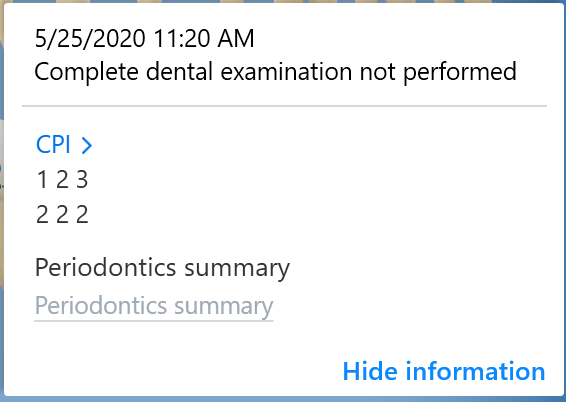
Show information
The Show information function allows you to view the CPI value added for the patient and add a summary of the periodontics. This summary is also updated to the patient record.
Printing periodontics
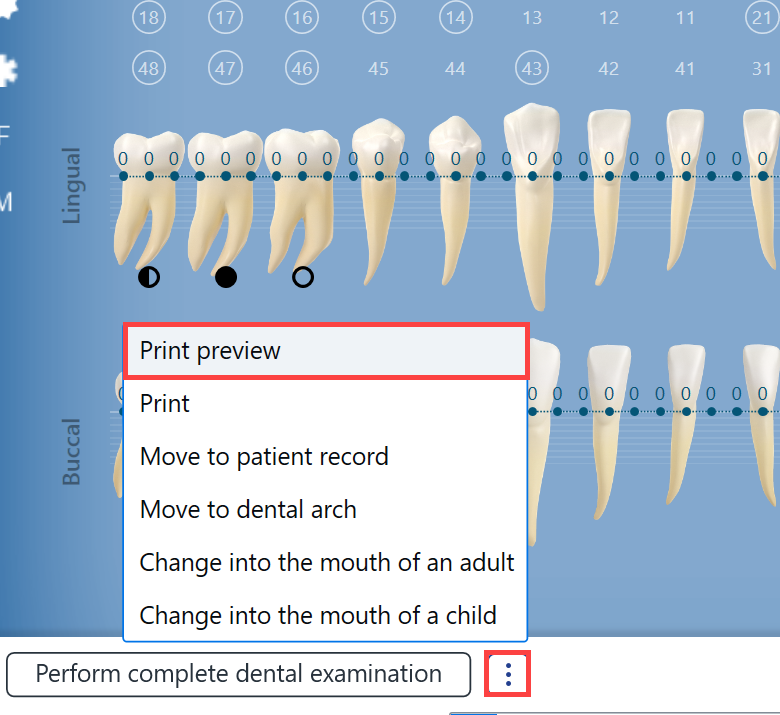
You can print the periodontic status by clicking the Additional functions button at the bottom of the baron view and selecting Print or Print preview from the menu.
Explanations of the graphic markings in the periodontics status can be viewed here.