You can watch the video guide for adding procedures and observations here.
Opening the visit
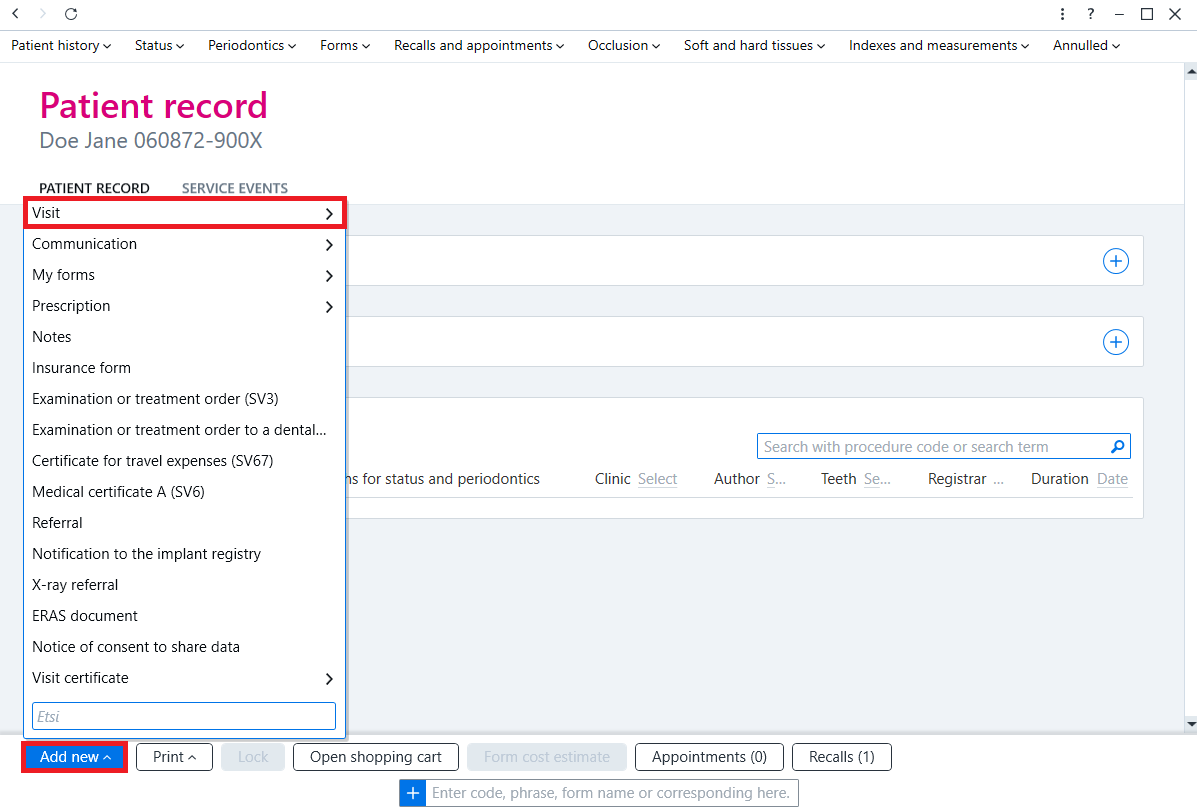
In order to add records for a patient, you must first open a visit for them. A visit is opened by adding a template to the patient record. To open a template, click the Add new button at the bottom, select Visit and click the desired template or visit.
Quick entry
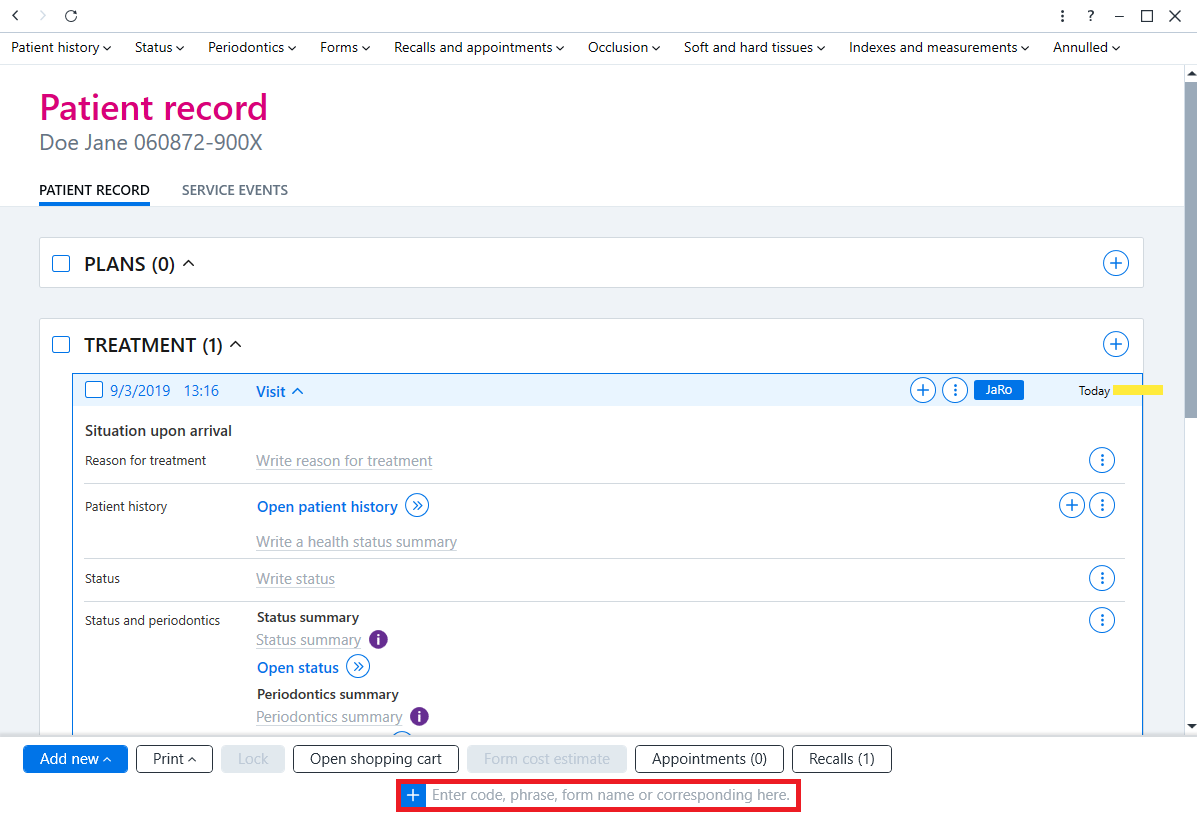
Entries can be added using the quick entry tool at the bottom. This tool can be used to quickly add a diagnosis, procedure or observation to a visit. The entry is added using either a code or description. To select an entry, press Enter on the keyboard or click the desired entry.
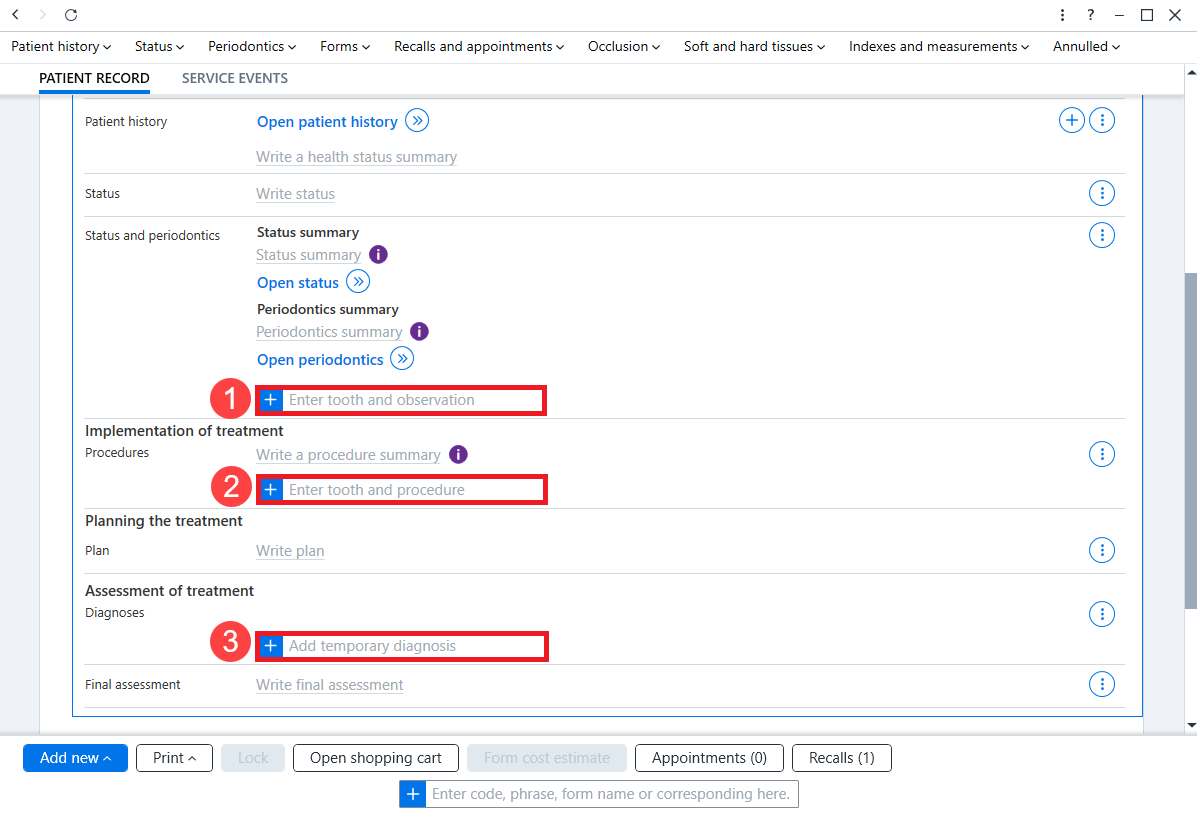
The template also includes quick input tools for different labels:
- The quick entry tool under the Status and periodontics heading can be used to record observations of the dental arch.
- The quick entry tool under the Procedures heading can be used to record procedures.
- The quick entry tool under the Diagnoses heading can be used to record diagnoses.
Note! The quick entry tool at the bottom of the view can be used to record observations, procedures and diagnoses.
Recording procedures from the patient record
Procedures can be recorded using the quick entry fields in the patient record. The procedure can be searched for using the search box and the desired procedure is selected by pressing Enter on the keyboard (or by clicking the desired procedure from the desired price list).
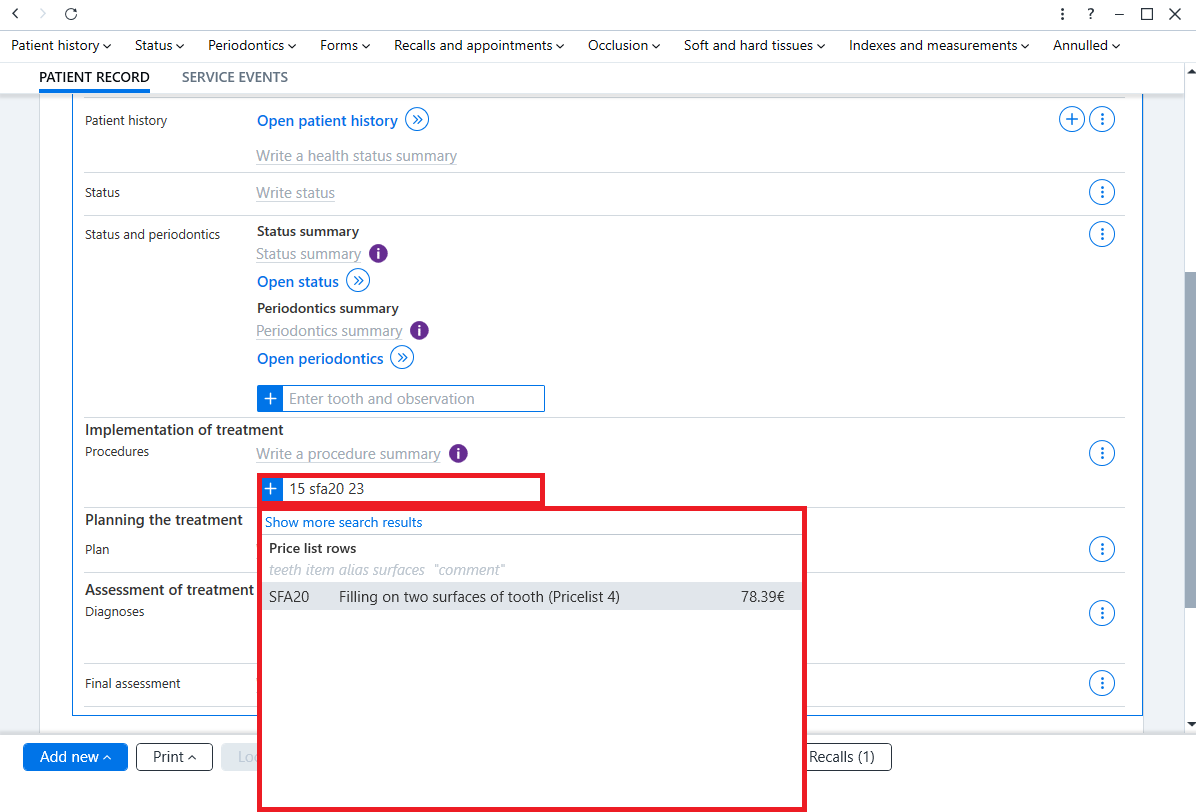
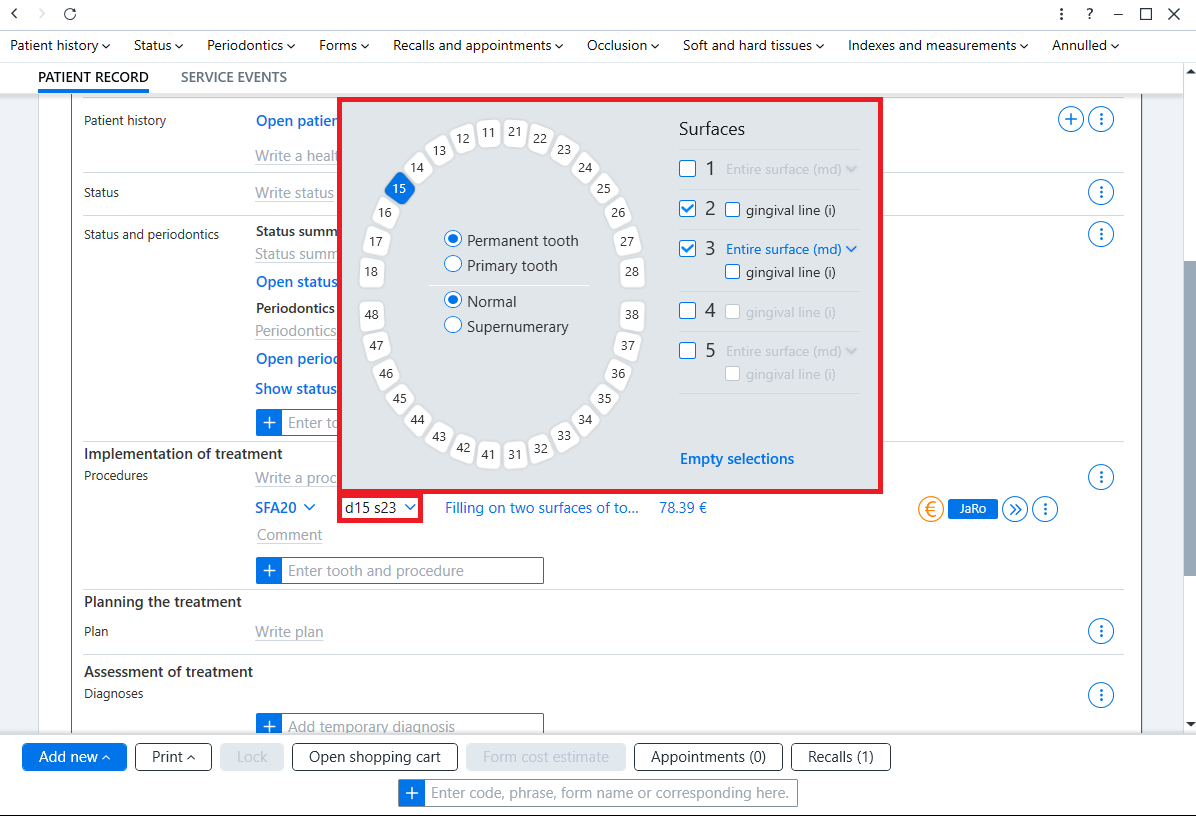
If you want to quickly edit only the target tooth and the target surfaces of the procedure, you can do so directly from the patient record by clicking on the tooth number. From the dialog that opens, you can change the selected tooth and surfaces.
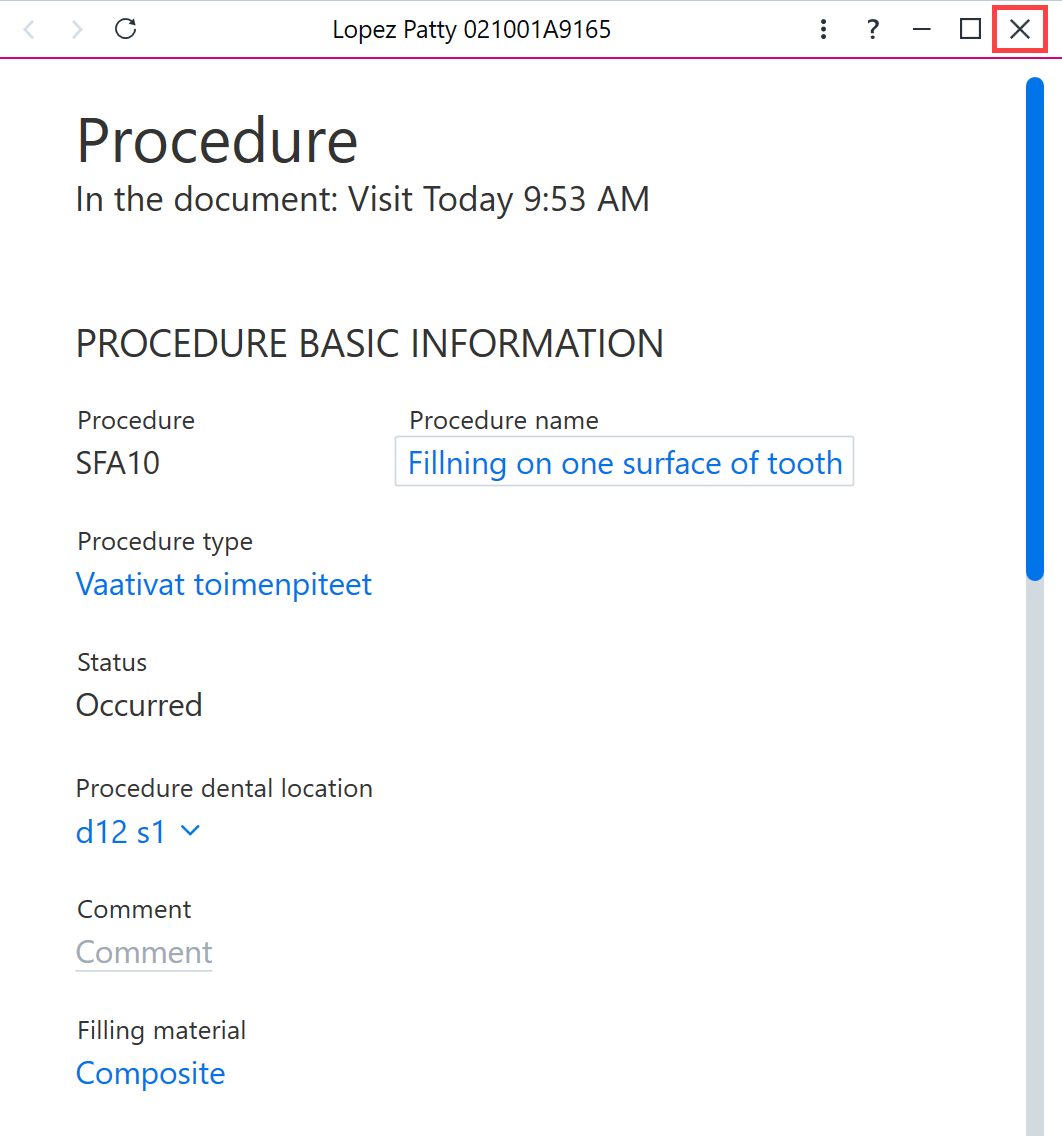
To edit the procedure details, click the >> button at the end of the procedure row. This will open the procedure card in a new panel.

The procedure information can be edited in the card and the changes are saved automatically. The procedure card is closed by pressing the x button.
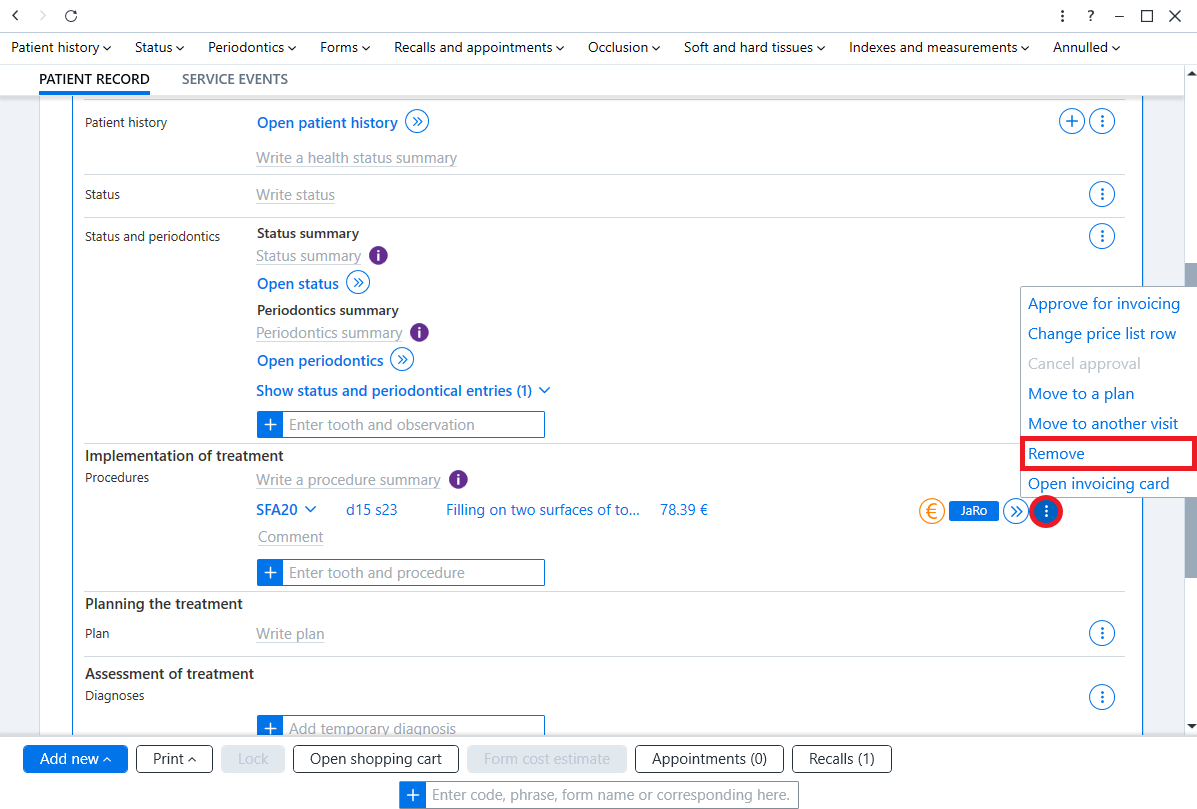
To delete an procedure, click the Additional functions button in the row for the procedure and select Remove.
Recording diagnoses from the patient record
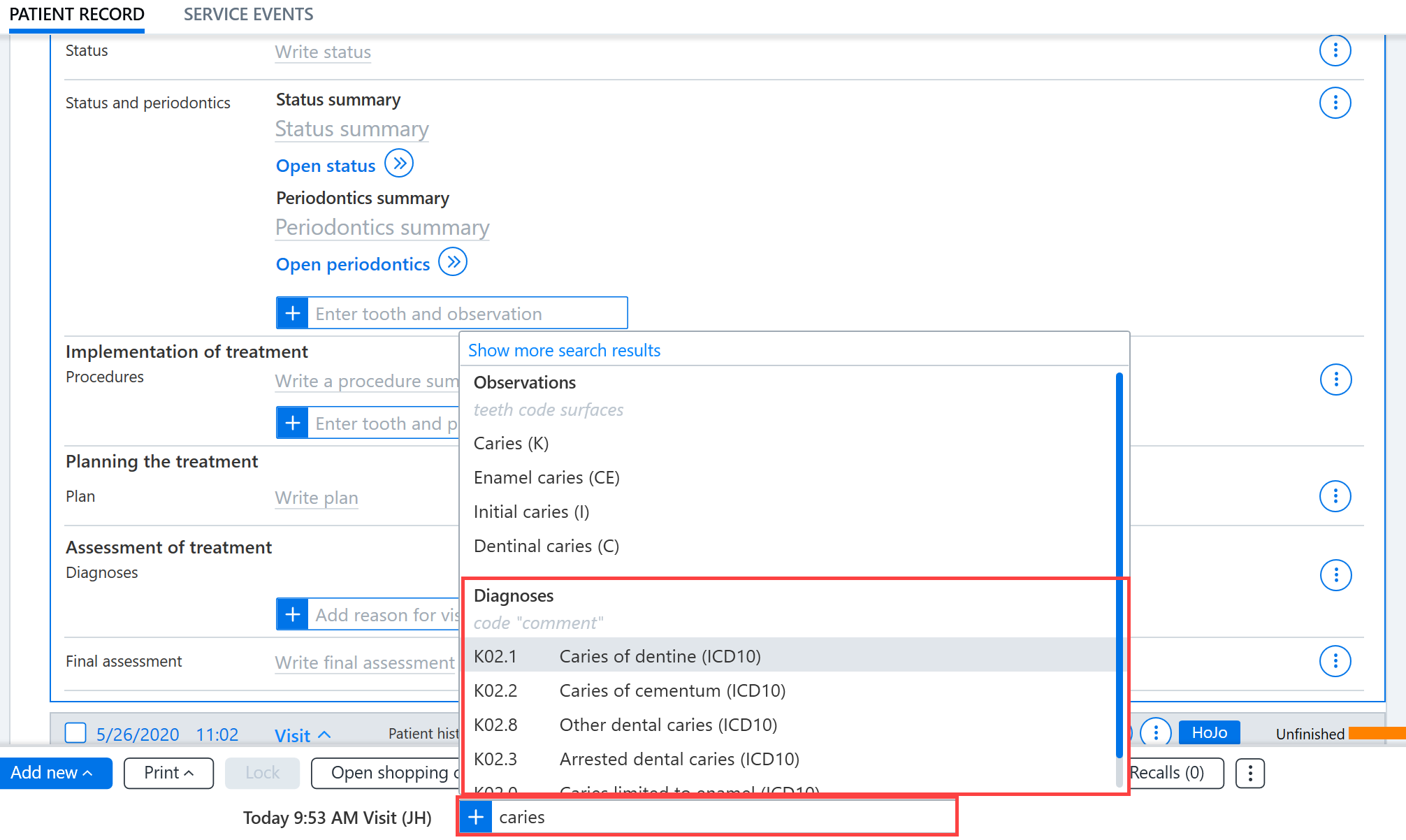
Diagnoses can be recorded using the quick entry fields in the patient record. The diagnosis can be searched for using the search box and the desired diagnosis is selected by pressing Enter on the keyboard (or by clicking the desired diagnosis).
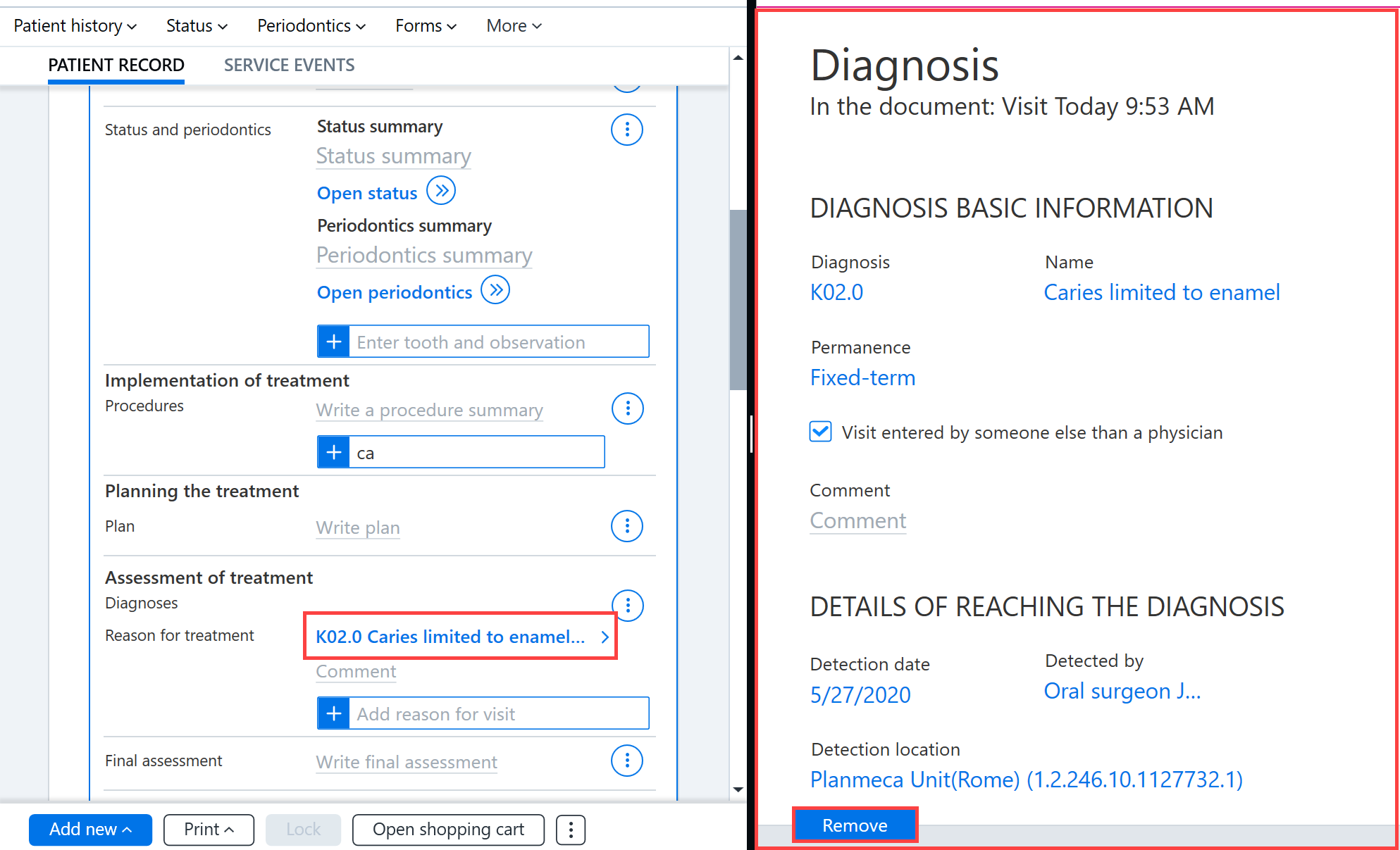
The diagnosis information can be edited by clicking on the diagnosis name. This then opens the diagnosis card in a new panel. The diagnosis data can be edited in the diagnosis card and the changes are saved automatically.
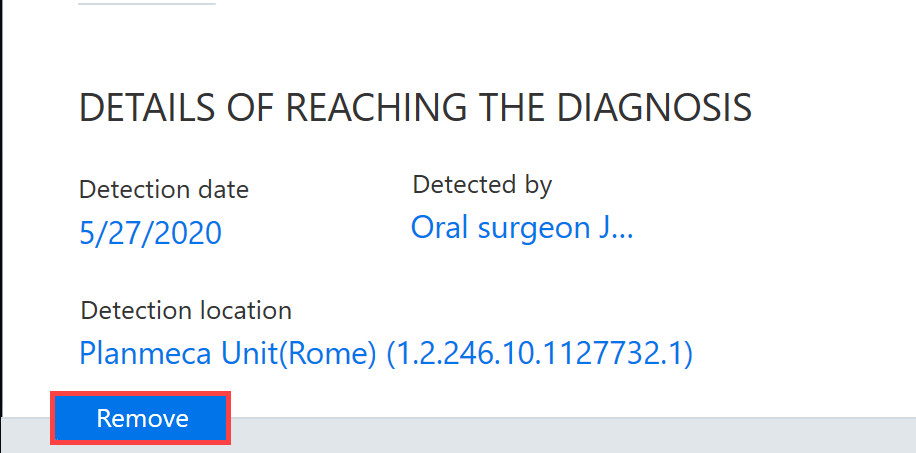
The diagnosis can be removed by clicking the Remove button on the diagnostic card.
Recording observations in the patient record
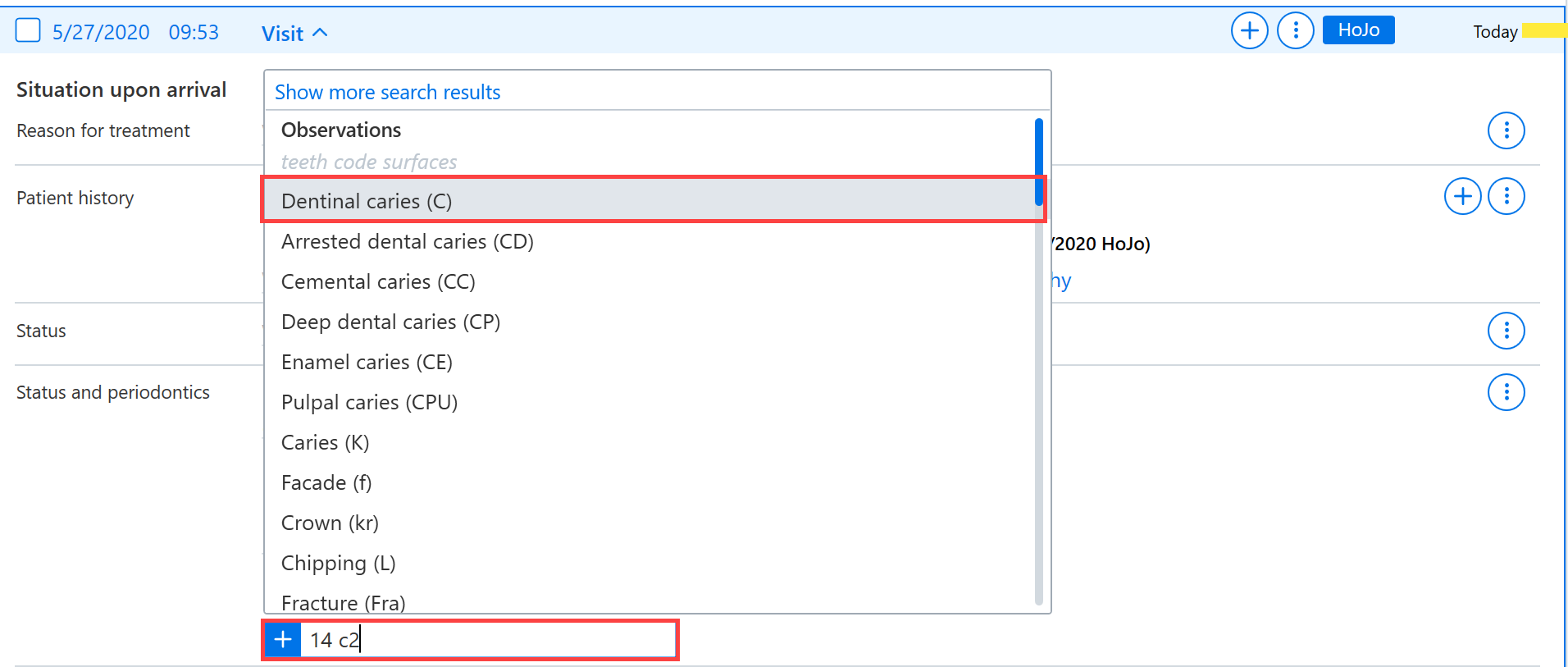
Observations can be recorded using the quick entry fields in the patient record, such as the one in the status field. The observation can be searched for using the search box and the desired observation is selected by pressing Enter on the keyboard (or by clicking the desired observation).
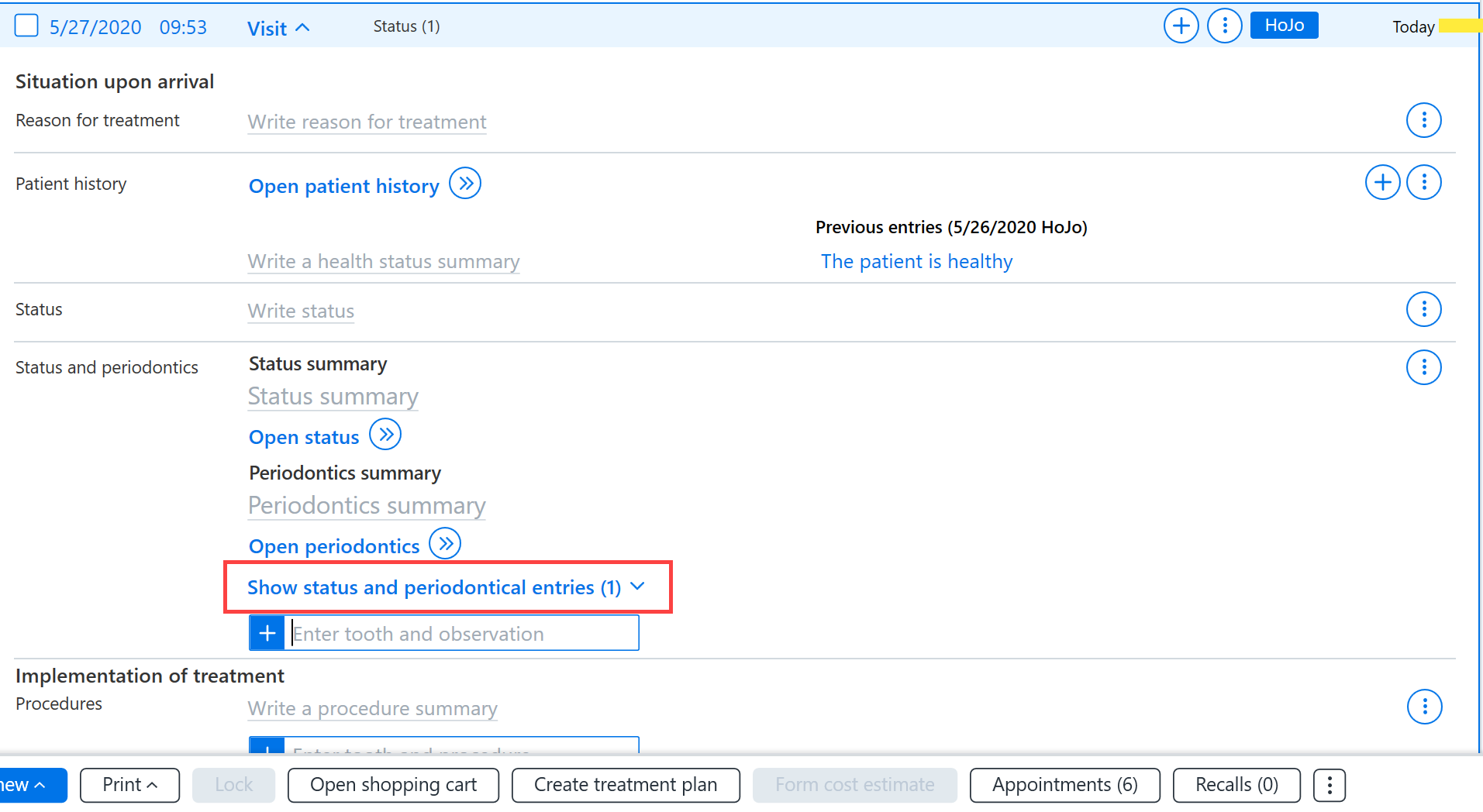
The observations can be shown in the patient record by clicking Show status and periodontical entries.
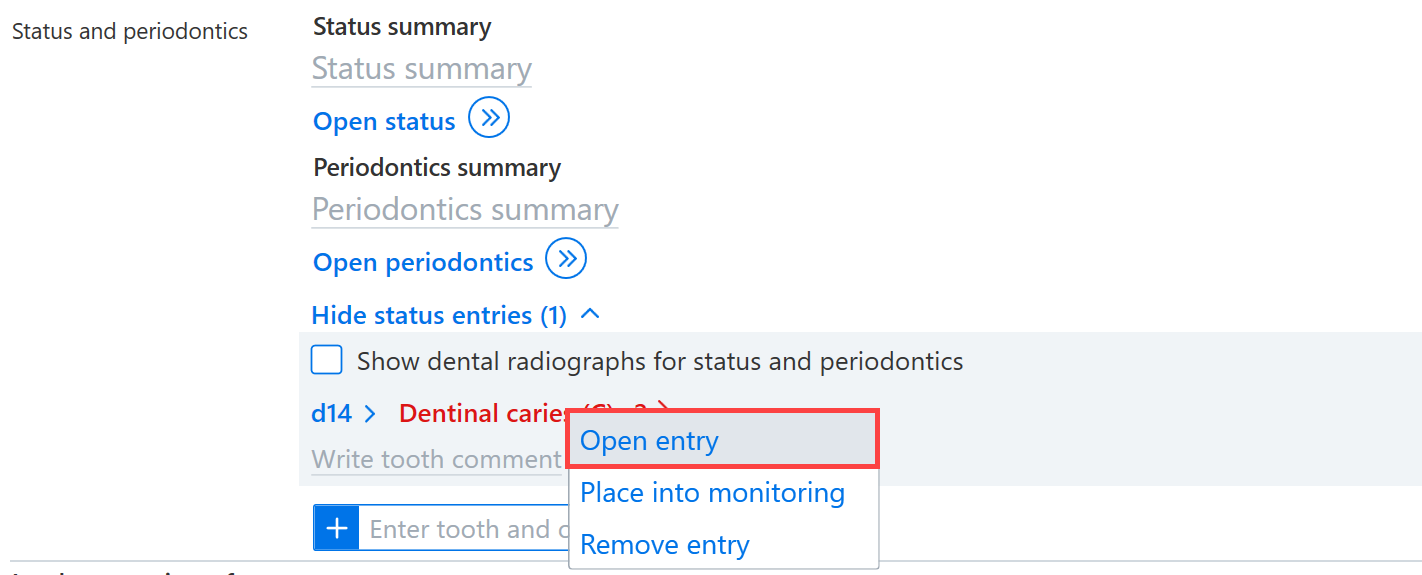
Observations can be edited by clicking the name of the observation and selecting Open entry.
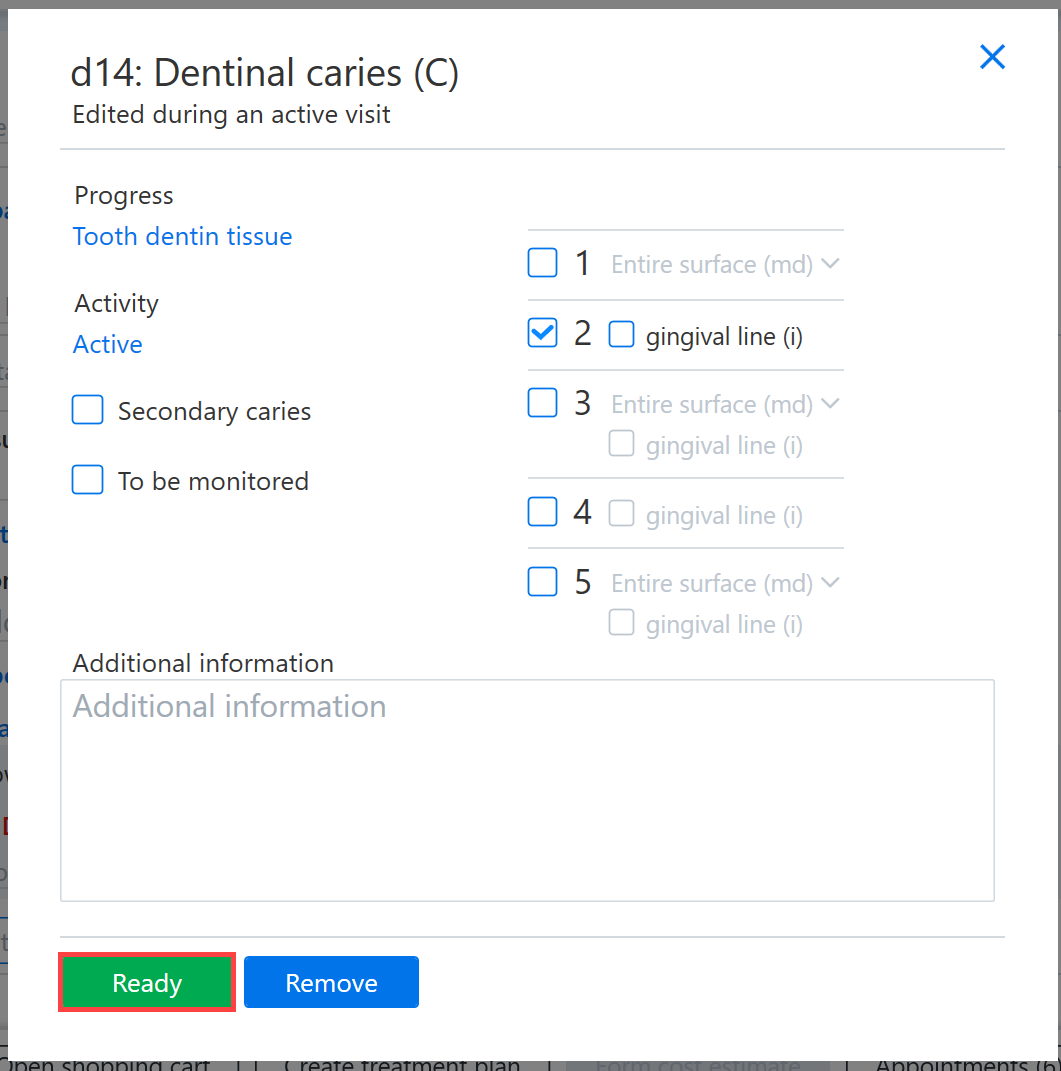
In the dialog box that opens, you can change the details of the observation.
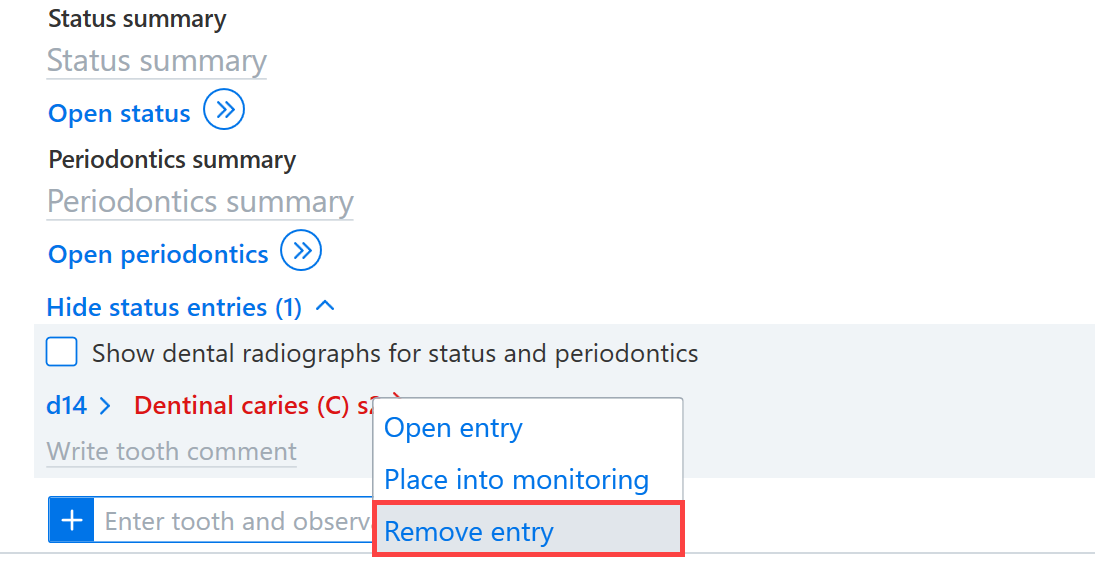
The observation can be removed by clicking on the observation and selecting Remove entry.
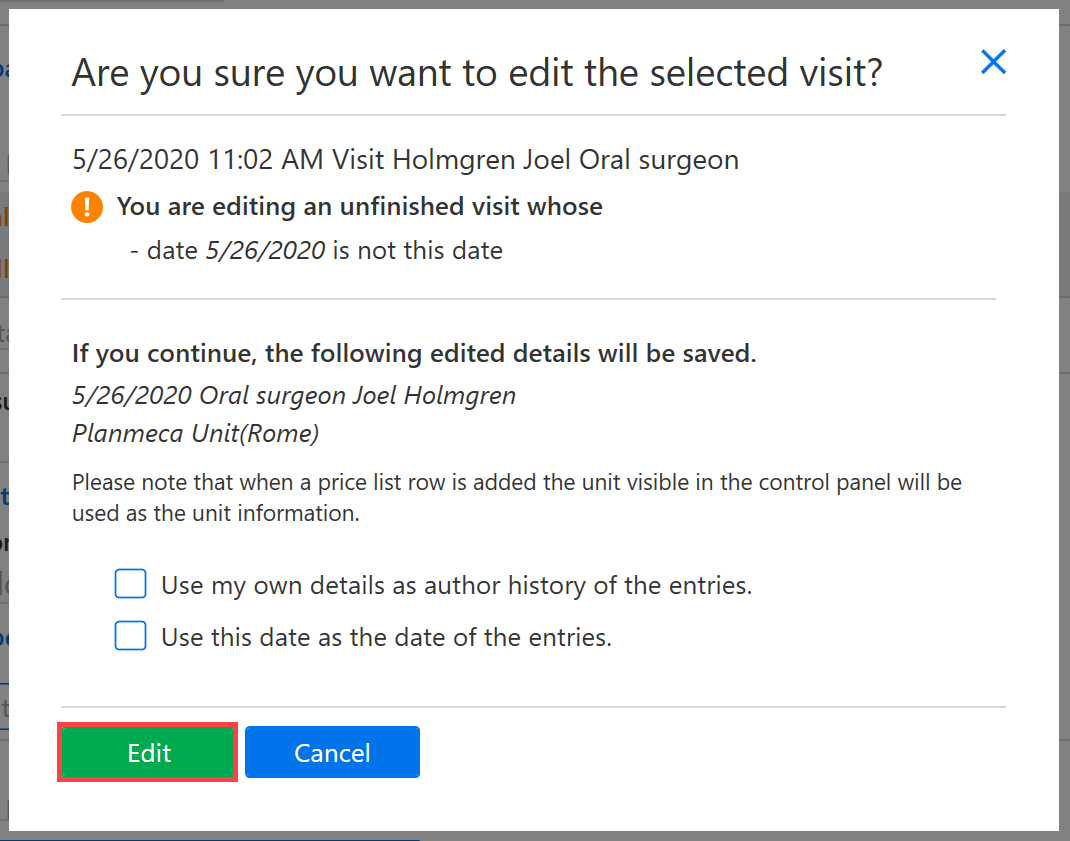
Note! If you accidentally attempt to record entries for another person or for a past visit, you will get a warning message. Entries can still be made for another person's visit by clicking the Edit button.