The AssisDent job queue allows employees to create, receive, and manage their own tasks and assign tasks to other employees or to themselves.
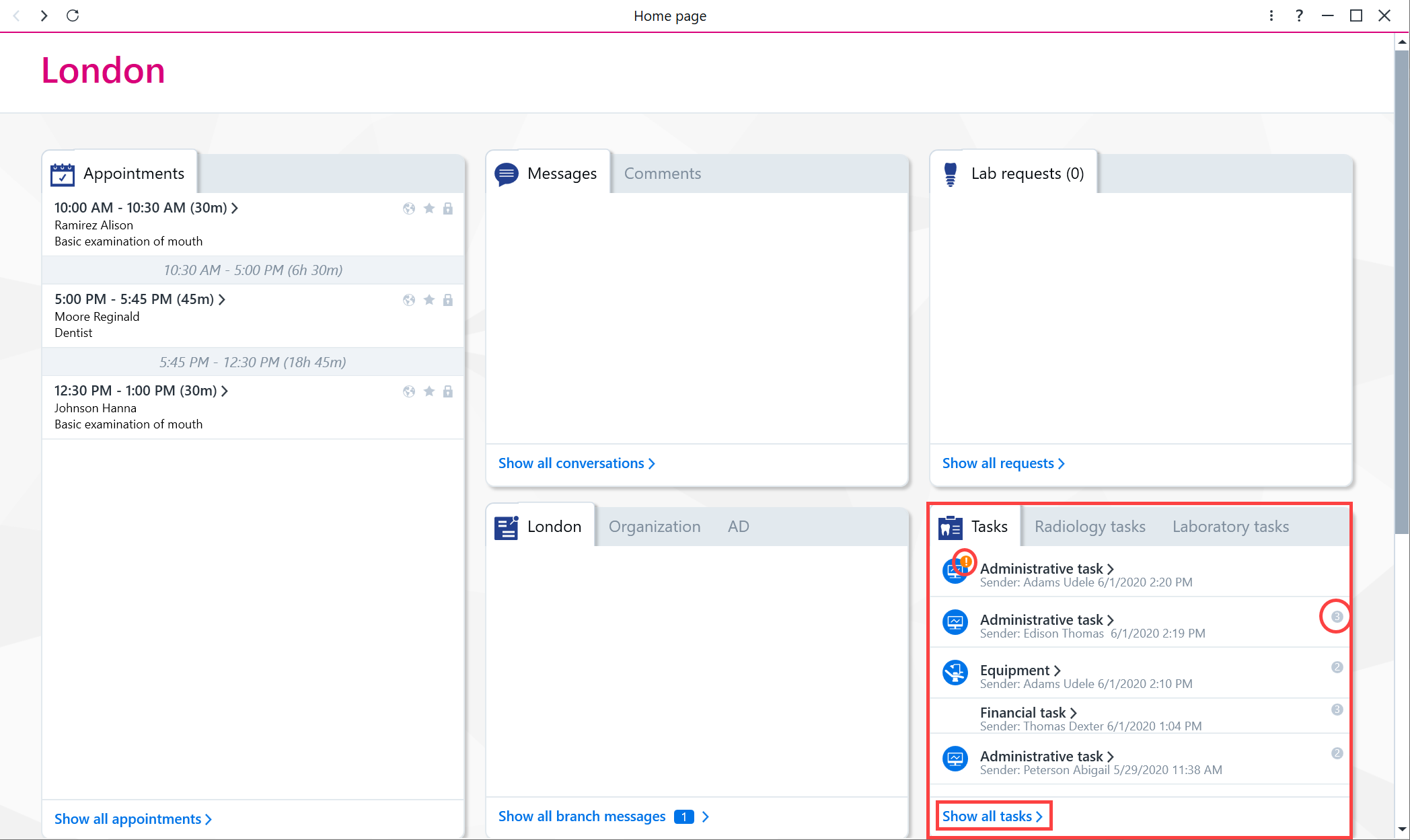
The Task Management tile on the home page displays the five most recent tasks that have been added to the employee’s job queue. At the bottom of the tile, you can check how many urgent, overdue or returned tasks have been added for you. An orange exclamation mark indicates a task that is urgent and requires immediate attention. The numbers 1, 2, and 3 after the message indicate the task importance level:
- High
- Regular
- Low
To access the job queue view, click Show all tasks > at the bottom corner of the Tasks tile. You can view the details of an individual task by clicking the arrow button (>) at the end of the row.
You can also open the job queue by clicking the Task management button in the Control panel. Urgent tasks appear in the Control panel with a red exclamation mark.
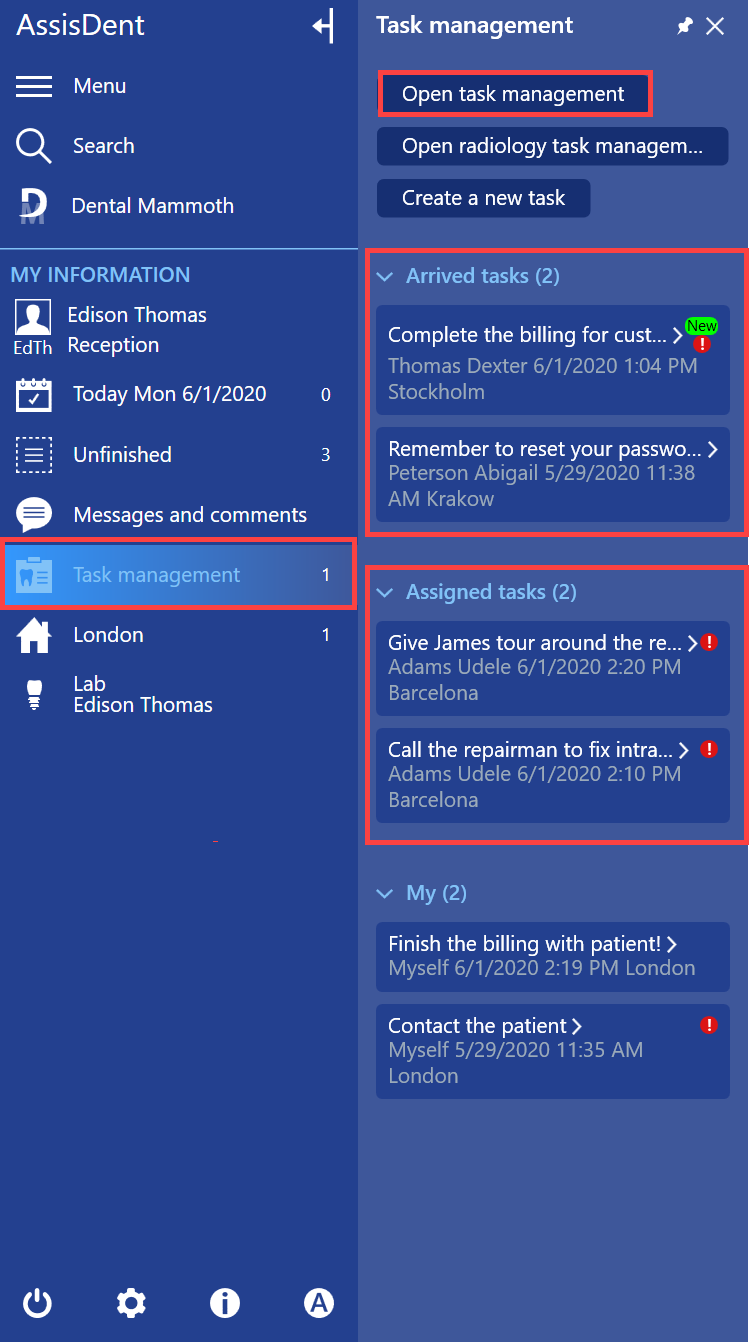
Job queue tasks and accompanying icons
 -icon= New task which has not yet been opened.
Task management tile and number = the number shown indicates the number of new tasks in the job queue (e.g. Task Management 1 indicates that the job queue has one new task that has not been opened)
 = Task is urgent.
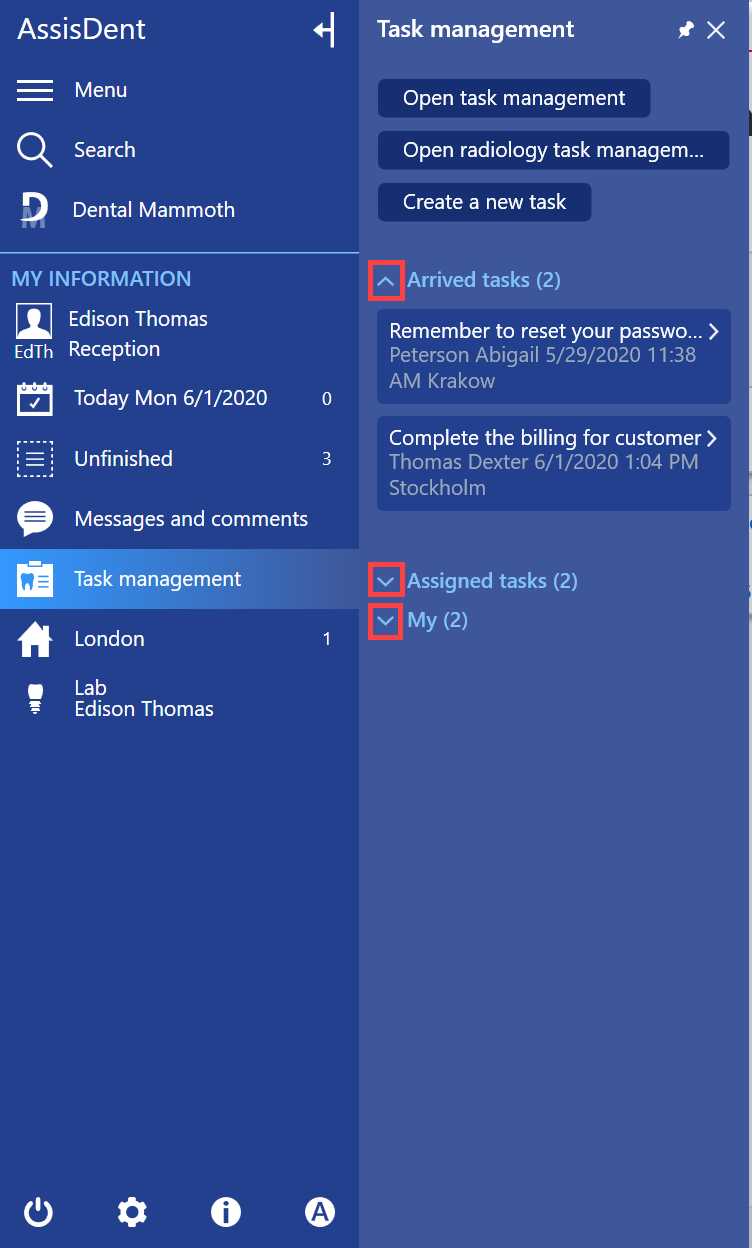
Task sections can be expanded and minimized as needed by clicking the arrow button (>) next to the task type.
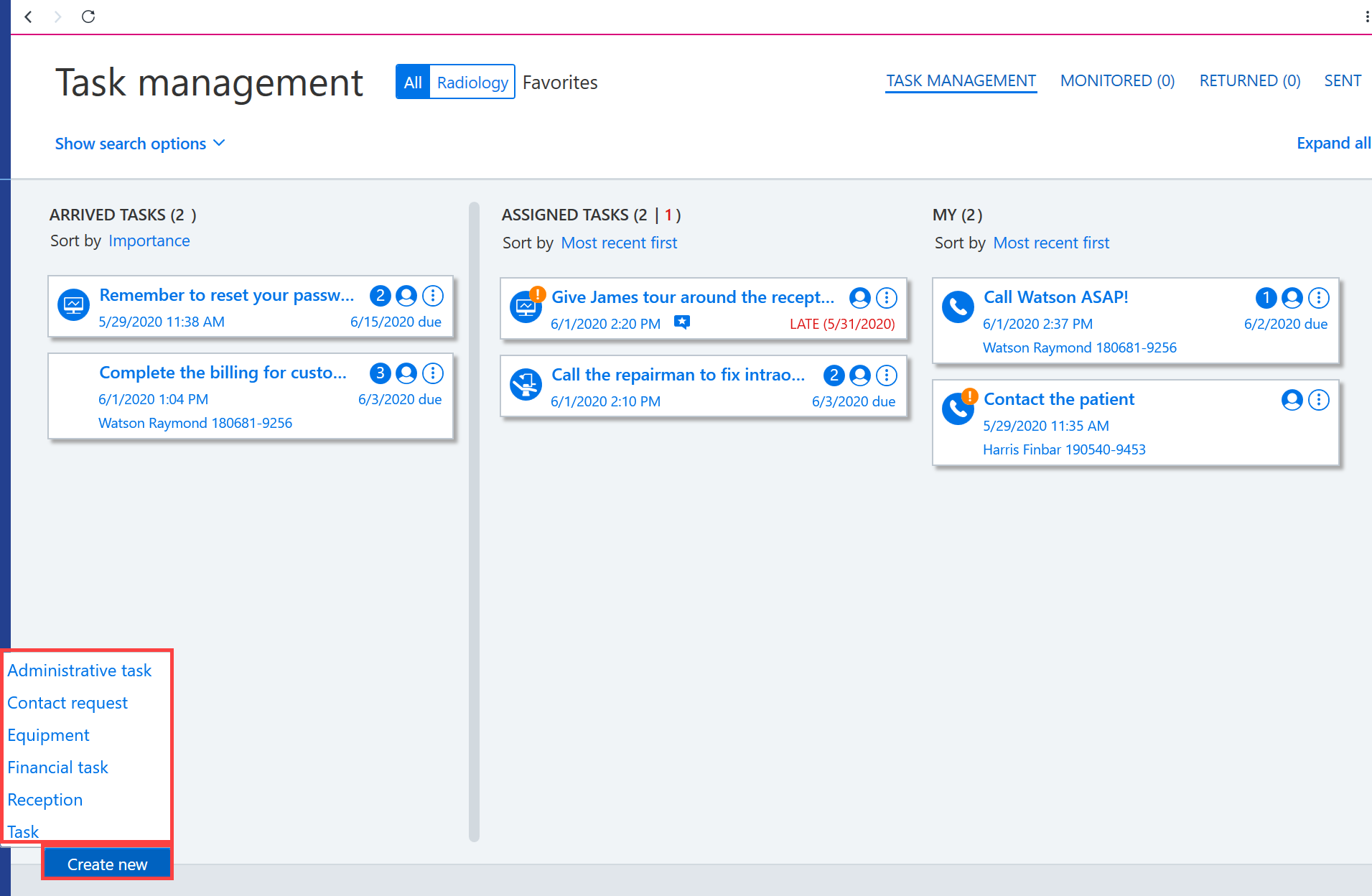
Adding a task
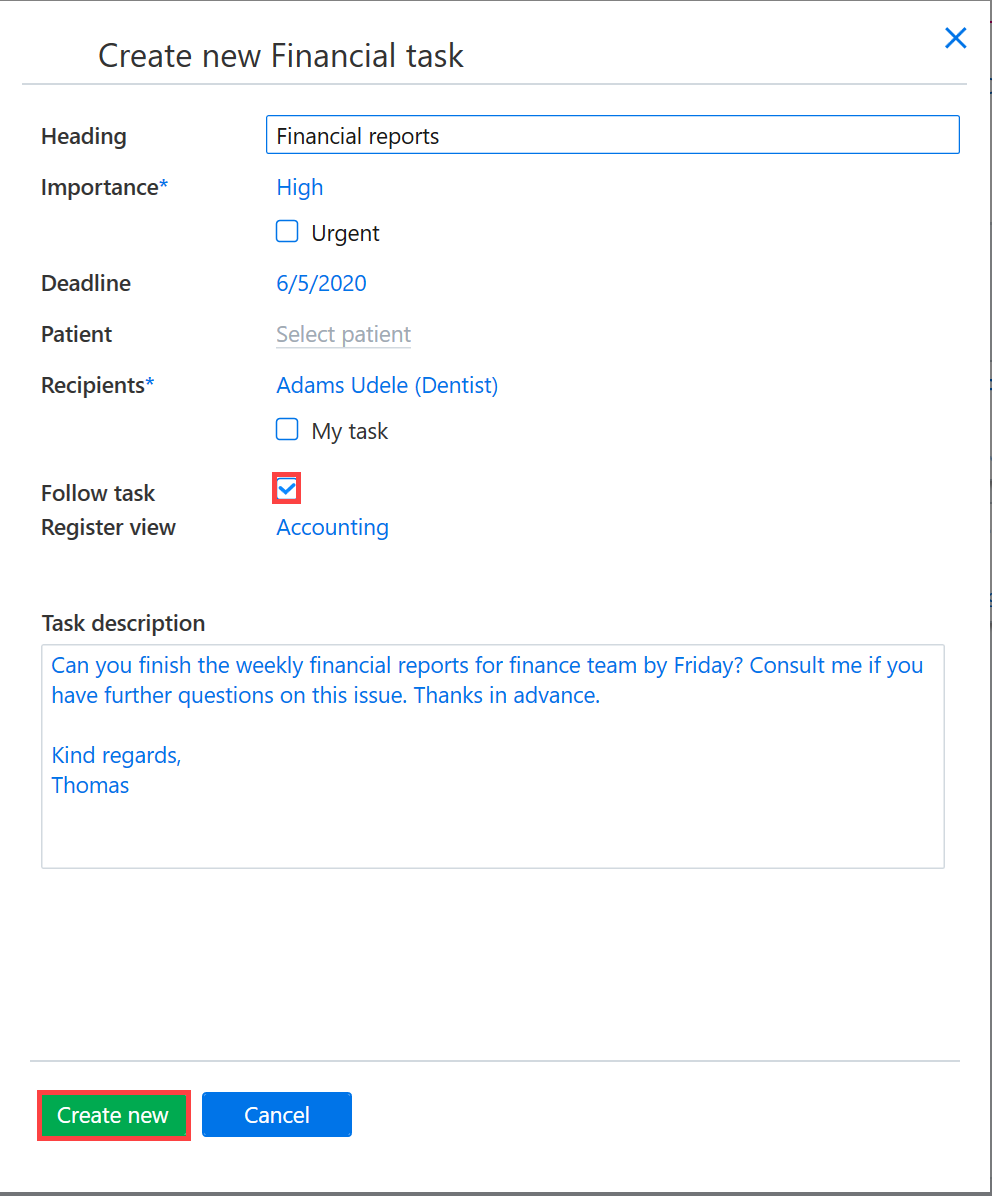
To create a new task, click Create new. Select the task type from the drop-down menu. The options are Adminstrative task, Equipment, Financial task, Task, Reception, and Contact request.
Add a descriptive title to the task and set the task importance level, deadline and recipients.
- If the task is assigned to you, tick the box entitled My task. Other employees will not see the tasks that you have set as your own.
- If the task relates to a specific patient, they can be entered in the Patient field.
- If the task is assigned to other people, but you want to track the progress of the task, tick the Follow task field.
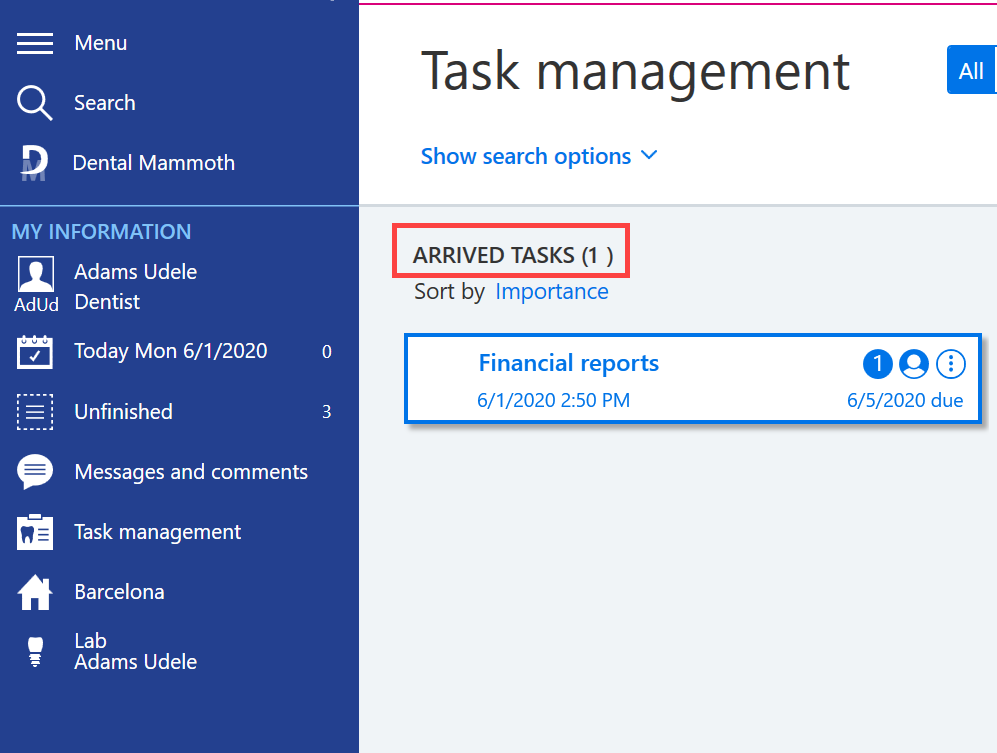
Once all the required fields have been filled in, click the Create new button. The new task is then added to the list in the recipients’ Arrived tasks view.
Approving tasks
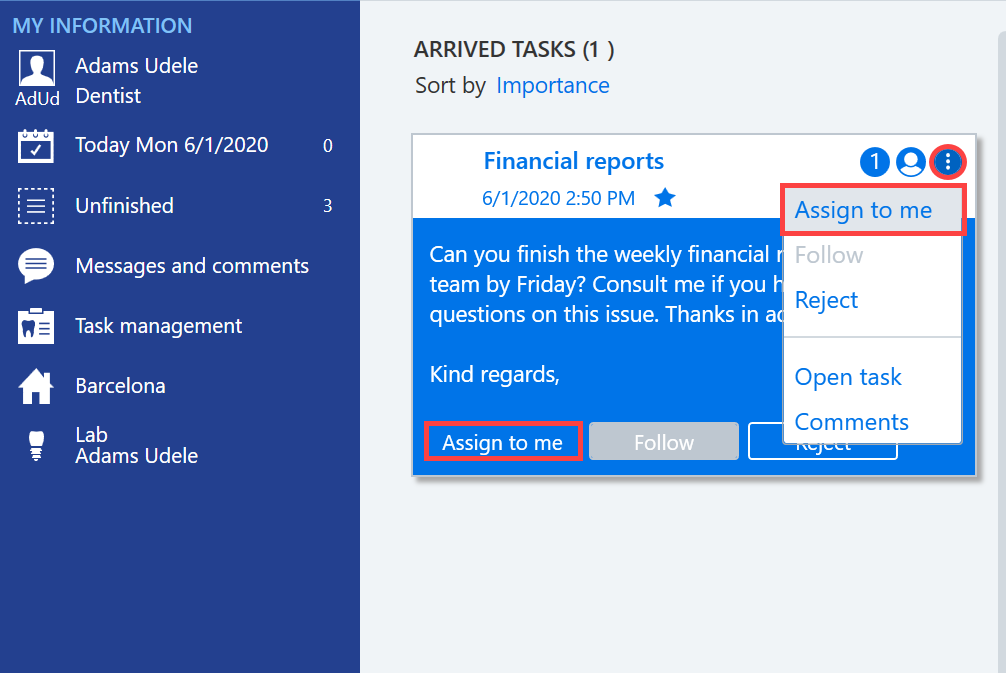
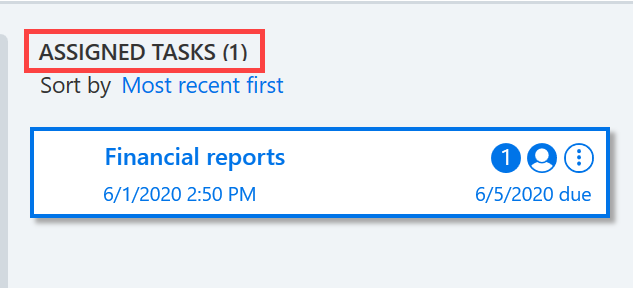
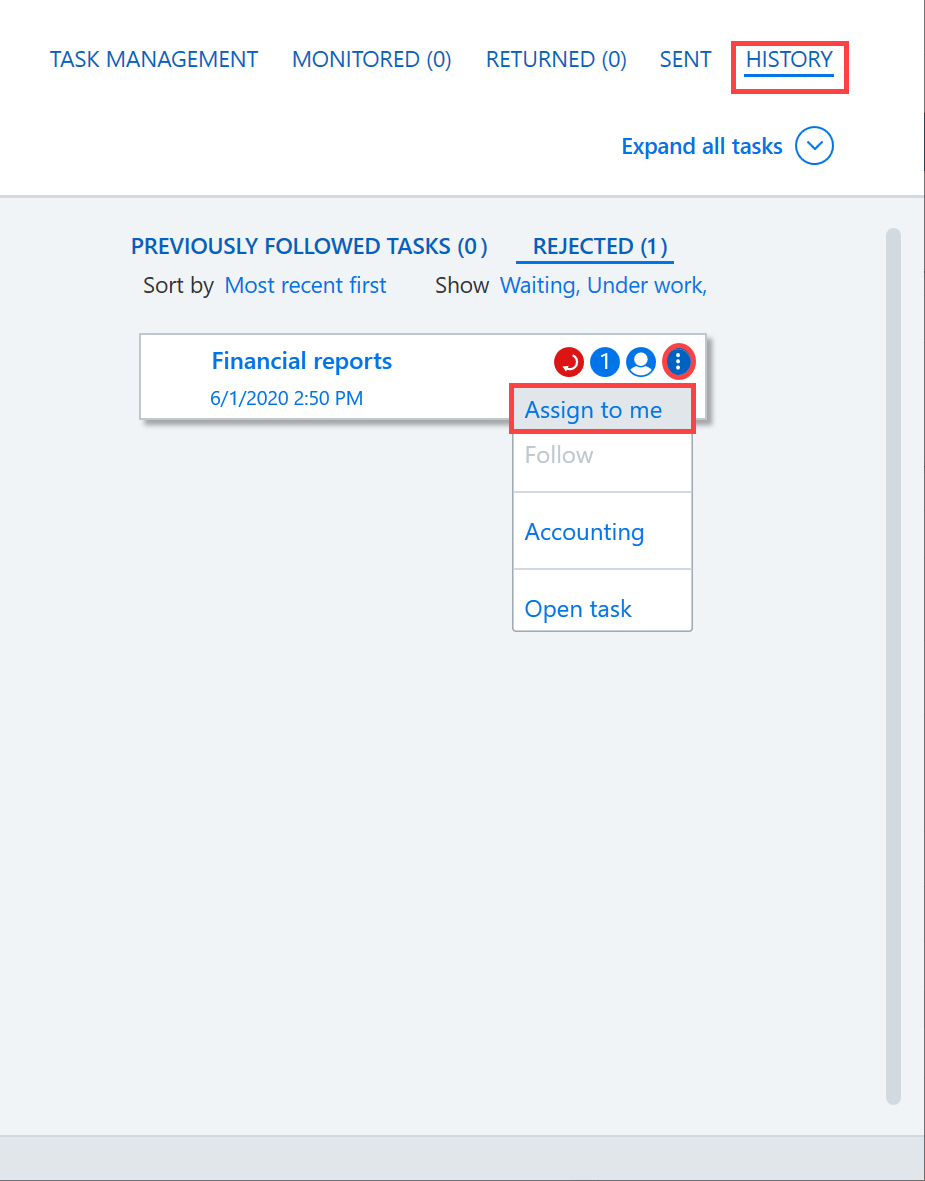
You can assign a task to yourself by clicking on the task. You can also assign a task to yourself via the Additional functions menu by selecting Assign to me. Tasks assigned to oneself are moved to the Assigned tasks section.
Marking a task as completed
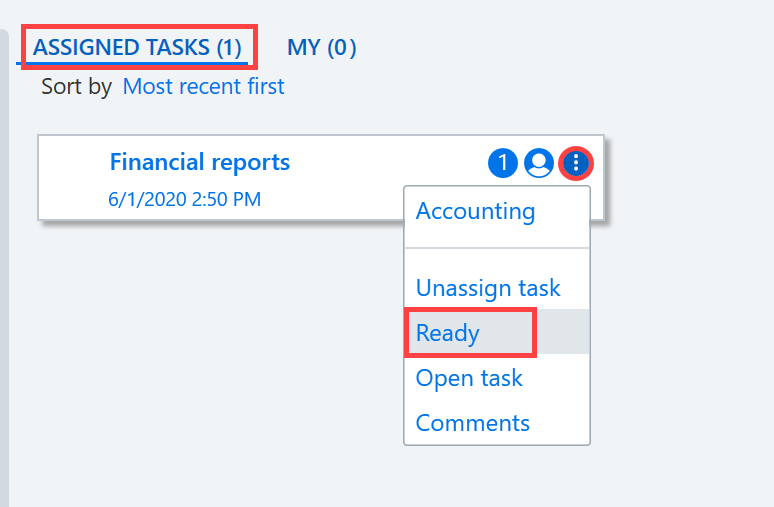
When the task is complete, select Ready from the Additional functions menu. You can also mark a task as ready directly from the Arrived tasks list.
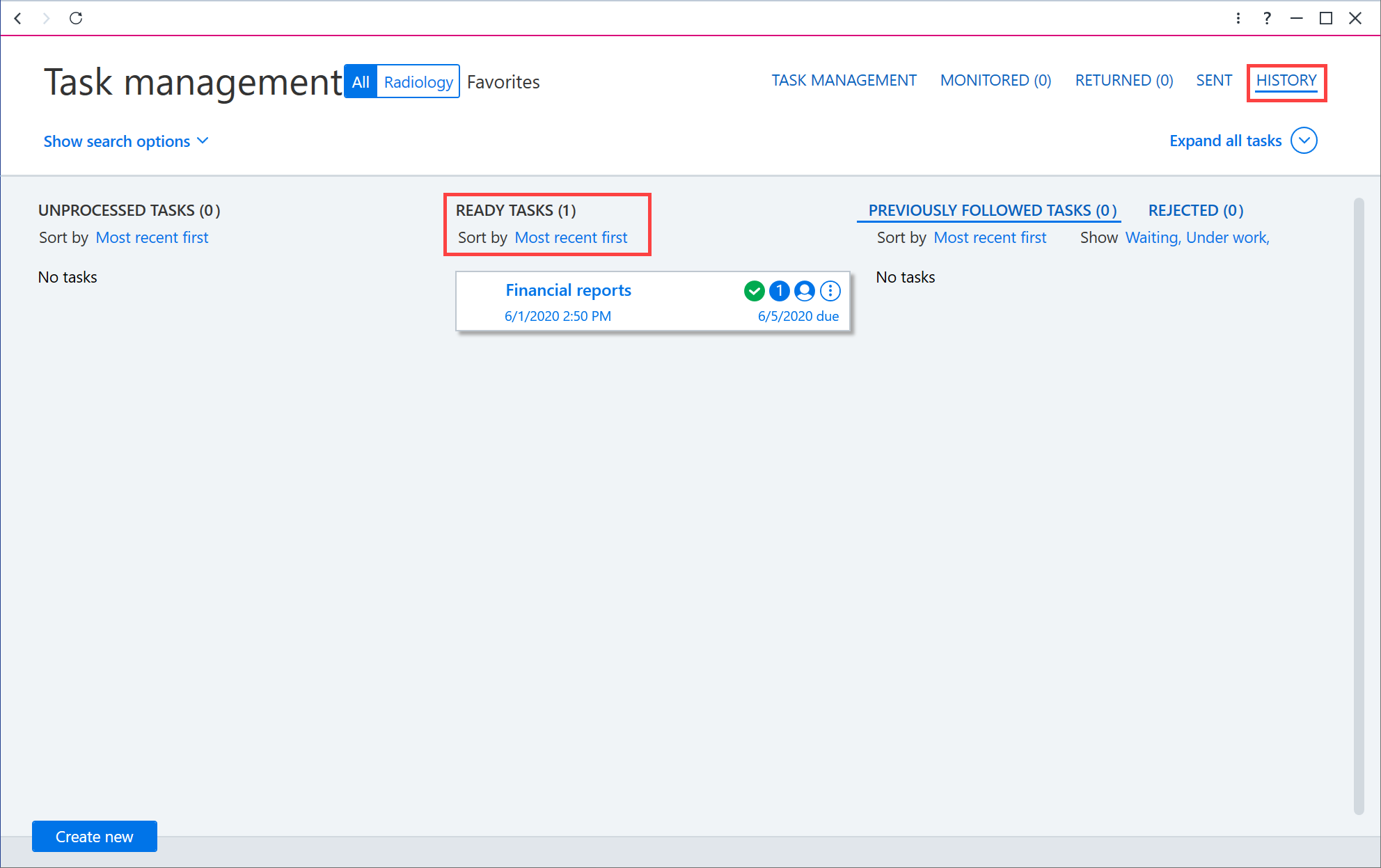
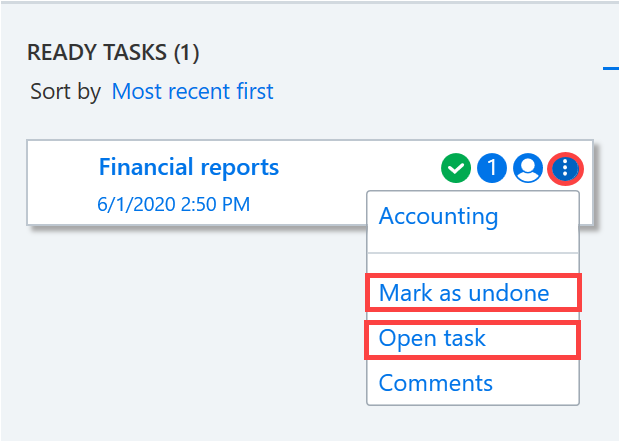
The completed tasks are moved to the Ready tasks section under the History tab. If desired, you can reactivate a task by clicking the Additional functions button and selecting Mark as undone. The Open task option in the same menu allows you to view the task.
Rejecting a task
If you do not want to take on a particular task, click the Additional functions button at the end of the row and select Reject.
Please note: You cannot reject requests for a statement and RTG job queue tasks.
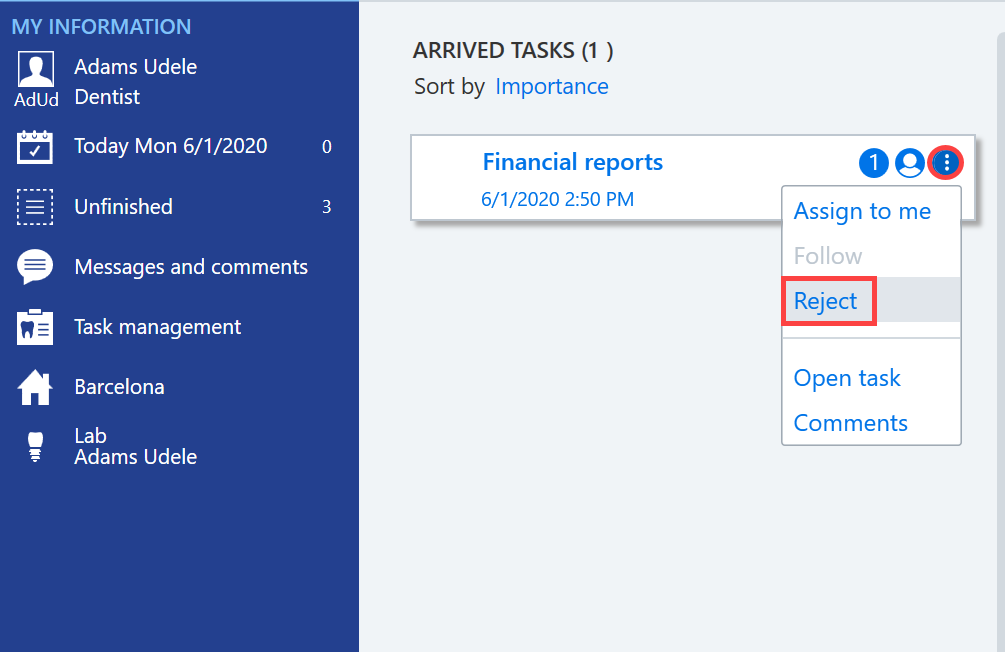
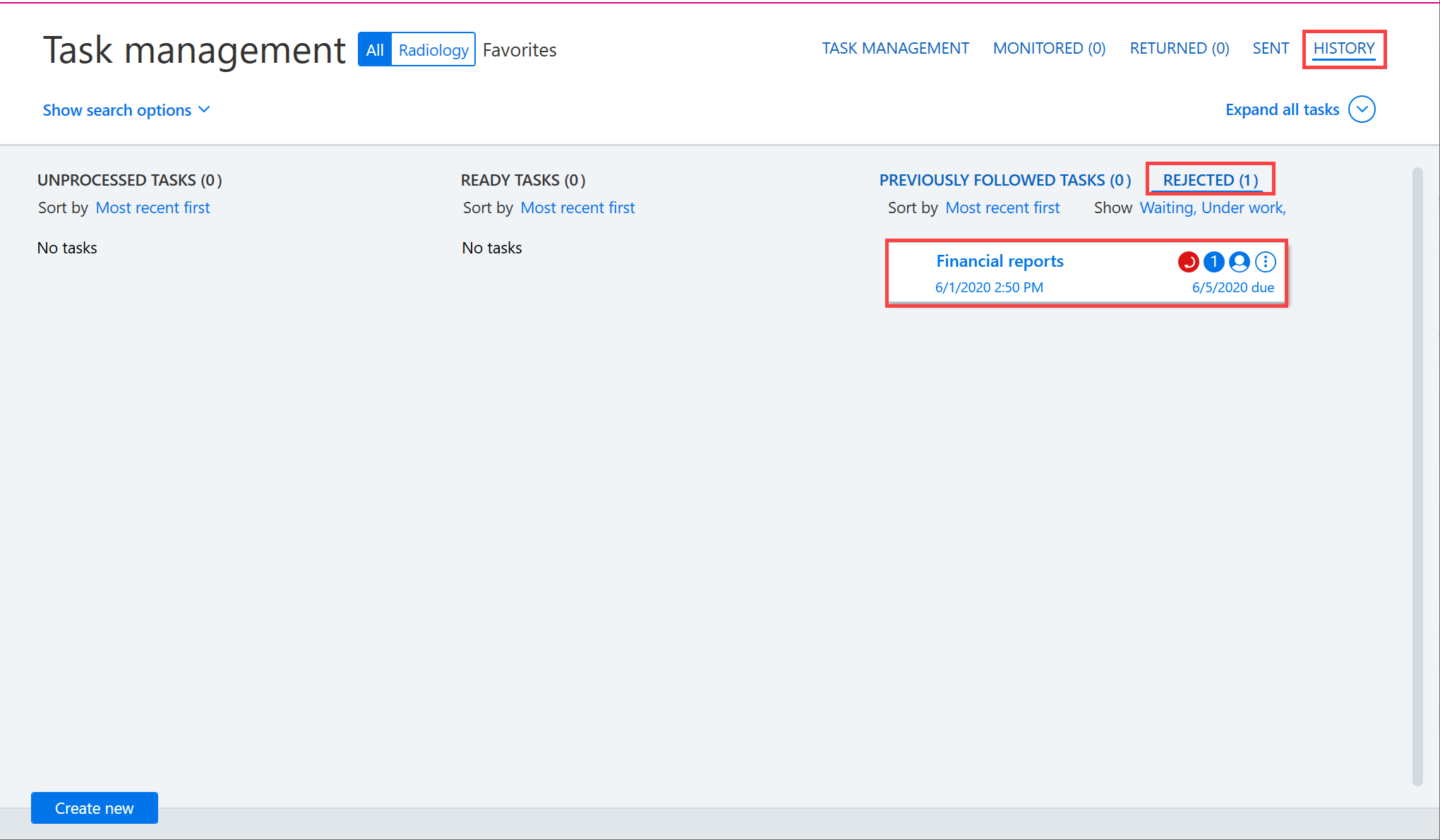
Rejected tasks are moved to the Rejected section under the History tab. A task can be reassigned by clicking the Additional functions button and selecting Assign to me.
Commenting on tasks
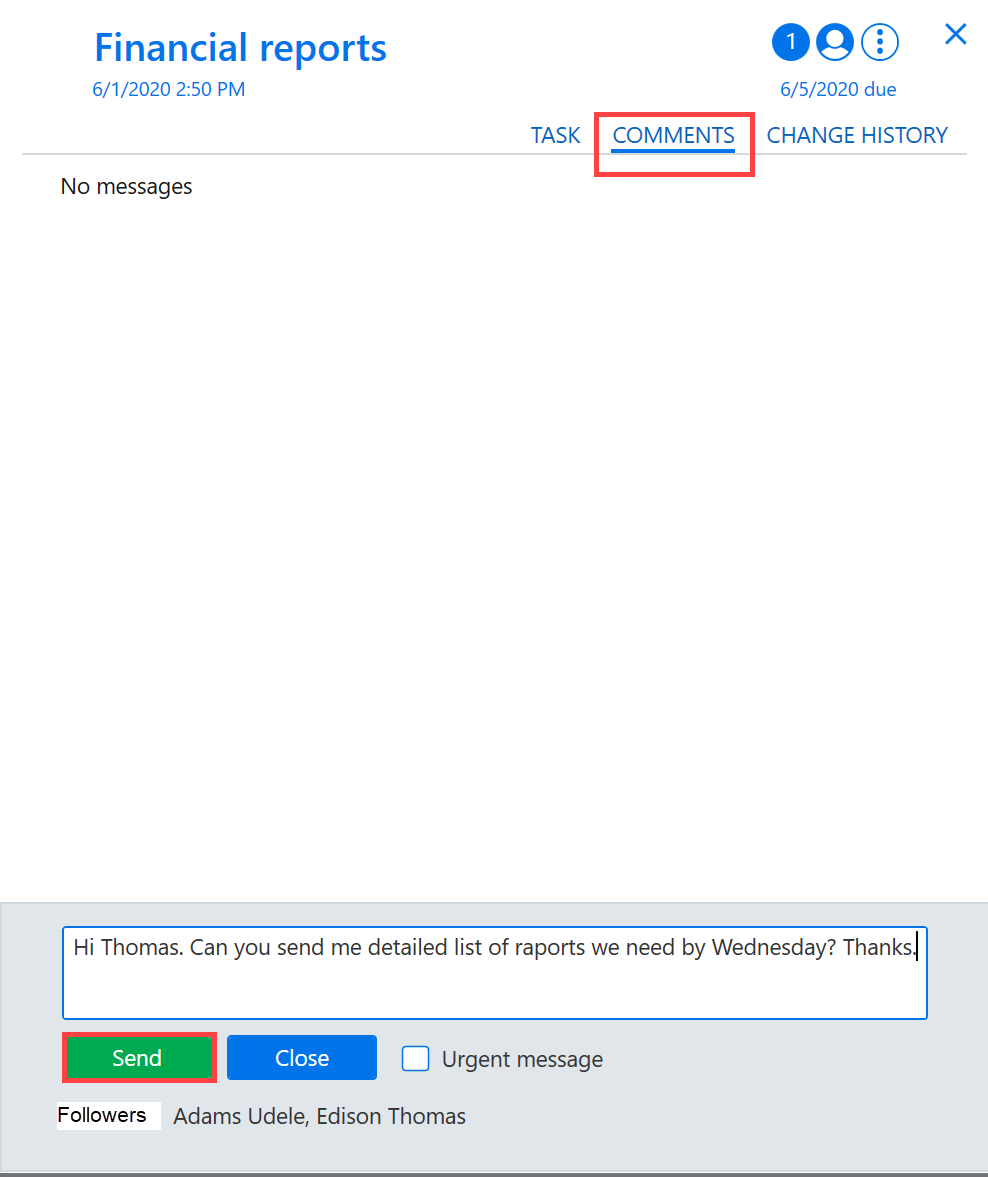
You can use the Comments section to send a message to the people that a task has been assigned to. The employee receives a new message notification on their AssisDent home page when logging in to AssisDent.
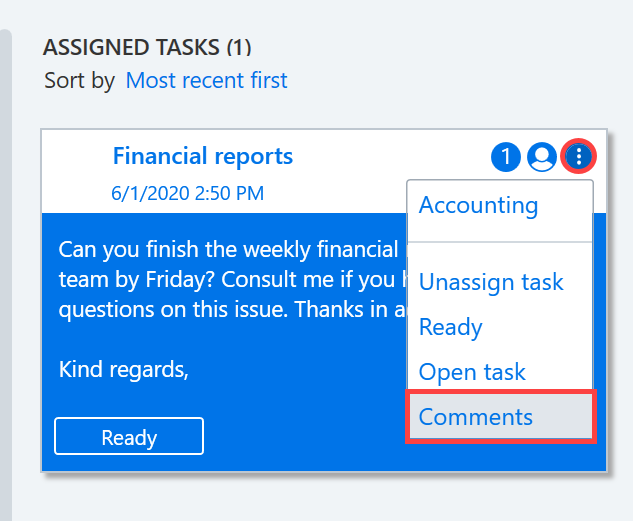
Tasks can be commented on in their Comments section. You can then send the message to the recipient by clicking Send.
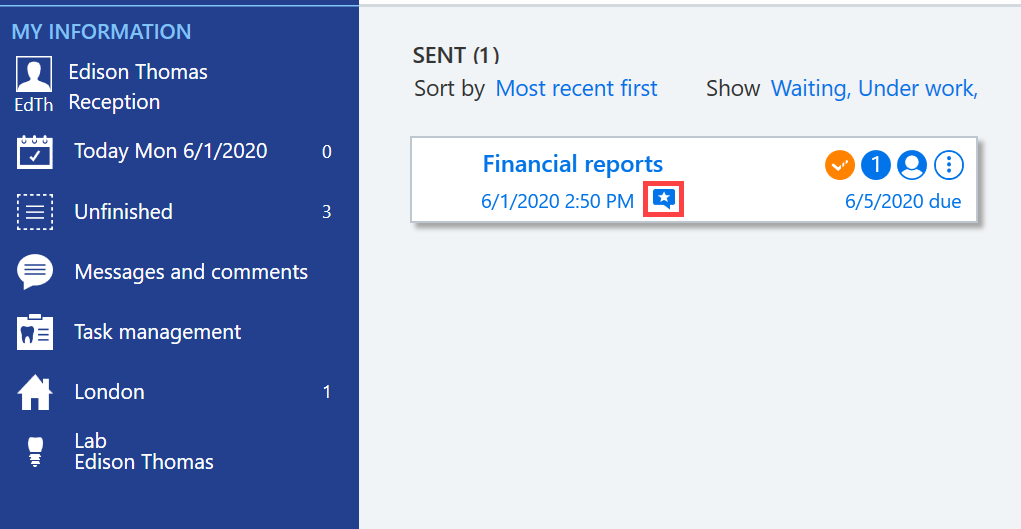
If there are new comments, an asterisk symbol appears on the task.
Siirrytään seuraavaksi Työjonon tehtävien suodatukseen tästä.
Tracking messages for job queue tasks
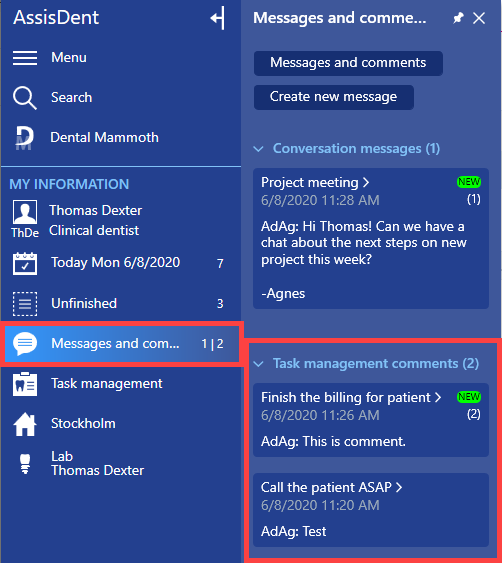
New messages related to job queue tasks appear in the Task management comments section that can be accessed from Messages and comments. New messages have a New icon next to them, and the number below the task indicates the number of new messages for that task. The first number on the Messages and comments tiles indicates the number of new messages, and the second digit indicates the number of comments for new tasks.
Next, go to the Job queue task filtering by clicking here.