These instructions provide further instructions on the Basic job queue usage.
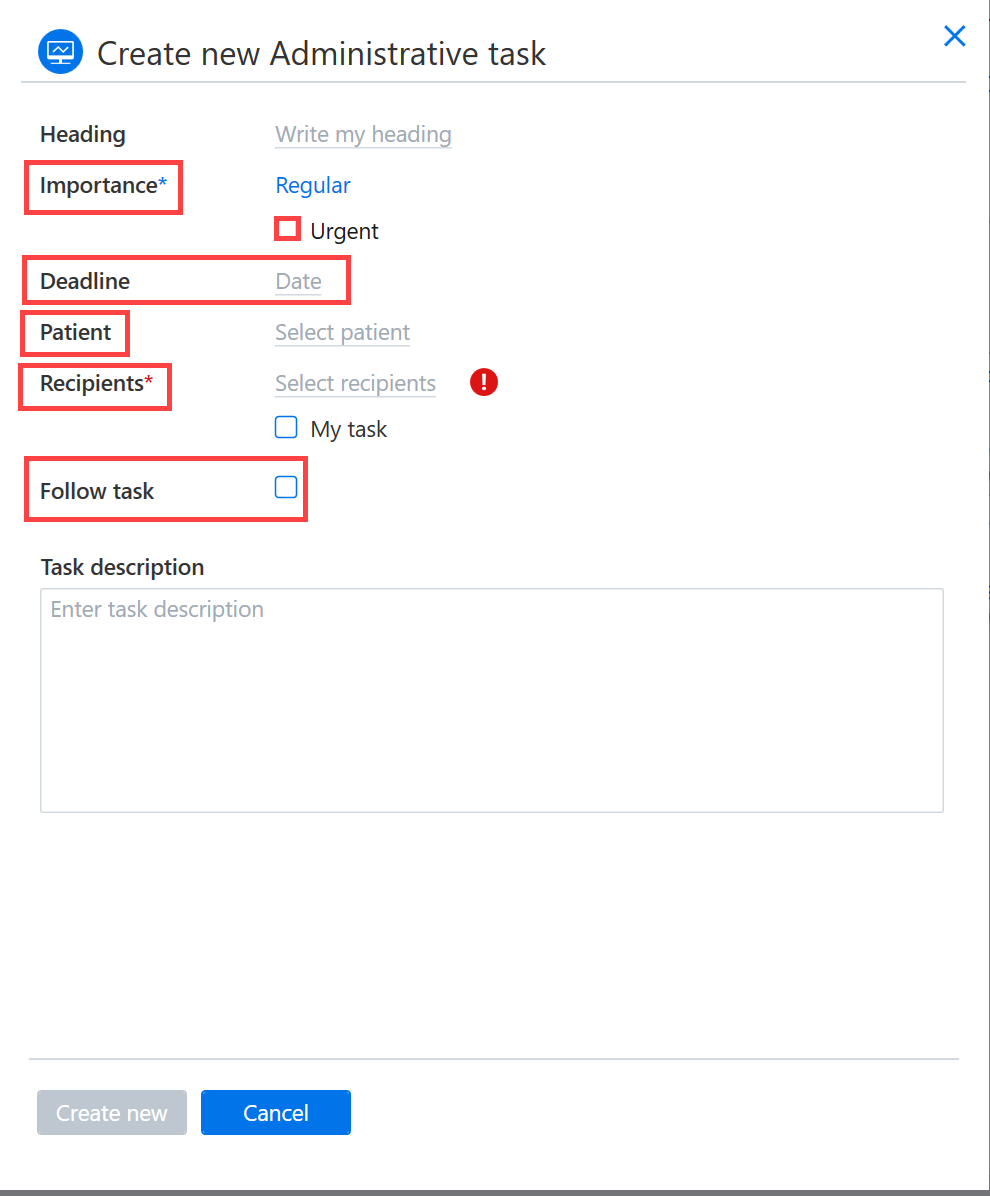
Job filtering is done based on the information provided when the job was created. More detailed search criteria can be used to filter according to task importance level, task urgency, task deadline, patient, employee, recipients, or whether the task in question is being monitored.
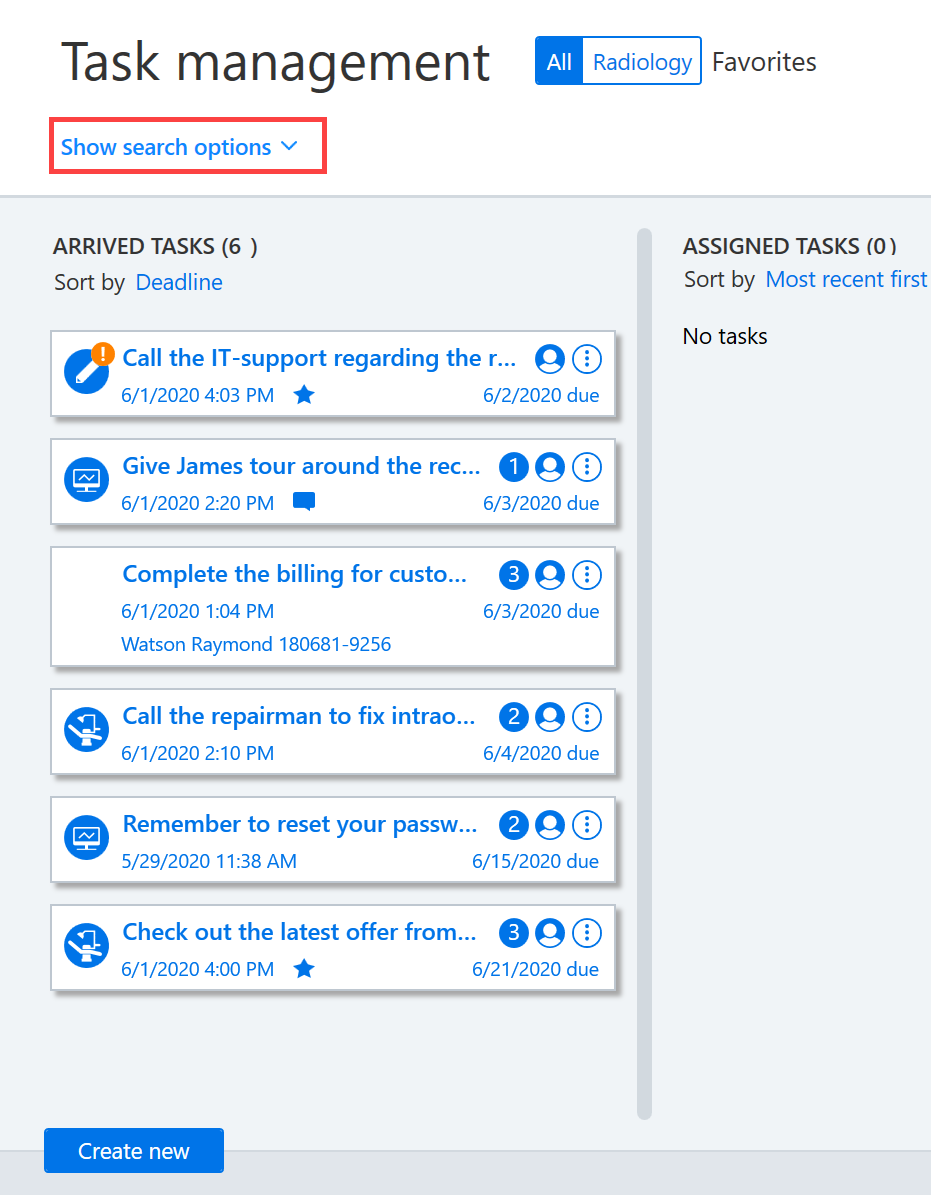
To filter the tasks in the job queue, click Show search options and select the additional criteria for filtering the tasks. All added filters further narrow your search and therefore reduce your search results, so be careful with your search criteria.
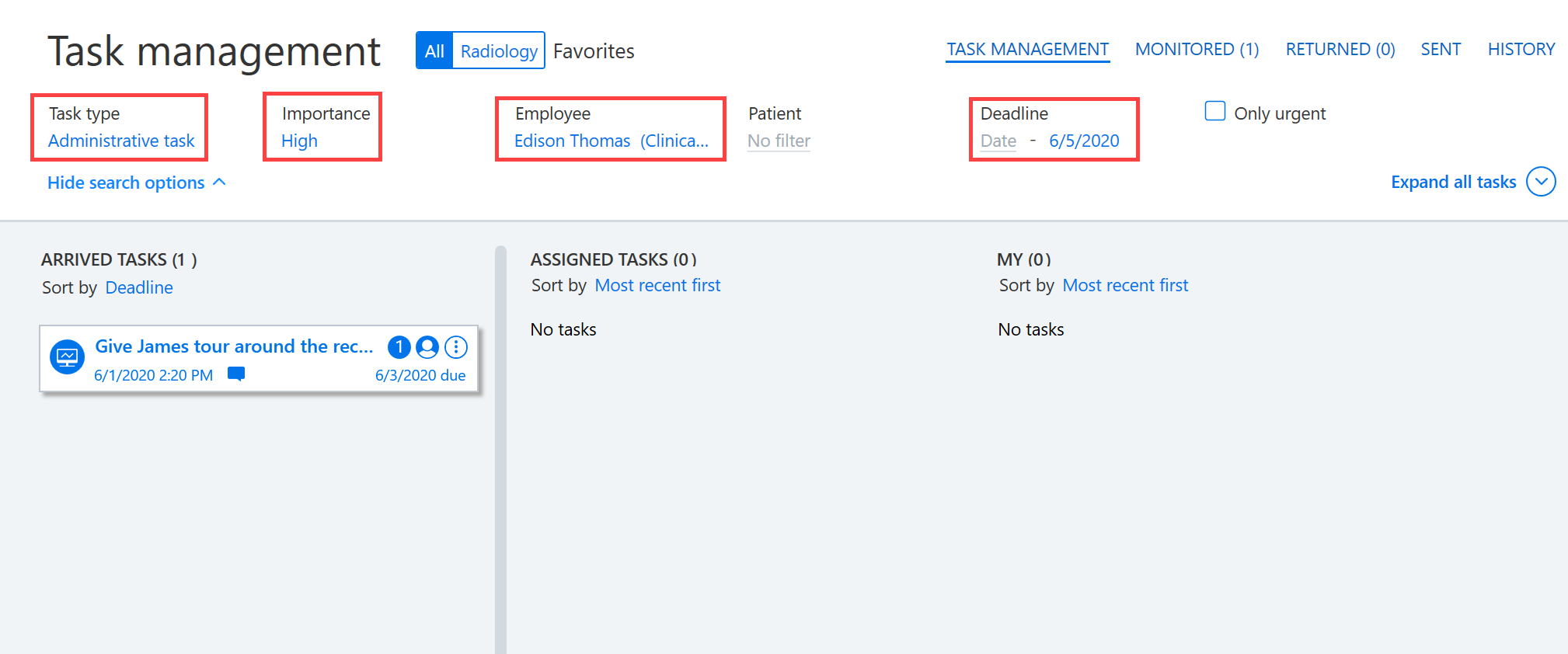
For example, you can use more detailed search criteria to search for tasks in the job queue that have a particular due date, that are assigned to a specific employee, which have a particular importance level, or are of a particular type.
The search result in the screenshot below shows the high importance administrative tasks assigned to Thomas Edison with a deadline of 5 June 2020.
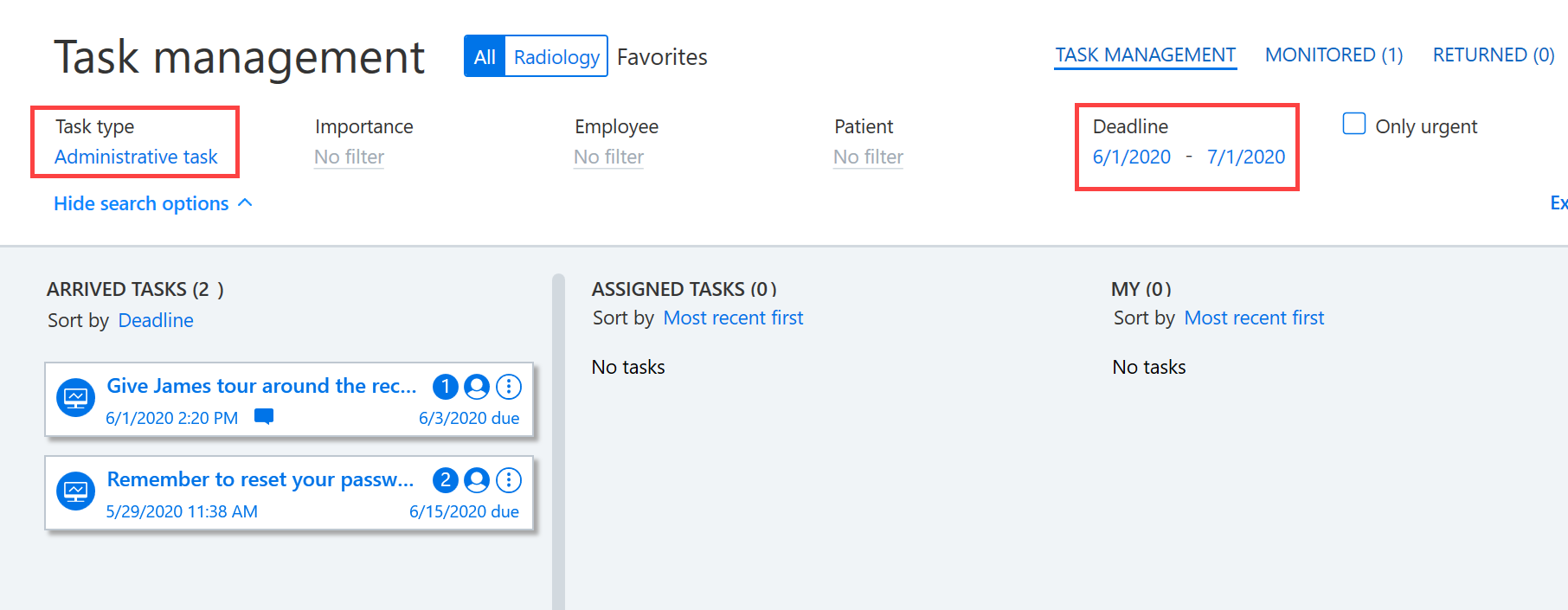
The screenshot below shows a search for tasks in the administrative job queue for which a deadline has been set between 1 June 2020 and 1 July 2020, but for which the importance level and employee has not been specified.
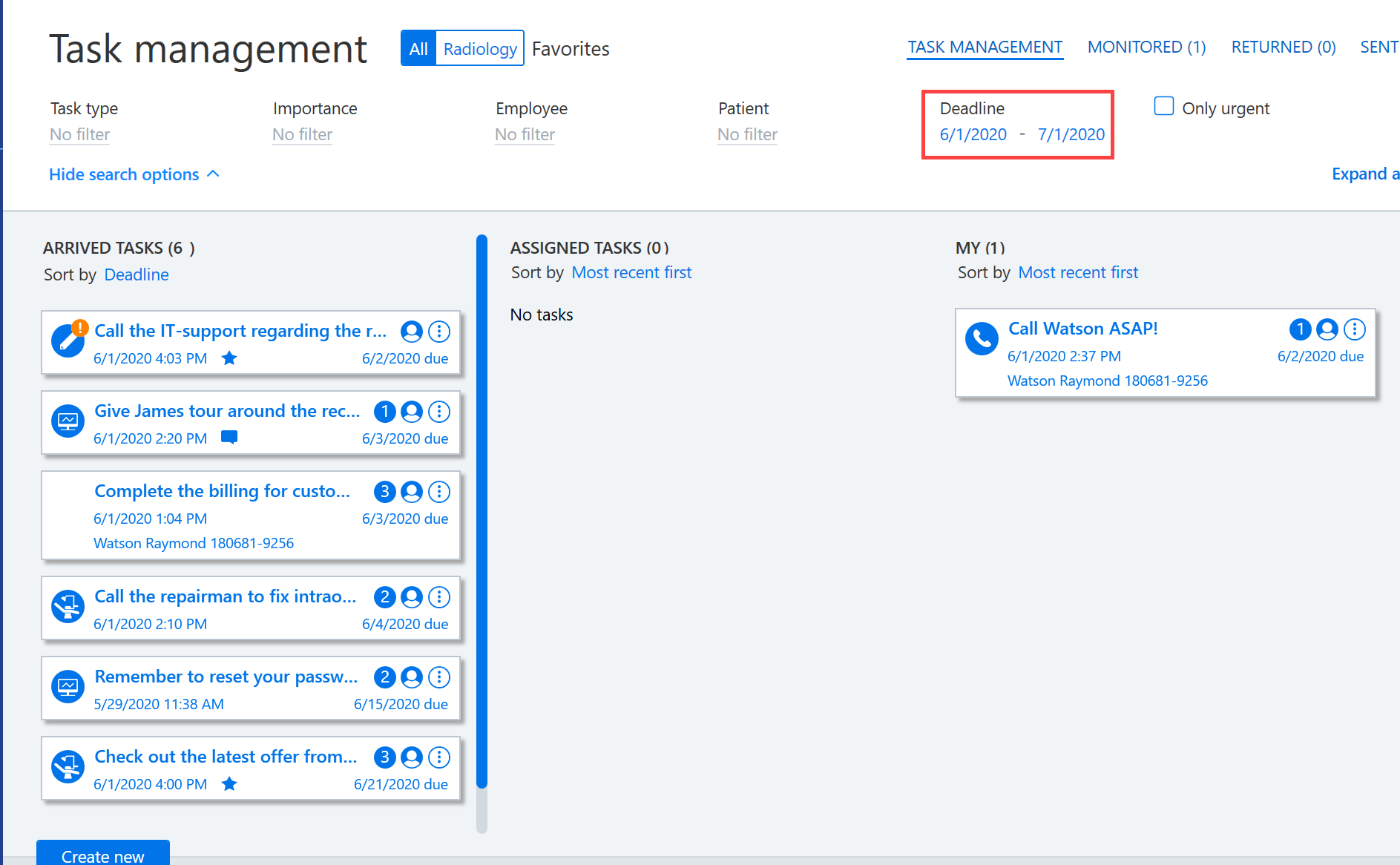
By removing the task type filter and reducing the other search criteria, a larger number of results can be obtained. The screenshot below shows all types of tasks with a deadline between 1 June 2020 and 1 July 2020.
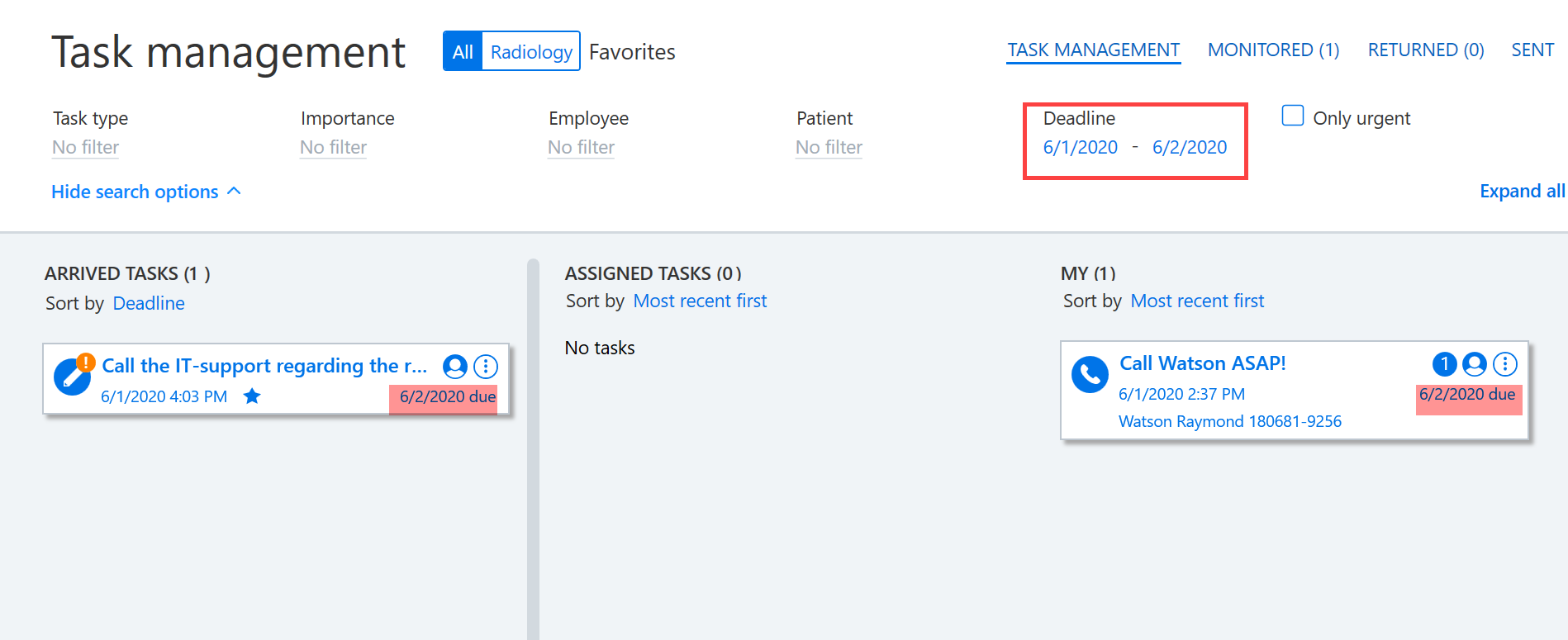
If the task deadline is set as 2 June 2020 and you are searching for tasks that are due 2 June 2020, the filter will display task and the deadline in the search results. Under each task the deadline is shown.
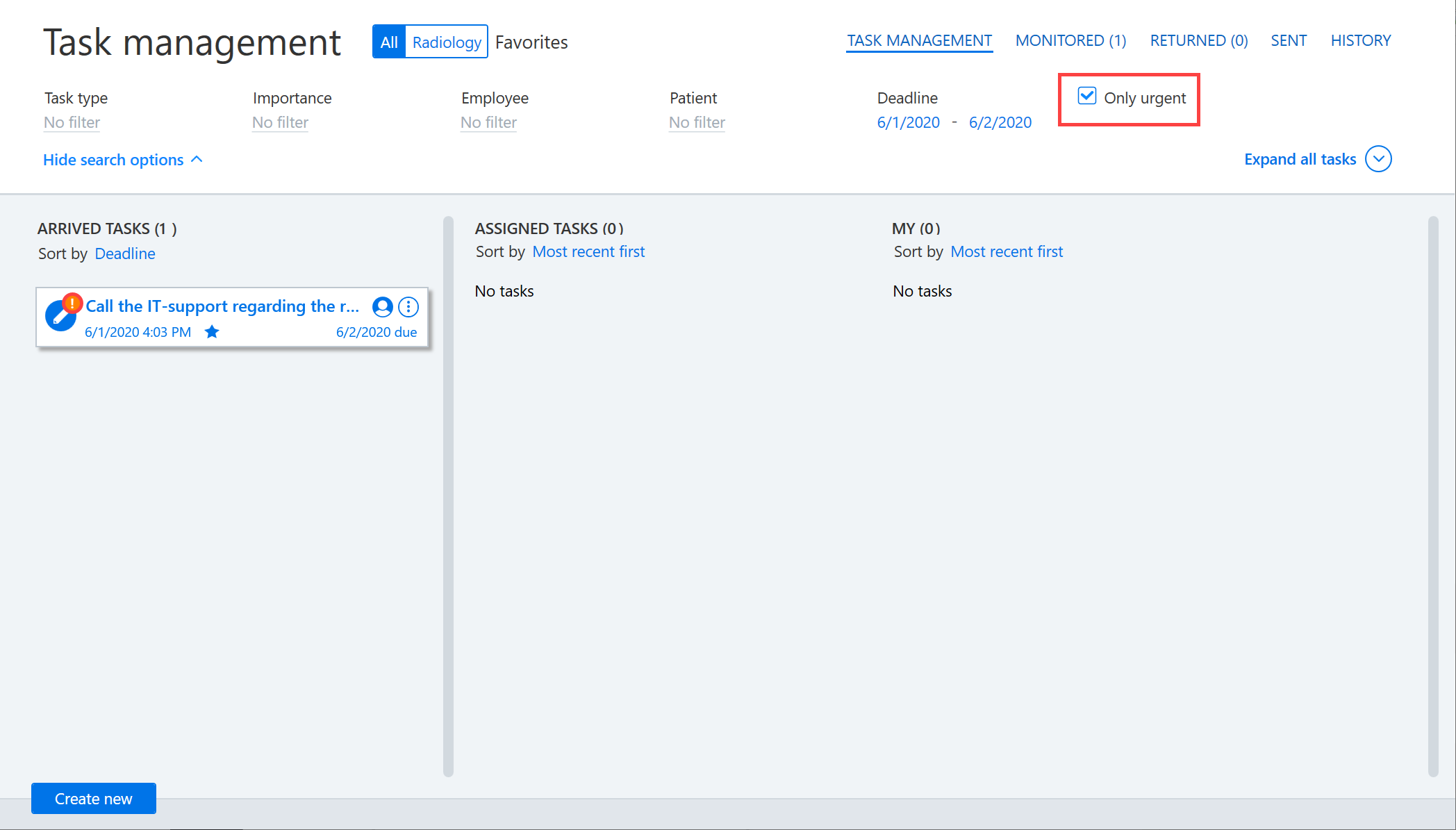
If the task status is set to urgent when creating a job queue task, the urgent tasks can be filtered using more detailed search criteria by selecting Only urgent. An orange exclamation mark in front of the task description indicates that the task is set as urgent.
The filters work the same way as in the other tabs. For example, the Monitored tab shows the tasks in the job queue that you have created and selected to be monitored by ticking Follow when creating the task.
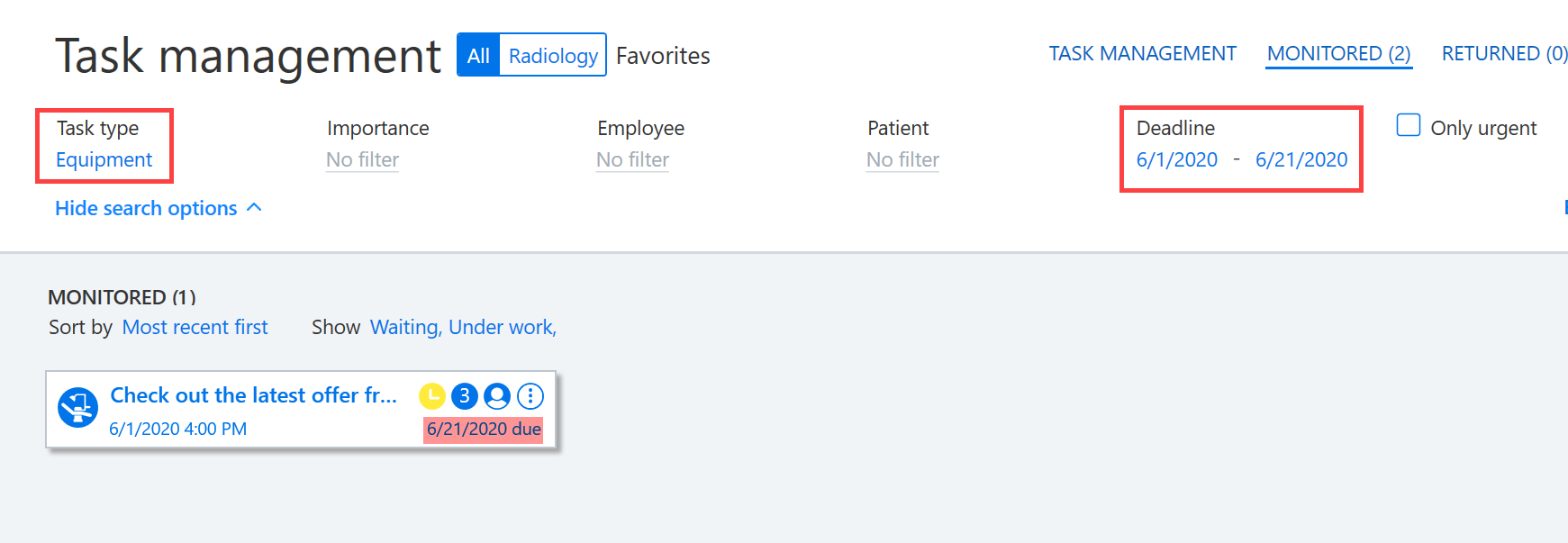
Please note: If you frequently use certain search criteria, it is recommended that you save the search criteria as shortcuts to the favorites list at the top of the job queue.
Arranging filtered tasks
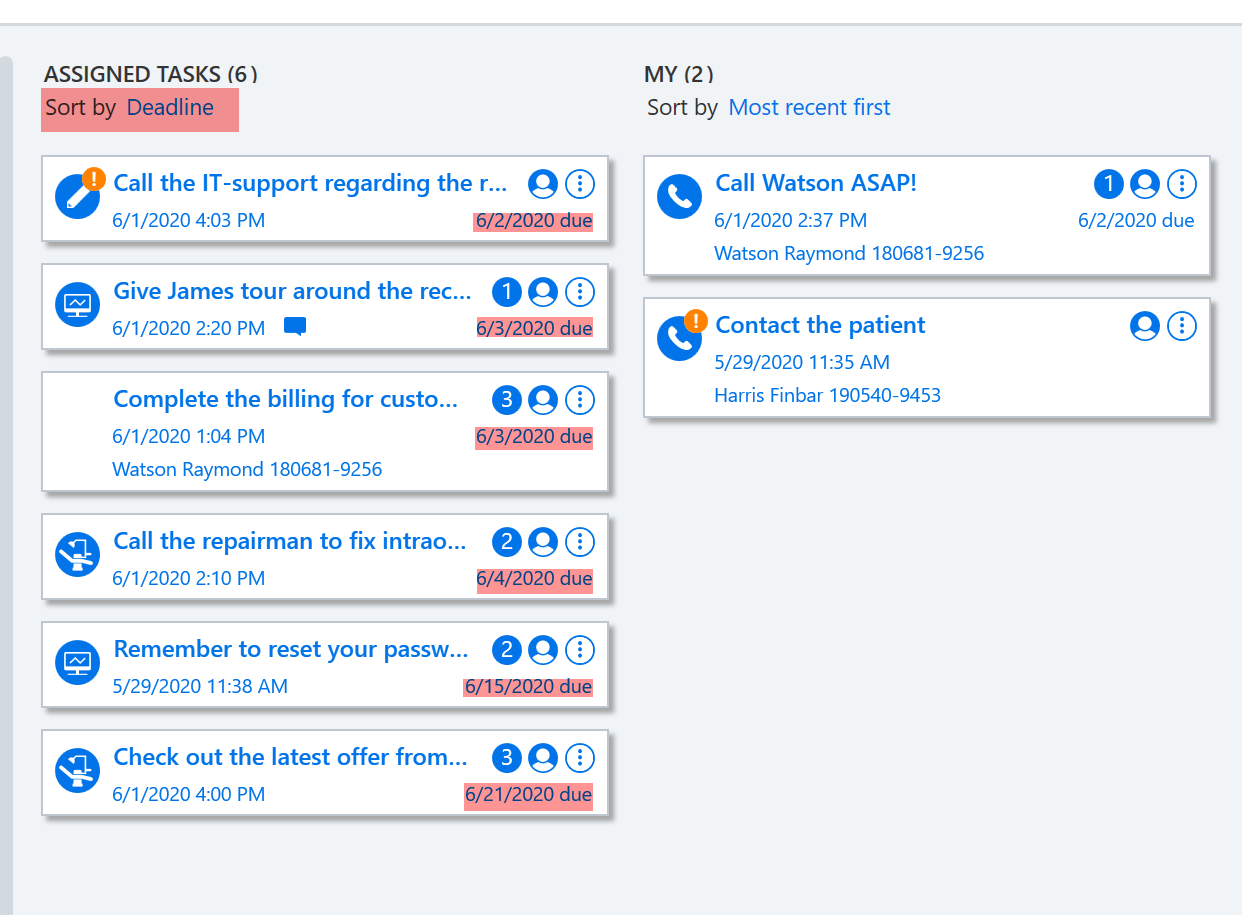
Once the desired tasks have been filtered using more detailed search criteria, the results can then be reorganized. In this screenshot, the tasks performed by the employee are divided according to the deadline so that the tasks with the closest deadline are shown first. This is indicated by the text ‘due’. The tasks with the same deadline are then shown in order of importance.
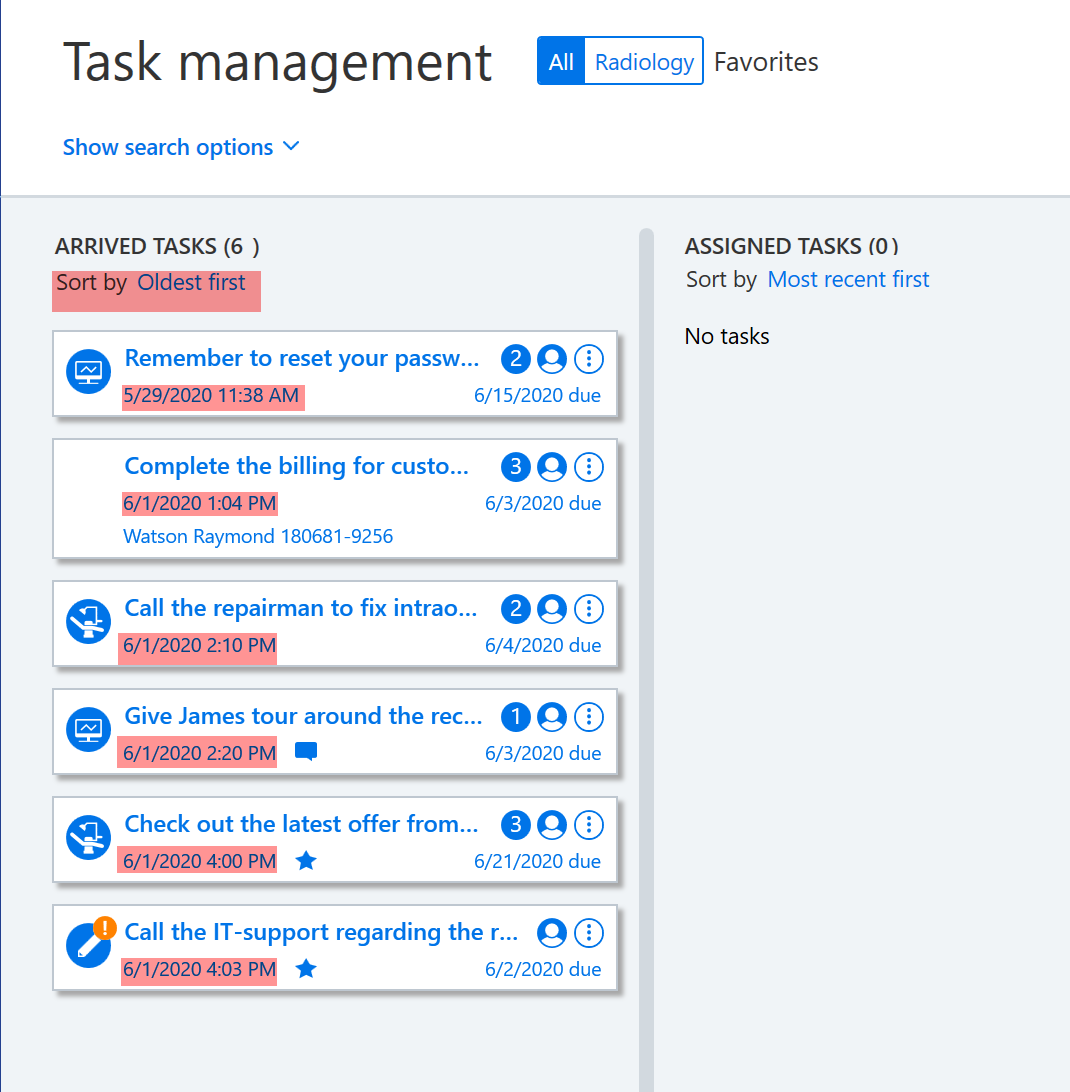
Use the Sort by button to arrange the filtered tasks in the order you want. For example, you can change the order to show the oldest tasks first. The tasks can also be prioritized according to the importance of the task. The screenshot below shows tasks that have been sorted so that those with the oldest creation date are shown first. The creation date of the task is displayed in red.
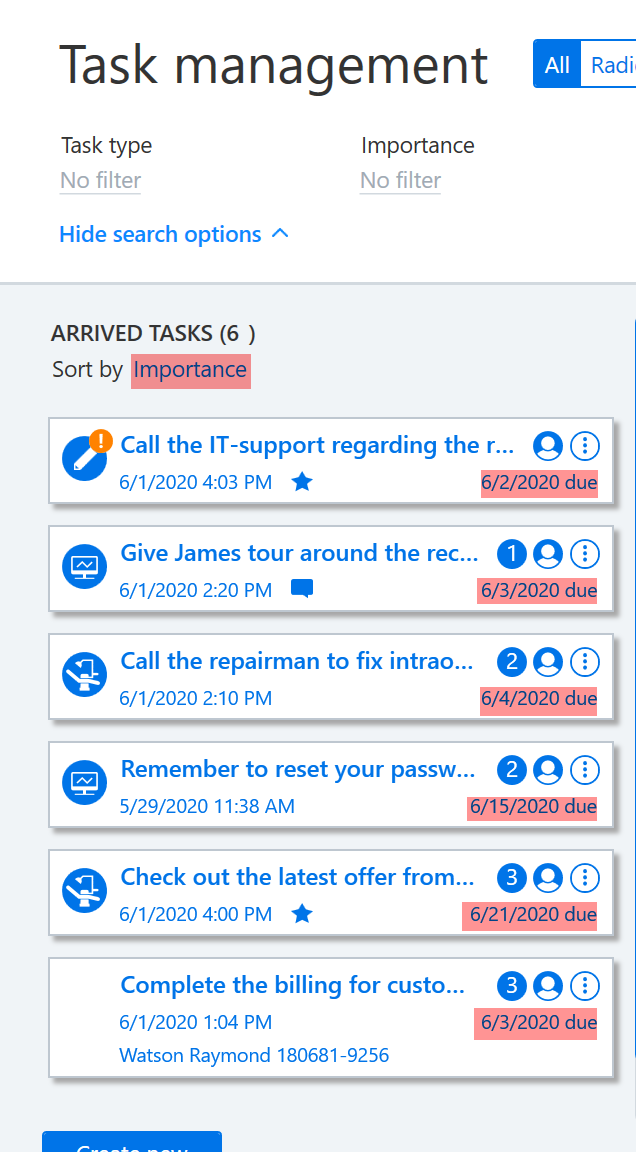
Tasks can also be sorted by the importance level set for the task. In this case, the urgent tasks are shown first and are indicated by an orange exclamation mark. The tasks are then arranged according to the task importance level using the number range 1–3, where 1 means High importance, 2 means Normal importance, and 3 means Low importance.