AssisDent enables the creation of price lists. Price list rows are added to price lists. Price list rows are activated by attaching them to price lists. Price list rows are always created on the basis of an item (code).
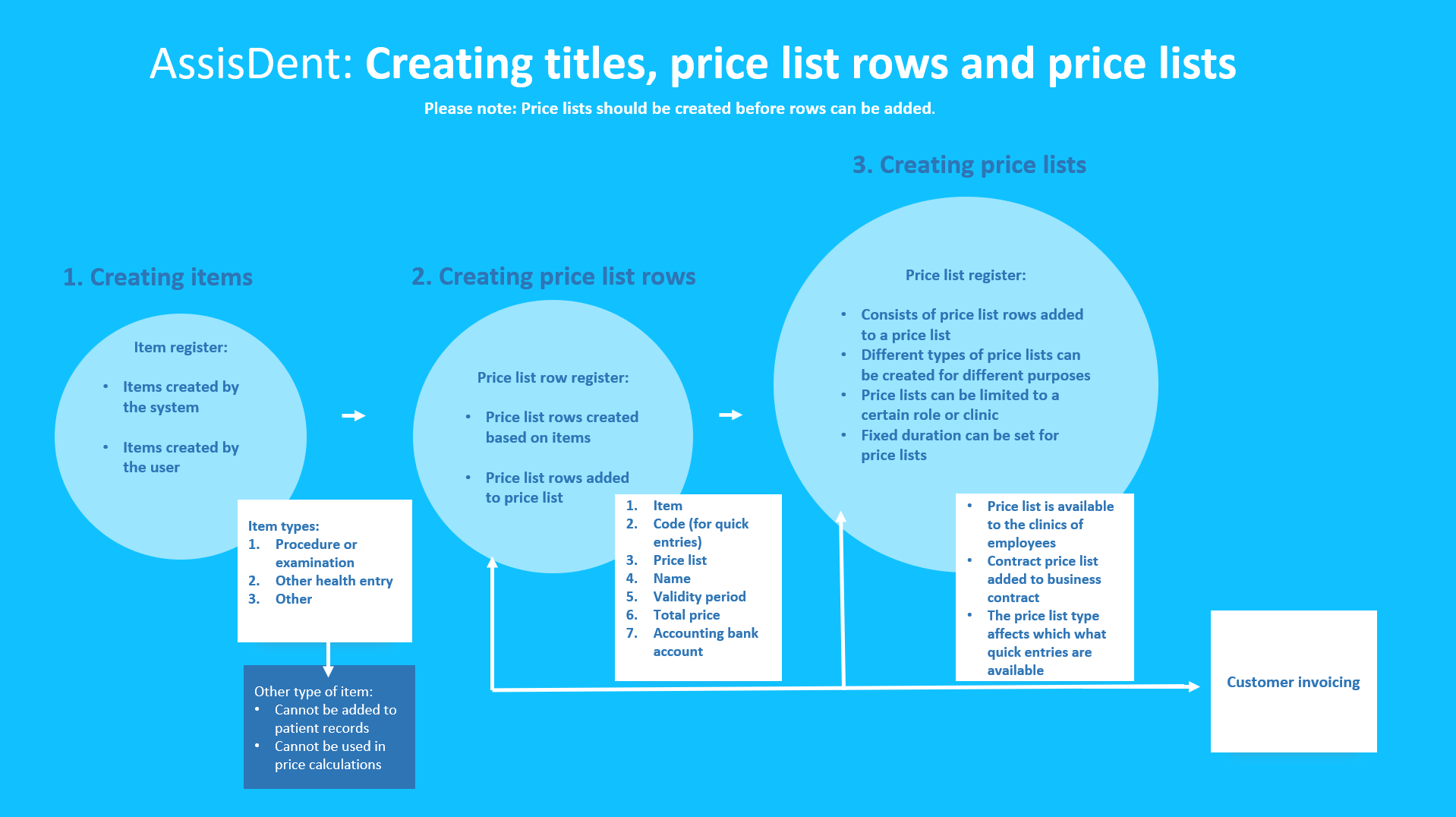
Enlarge the image by clicking here.
1. Creating items
AssisDent automatically updates items created by the system from a code service. You can also create new items, if necessary. You can import the entire price list row of an item from the register.
- Select the item type according to its application. Price list rows labelled “Other” cannot be added into patient records. Only the following types of other price list rows can be added to patient records: “Other health entry” or “Procedure or examination". Please note: No fees are calculated for “Other” items.
- Create a code for the item. You can enter an arbitrary code or use an actual KELA code.
- Add the name and language versions for the item.
2. Creating price list rows
Price list rows are created based on items. By first selecting an item for a price list row, AssisDent automatically fills out the row with the correct information. Price list row codes are used for quick entries into patient records. Please note: If necessary, you can create a new price list for adding a price list row.
- Select the necessary item for creating the price list row. You can select several items for the row in order to create batch codes.
- Add the price list(s) to which the row is added. Please note: If you have not created a price list, it should be created first.
- Add a ledger account and note the amount of VAT.
- Set the total price (incl. VAT) and a discount if necessary.
- If necessary, you can add a fixed duration for the price list row.
- If necessary, add a description for the price list row
Please note: The description will be displayed on the receipt. - Add language versions for the description.
3. Creating price lists
Price lists consist of price list rows added to them. Price lists should be created before rows can be added.
- Enter a descriptive, individual name for the price list that reflects its purpose.
- Select price list type. If the price list is to be linked to a contract, it should be added to a business contract. Please note: The price list type affects which rows are displayed.
- Set the correct KELA classification. Please note: Only employees with specific KELA access rights are able to access the price list.
- If necessary, you can select specific clinics that have access to the price list.
- If the price list is only used for a specific timeframe (e.g. campaigns), you can set a validity period.