Control panel
The AssisDent control panel contains all the most important components of the software. From the control panel, you can view the essential information and easily navigate to the different parts of AssisDent.
Through the control panel menu, you can see which registers AssisDent contains. The search field can be used to search for patients or registers. There is also a Dental Mammoth search box in the control panel. Below the searches, you can see the details of the logged in employee. The information for the currently selected patient is also displayed on the control panel.
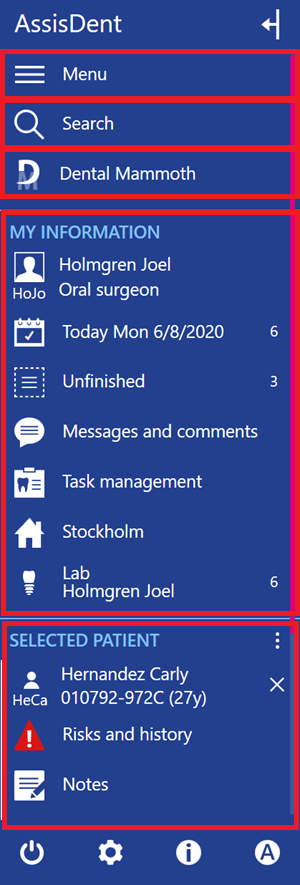
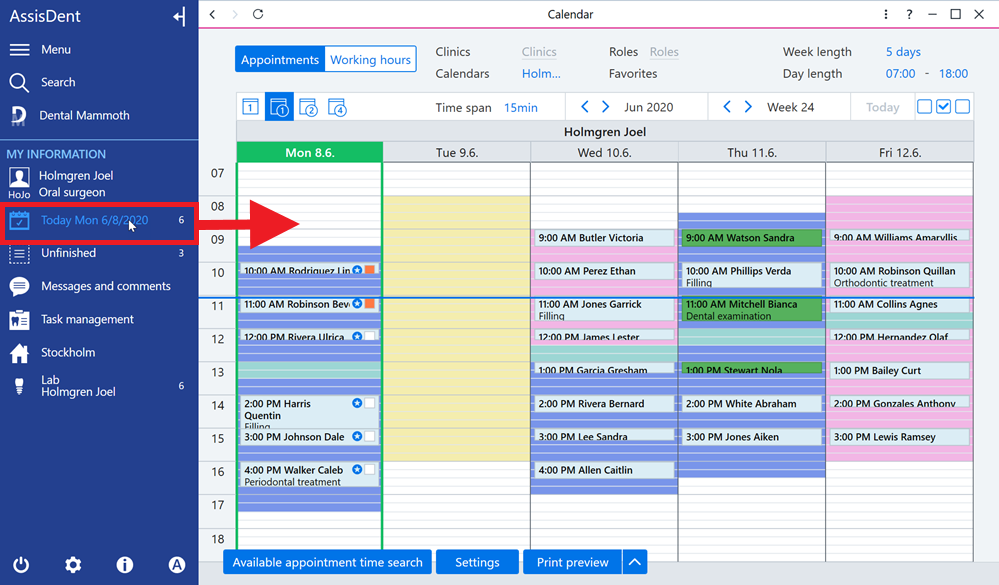
Right-clicking a title in the control panel directly opens the view for that title.
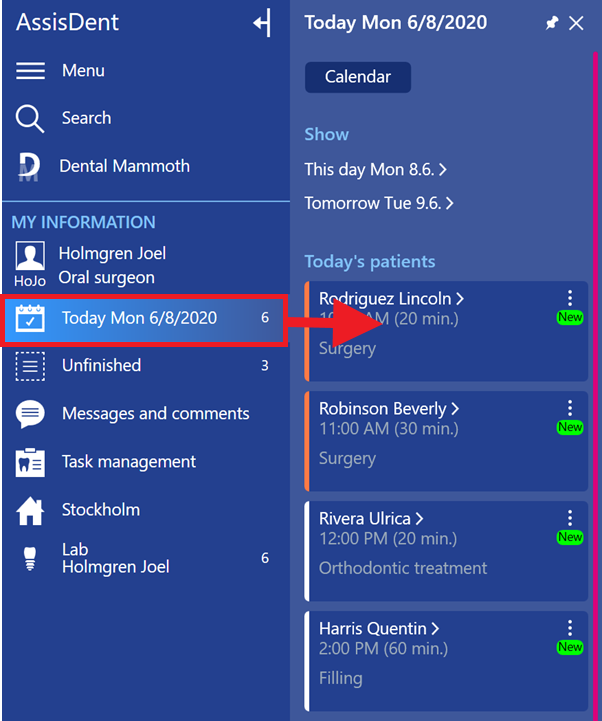
Left clicking the control panel titles, meanwhile, opens an additional control panel which displays more information about the topic. This additional panel can also be used to navigate to different sections of the program.
At the bottom of the control panel, you can find buttons to:
- Close the program
- Go to system settings
- Go to the AssisDent e-guides
- Go to the My AssisDent settings

Register view
AssisDent contains many registers, including the patient register, company register, recall register and payment transactions register. The available functions are similar in all these registers.
The items in the table are displayed as separate rows, for example as patient rows.
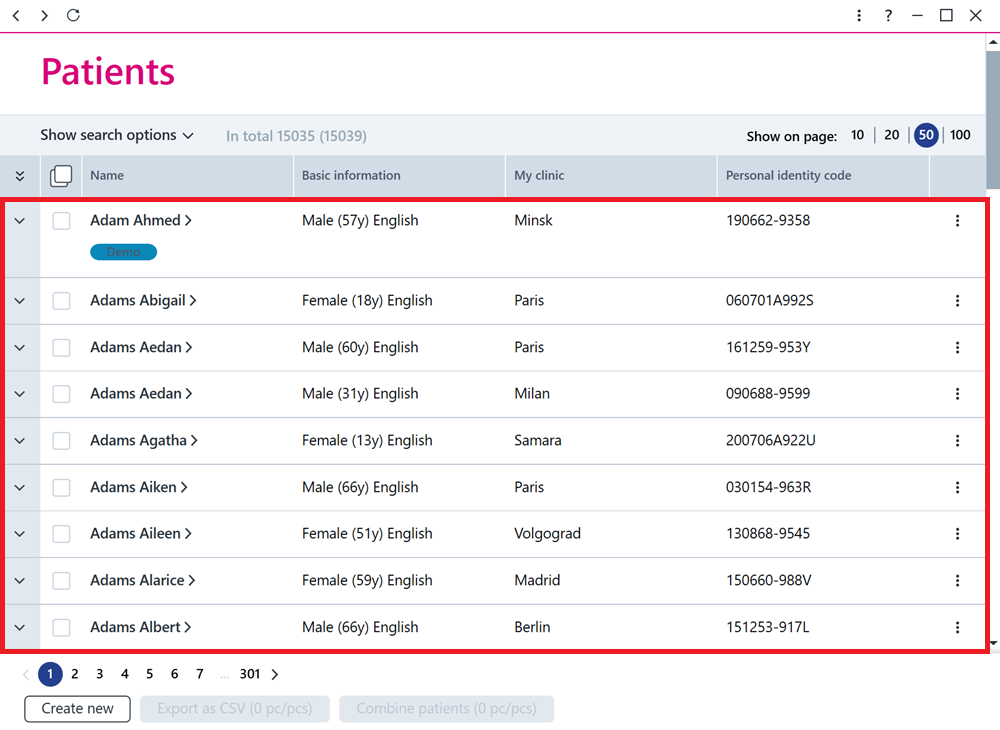
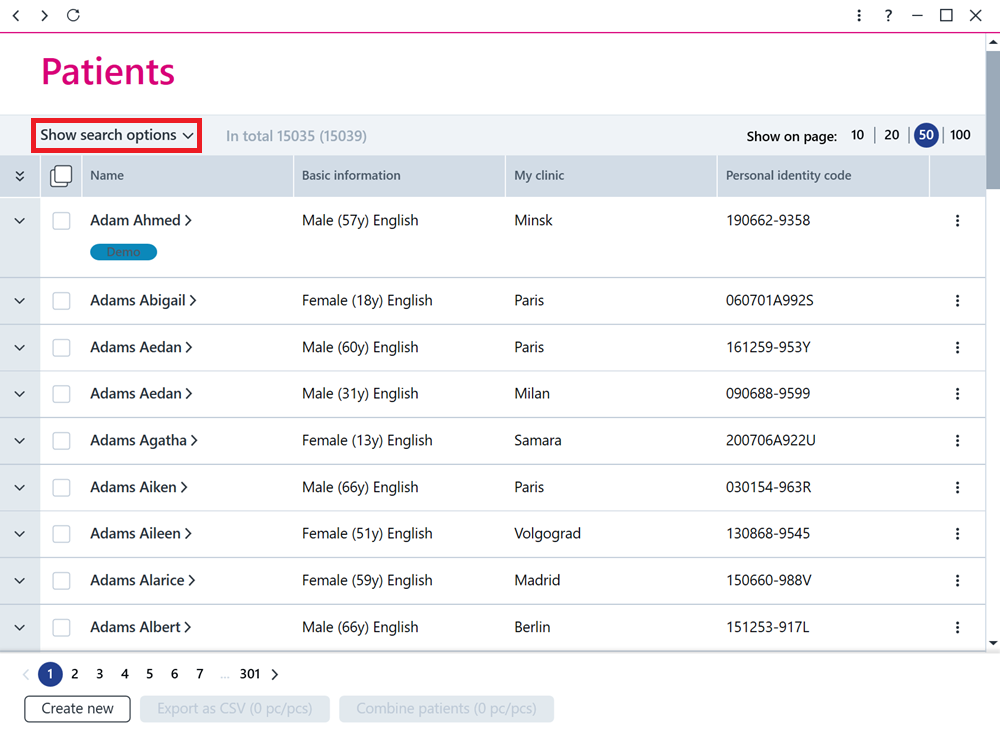
At the top of the register, you can find the Show search options button, which allows you to filter the rows displayed. For example, patients can be filtered according to the marketing authorizations given by the patient, or you can search for a patient using their telephone number.
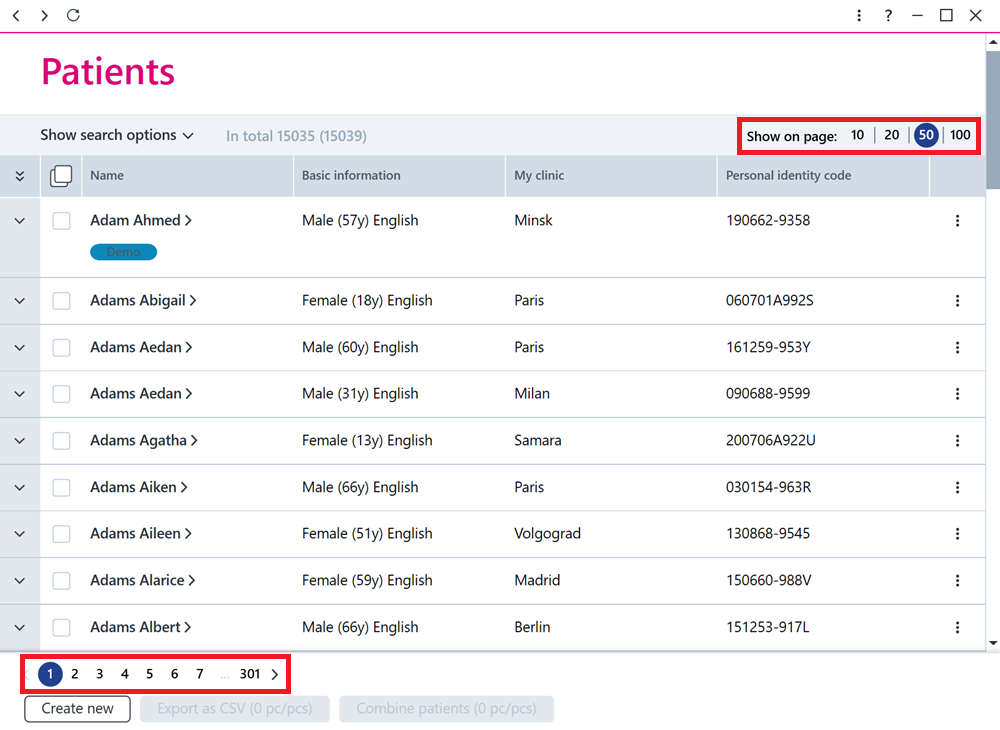
From the bottom left corner, you can move to different pages, and in the top right corner you can set the number of rows to be displayed on each page.
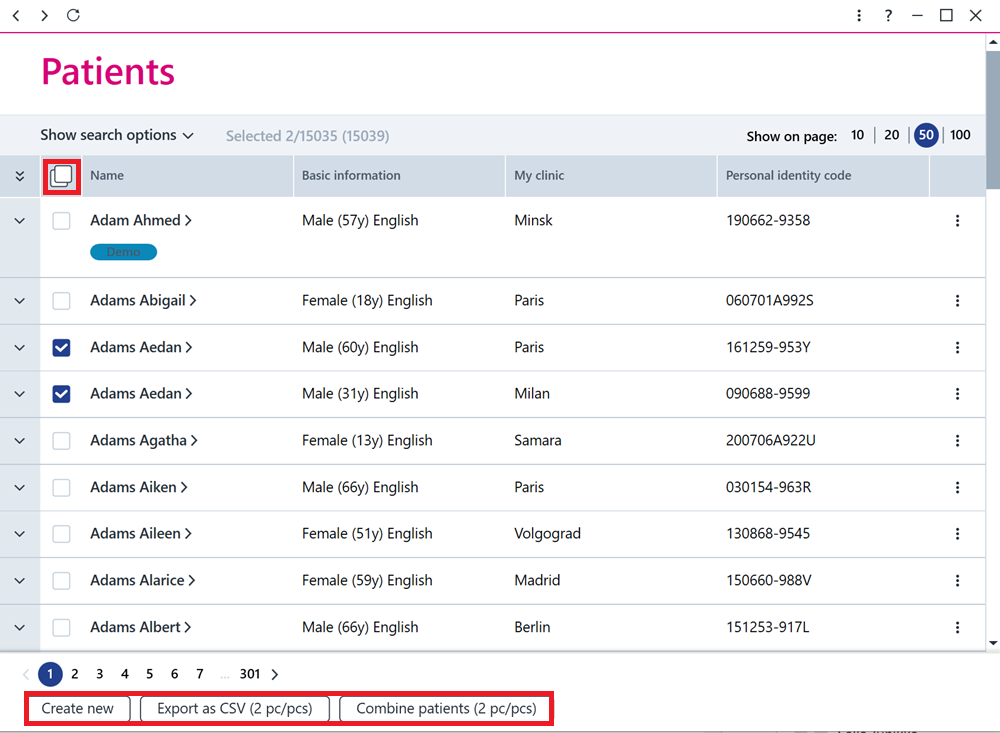
Different functions are displayed at the bottom of the register. Some functions require you to first select the rows that the function will be applied to. To select all rows, click the button at the top of the row selection boxes.
Card view
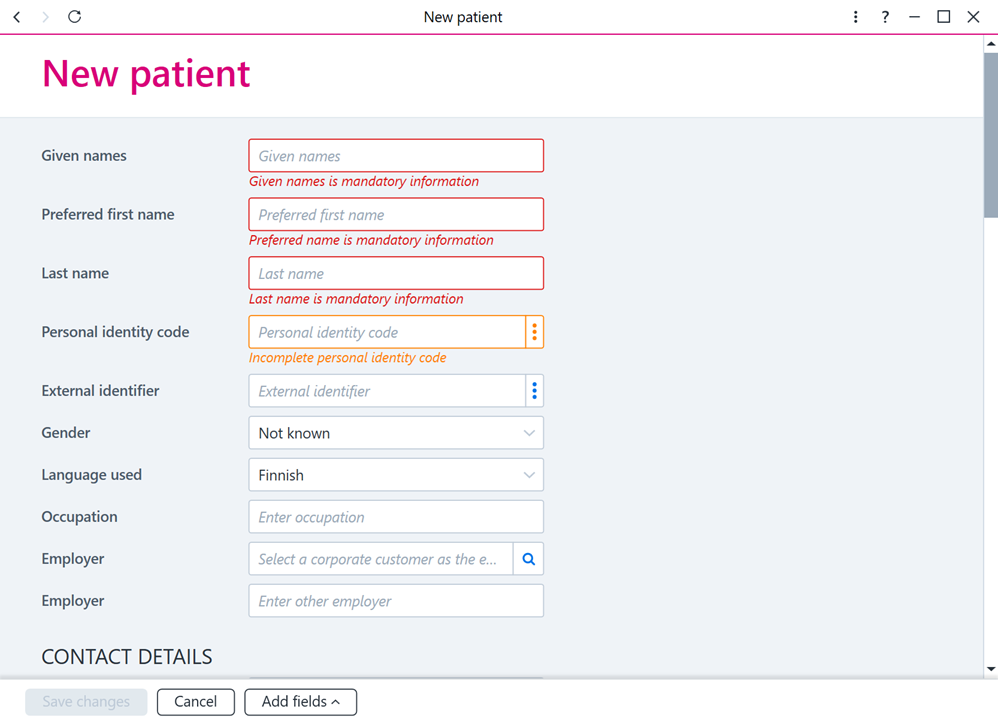
In AssisDent, patients, recalls, clinics, etc. are created using the card view. For example, when creating a patient, you need to fill in the patient information on the card and then save the information. In card views, the mandatory information is marked in red.
The card view also allows you to edit the data afterwards.
Other Views