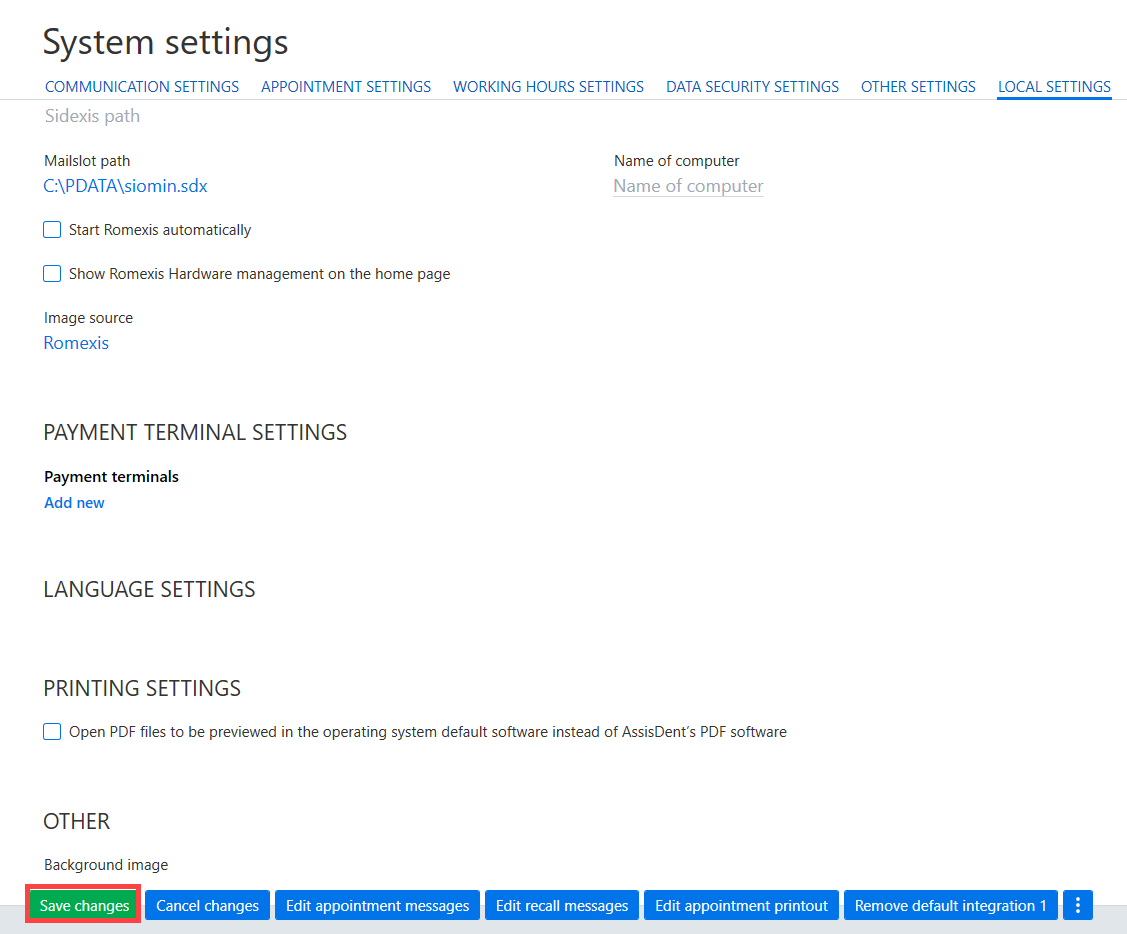
Certain X-ray software can be integrated into AssisDent. Once the integration settings have been made, AssisDent can be used for opening the integrated X-ray software for displaying X-ray images. AssisDent is compatible with Romexis, Digora, Cliniview, Scanora, RayMage and Sidexis.
Please note: X-ray integration settings are computer-specific, and they must be set separately on each computer.
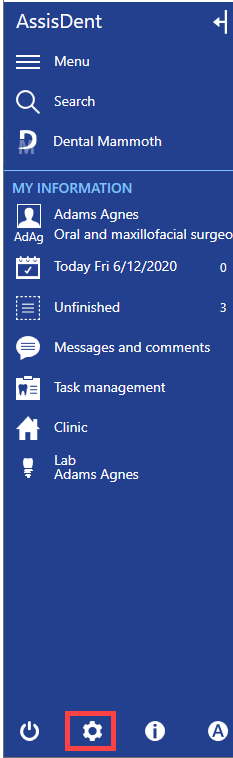
You can access the X-ray integration settings by selecting System settings on the control panel.
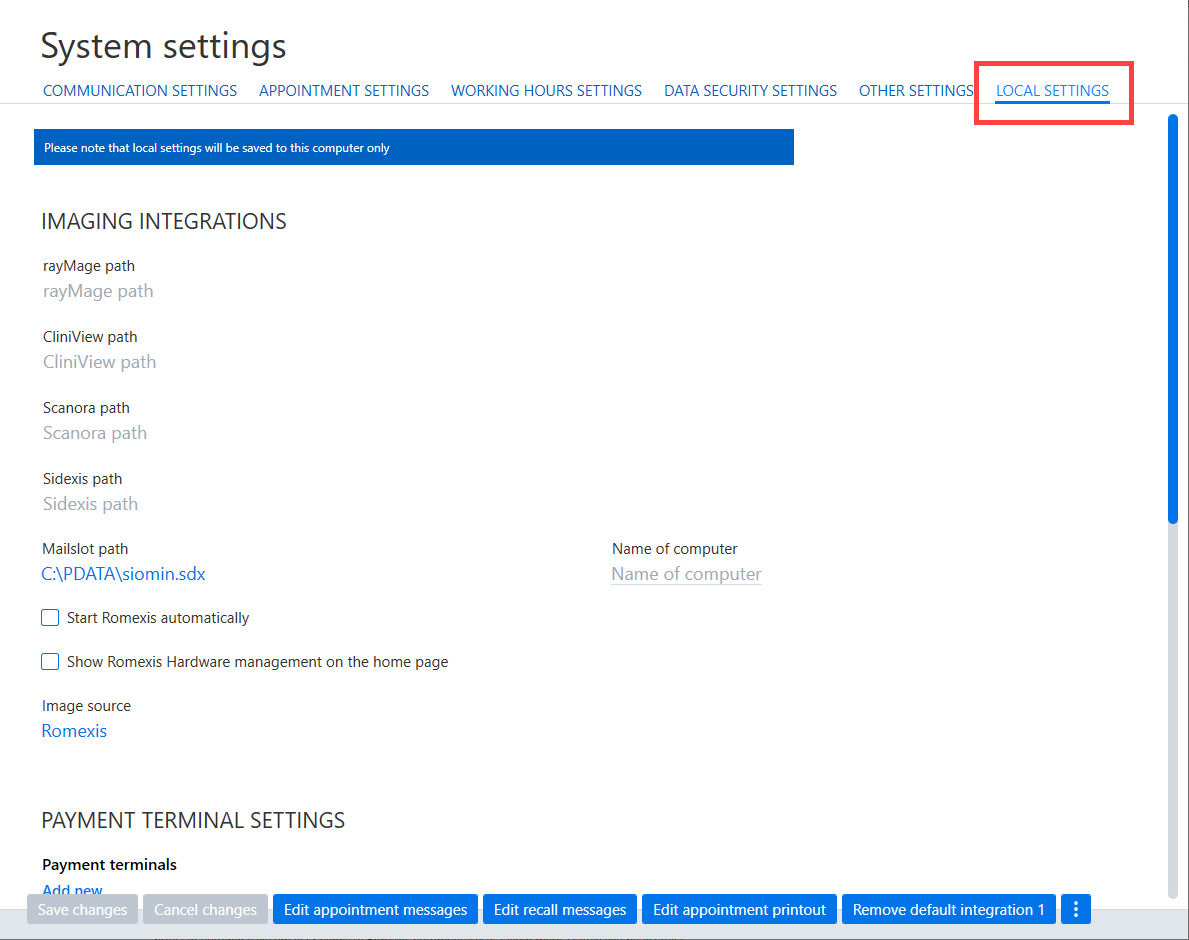
Select the Local settings tab on the top of the view.
Romexis
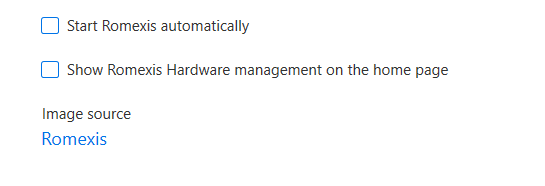
Romexis is integrated into AssisDent by default and does not require re-integration. However, with the Start Romexis automatically setting, Romexis can be opened automatically whenever you access patient data. If the patient has any dental X-ray images registered on Romexis, relevant information will appear on the view. The Show Romexis Hardware management on the home pagesetting adds a hardware management button on the home page.
Digora
Digora should be automatically linked with AssisDent. If Digora is not displayed on the patient card in AssisDent, run Digora as Administrator, close Digora and re-start AssisDent. Digora should now appear in AssisDent.
RayMage
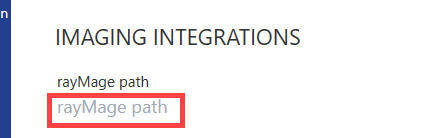
If you are using the RayMage imaging software, the path to the nntbridge.exe file should be entered into rayMage path field.
Cliniview
If you are using the Cliniview imaging software, the path to the .exe file should be entered into Cliniview path field.

Scanora
If you are using the Scanoraimaging software, the path to the .exe file should be entered into Scanora path field.

Sidexis
If you are using the Sidexis imaging software, the path to the .exe file should be entered into Scanora path field. In addition to the path, enter the name of the computer into the Name of computer field. You can check the name of the computer in Windows System Properties.

Once you have made the necessary changes, click Save changes.