Adding forms
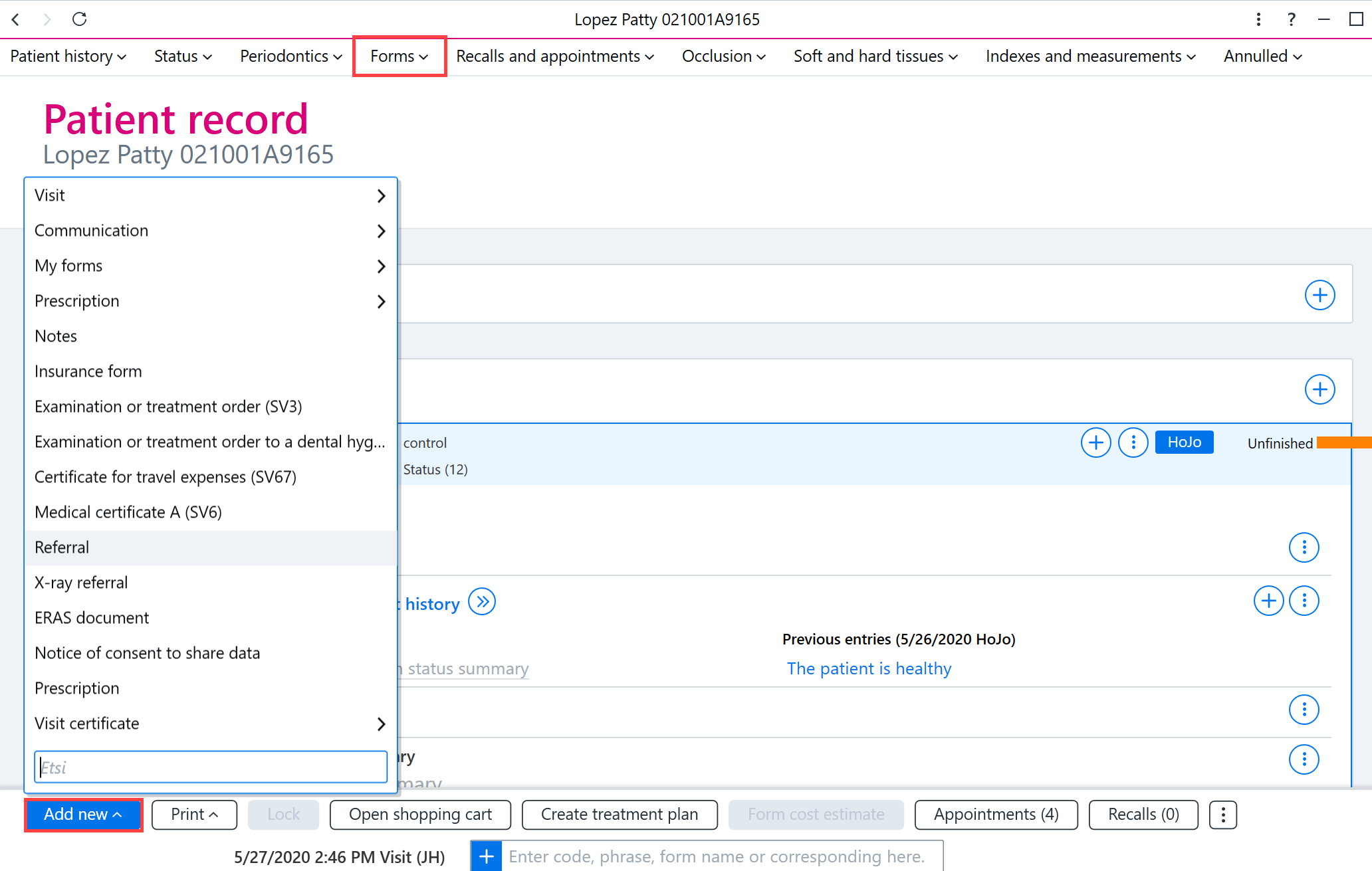
You can add new forms, such as a referral, insurance form or medical certificate, by clicking Add new or by clicking the Forms button at the top of the patient record.
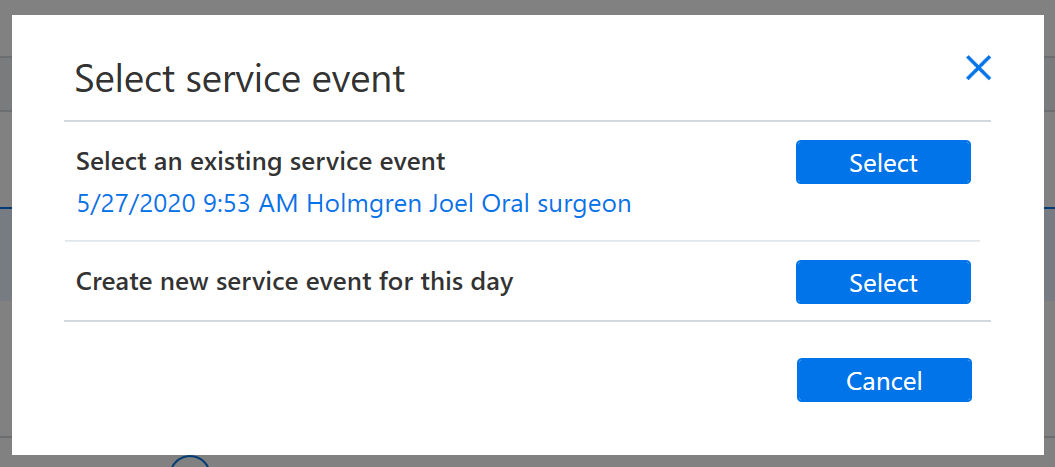
Selecting a form also automatically either opens a new service event in the patient record or suggests that the form be added to the currently open service event. Select the desired function.
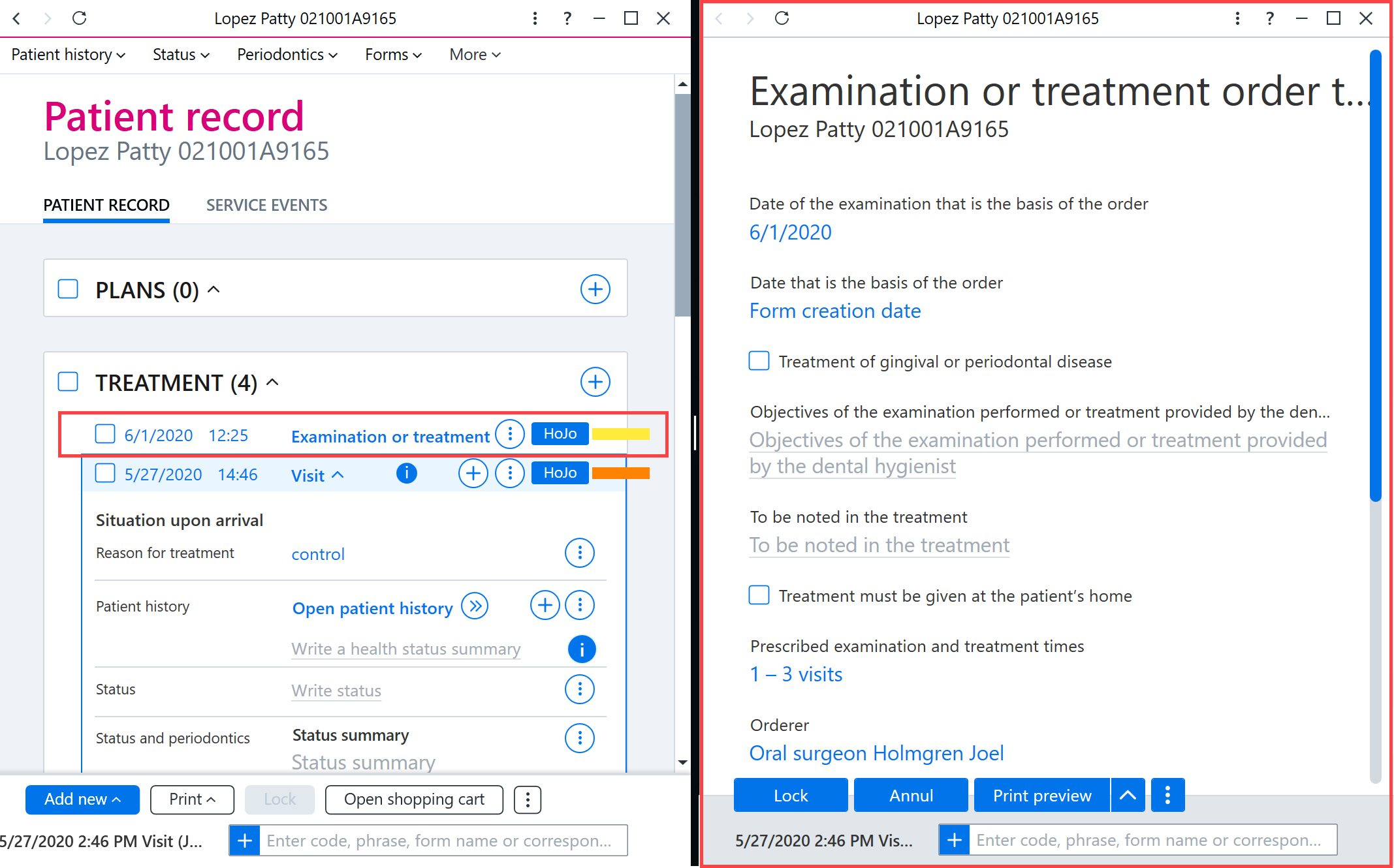
The added form opens in the panel adjacent to the patient record.
Printing forms
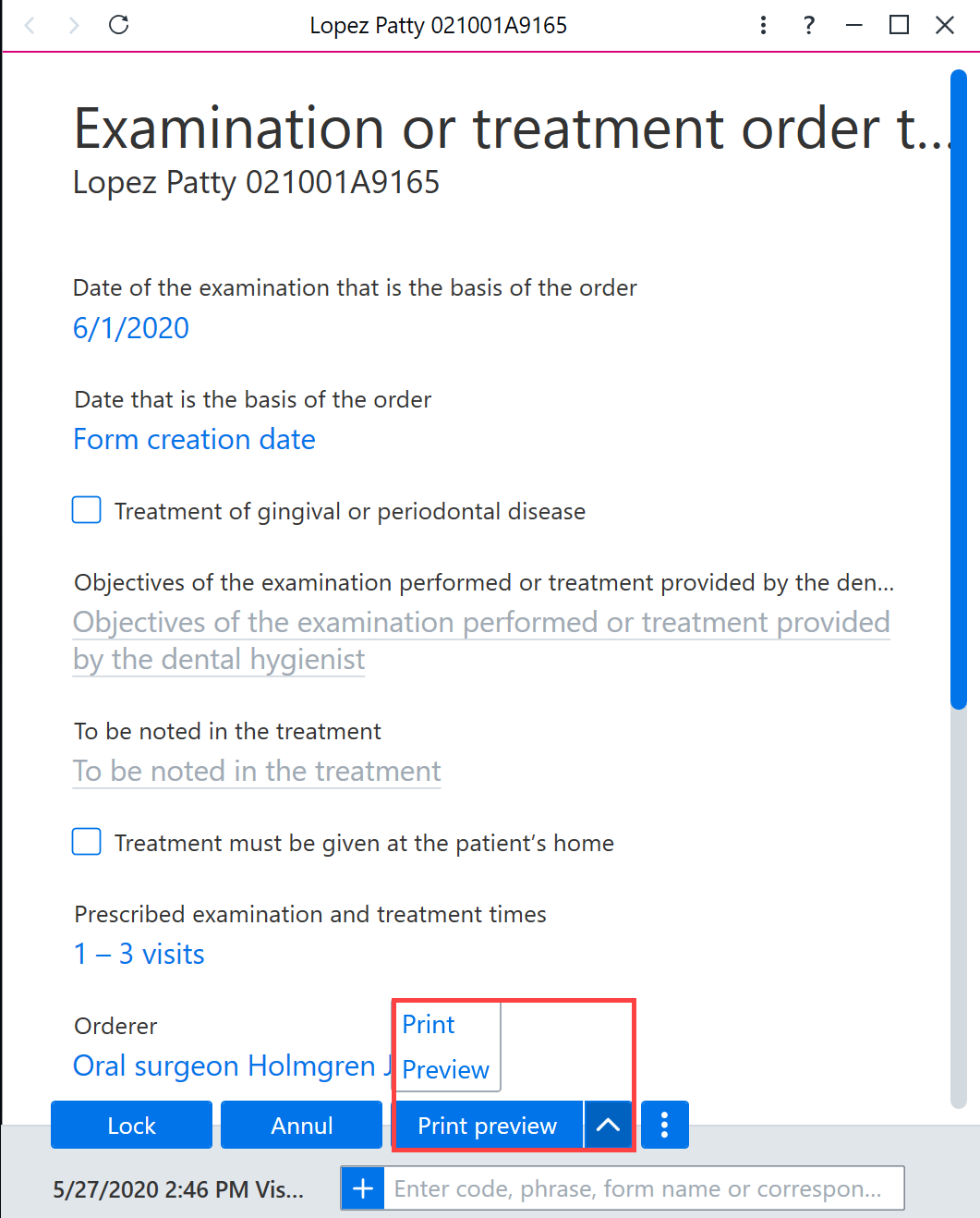
The form can be printed by clicking the Print preview button at the bottom of the card.
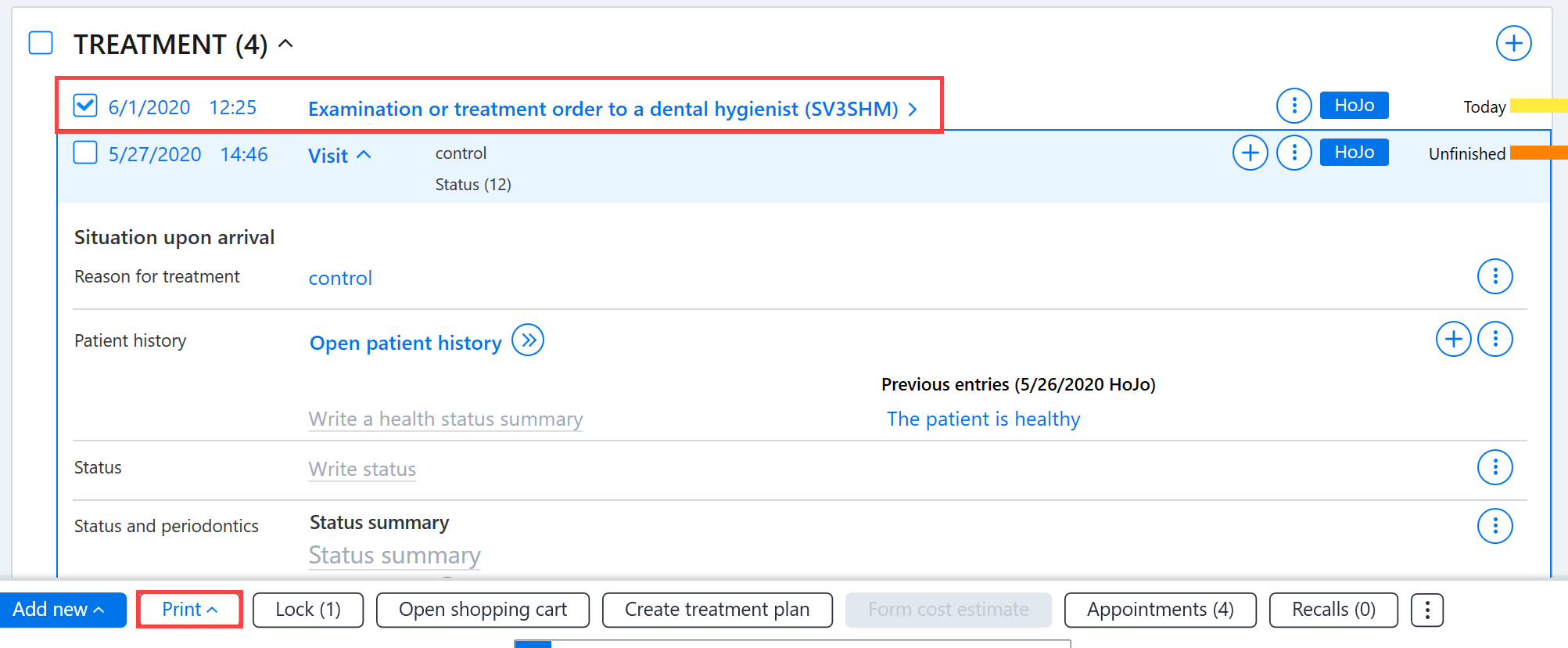
Forms can also be printed from the patient record. First, select the rows to be printed and then click the Print button on the bottom row. It is also possible to print multiple forms simultaneously.
Locking forms
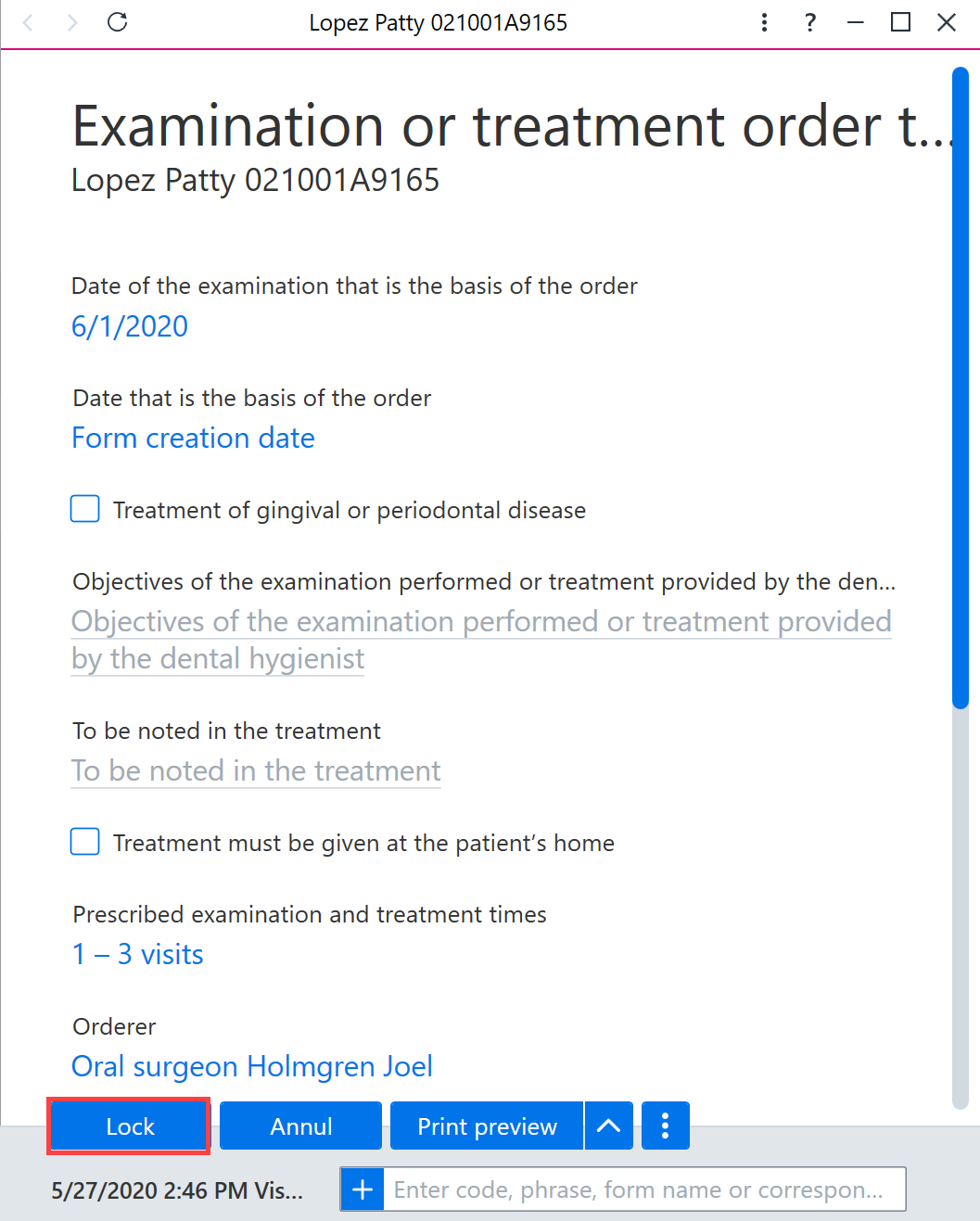
Forms can be locked by clicking the Lock button at the bottom of the form card.
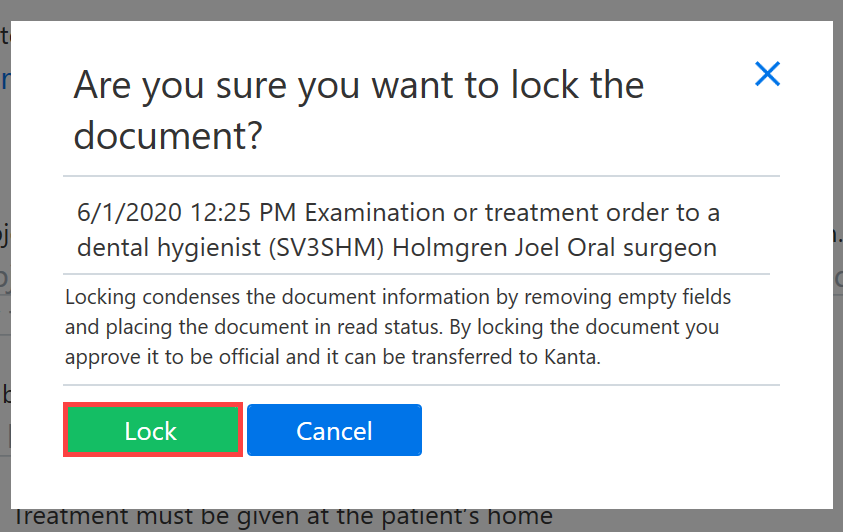
Next, confirm that you want to lock the document.
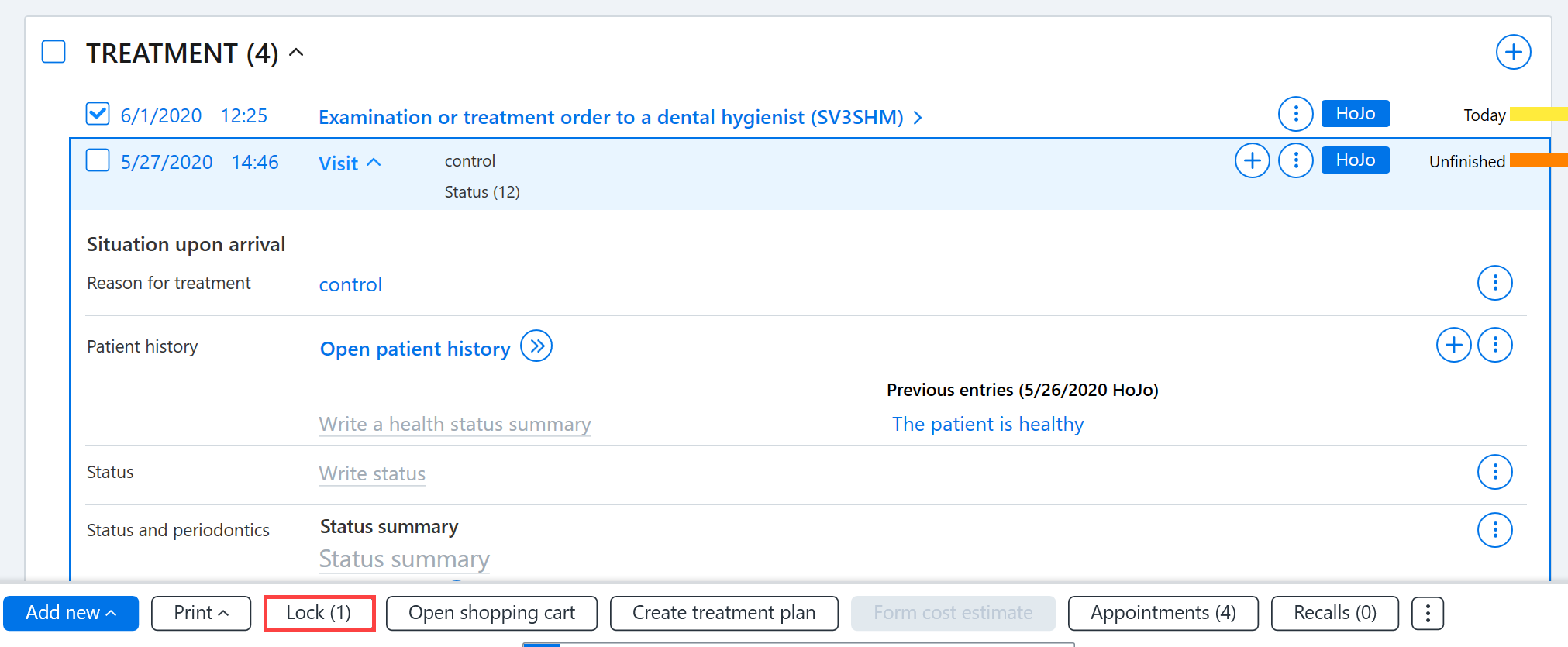
Forms can also be locked from the patient record. First, select the rows to be locked and then click the Lock button on the bottom row. It is also possible to lock several forms simultaneously.
Deleting forms
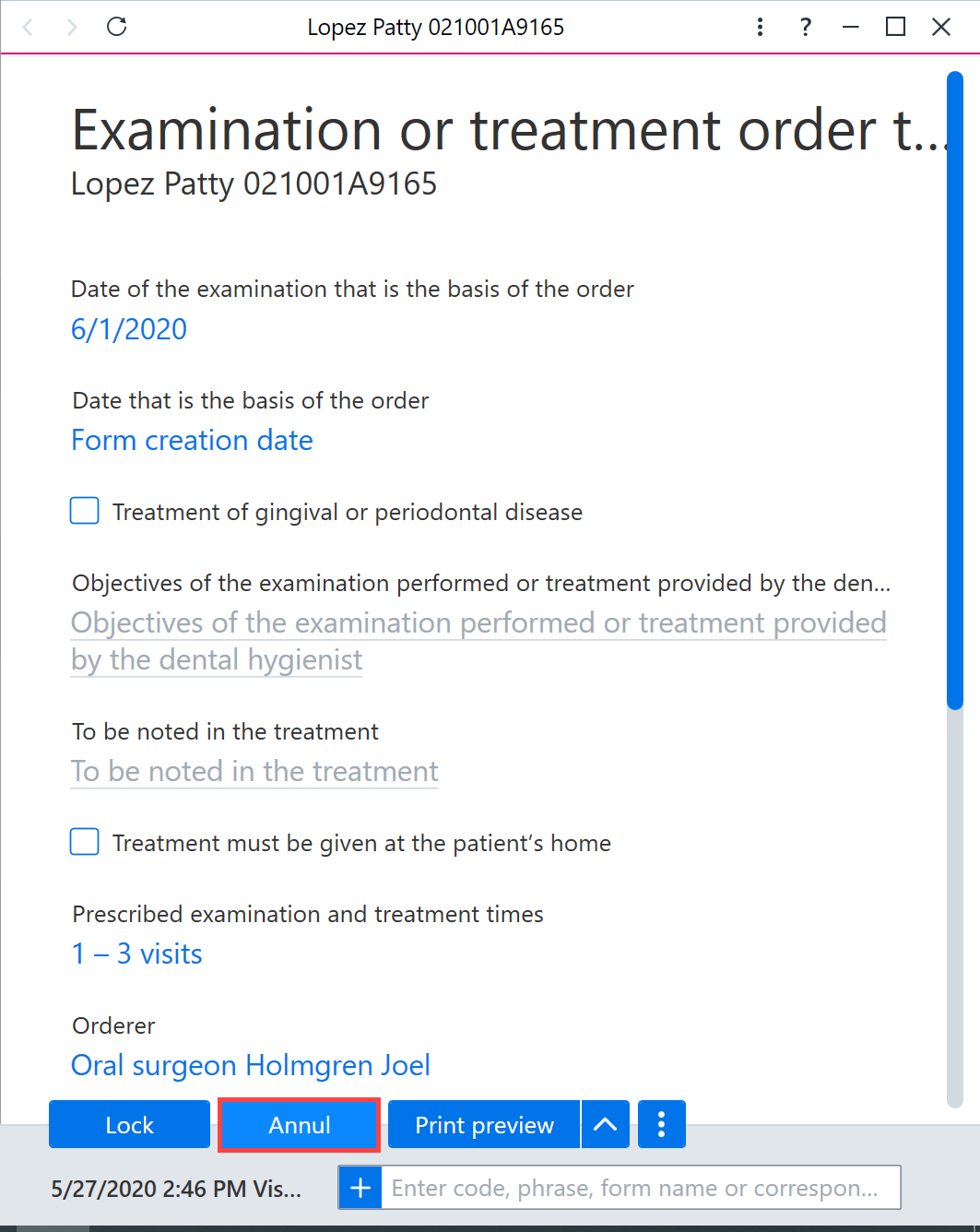
Forms can be annuled (deleted) by clicking the Annul button at the bottom of the form card.