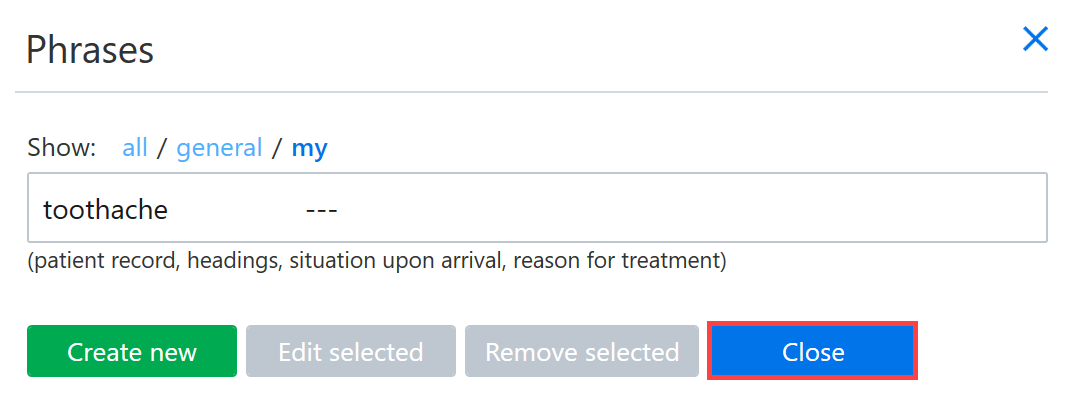
Phrases can be used to quickly enter predefined text into text fields using abbreviations. Phrases speed up the use of the program in situations where the same text needs to be written again and again.
Phrase fields
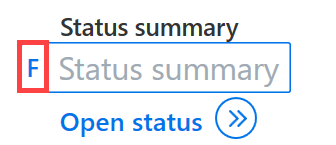
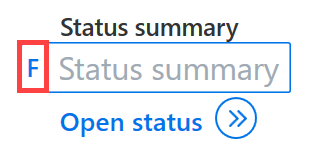
Phrases can be used in specially marked text fields. When you click on the text field, an F icon will appear on the left side of the field if it has phrase functionality.
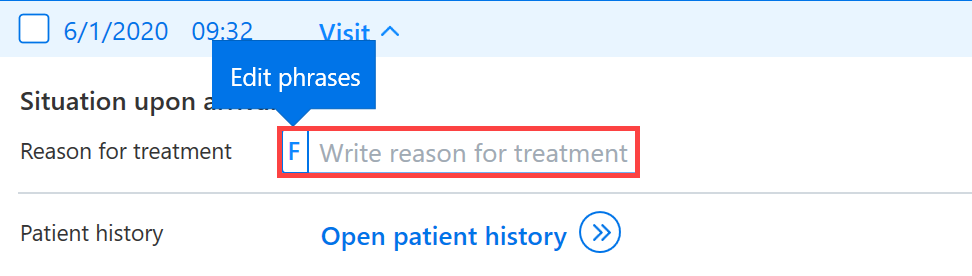
Phrases can also be used for inputting quickly after a procedure, for example.
Adding phrases
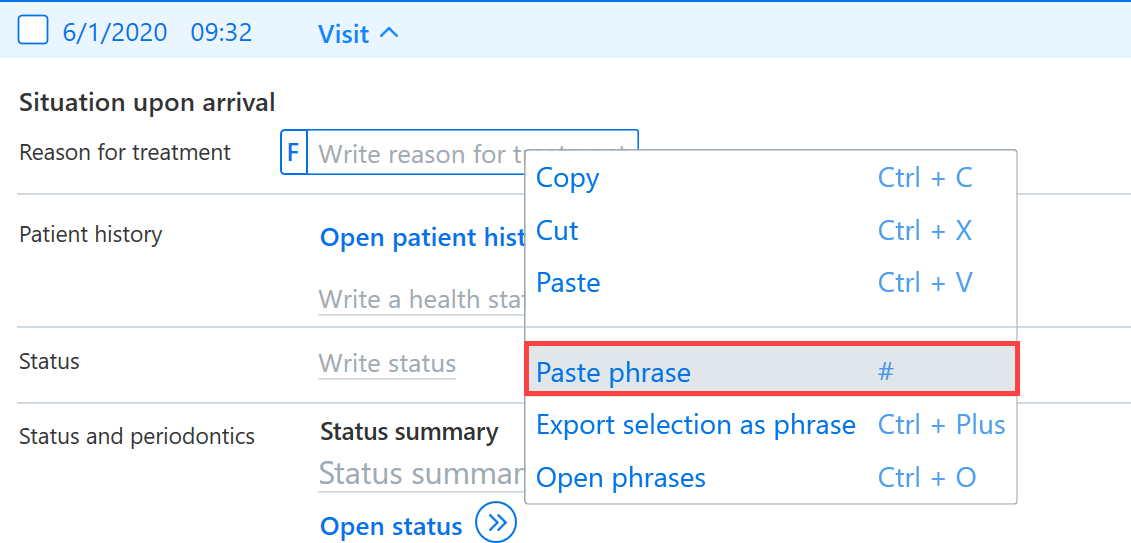
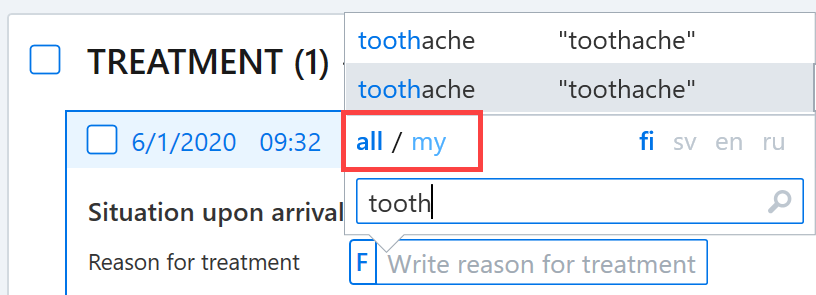
You can add a phrase to a text field in which the phrase function is enabled either by right-clicking over the text field and selecting Paste phrase or by using the shortcut key #.
The phrase is retrieved by typing part of the abbreviation or text. Once the correct phrase is located, you can select it by clicking the mouse.
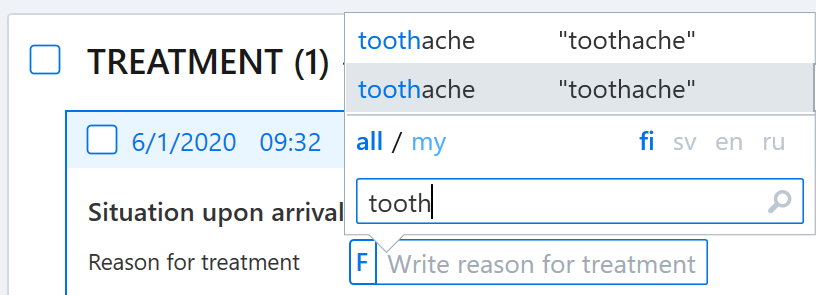
You can filter the displayed phrases to just show your phrases, or you can search from all the phrases.
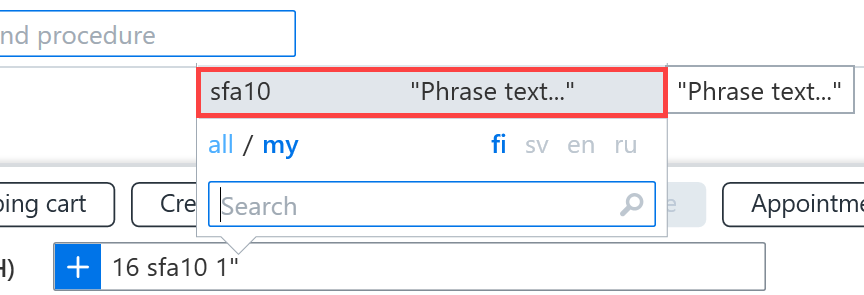
You can also add a phrase to a procedure using the quick entry field by entering a # in the procedure comment. For example: 17 sfa20 34 ”#
If a phrase has been created for that procedure, a menu will open in which you can select a phrase by clicking on it.
Creating phrases
Once a text field has been selected, you can click on the F button to the left of the text field.
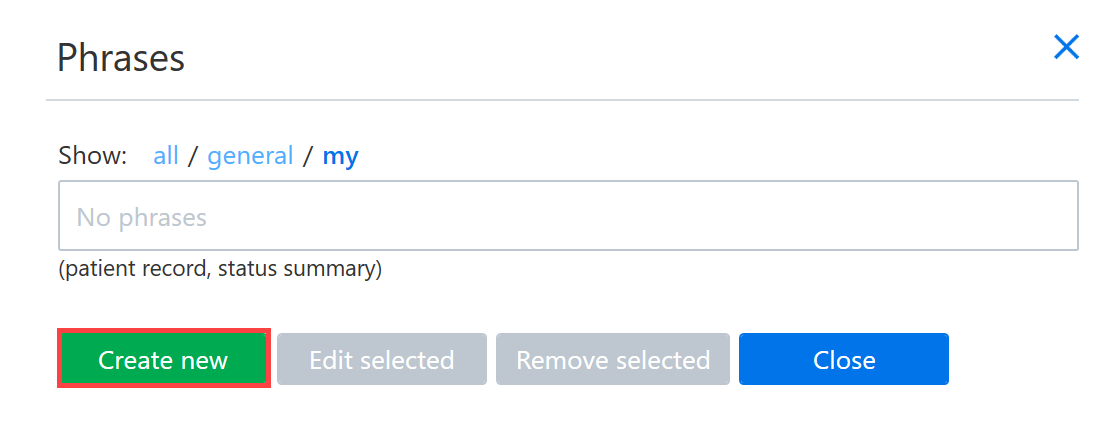
Click Create new.
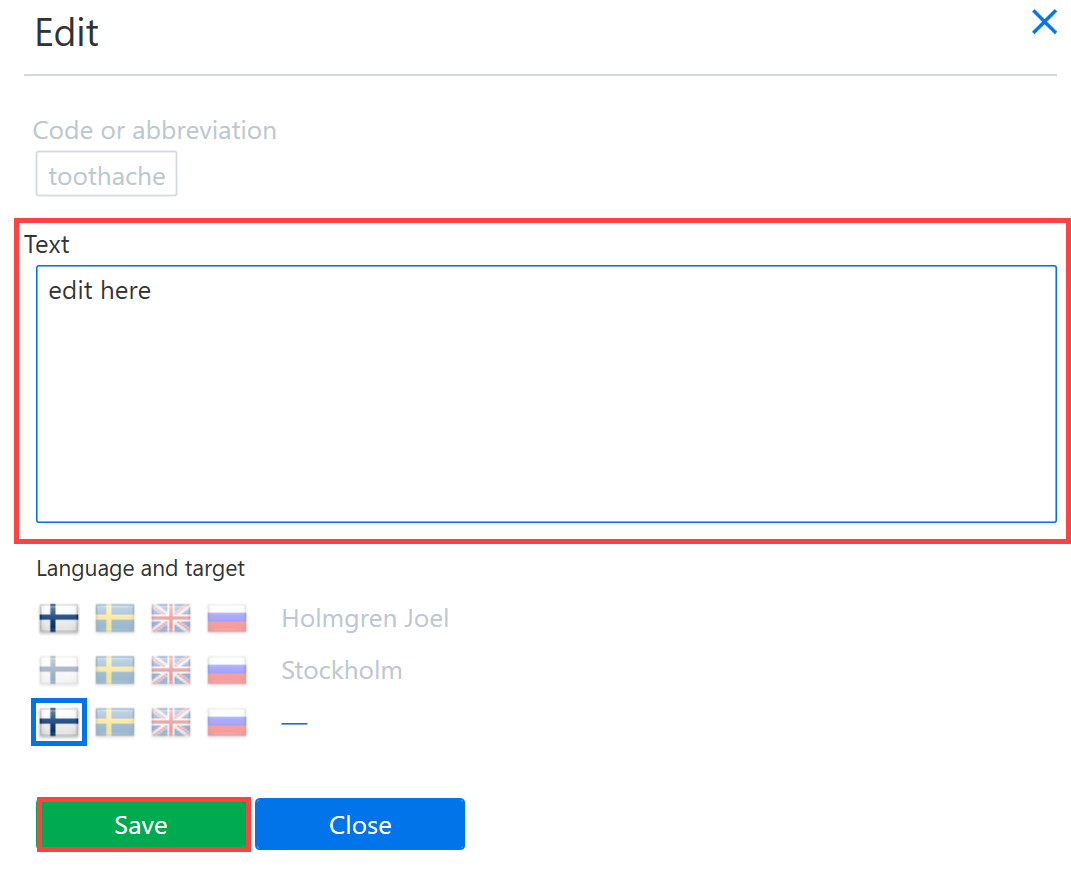
Under Language and target, you can select the phrase language and target. Users with wider access rights can create phrases for use by the entire organization or particular clinics.
You can set a code for the phrase in the code or abbreviation field and then enter the phrase text in the larger text field.
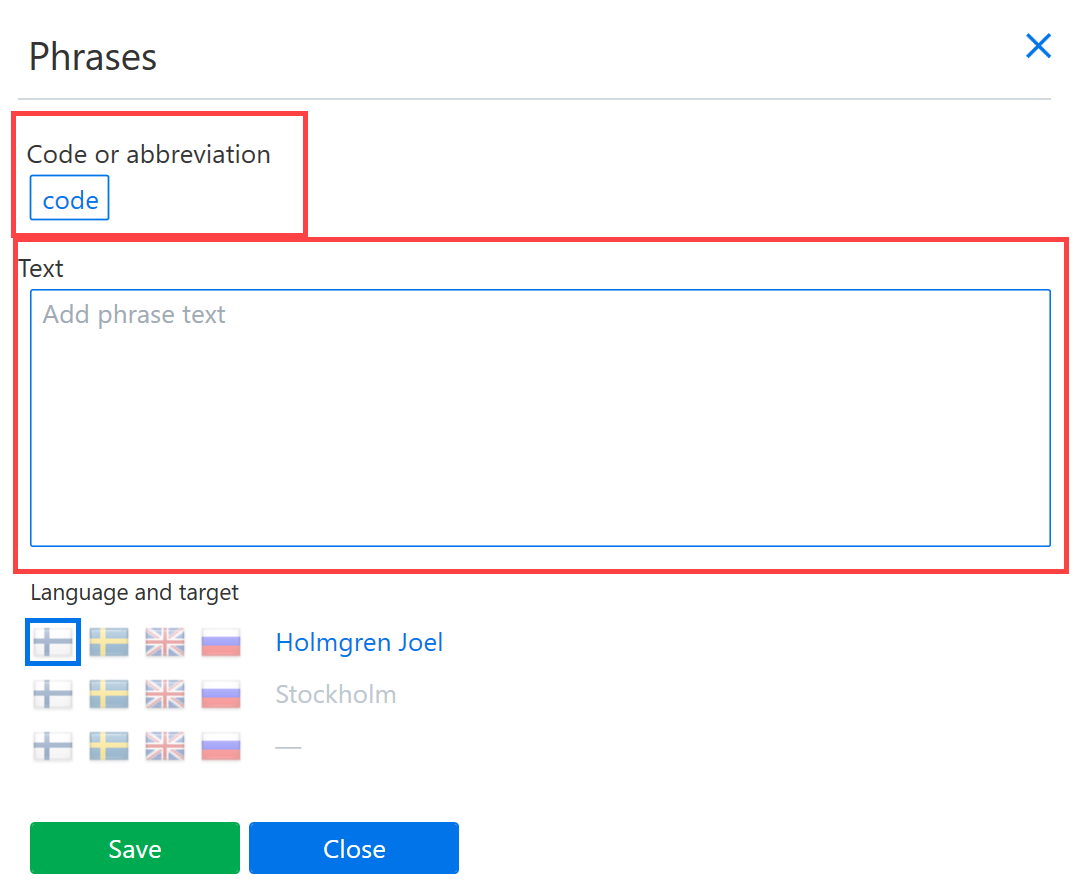
Once the phrase is ready, click Save.
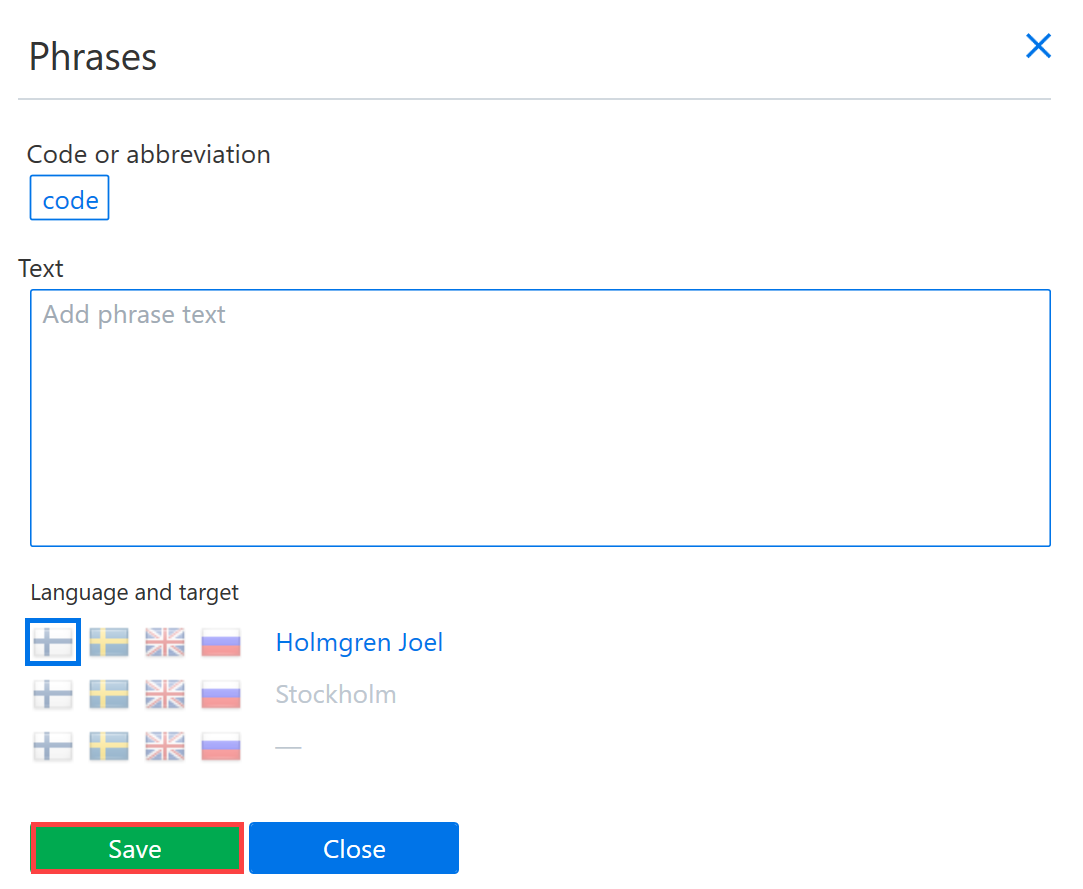
After saving the phrase, the dialog box can be closed by clicking Close.
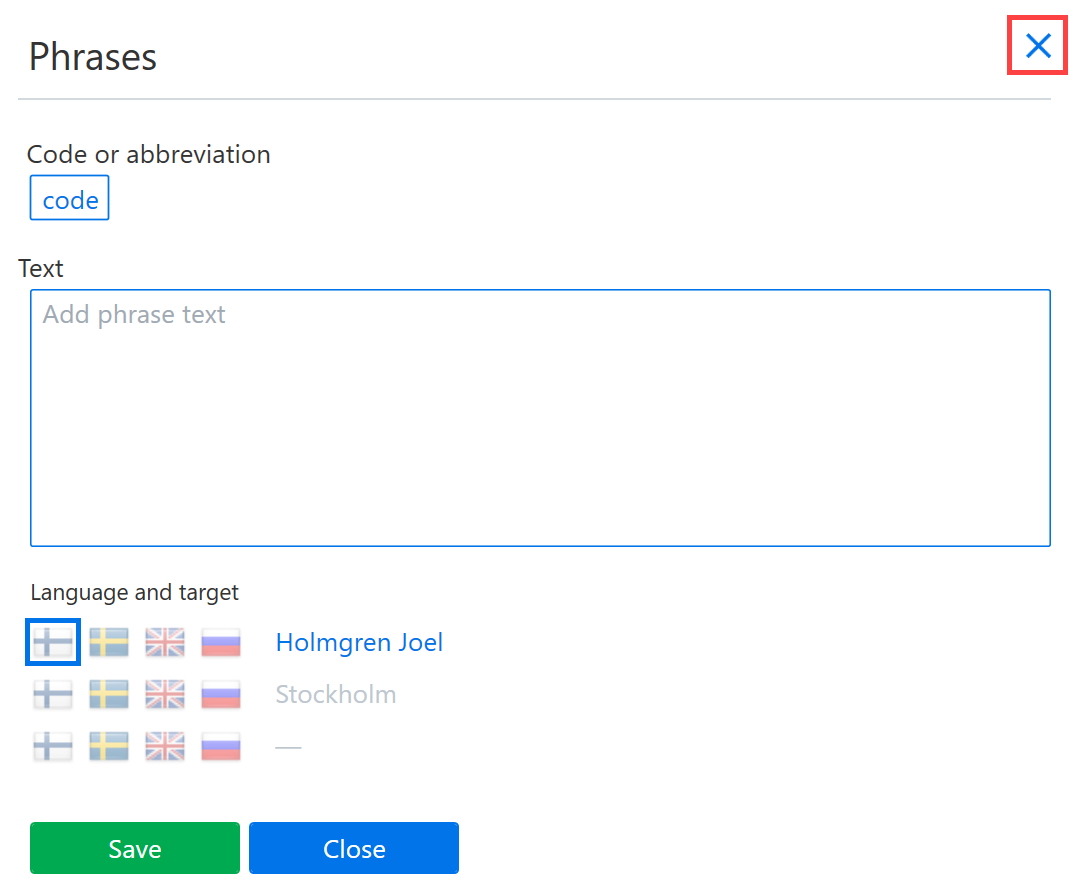
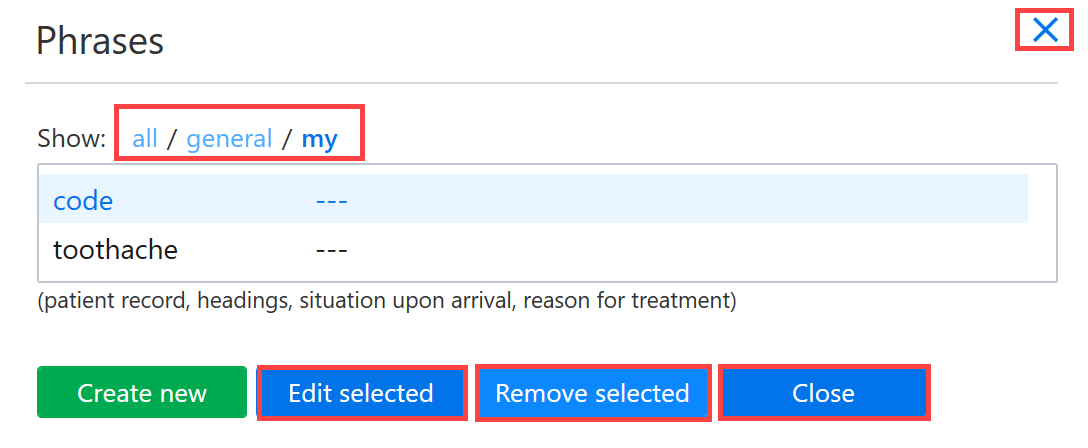
From the dialog box that opens next, you can either create a new phrase for the same text field or edit existing phrases. Finally, Click Close to close the dialog box.
Editing phrases
To edit phrases, click the F button to the left of the text field.
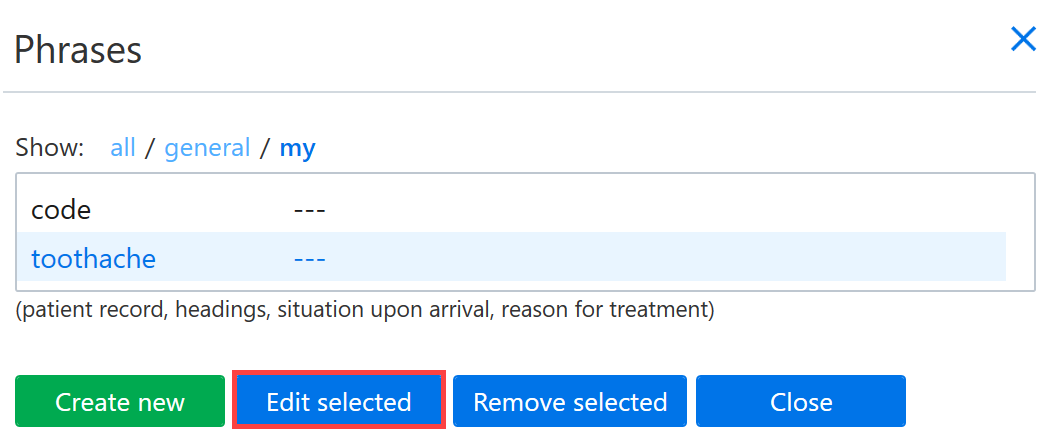
Click the name of the phrase you want to edit and then select Edit selected.
Edit the phrase by changing the text in the text field. Once the phrase is ready, click Save.
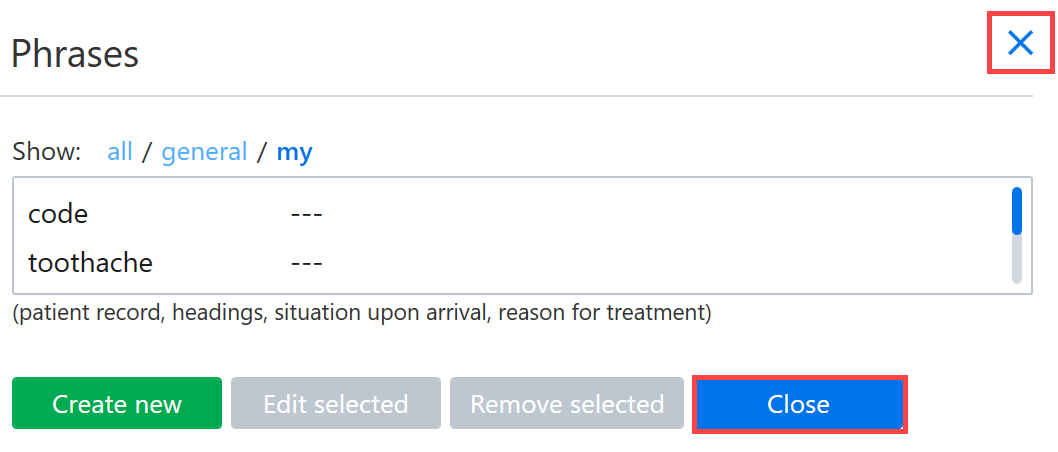
Next, you will be returned to the phrase menu. If no other changes need to be made, you can close the dialog box by clicking Close
Removing phrases
To remove phrases, click the F button to the left of the text field.
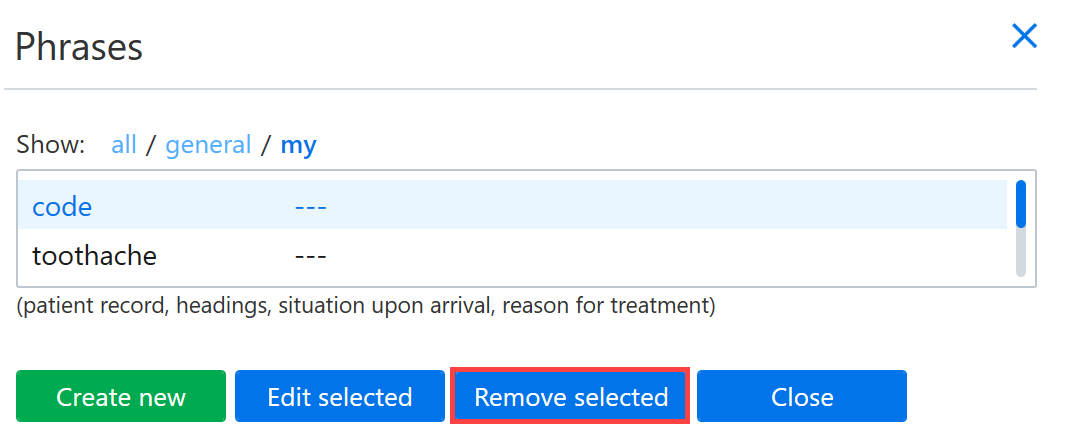
Click on the name of the phrase to be removed and select Remove selected.
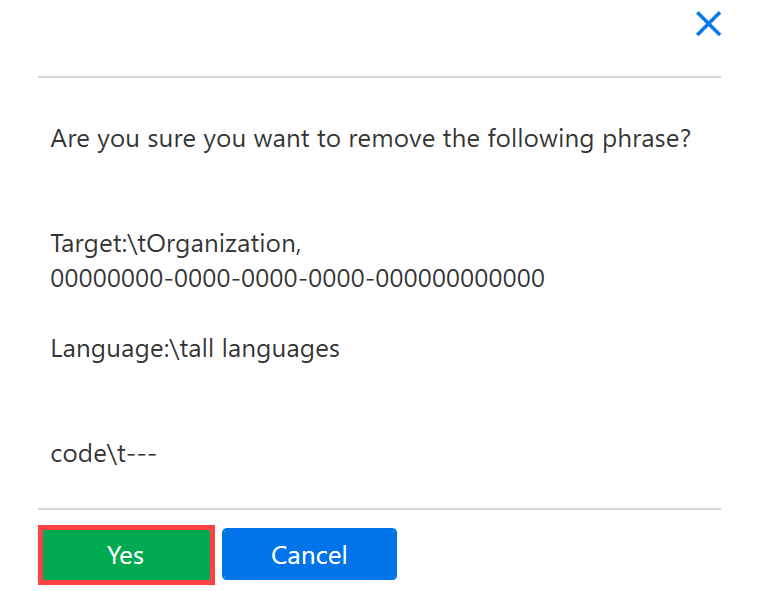
Confirm phrase removal by clicking Yes .
Next, you will be returned to the phrase menu. If no further changes are needed, you can close the dialog box by clicking Close.