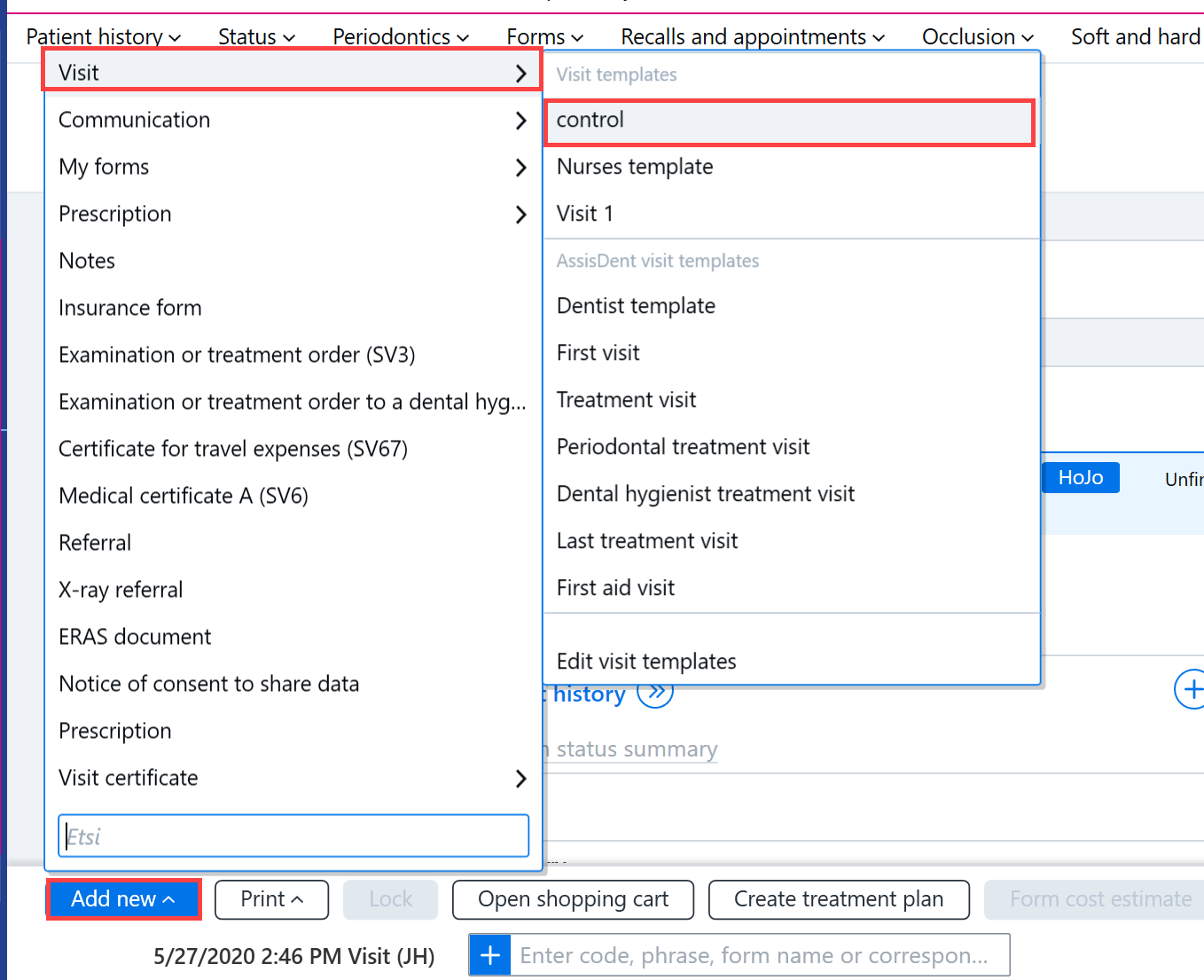
Within the program, you can create your own visit templates, which can contain the desired headers and even preprepared treatment records and procedures. Visit templates are primarily created by AssisDent Administrators. At the organization level, it is possible to allow anyone to create their own visit templates (This can be turned on in the system settings Other settings tab by selecting Allow an employee to create their own visit templates). Visit templates can be created from the Visit templates register or by saving a template created in the patient record.
Creating a visit template in the registry
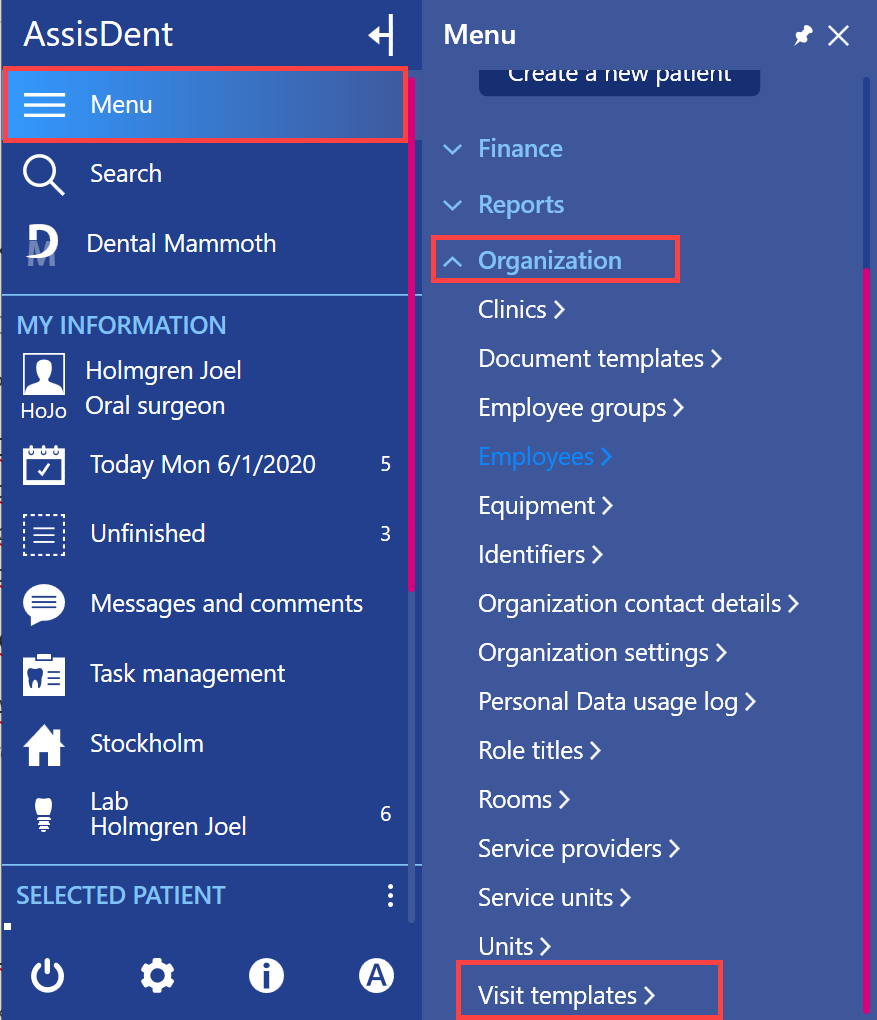
To open the Visit templates register from the control panel, select Menu → Organization → Visit templates.
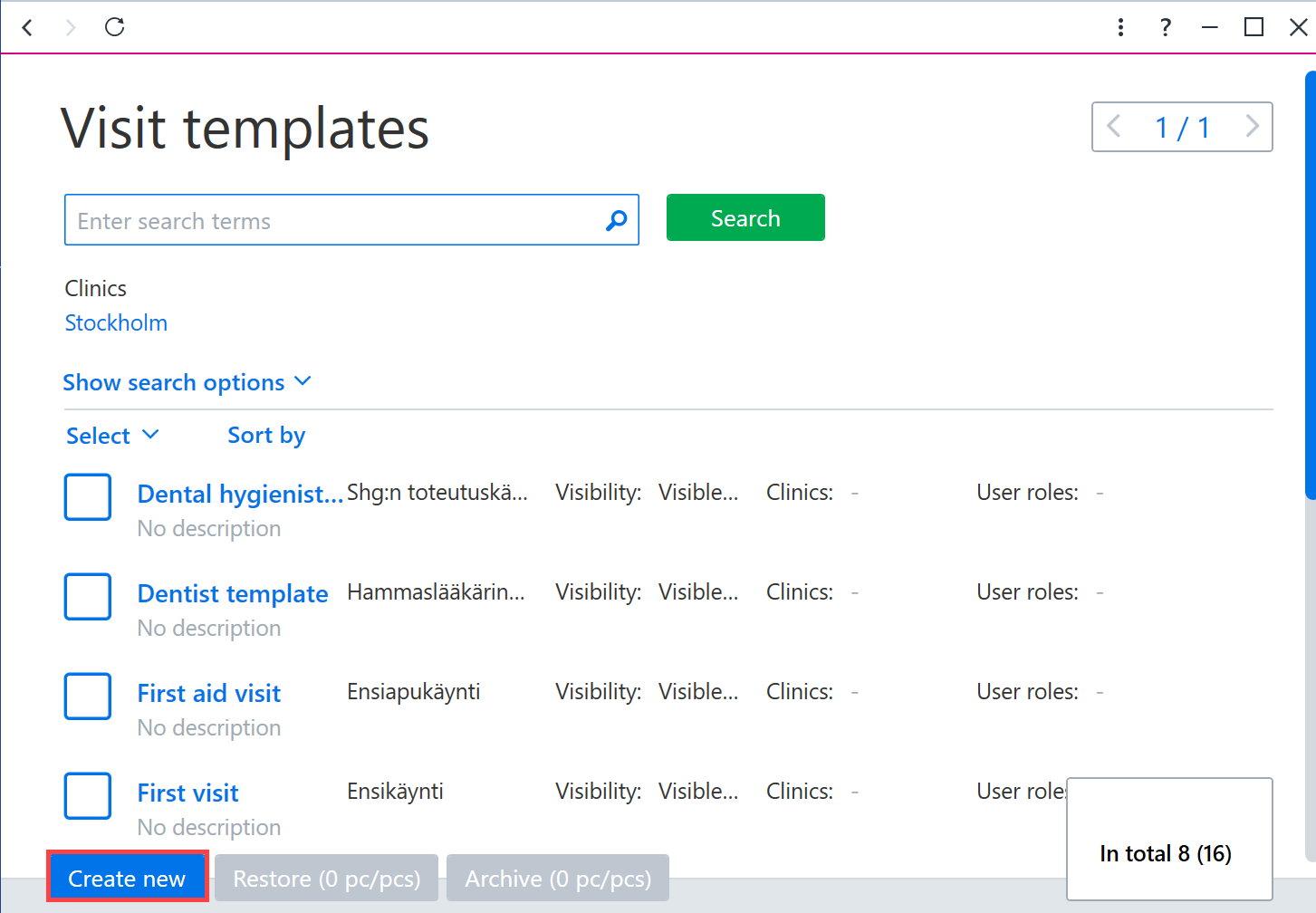
To create a new visit template, click Create new.
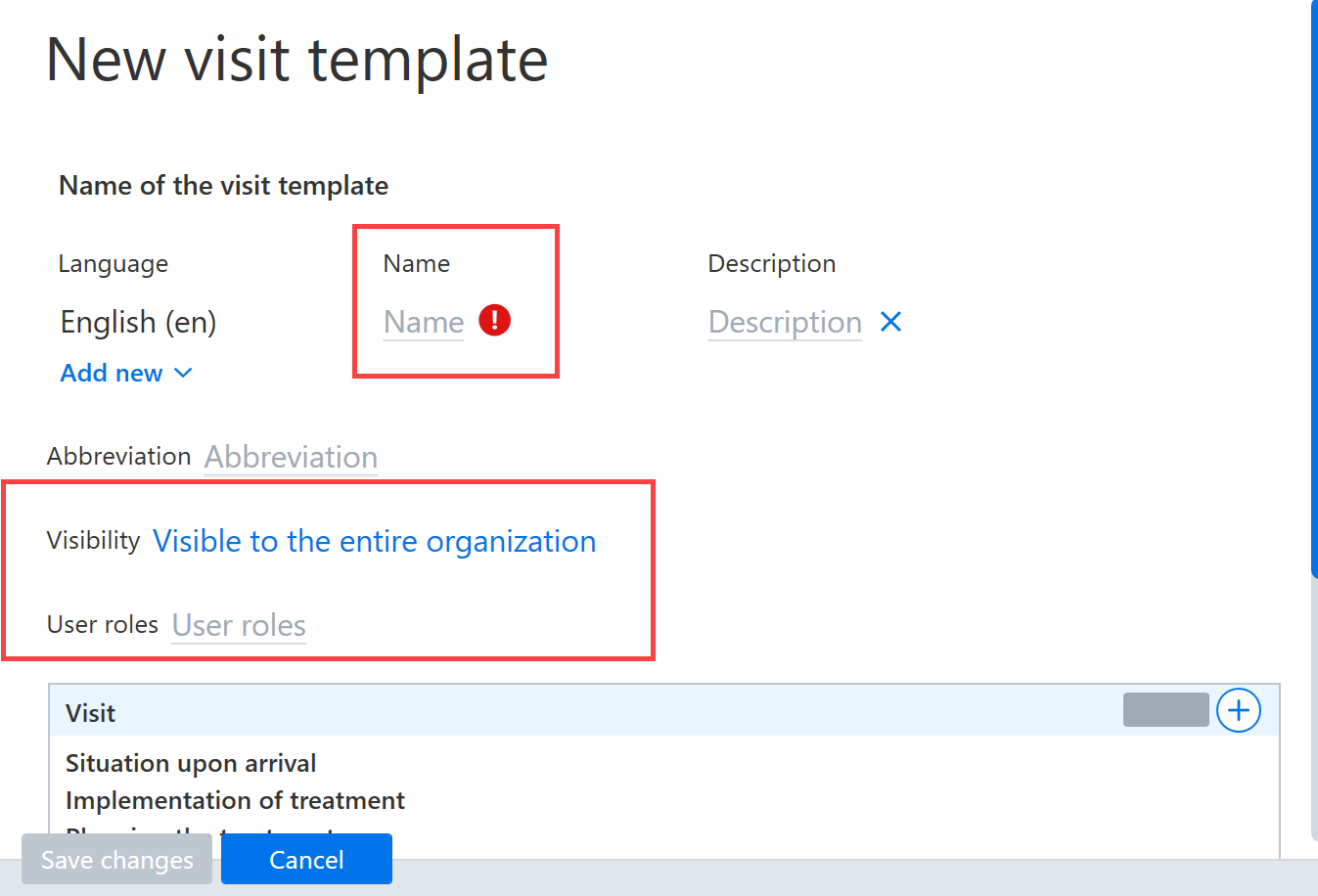
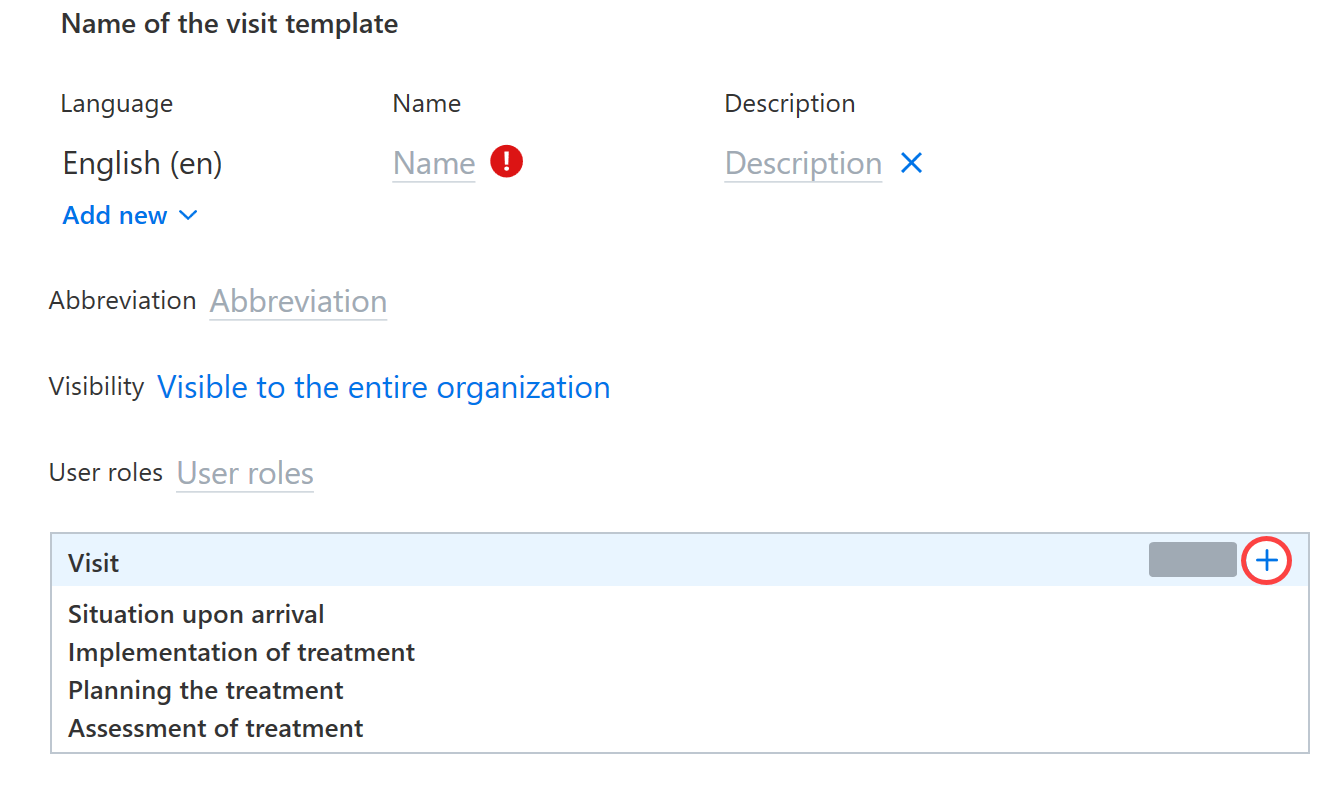
Next, add a name to the template and set the necessary restrictions (Visibility and User roles).
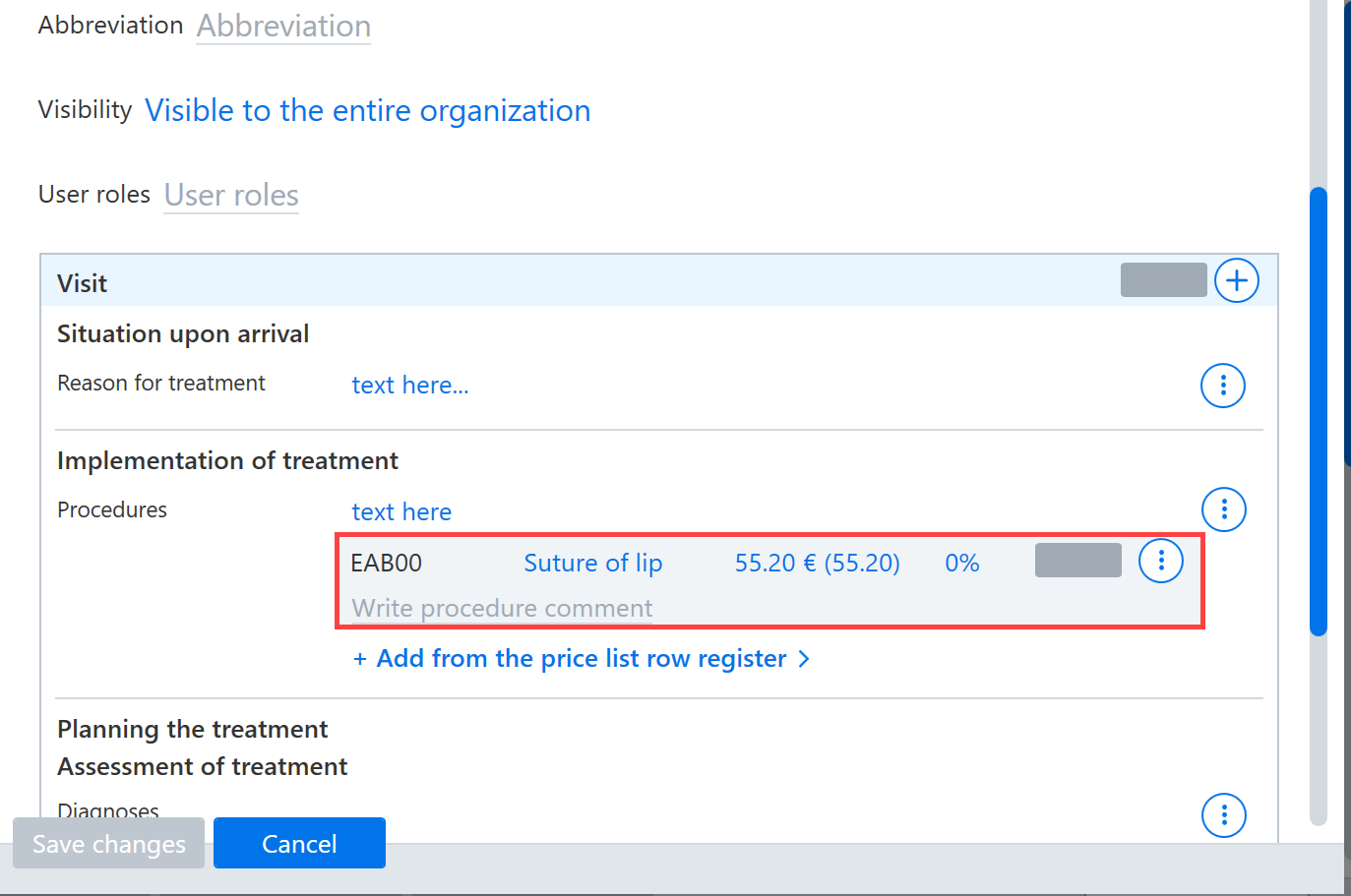
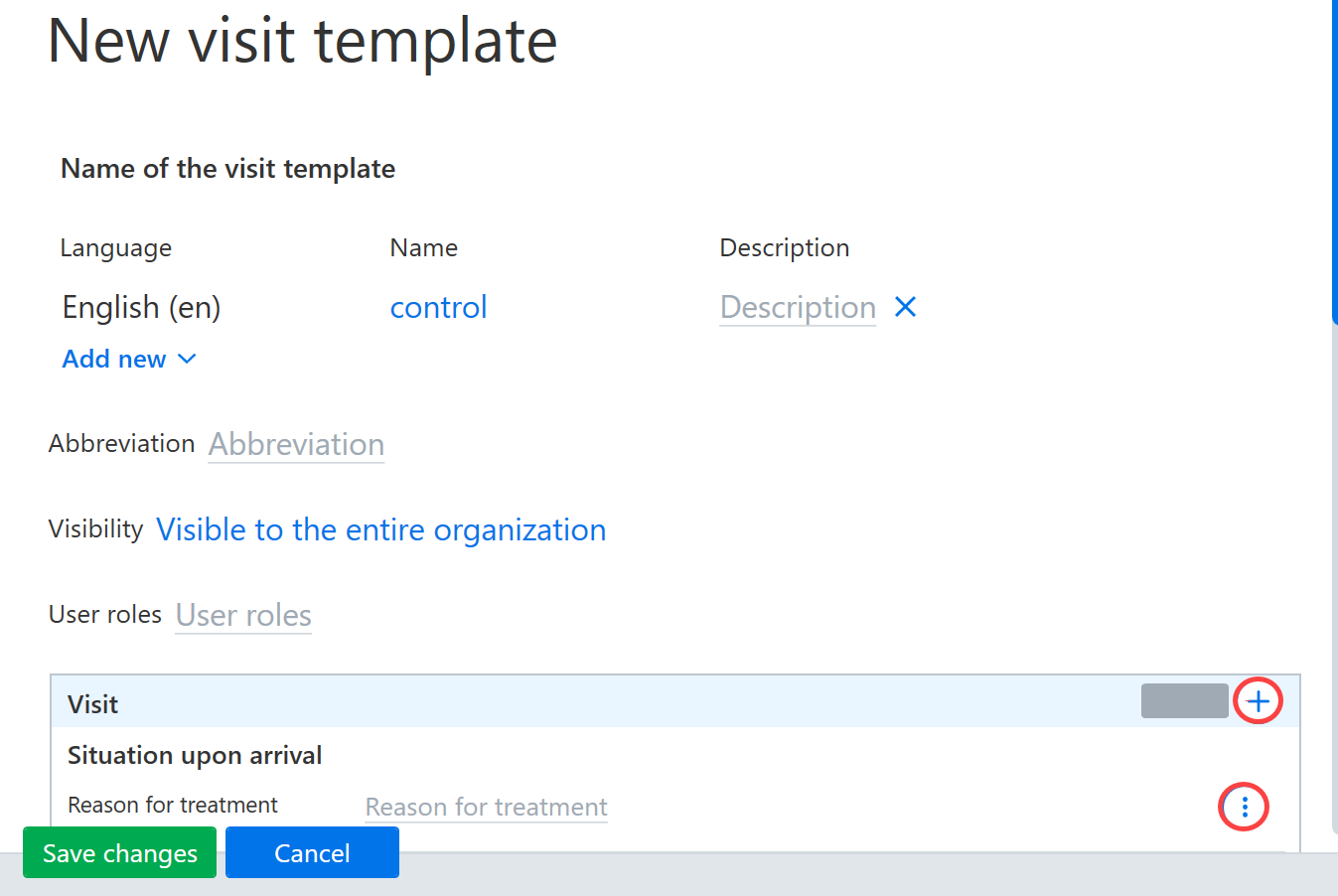
You can use the + button to add the desired headings and text fields to the template.
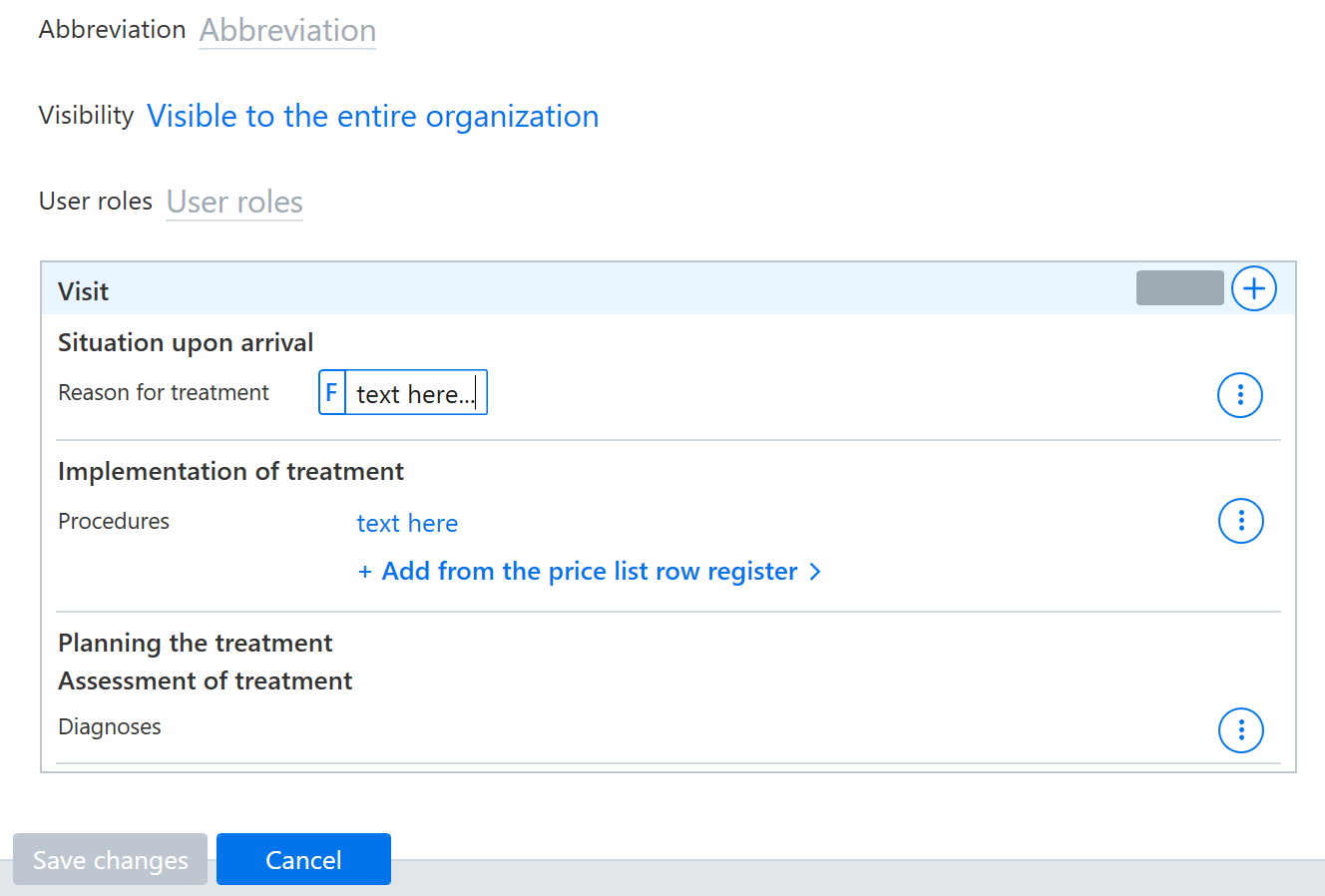
Once the desired headings have been added, the text can be added to the fields.
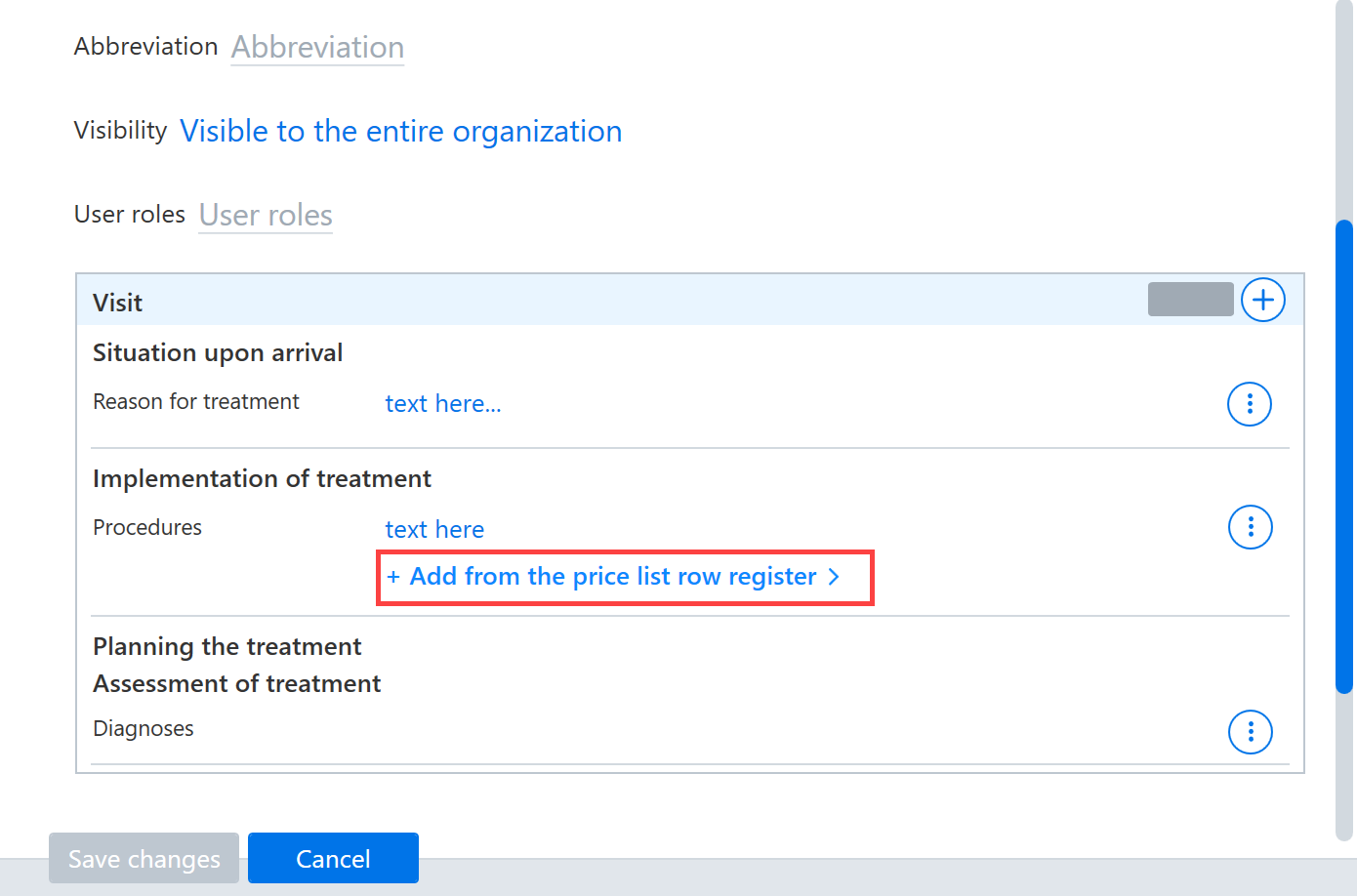
If you want to add procedures to the template, click Add from the price list row register.
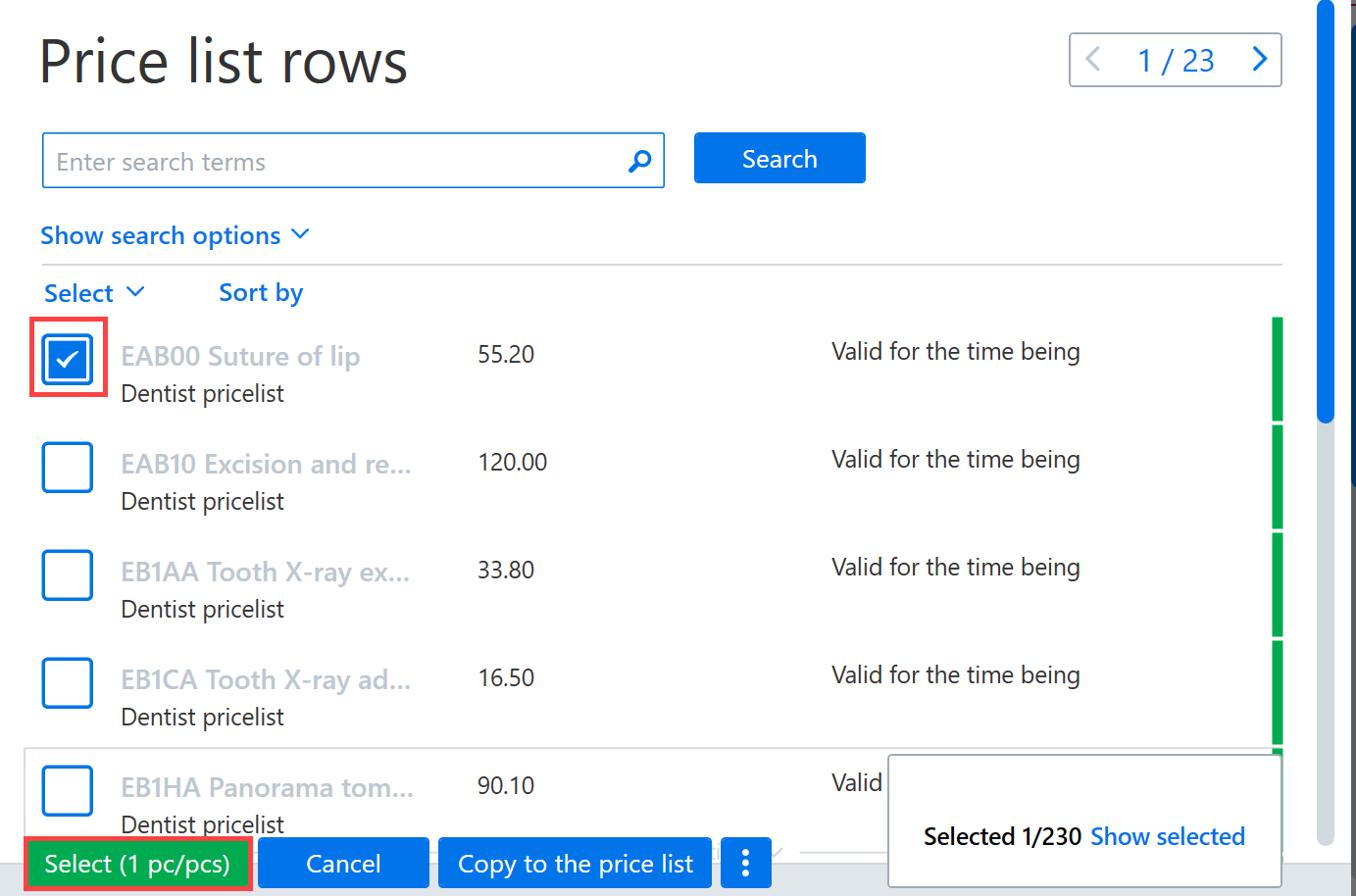
Search for the desired price list row and select it to add it to the visit template.
If needed, you can also edit the price for the procedure and enter a default comment for it.
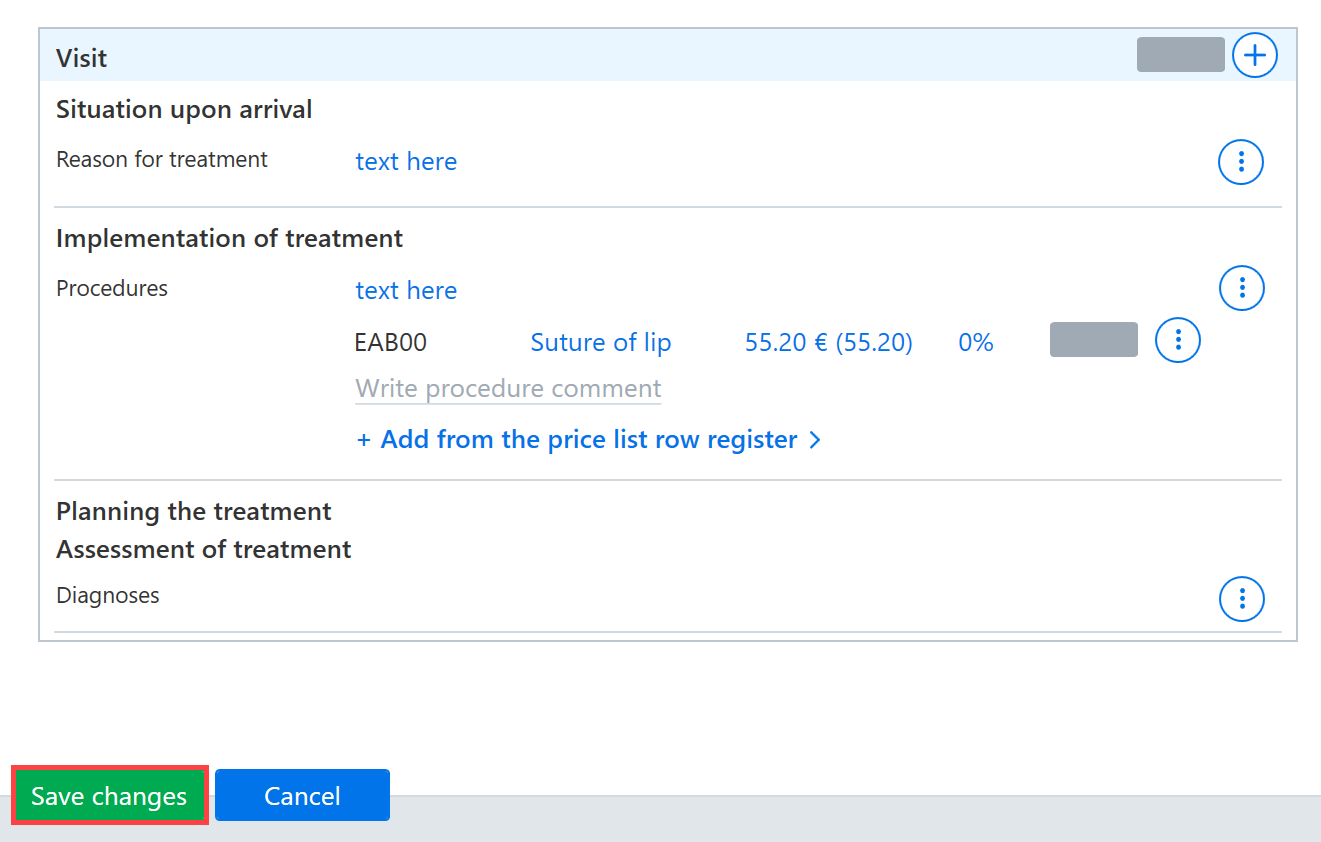
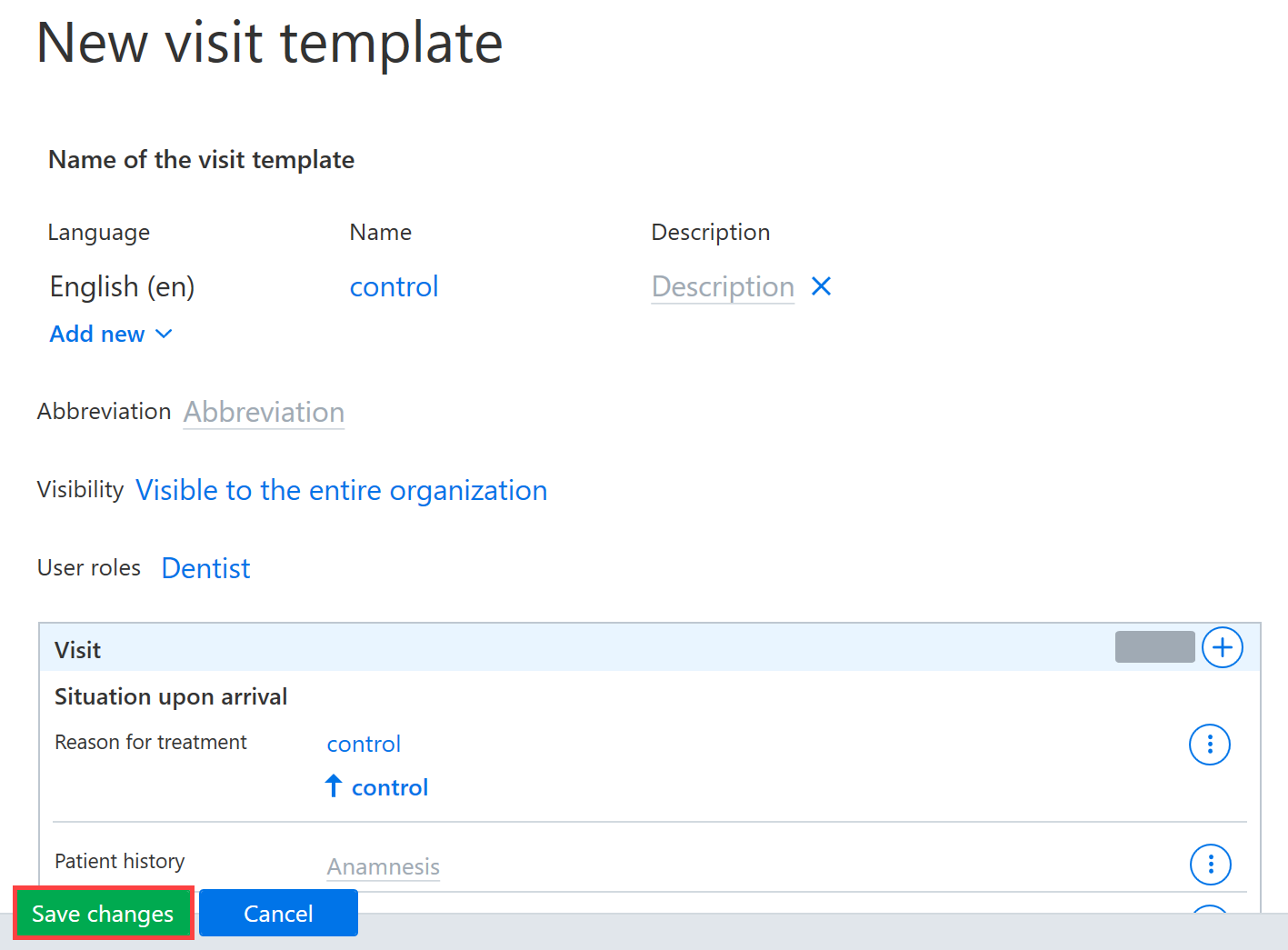
Finally, save the visit template by clicking Save changes.
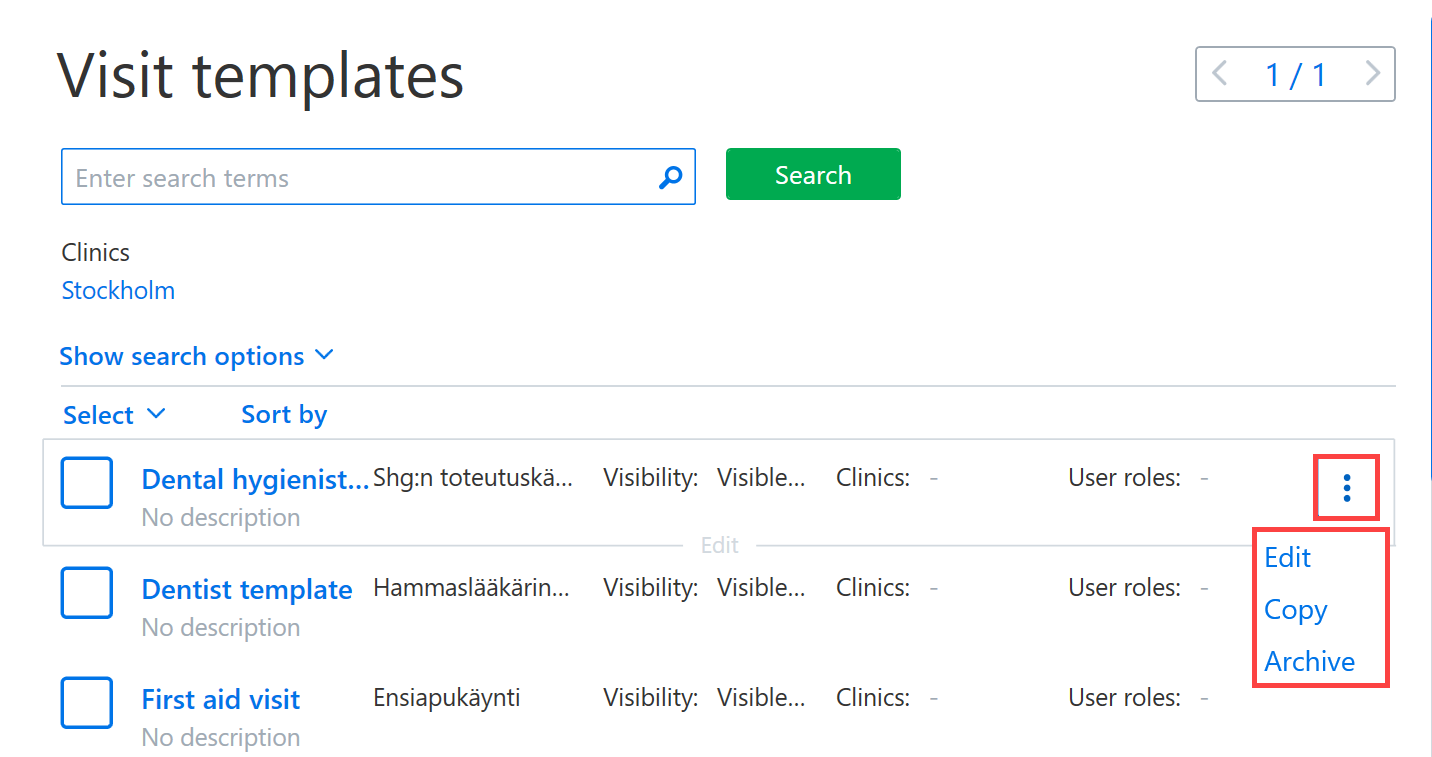
The visit template is displayed in the register once the register view has been updated. The templates in the register can be edited, copied or archived by clicking the Additional functions button at the end of the row for the visit template.
Creating a visit template in the patient record
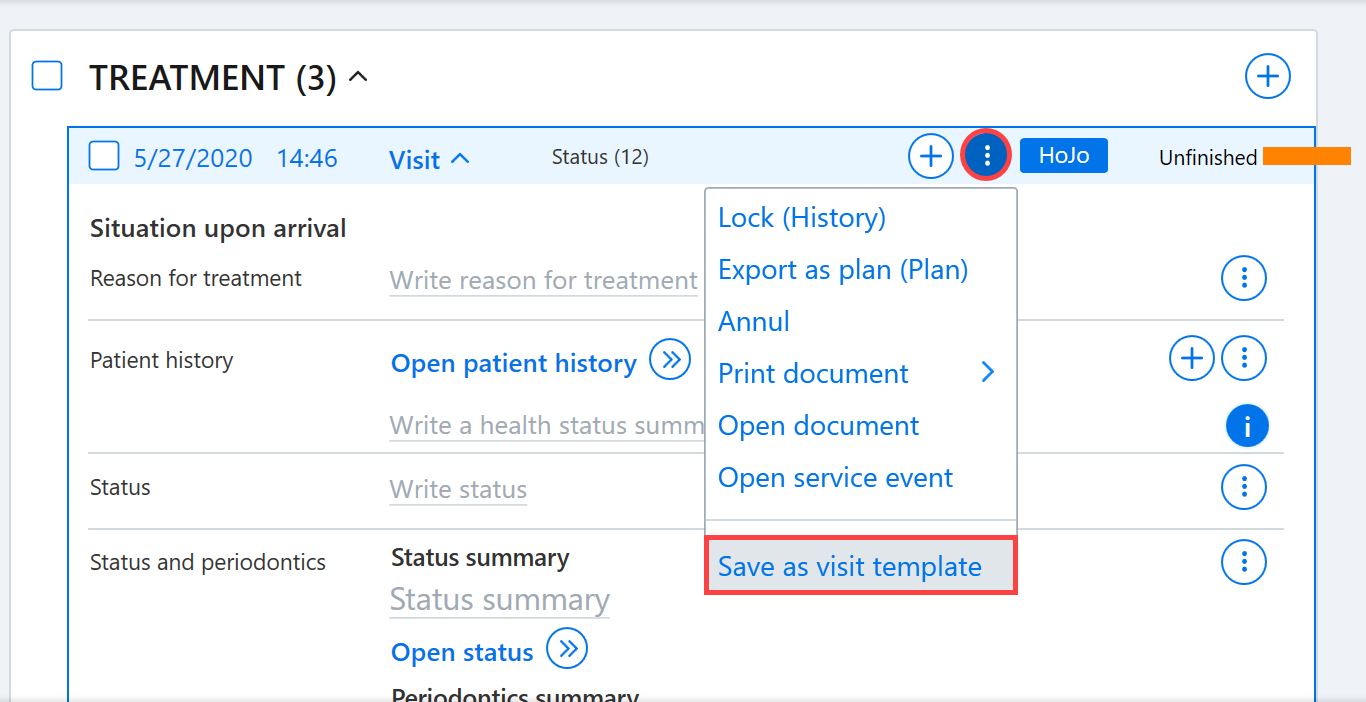
When there is a visit template under the Treatment heading, the visit can be saved as a template by clicking the Additional functions button on the visit row and selecting Save as visit template.
As when creating a template through the register, a name must be set for the template and, if desired, the visibility of the template can be limited.
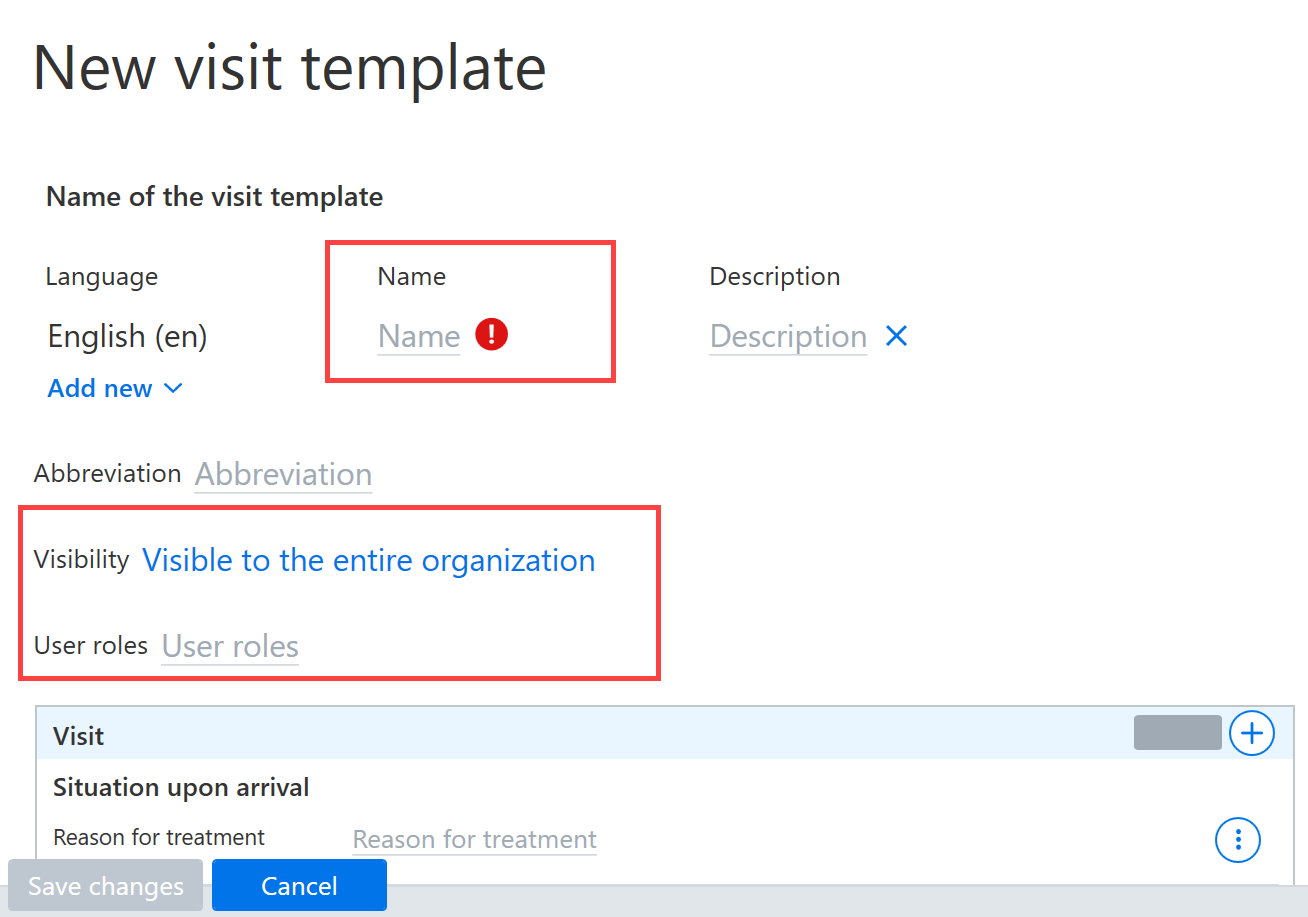
Before the template is saved, you can also edit the template headings and entries. New headings can be added from the + button menu, and headings can be removed from the Additional functions menu.
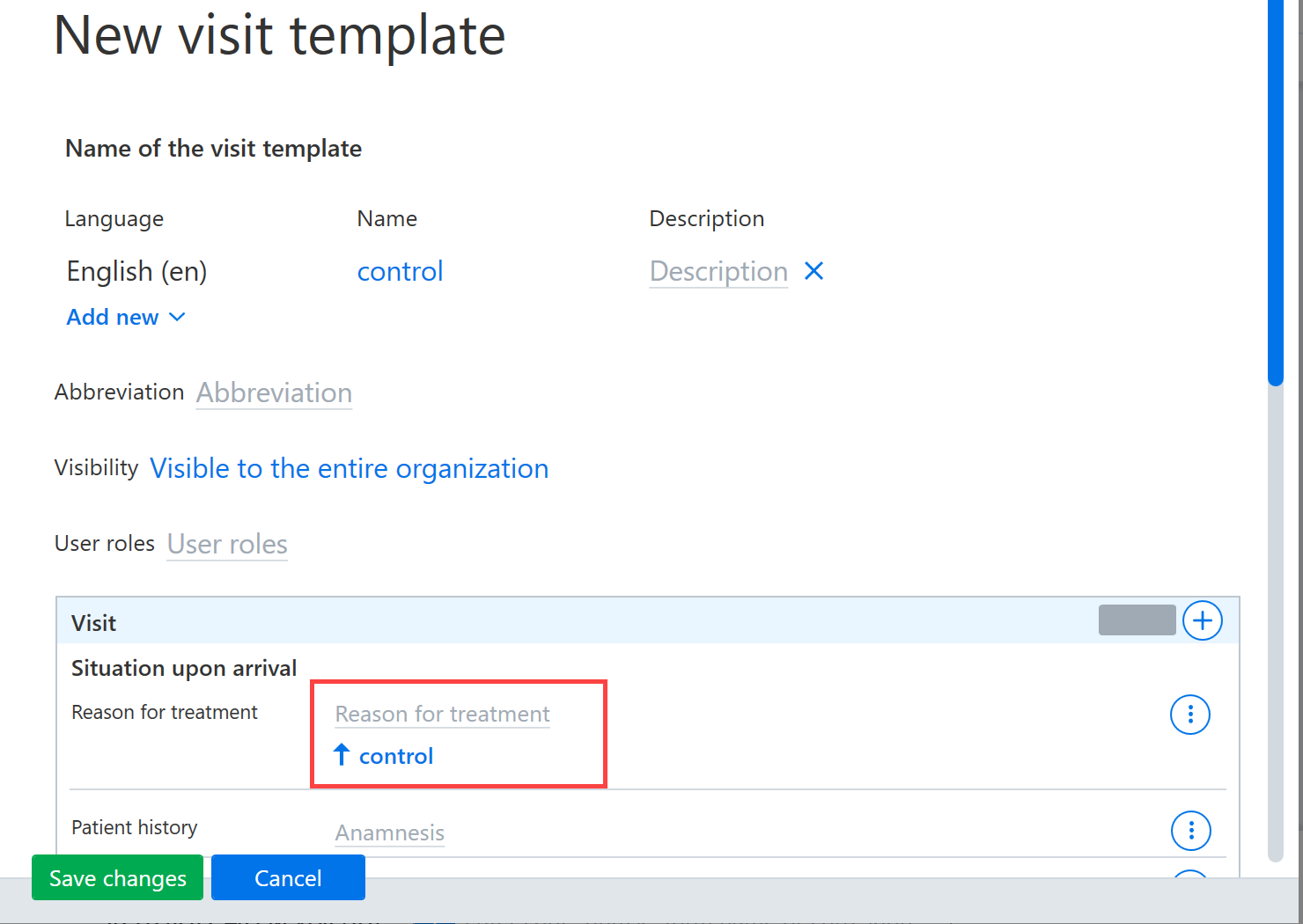
If some information had already been entered in the text fields of the visit in the patient record, this can be included in the template by clicking on the text.
Finally, save the visit template by clicking Save changes.
Editing visit templates in the patient record
From the patient record, you can edit existing visit templates using the Add new button by selecting Visit and then Edit visit templates.
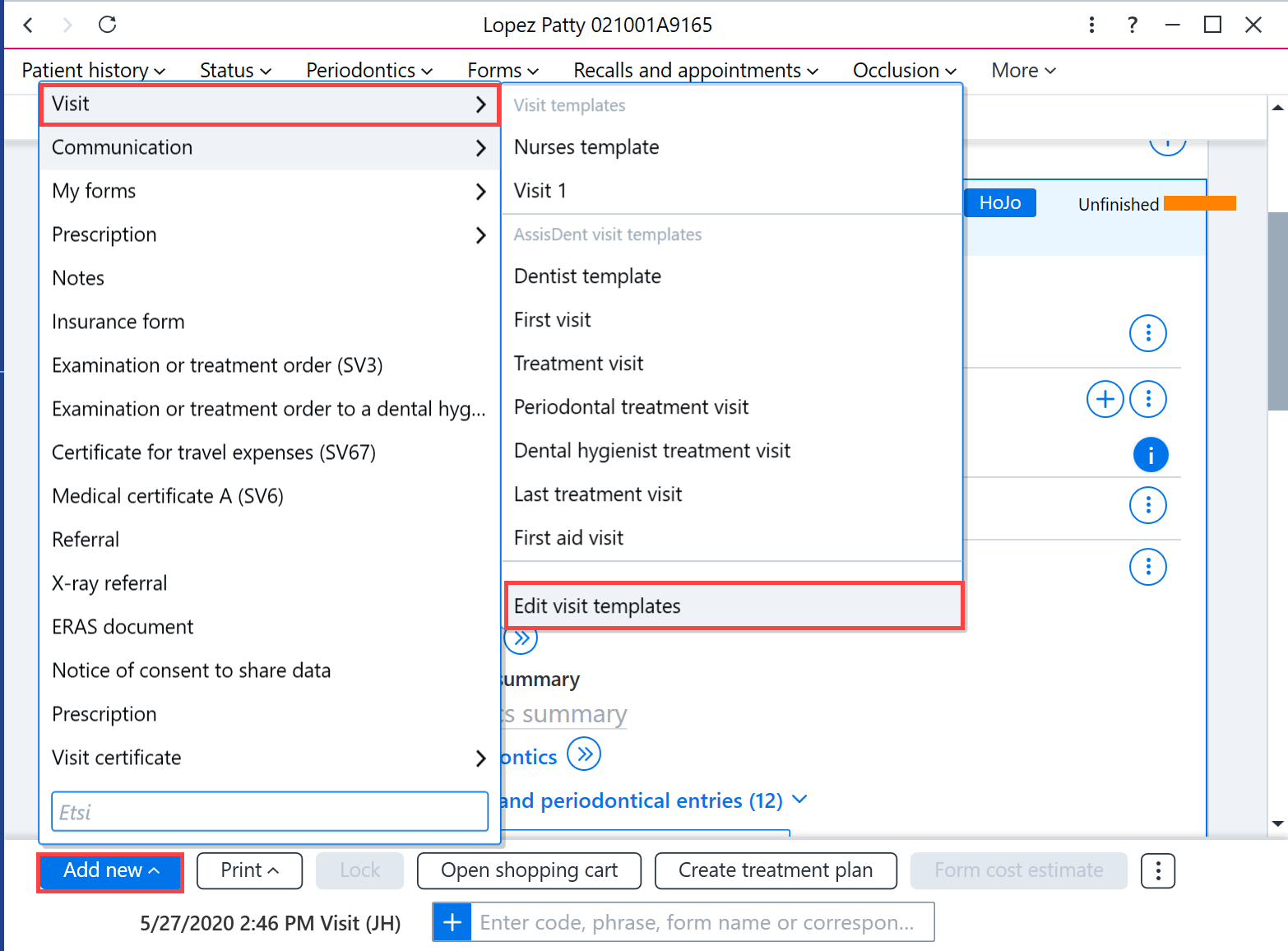
Adding a template for a patient
When you add a new visit to the patient record, using the Add new button for example, the created templates are displayed in the Visit menu.