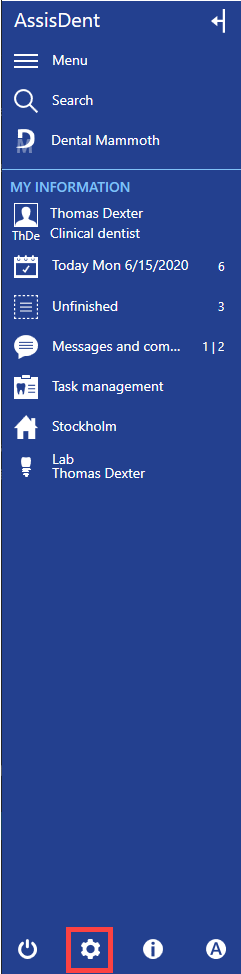
Open the settings from the control panel by selecting System settings.
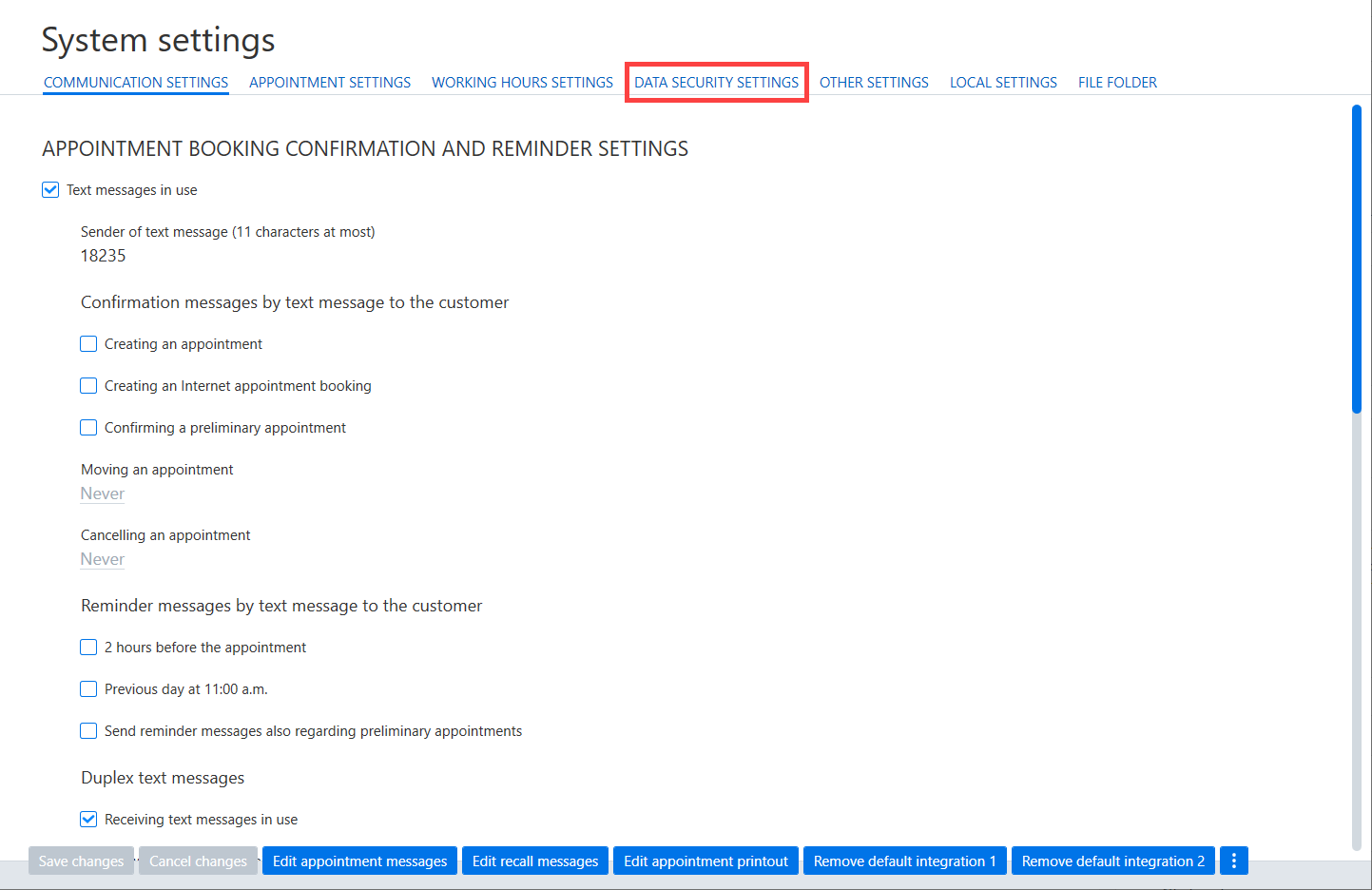
Select the Data security settings tab.
Changing password settings
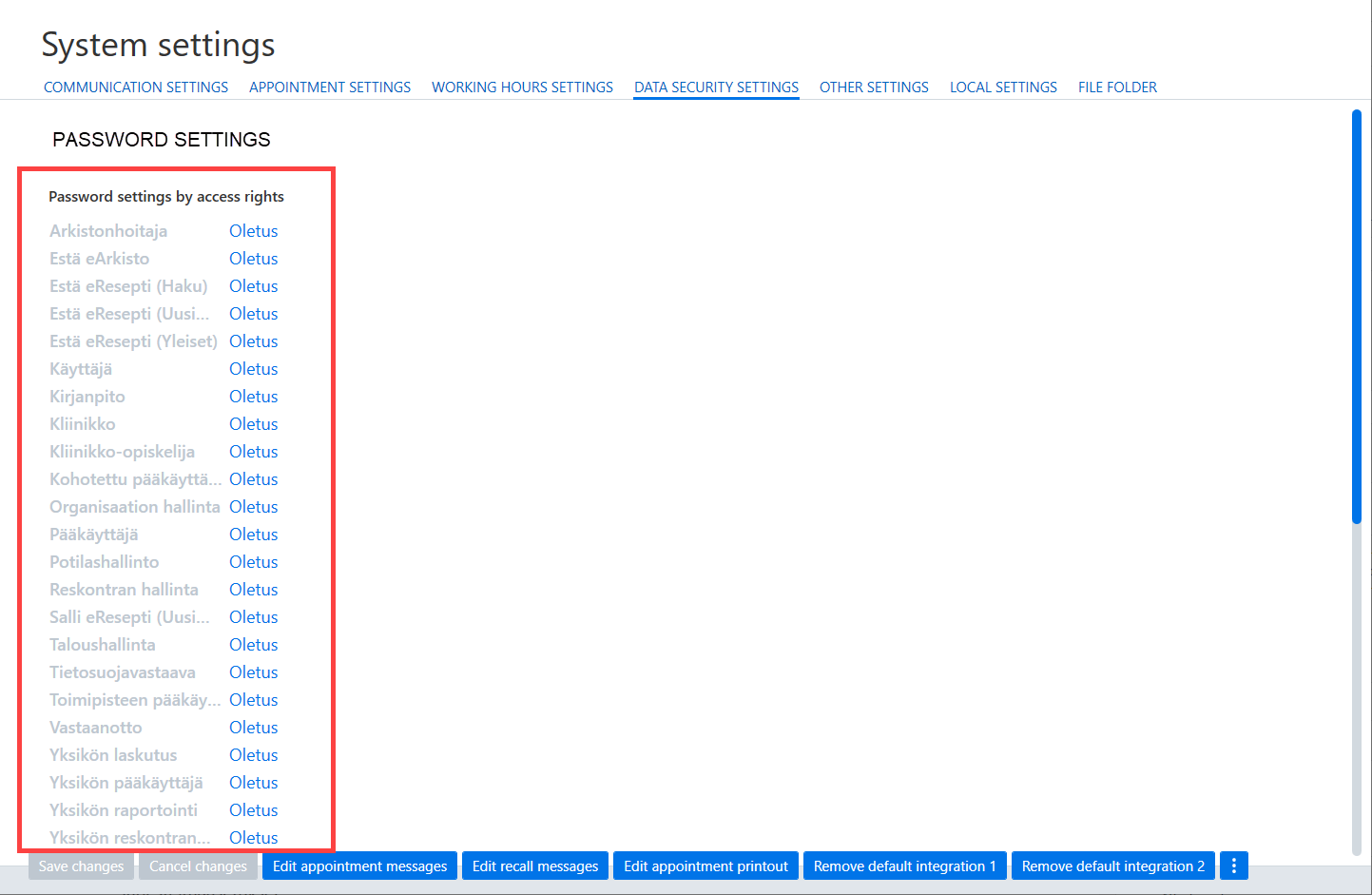
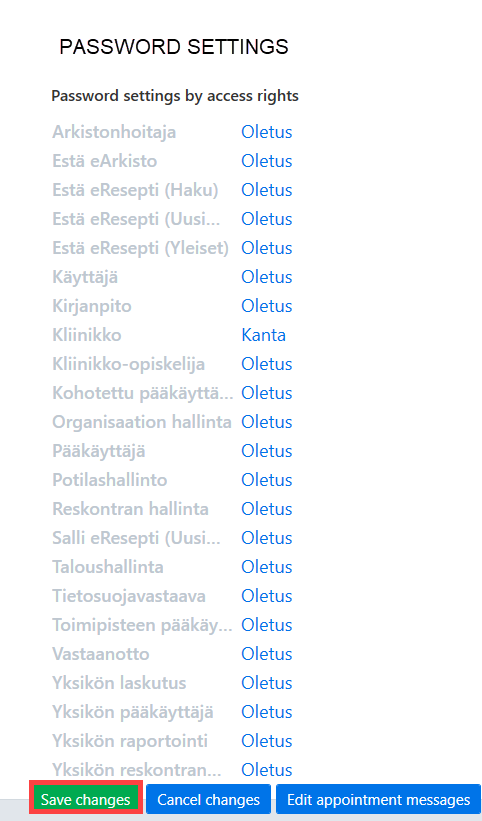
Passwords are determined according to access rights. You can edit password settings in Password settings by access rights.
Save changes to finish.
Creating password settings
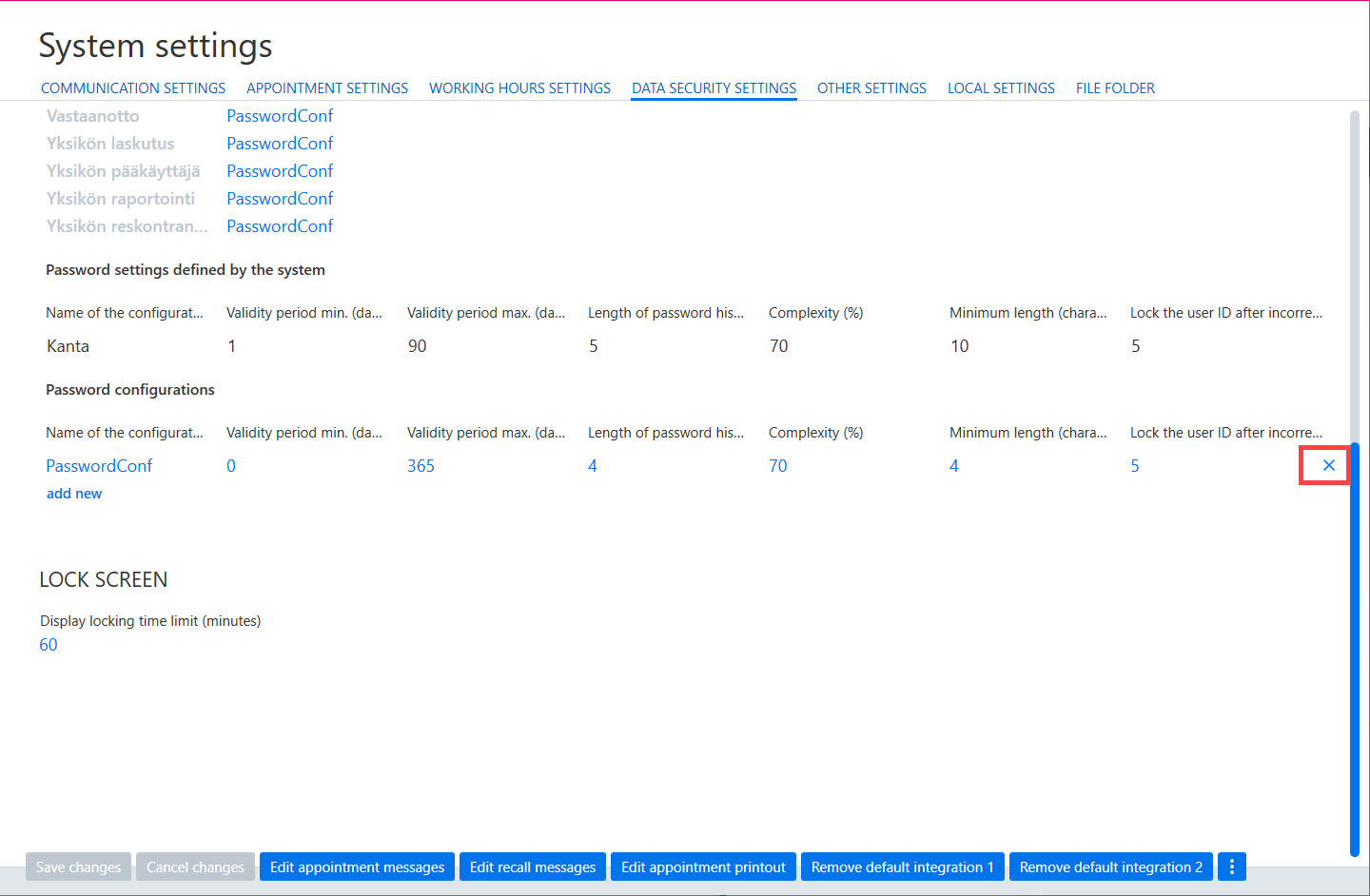
New password settings can be added by selecting Add new below Password configuration.
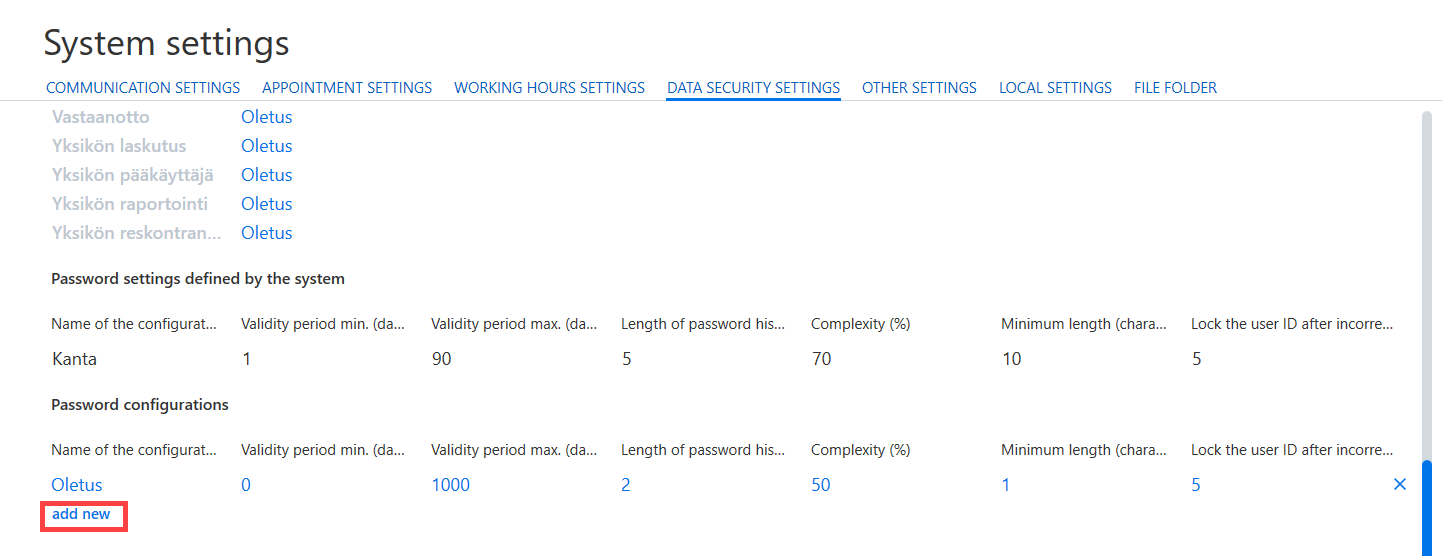
A line appears for entering new password configuration. Configuration name is mandatory information.
- Validity period min. (days) = Duration in days until the password can be changed.
- Length of password history = How many previous passwords the software stores. Passwords stored by the software cannot be re-used.
- Complexity (%) = Complexity of the password. Complexity is affected by, for example, numbers/letters/characters, special characters and capital letters.
- Minimum length (characters) = Minimum length of the password in characters.
You can finish configuring the password settings by selecting Save settings.
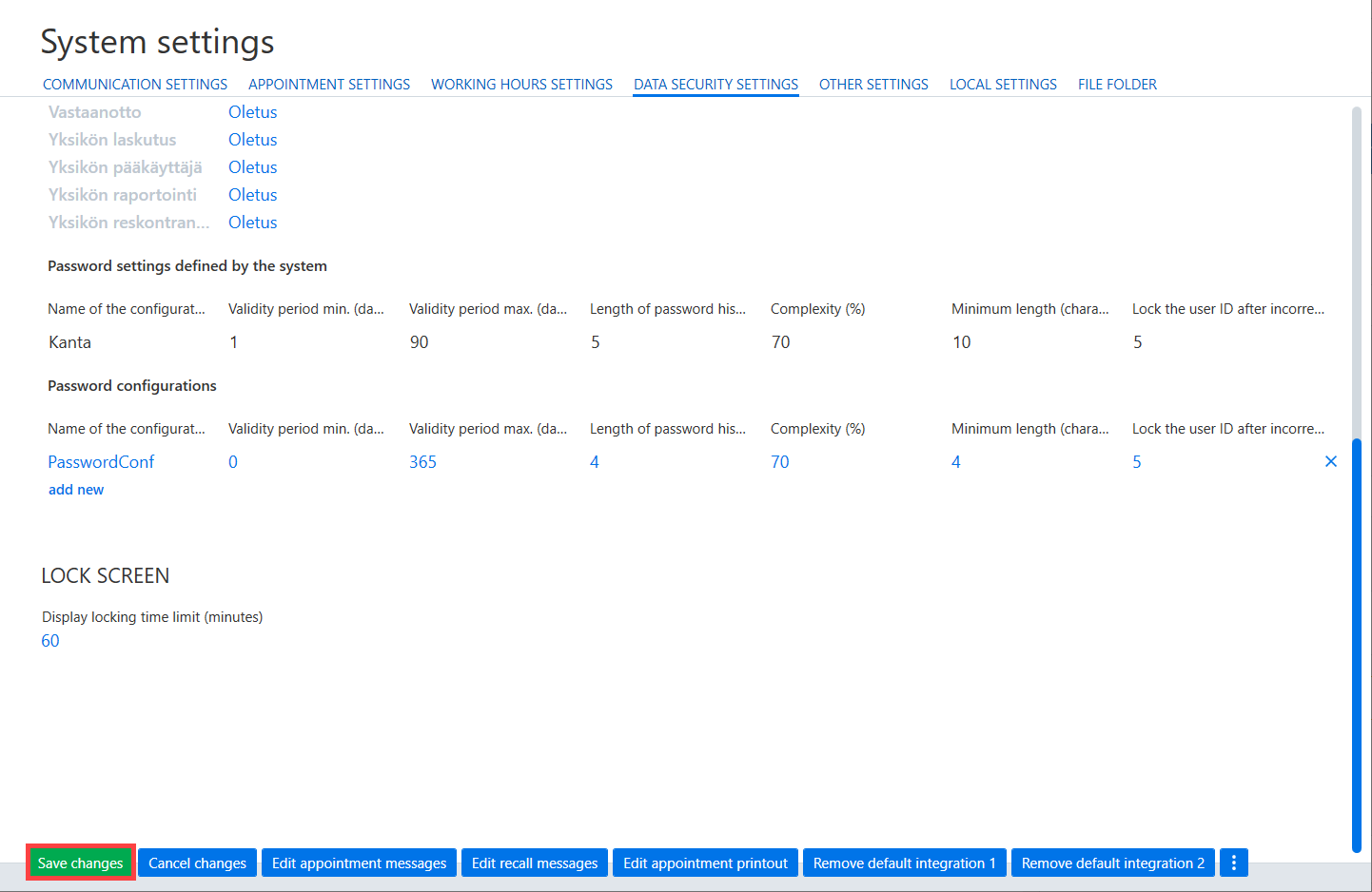
Please note: Once a password setting has been created, it must be applied for different access right categories. Please see the instructions above.
Removing password settings
Existing password settings can be deleted with the X icon located at the end of the configuration line and by selecting Save changes.