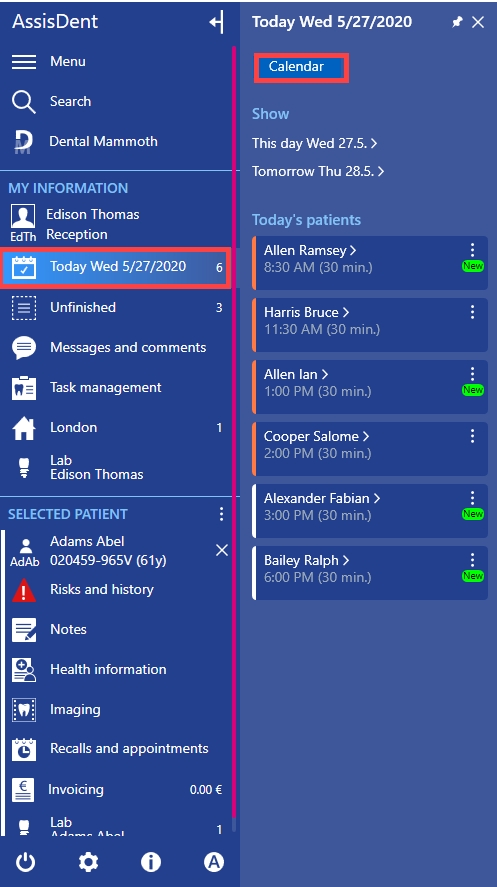
Open the appointment calendar date (Today date → Calendar) and select the desired appointment.
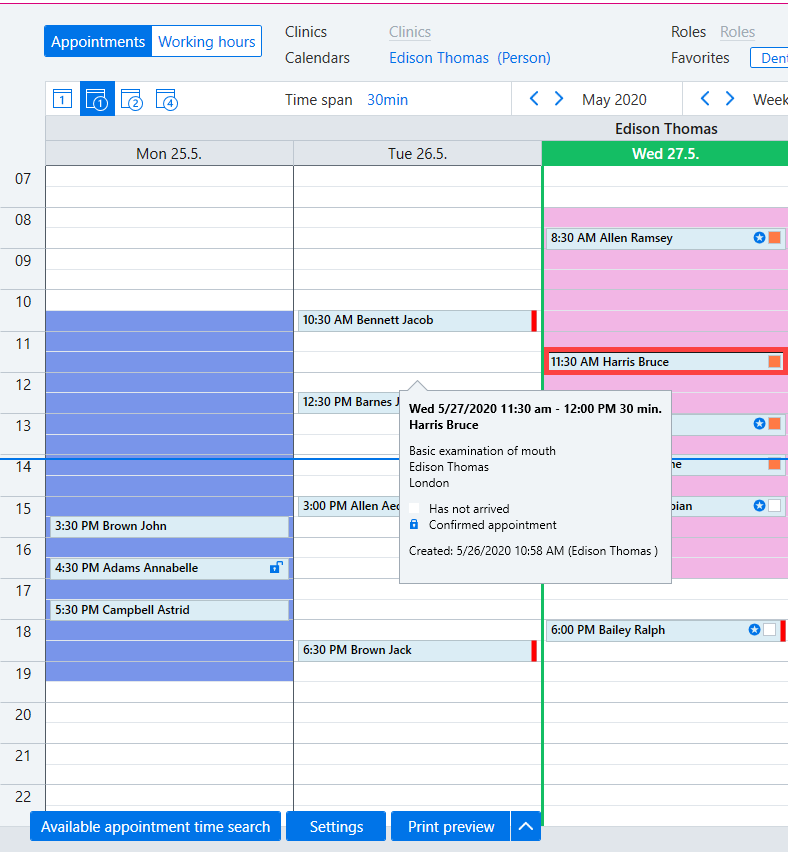
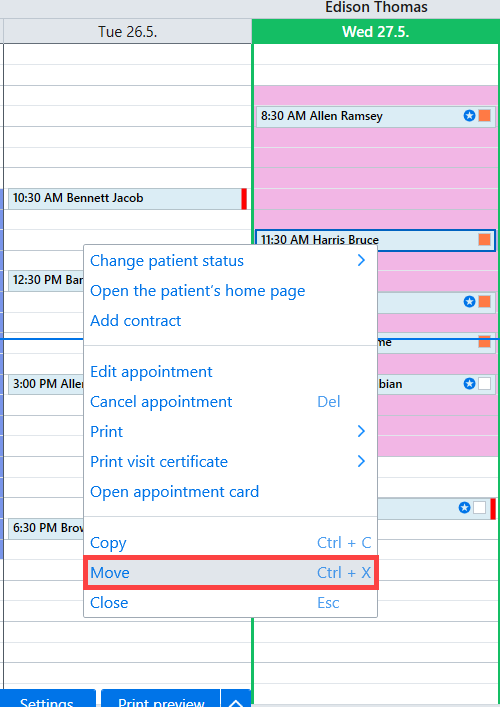
Right click on the appointment and select Move.
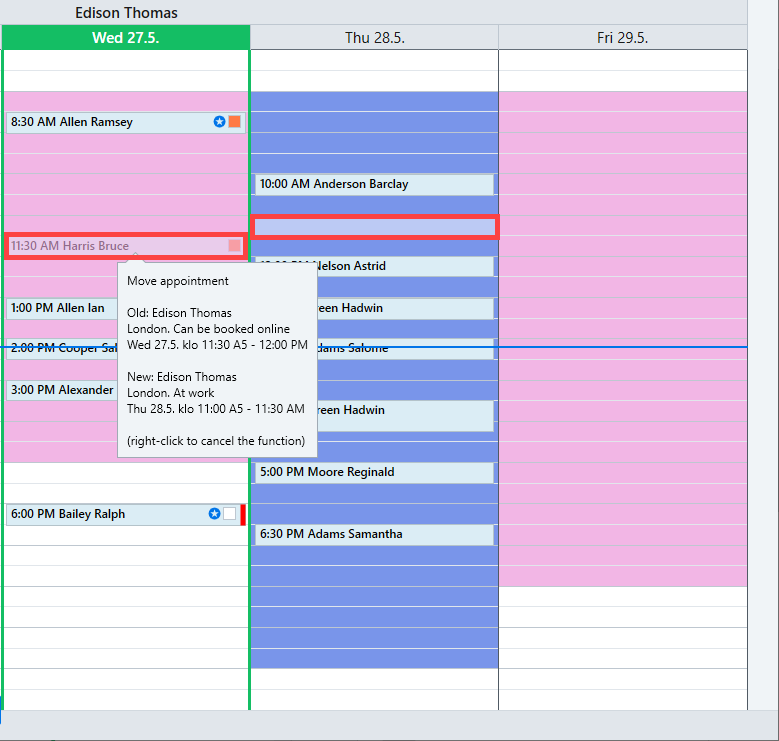
You can then use the mouse to move the appointment box to a new time. When the box is in the right location, click the left mouse button. If you want to cancel the change, press the right mouse button.
The appointment can also be moved to a different time by dragging the appointment to a new time in the calendar while holding down the left mouse button.
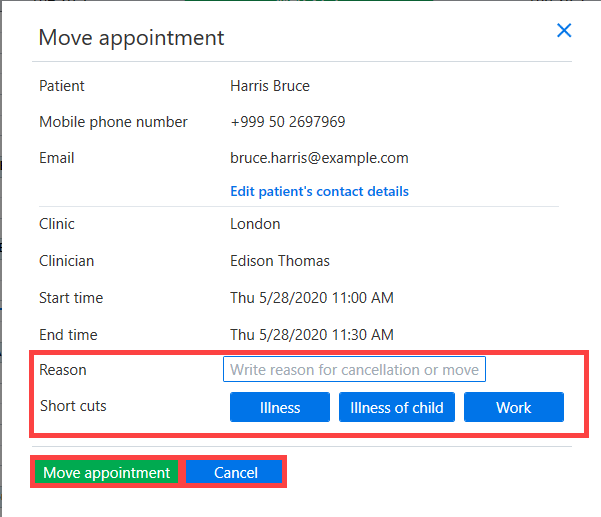
You will be asked to confirm the change to the appointment time. If desired, you can also add a reason for the appointment time change either by typing this in or selecting one of the listed options. Clicking on one of the list options confirms the time change and closes the time change dialog box.
Press the Move appointment button to confirm the time change.
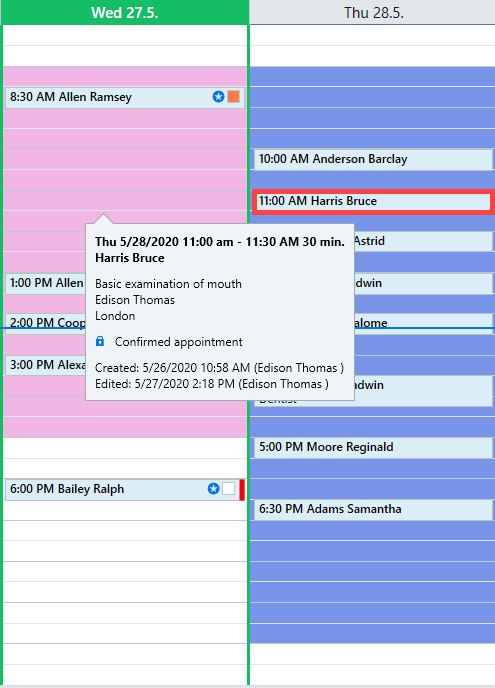
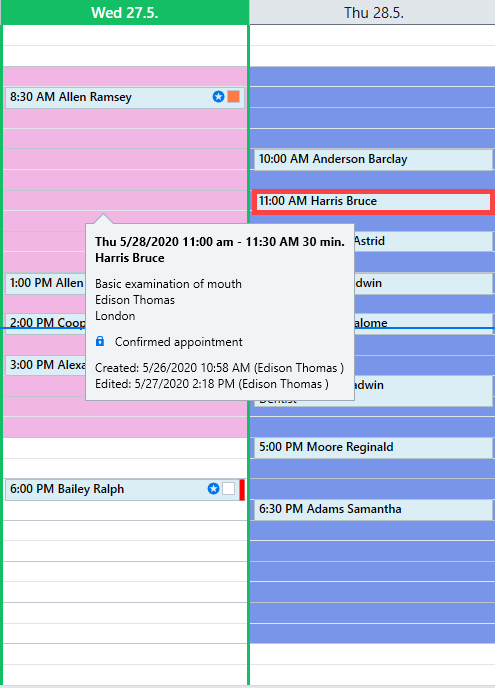
Hover over a moved appointment to view the details and creator of the original time. The reason for the time change is also shown if one has been selected.
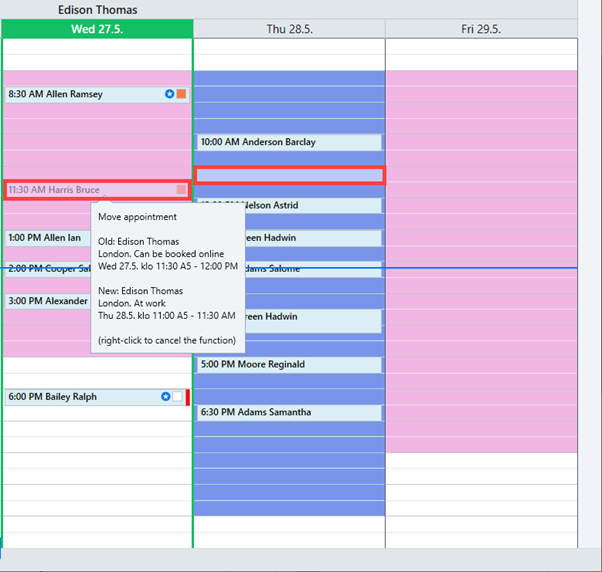
You can then use the mouse to move the appointment box to a new time. When the box is in the right location, click the left mouse button. If you want to cancel the change, press the right mouse button.
The appointment can also be moved to a different time by dragging the appointment to a new time in the calendar while holding down the left mouse button.
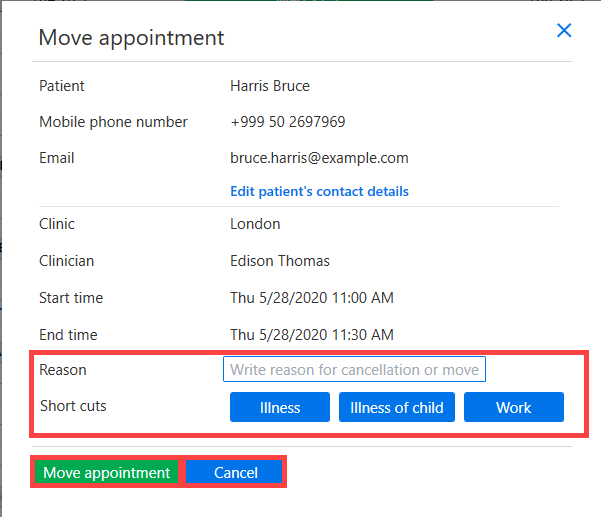
You will be asked to confirm the change to the appointment time. If desired, you can also add a reason for the appointment time change either by typing this in or selecting one of the listed options. Clicking on one of the list options confirms the time change and closes the time change dialog box.
Press the Move appointment button to confirm the time change.
Hover over a moved appointment to view the details and creator of the original time. The reason for the time change is also shown if one has been selected.