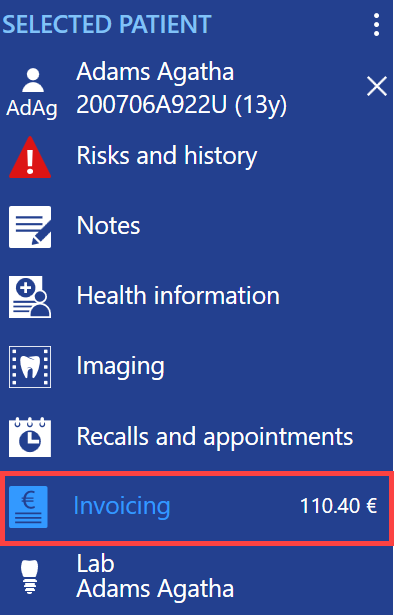
These instructions describe how to access the patient's customer invoicing and shopping cart through the control panel. In addition, the difference between customer invoicing and the shopping cart is explained. You can switch to the checkout from both invoicing views.
Customer invoicing
This invoicing view displays the patient's billable procedures and products in rows. The price list rows and their contents can be viewed in more detail by clicking in an empty space on a price list row
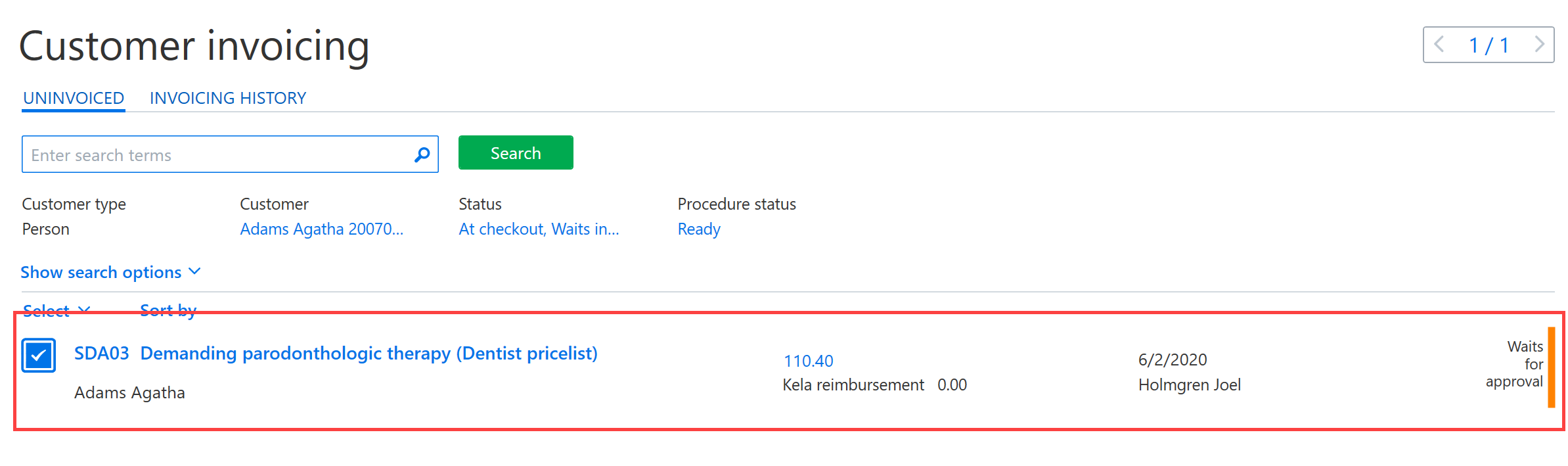
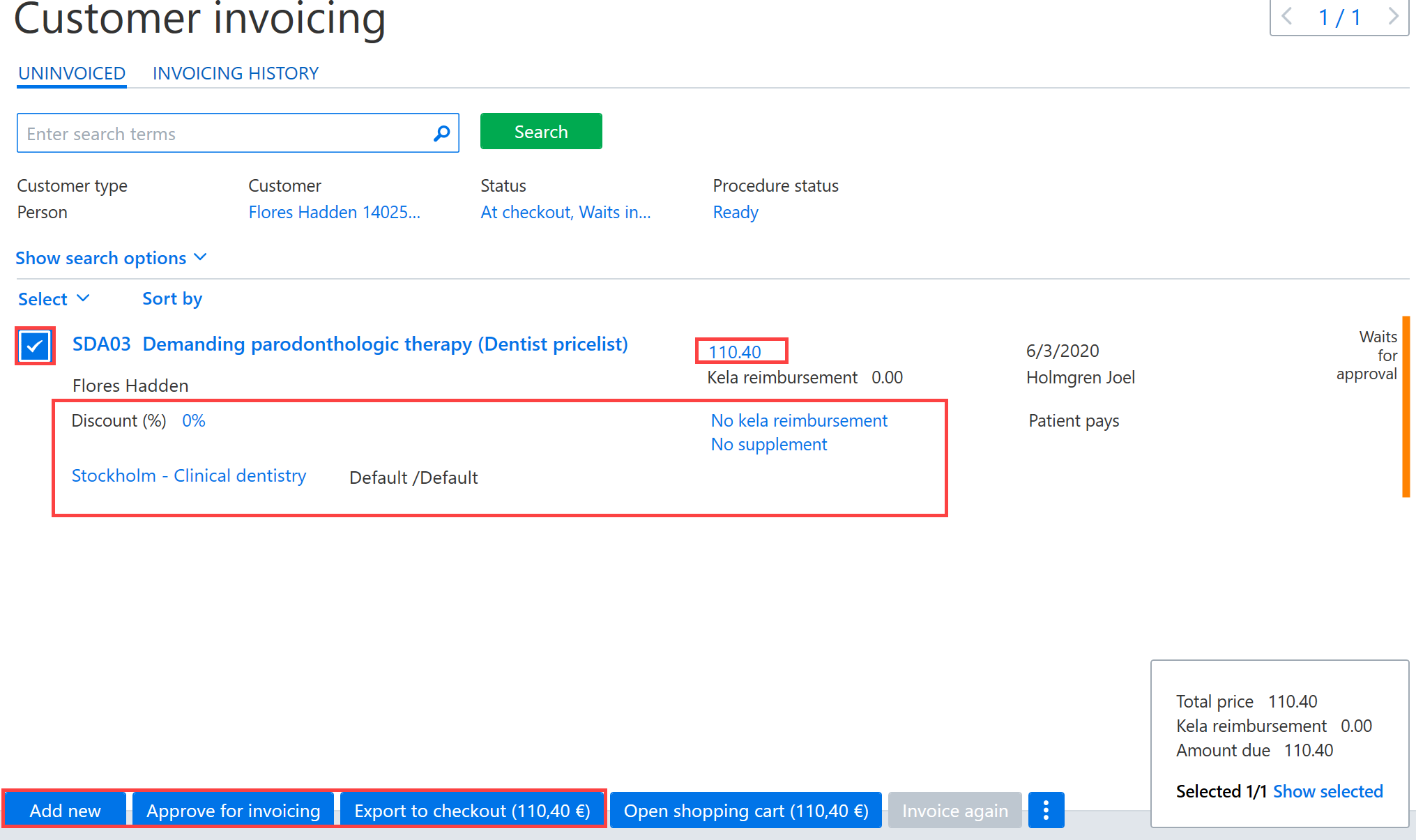
A discount can be entered on the price list row or the price on the price list row can be changed. If needed, the invoicing unit or the Kela compensation can be changed. You can add new price list rows to the invoice using the Add new button. When all the rows are ready, click Approve for Invoicing. You can then go to the checkout by clicking Export to checkout.
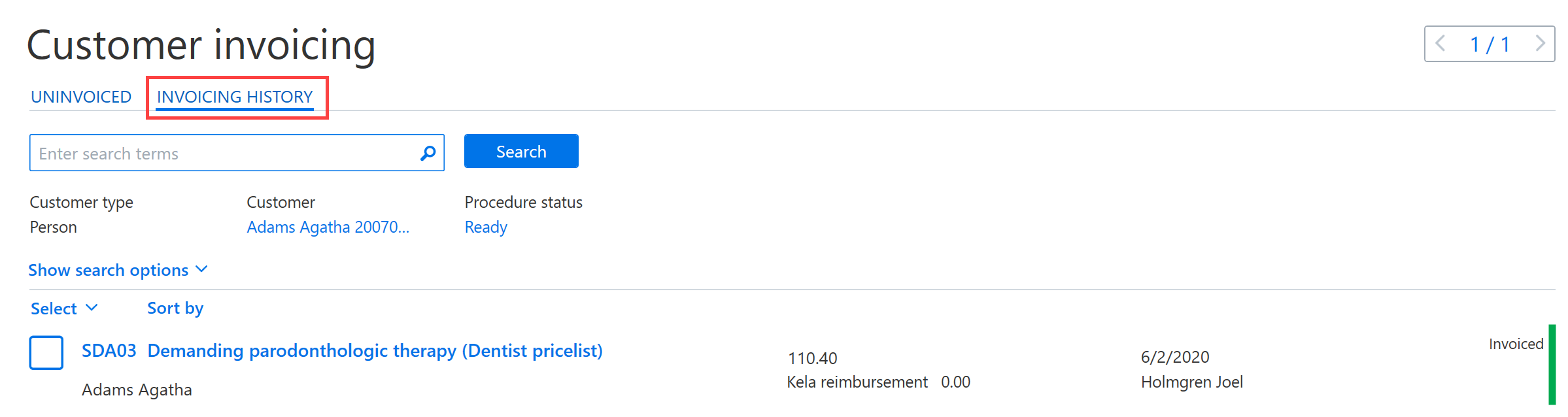
Rows that have already been invoiced are shown under the Invoicing history tab.
You can access customer invoicing in the following ways:
When the patient is open, click Invoicing on the control panel and then select Open invoicing.
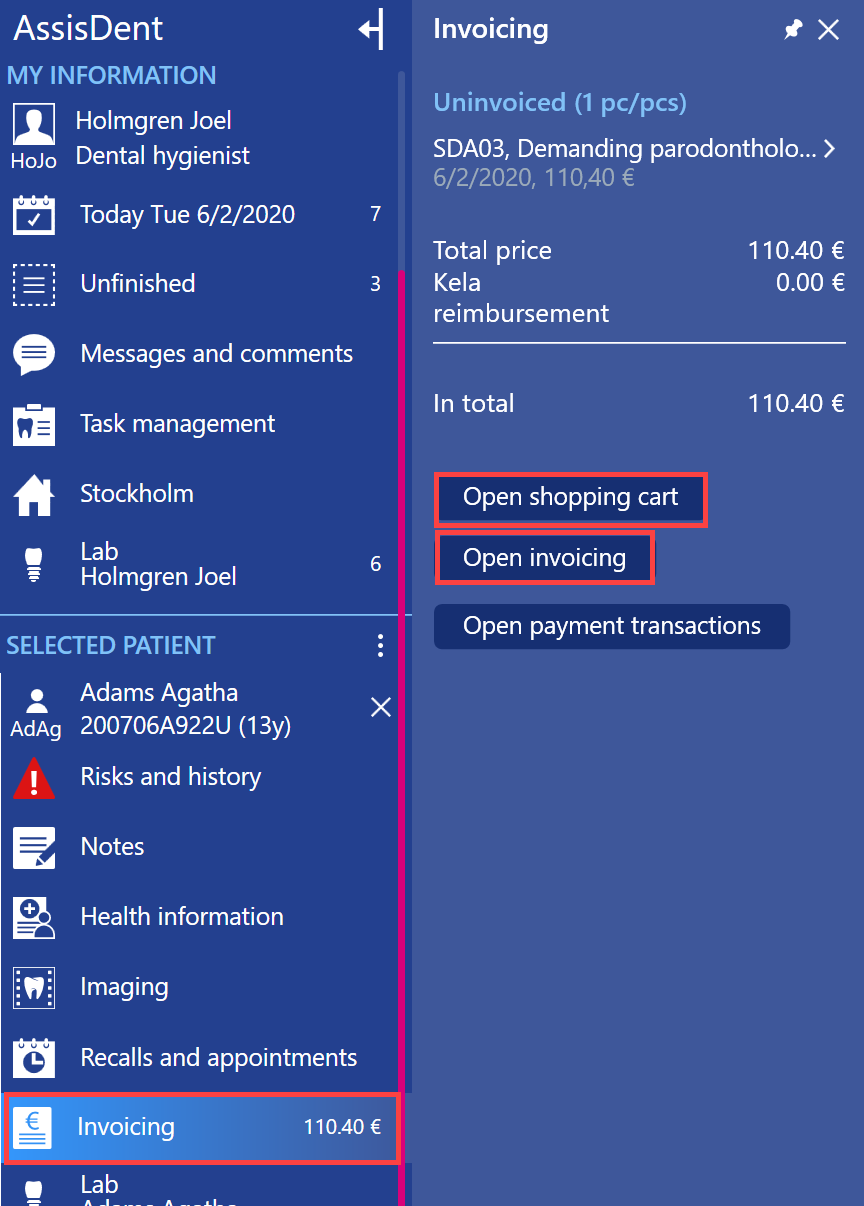
You can also switch to patient invoicing by right-clicking Invoicing.
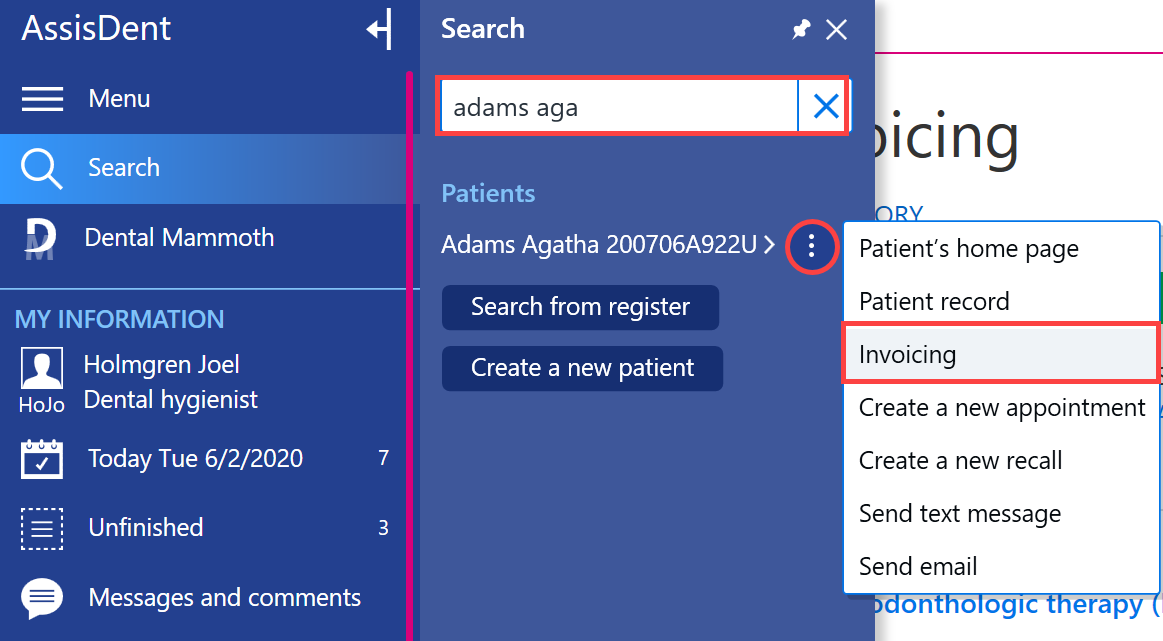
Find the patient using the search box. Click the Additional functions button next to the patient’s name and select Invoicing.
Shopping cart
You can access the shopping cart in the following ways:
When the patient is open, click Invoicing on the control panel and then select Open shopping cart.
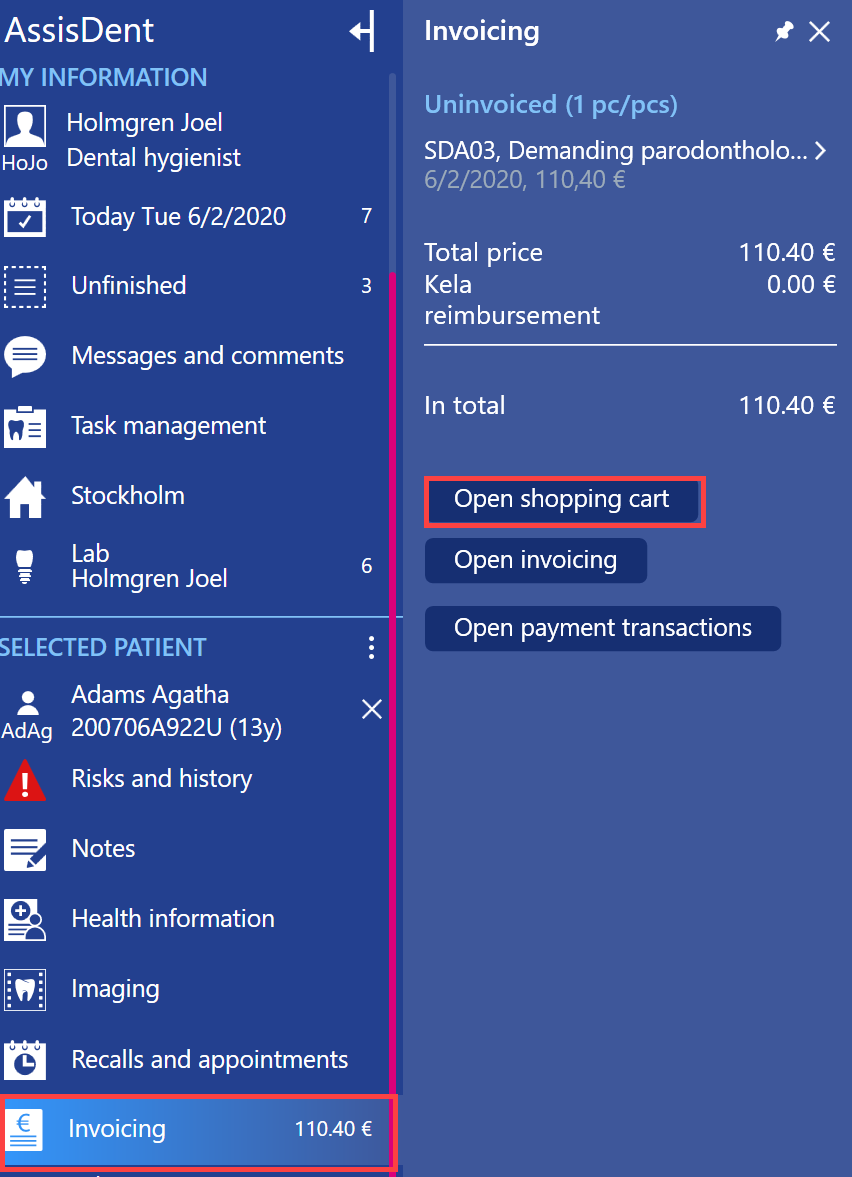
You can also access the shopping cart directly from the patient record by clicking Open shopping cart.
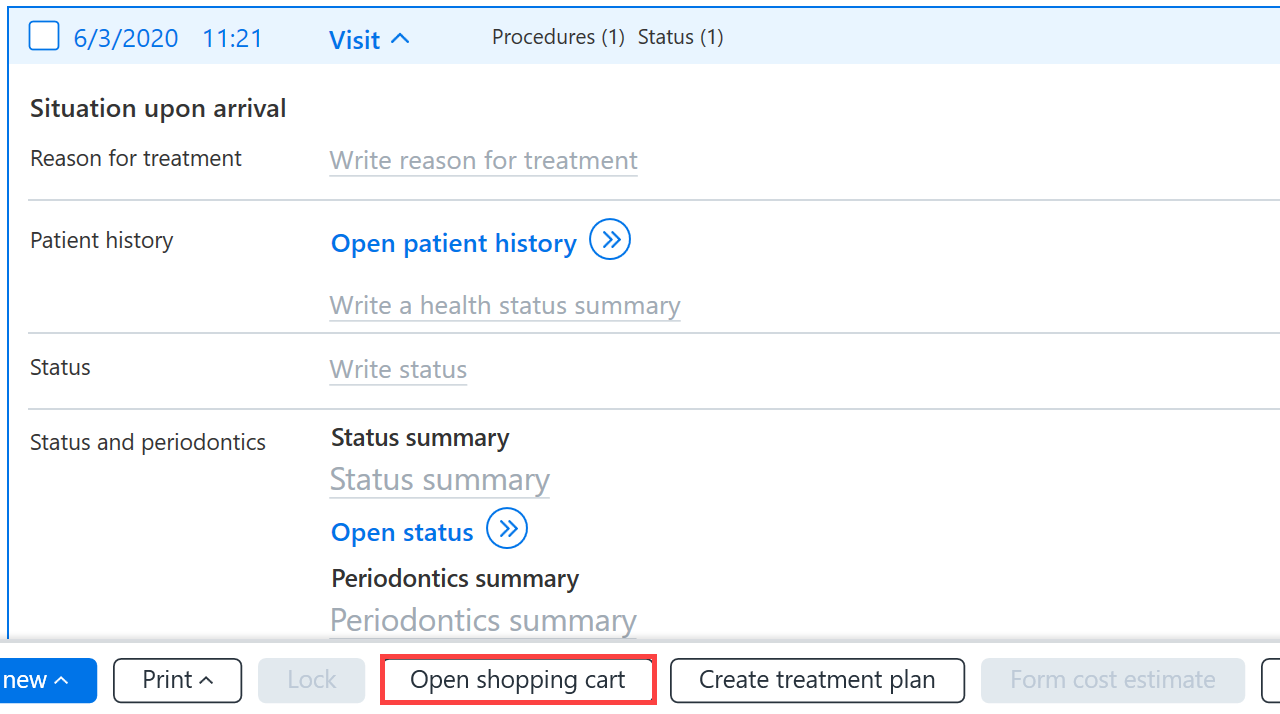
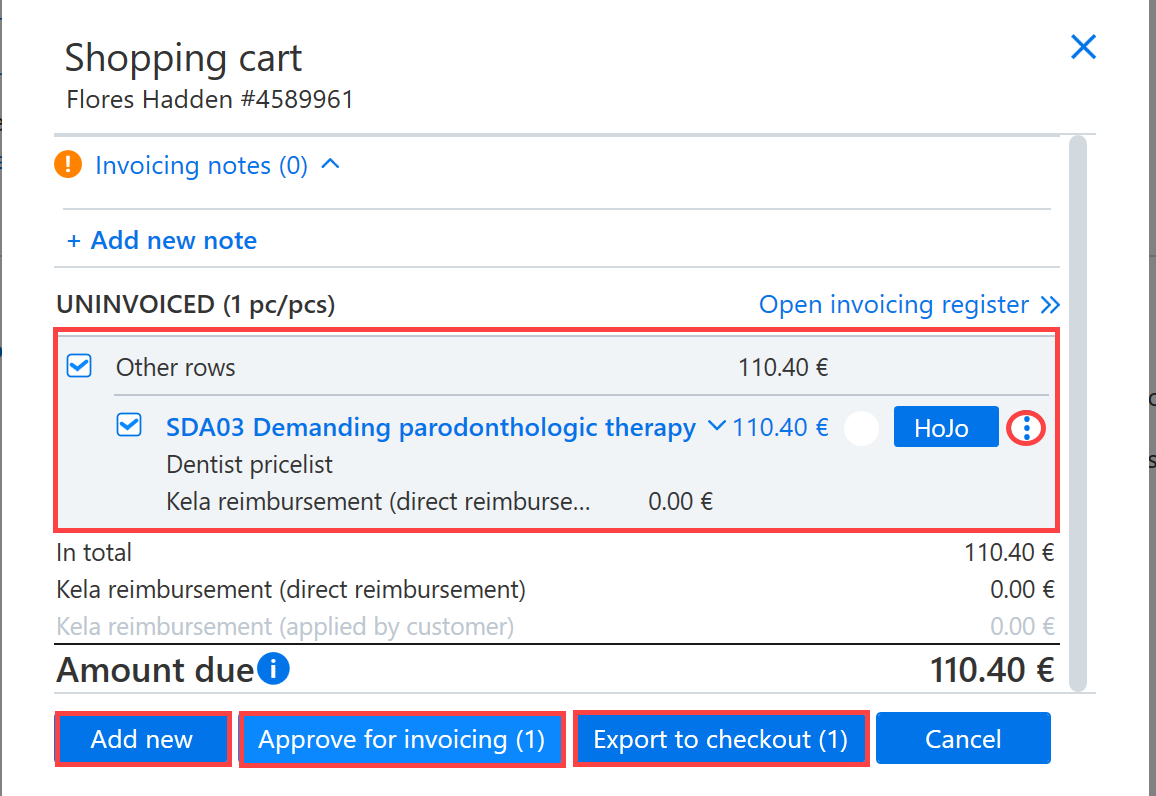
In the shopping cart, you can see the invoiceable procedures added to the patient for each visit. You can add new price list rows by clicking Add new. To open and delete price list rows, click the additional functions button at the end of the price list row. Price list rows are approved for invoicing either by clicking the Approve for Invoicing button on the bottom row or from the menu under the additional functions button at the end of the price list row.
If needed, you can set within the My AssisDent settings whether right-clicking on Invoicing moves you to the invoicing view or the shopping cart. This setting is user-specific.
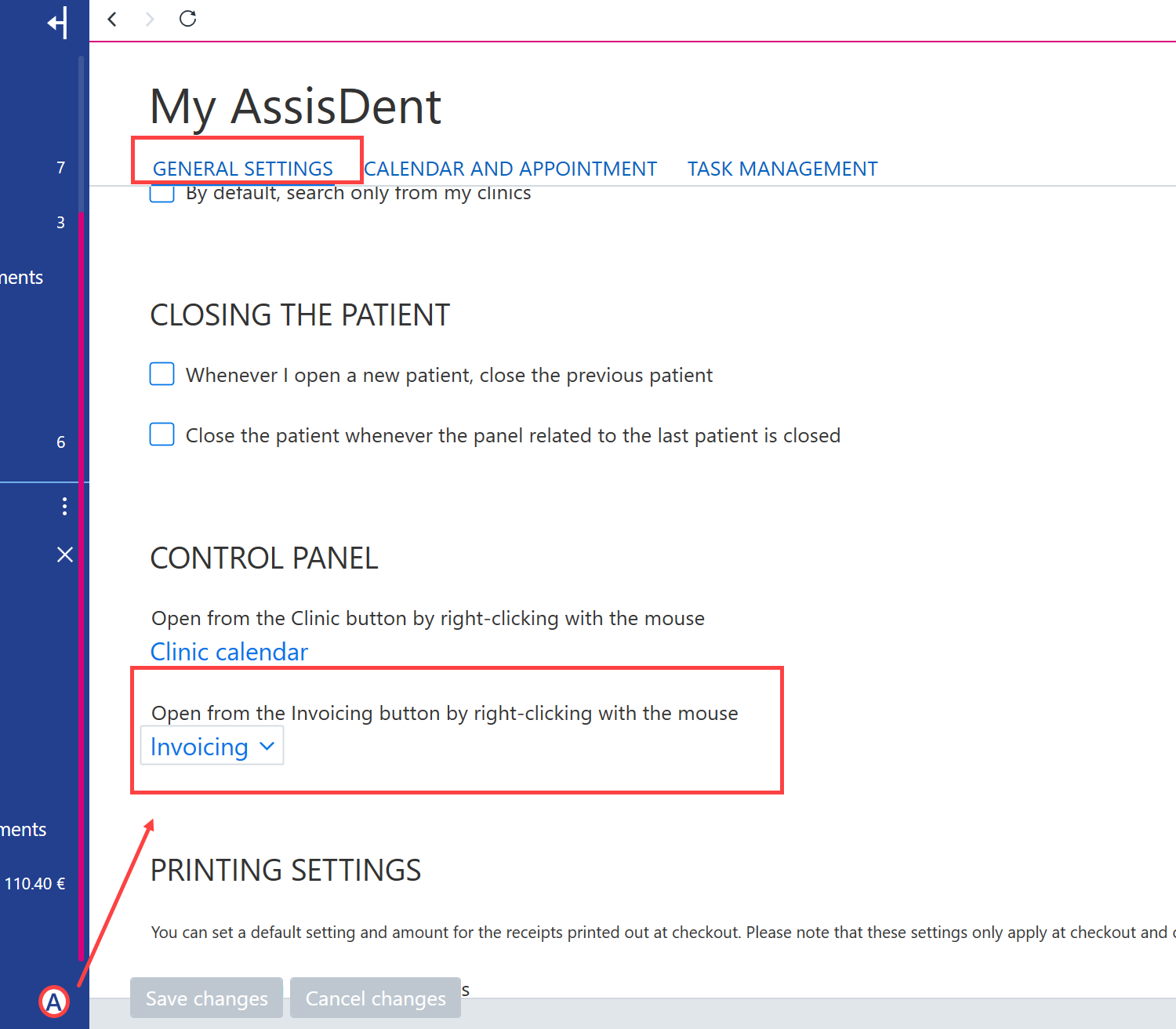
Once the above setting has been changed, you can access the shopping cart from the control panel by right-clicking Invoicing.