First, search for the customer information of the patient which you want to edit. If needed, click here to view the patient search instructions.

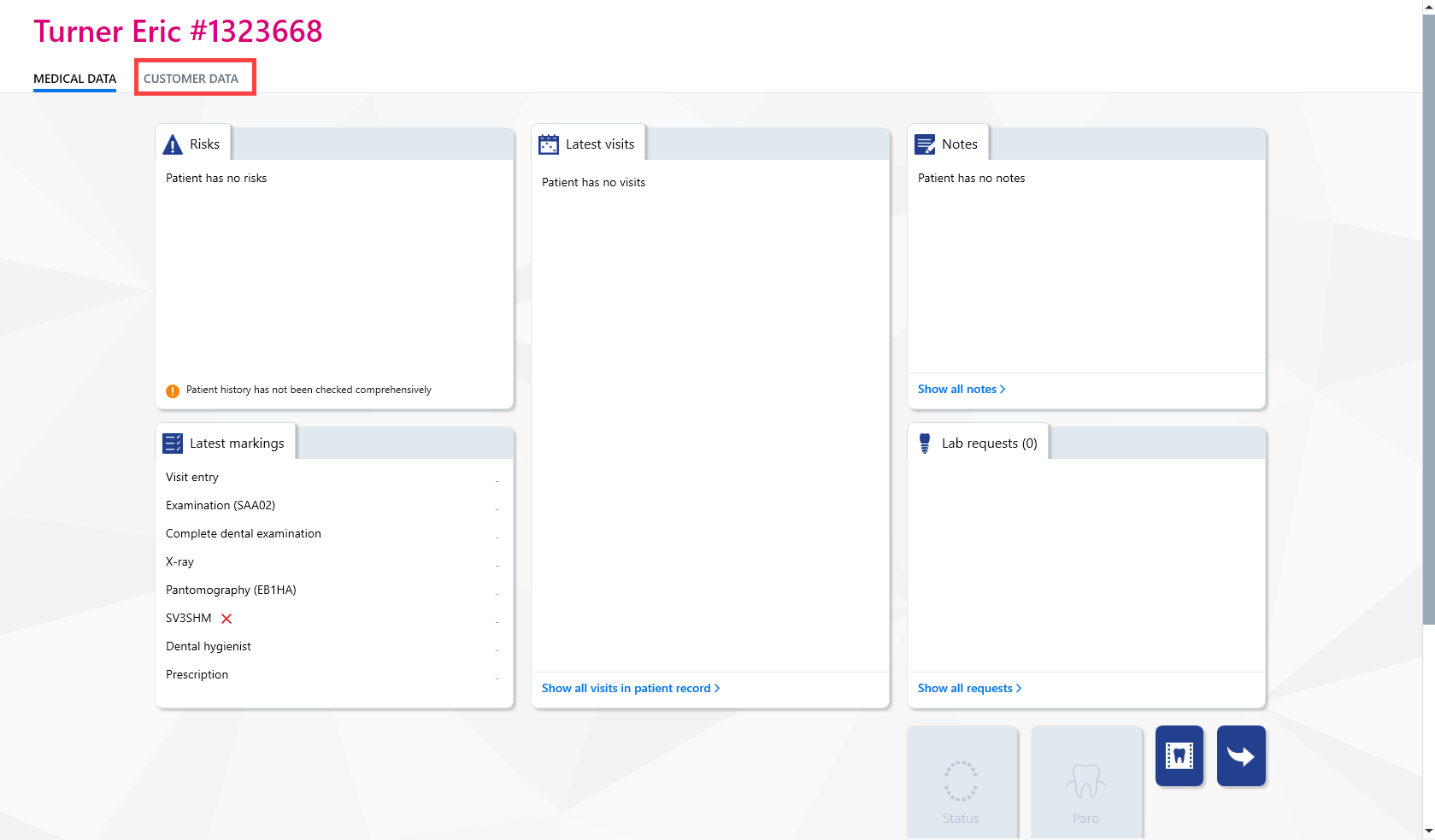
Once a patient has been selected, the patient's customer information can be edited in the following ways: By clicking Customer data from the patient's home page.
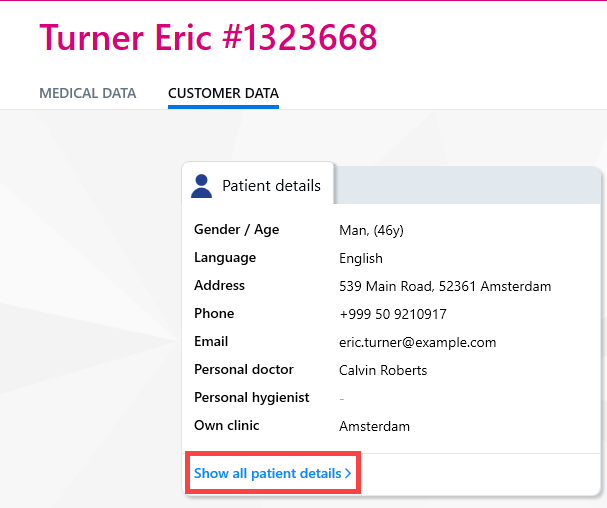
By clicking the Show all patient details button, located under the Patient details tab, which then displays all the patient’s customer information.
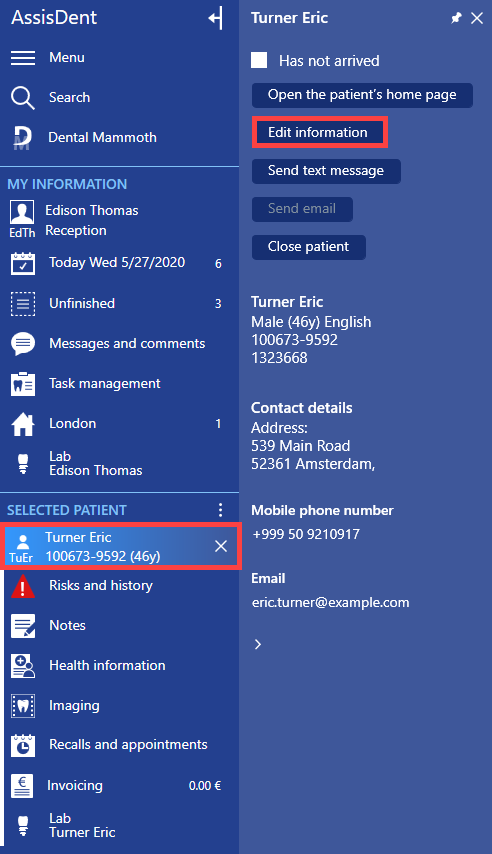
Via Control Panel → Patient icon → Edit information.
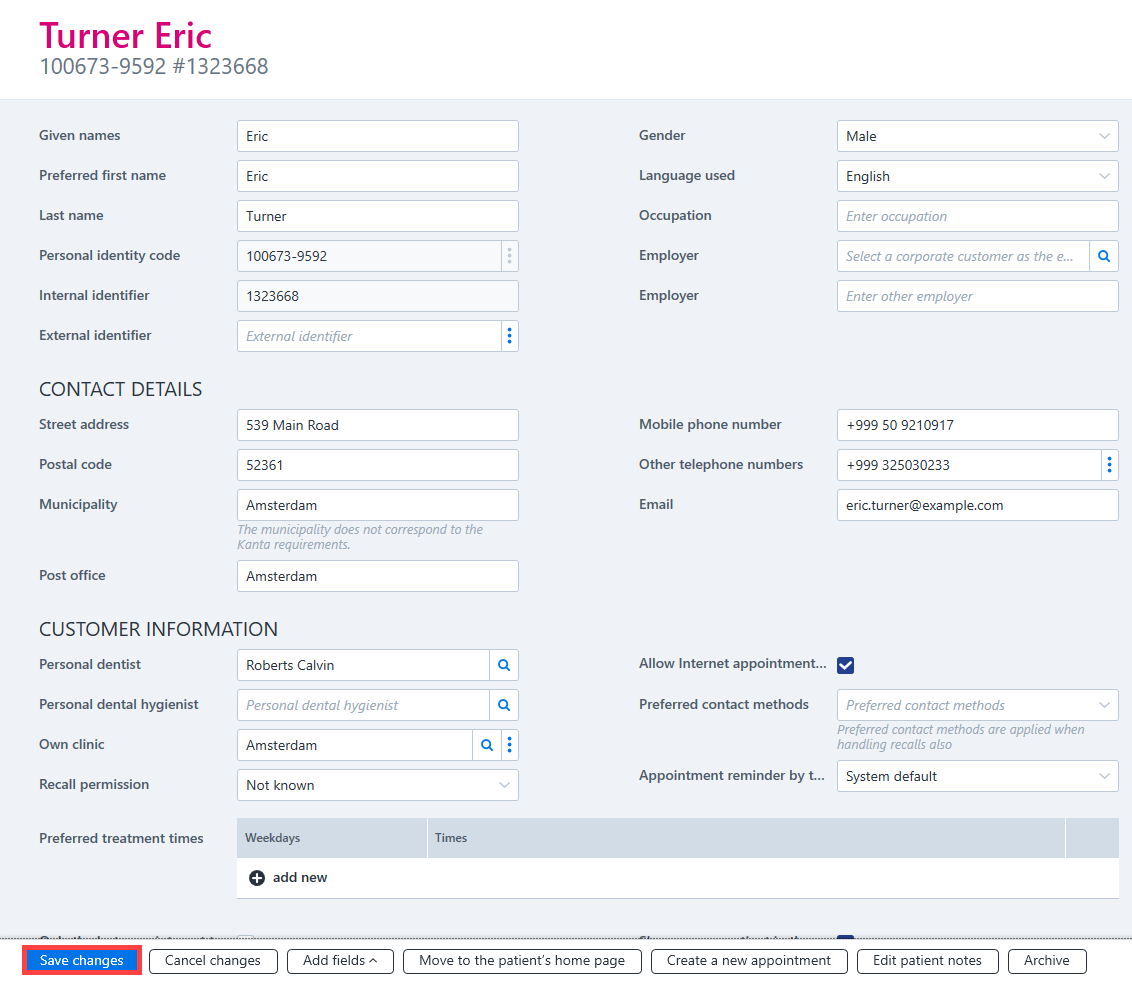
Once changes have been made to the customer information, these changes can be saved by clicking Save changes on the bottom row. For explanations of the fields in the patient details, see the patient creation instructions.