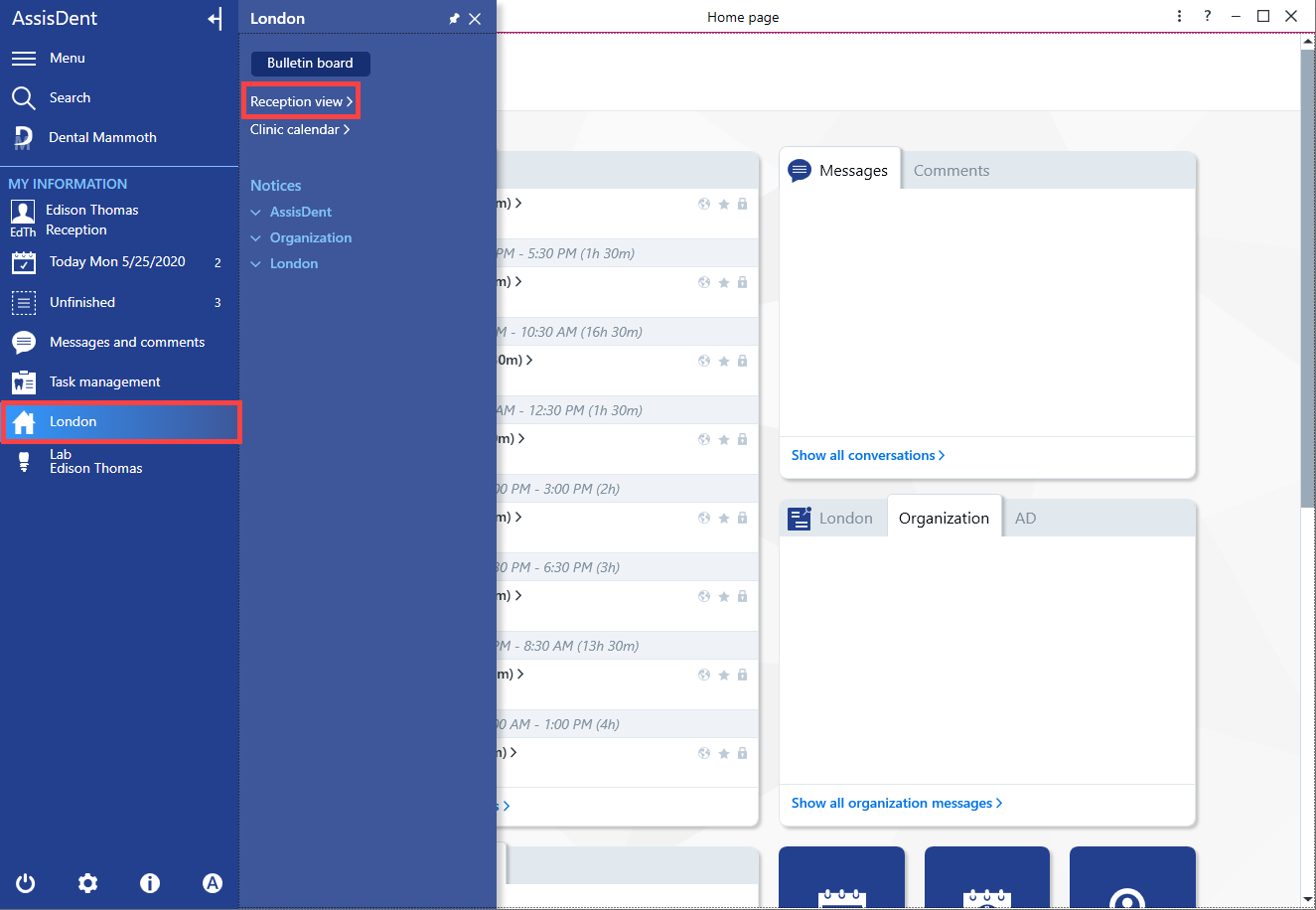
You can enter the reception view as follows: Select the Clinic icon on the control panel. Select Reception view from the drop-down menu.
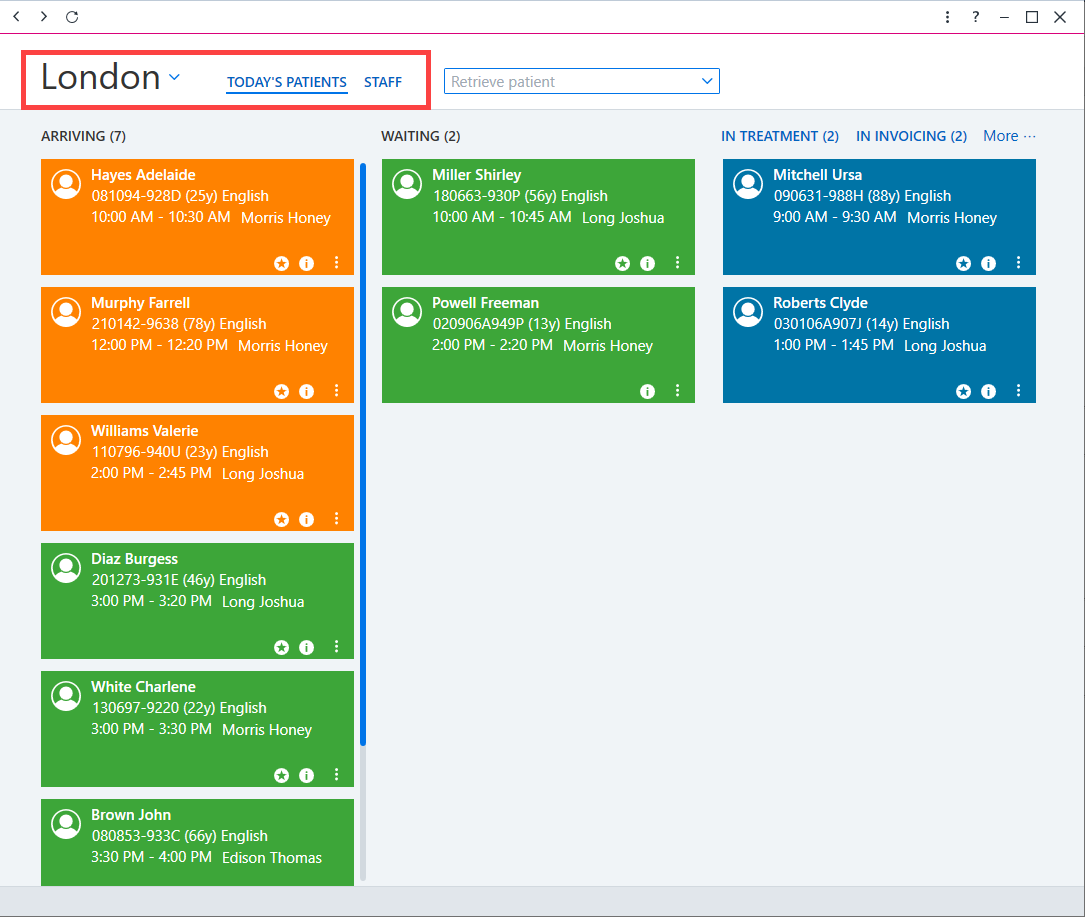
The view contains the status of today’s patients and employees for the selected clinic. You can monitor the status of patients on the Today’s patients tab. The Staff tab displays the employees who are at the clinic and the type of work they are performing. You can select another clinic, if necessary.
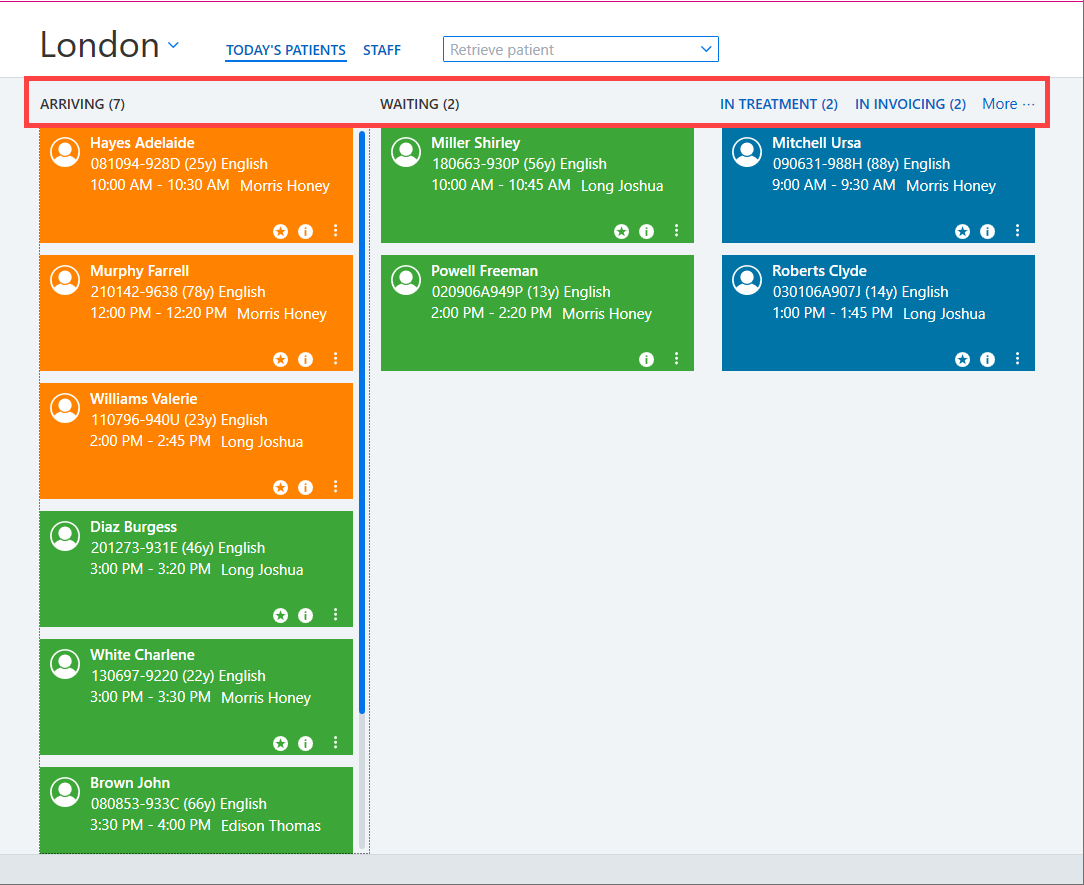
Patients are listed under the following sections: arriving, waiting, in treatment, in invoicing and has left.
You can search a patient with the search bar on the top.
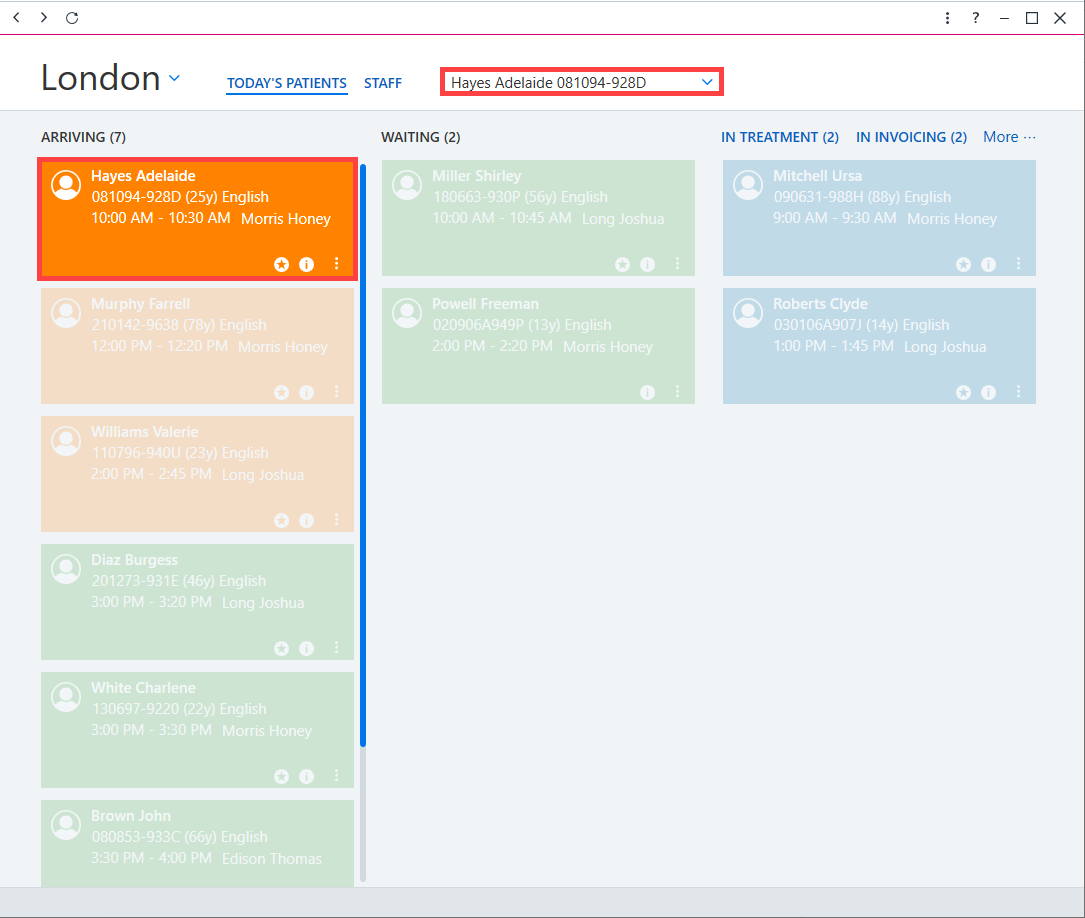
The patient’s home page can be accessed by clicking the patient block.
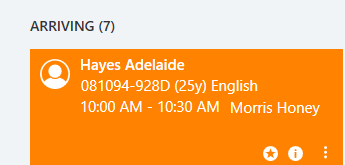
Patient block symbols and colors
The patient block features symbols for indicating different information:
- Star symbol = new patient (first appointment)
- € = the payment has a payment default
- Unlocked lock symbol = preliminary appointment
- Earth symbol = internet booking
- i = additional appointment information
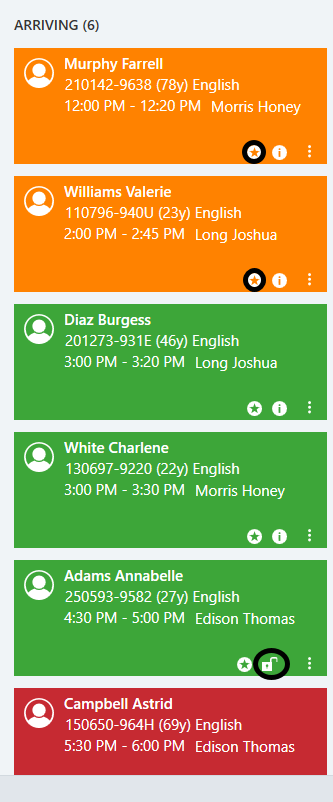
Patient block colors:
- Light green = arriving
- Dark green = waiting
- Yellow = will be late
- Red= uncancelled no-show
- Light blue = in treatment
- Dark blue = in invoicing
- Grey = has left
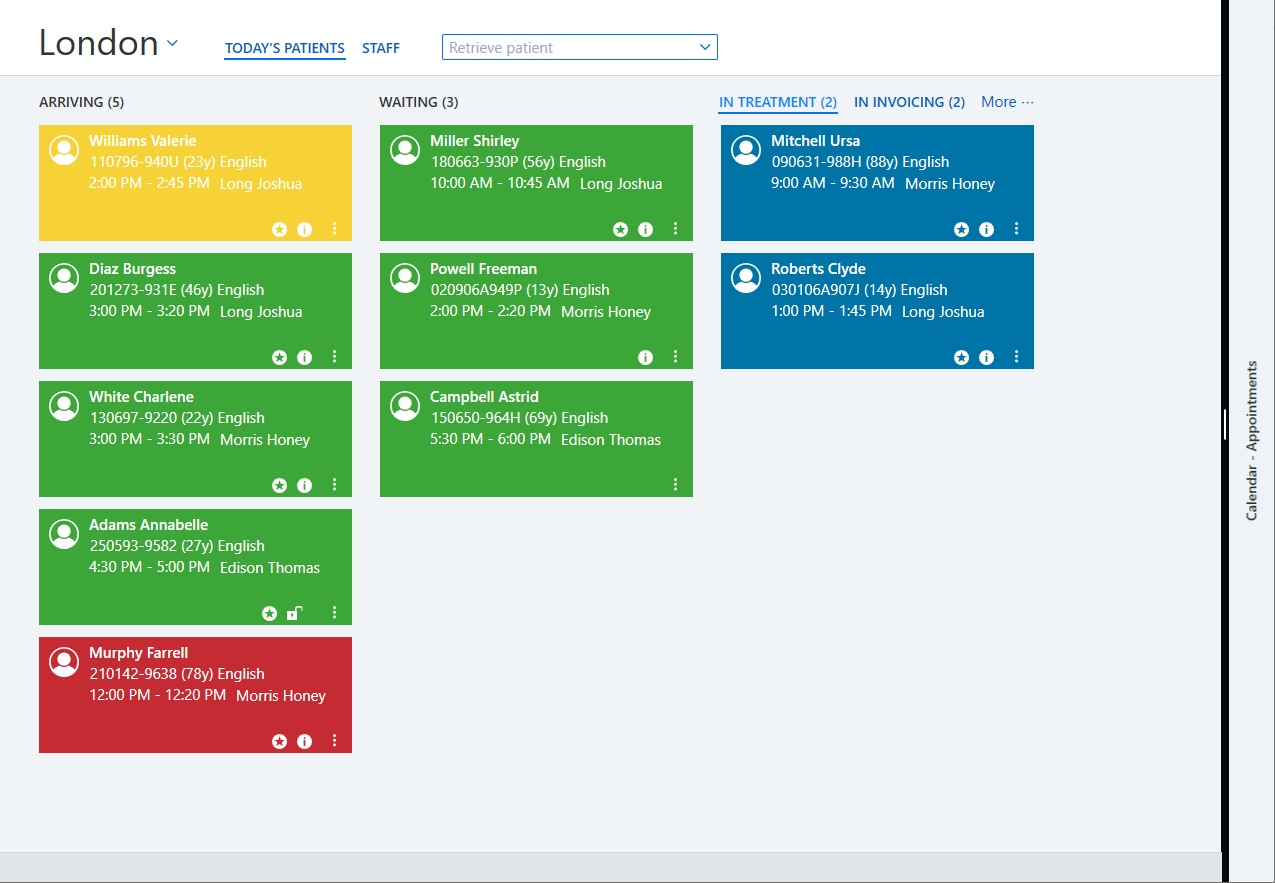
Changing patient statuses
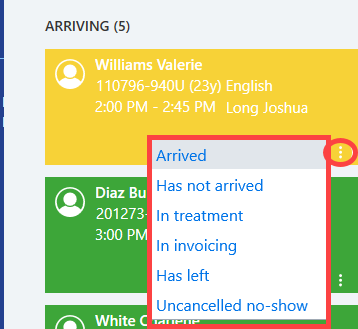
You can change the status of a patient by selecting Additional function and by selecting the status from the pop-up menu. Status options in the Arriving menu include: Arriving, In treatment, In invoicing, Has left, Will be late and Has not arrived.
The status changes automatically, for example, when the appointment is opened, at which point the patient is moved under the In treatment menu.
Status changes:
- Arrived→ patient is moved under the Waiting menu
- In treatment→ patient is moved under the In treatment menu
- In invoicing→ patient is moved under the In invoicing menu
- Has left→ patient is moved under the Has left menu
- Will be late→ patient status becomes yellow
- Has not arrived→ patient status becomes orange
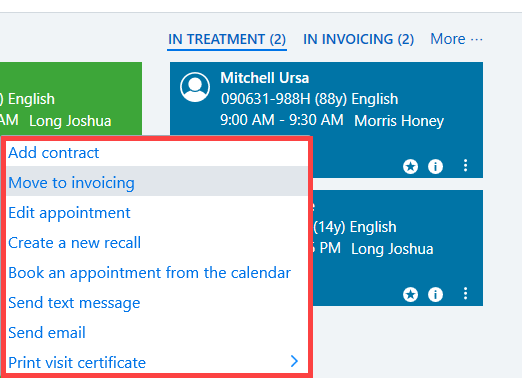
By right-clicking the patient block, you can, for example, move directly to patient invoicing.