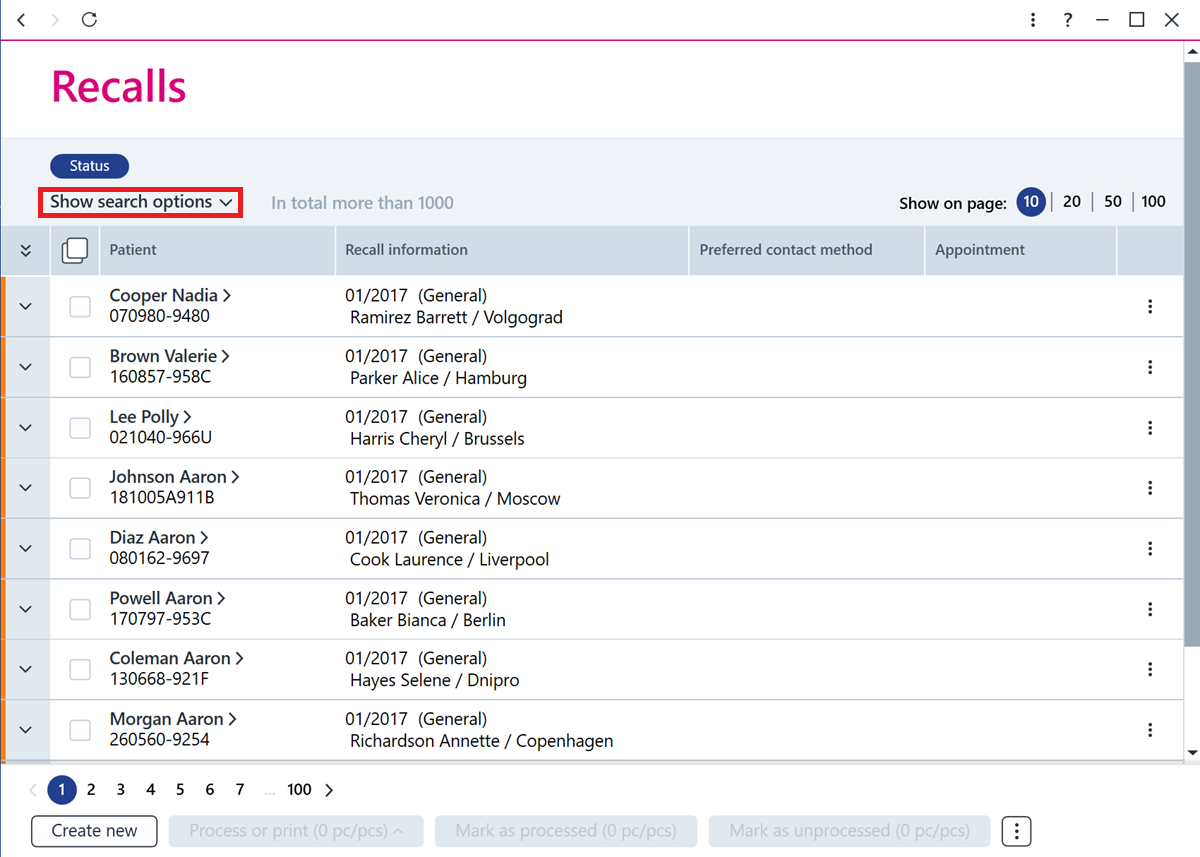
The recalls can be accessed from the home page by clicking Recalls.
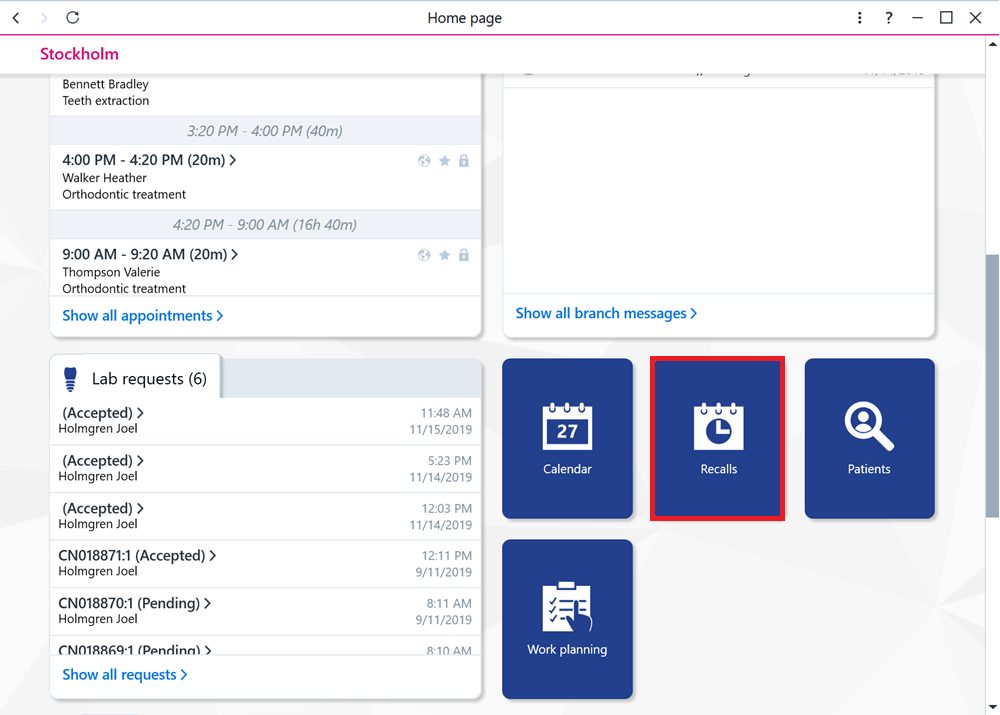
The user's own recalls can be accessed from the control panel by clicking your name and selecting Recalls.
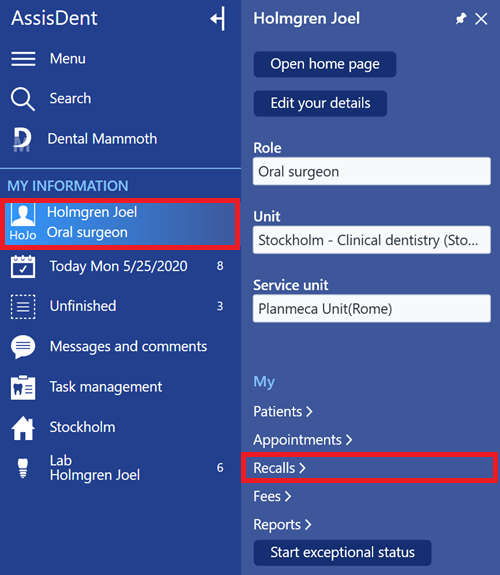
This allows you to create normal recalls or repeat recalls for patients. A repeat recall is a recall that automatically generates a new recall to the patient at the end of the specified interval.
Recall register information
Each recall appears as a separate row.
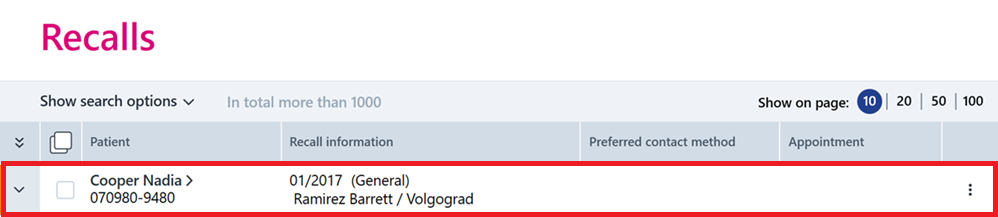
Recall status:
The recall status can be seen at the start of the recall row.
There are four possible statuses:
Orange = Awaiting processing = recall is currently waiting to be processed.
Green = Processed = The recall has been marked as processed, meaning for example that the recall letters have been printed.
Gray = Canceled = The recall has been canceled. Canceled repeat recall
Red = Requiring attention = The recall is marked as requiring attention in the following cases:
- The recall has not been sent or printed successfully and so has been marked as requiring attention.
- The appointment related to the recall has been canceled. In this case, the "i" icon is also displayed on the recall row.
- The patient associated with the recall is marked as having passed away. In this case, the "i" icon is also displayed on the recall row.
- An appointment for the patient receiving the recall has already been created close to the recall date for a clinician with the same role. In this case, the "i" icon is also displayed on the recall row. (This occurs only if the setting in question is enabled in the system settings. The time limit, meaning how many months before or after an existing appointment the recall should be, can also be adjusted in the system settings.)
Click the arrow at the beginning of the row to view more information about the recall.

Recall details:
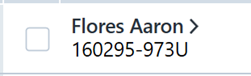
The recall shows the patient's name and personal identity code. Click on the name of the recalled patient to view and edit the recall details.
Time of recall and assigned clinician:
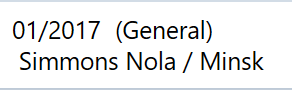
The recall displays which month it has been created for. If the recall is a repeat recall, the recall displays the frequency of the recall. The recall row also shows the category of the recall as well as the clinician and clinic for which the recall was created.
Contact methods:
The icons on the recall row indicate the contact methods preferred by the patient. If the icon is blue, this means that the recall has already been printed (call list or letter) or sent (text message) using the indicated contact method. If the icon is black, this means that the recall has not yet been printed or sent using the indicated recall method.
Note! Email can be marked as a contact method for the patient even though emails cannot be sent from AssisDent.

Appointment related to the recall:
Based on the recall, a preliminary or confirmed appointment can be created for the customer. Appointments created through the recall are shown on the recall row.

Filtering recalls
You can use search criteria to look for particular recalls. Click Show search options to see more criteria. Search criteria can be used, for example, to filter recalls by patient, clinician, contact method, recall status, and recall date.