If you want to edit multiple recalls at once, you can do so using the batch editing function for recalls.
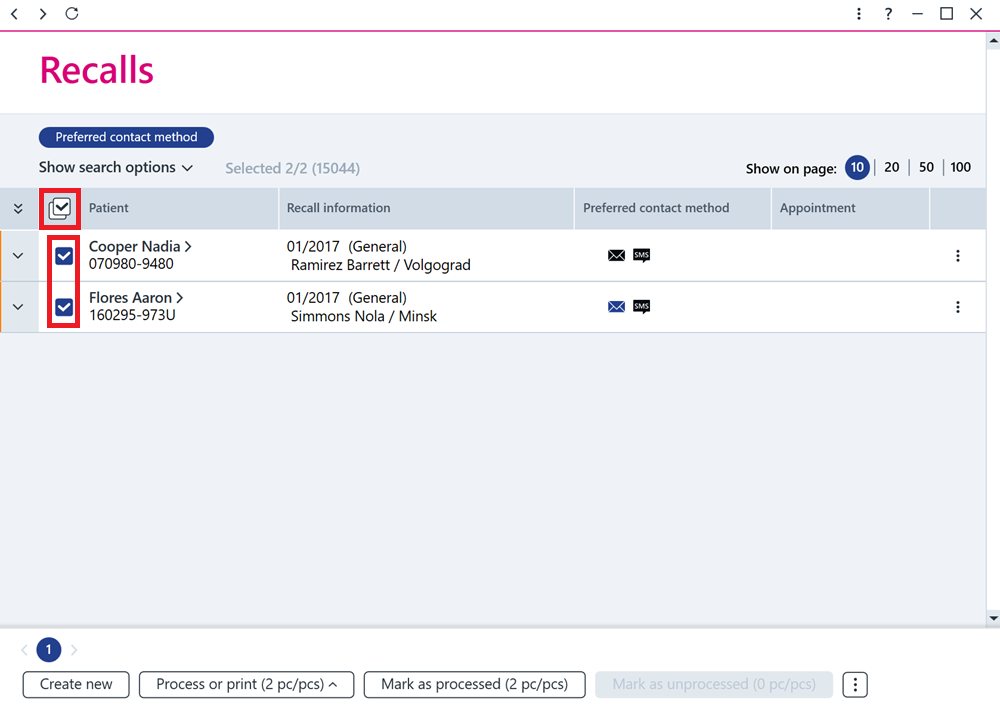
First, search for the recalls to be edited and select them.
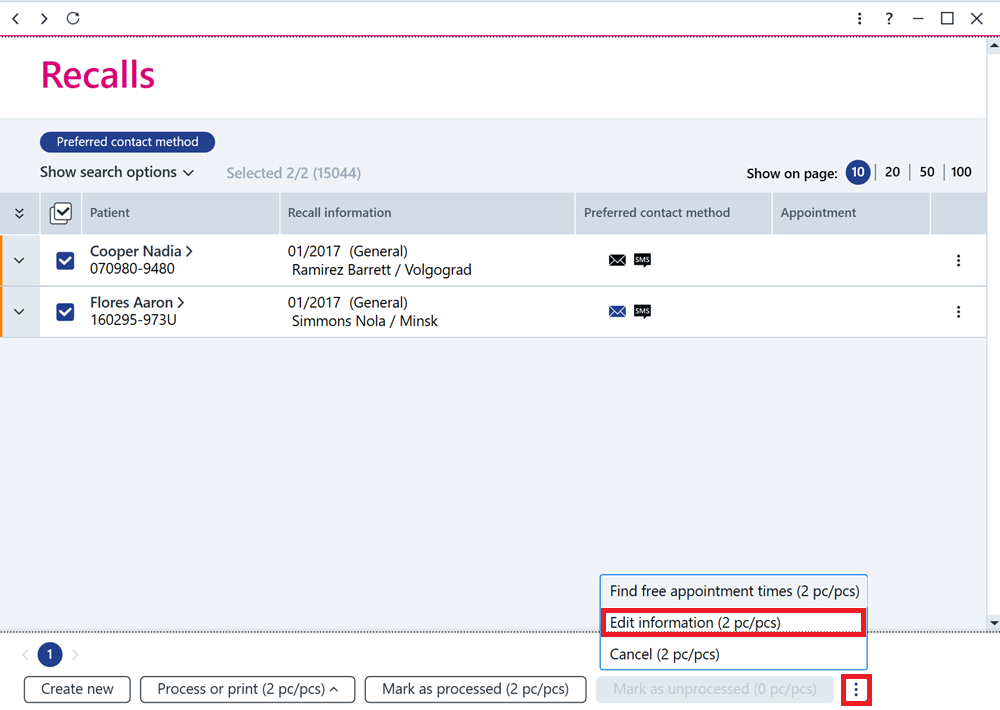
Next, click the Additional functions button and select Edit information.
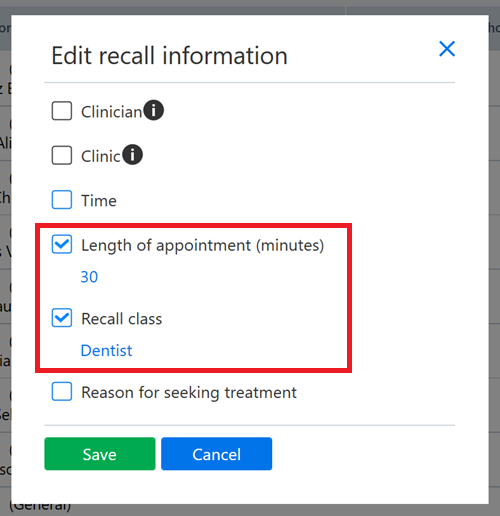
The following information can be edited:
- Clinician (Note! To edit this, all the recalls selected must be for same clinician.)
- Clinic (Note! To edit this, all the recalls selected must be for same clinic.)
- Date (Note! Only recalls for which no appointment has been recorded can have their date changed)
- Appointment length (Note! This is the length of the appointment recorded in the recall. If an appointment has been attached to the recall, the length of this appointment does not change.)
- Recall class
- Reason for seeking treatment
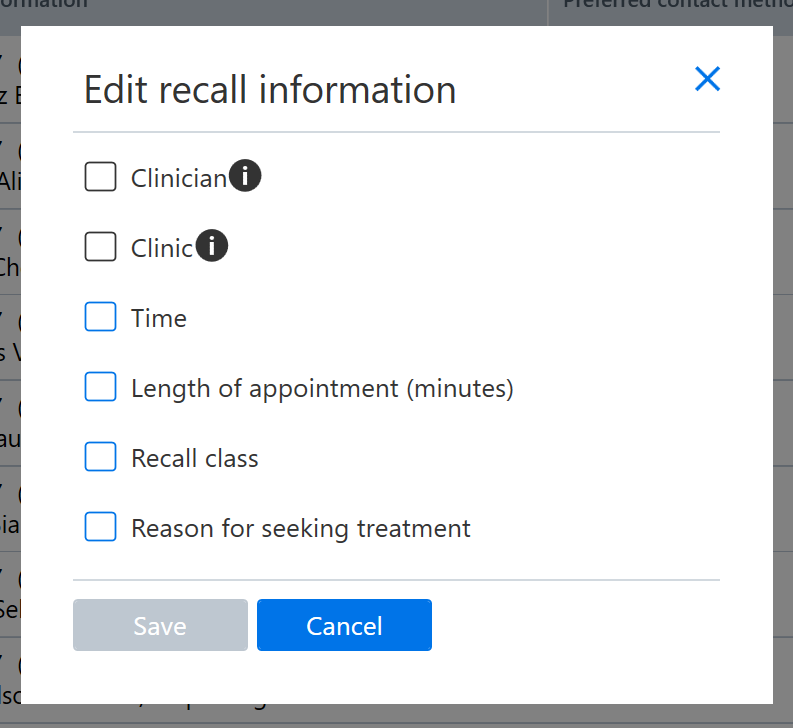
Select the information you want to edit and enter the new information for the selected recalls. Finally, click Save.
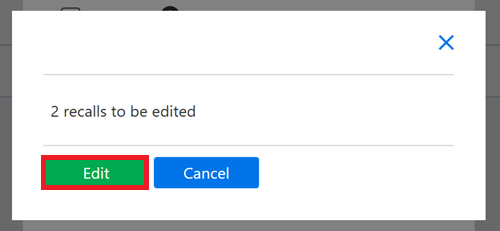
To ensure that the changes are completed, click Edit.