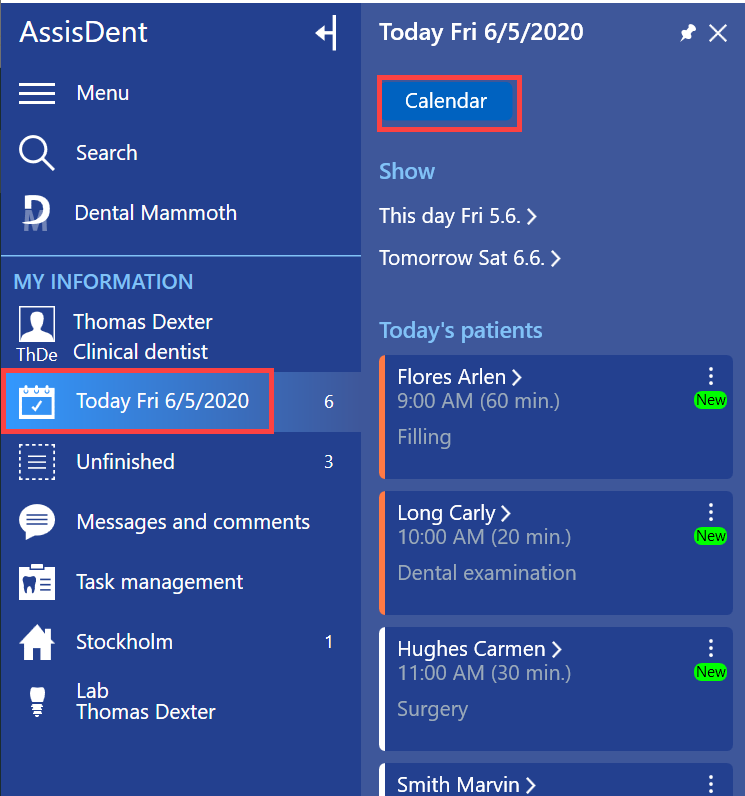
Access the Working hours calendar, for example, by selecting Today → Calendar → Working hours.

Select the calendar of the employee and the correct clinic with the filters.
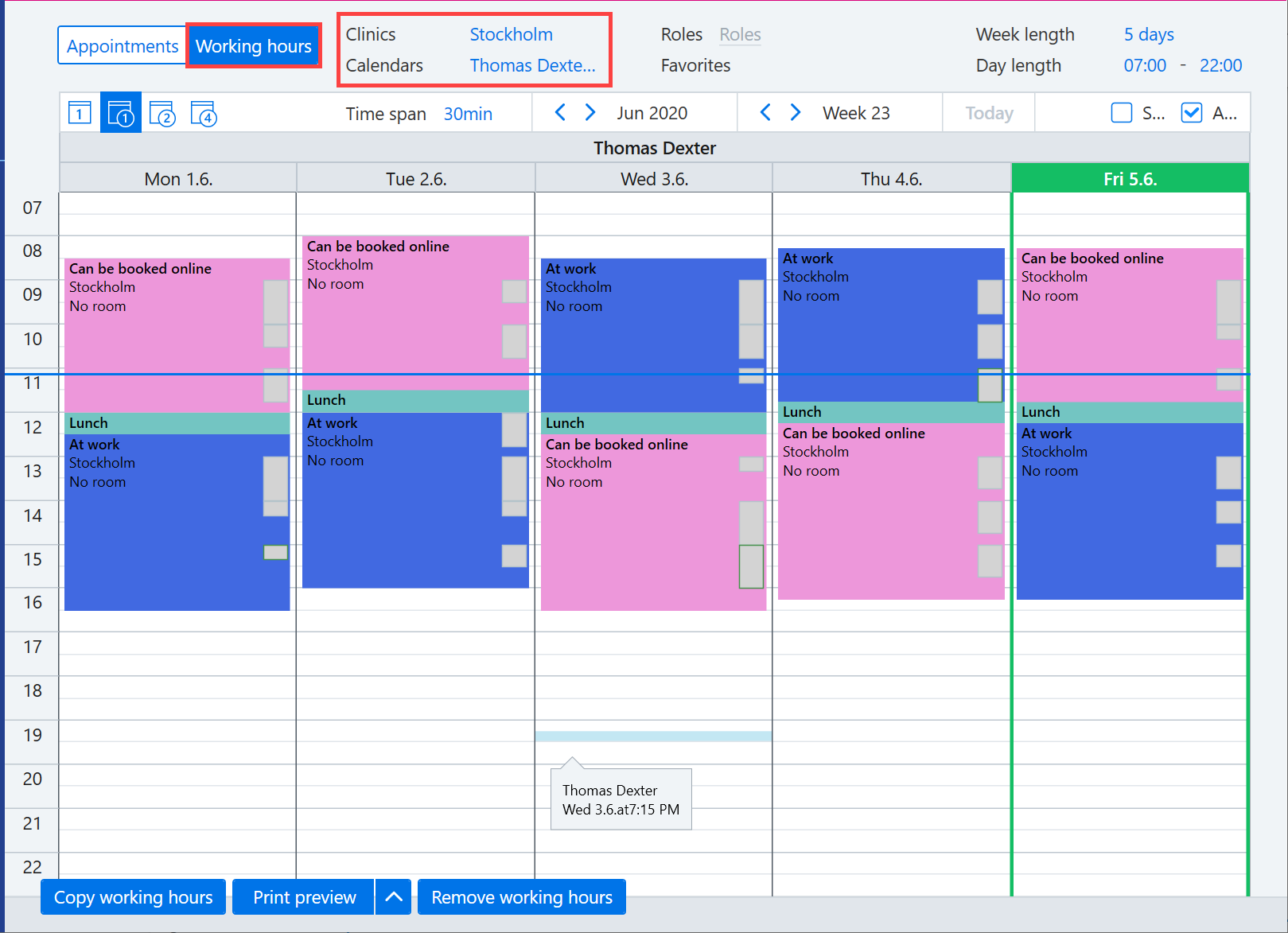
Use the filters on the top of the page to adjust the calendar view. The filters can be used, for example, for adjusting the number of days displayed in the calendar and the details of the appointments.

You can select the desired clinic and person with the filters. You can also select the desired week with the week and month filters. You can also search a person based on a specific role. There are also user-specific Favorites quick filters.

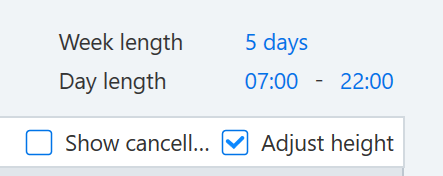
You can adjust the height of the calendar by selecting Adjust height on the top right corner. You can also adjust the week length and the day length.
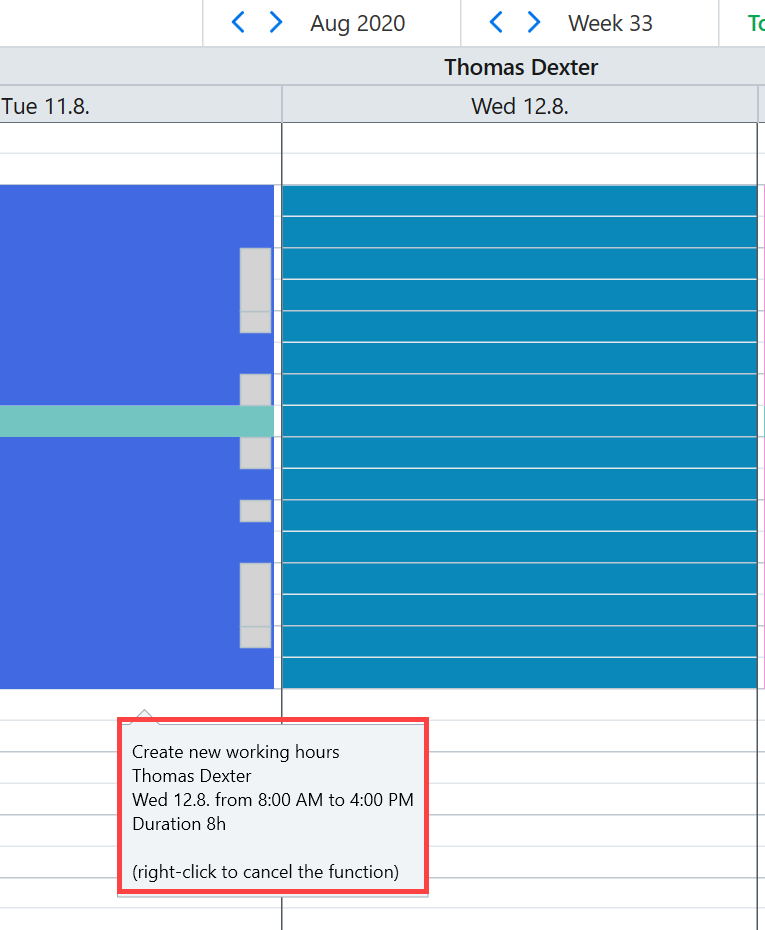
Hold down the left mouse button and drag the time for working hours into the calendar. The working hours are placed into the calendar when you release the mouse button.
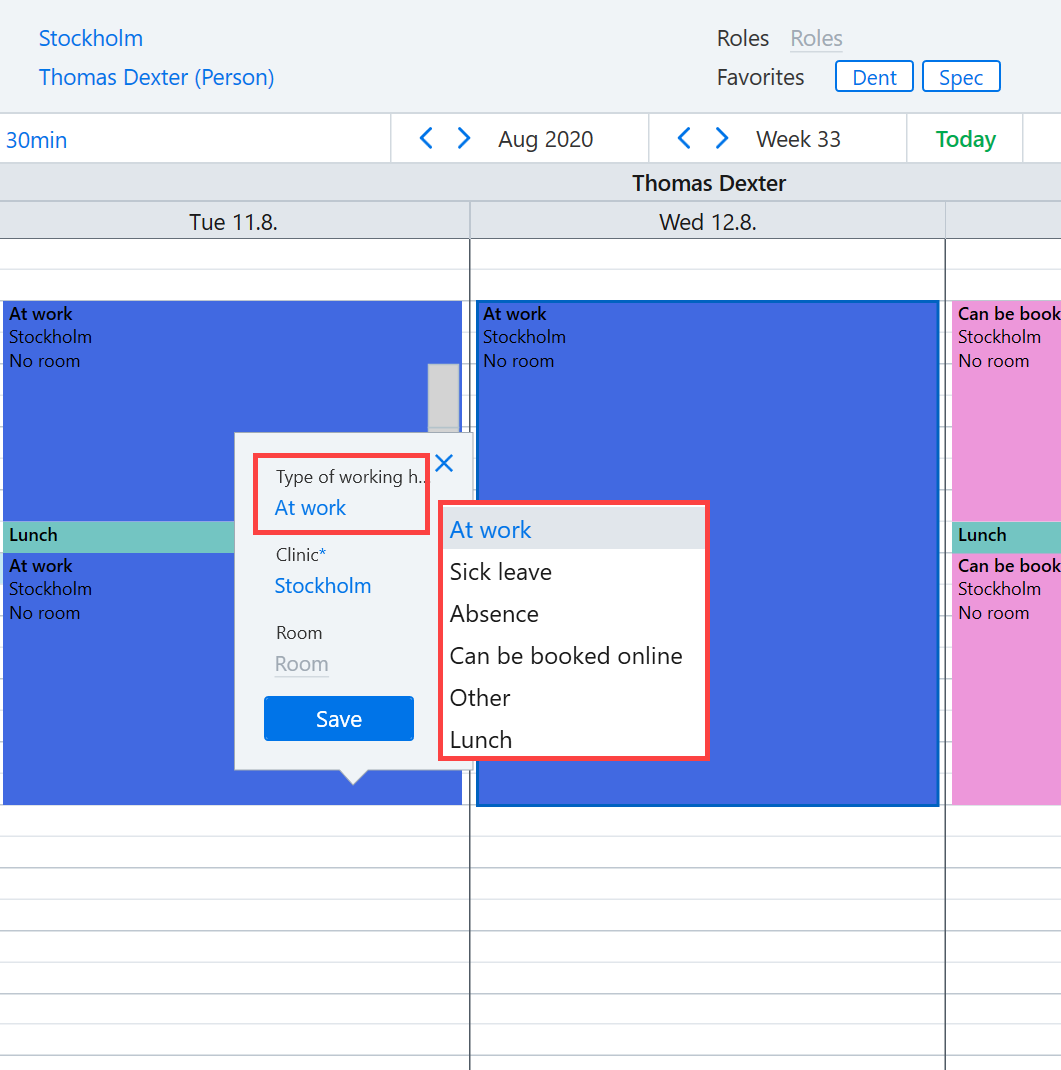
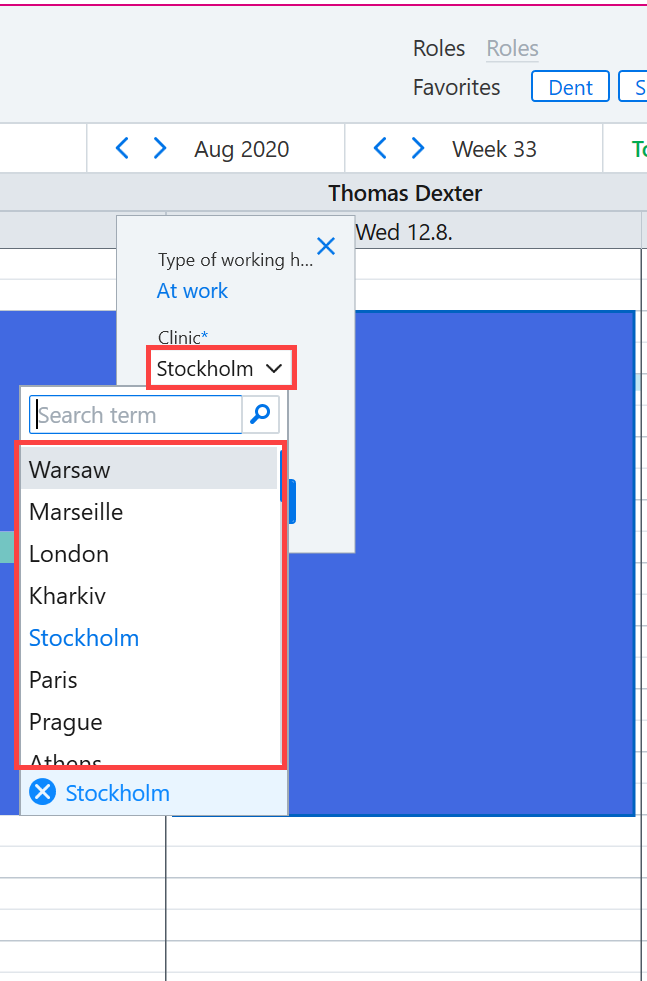
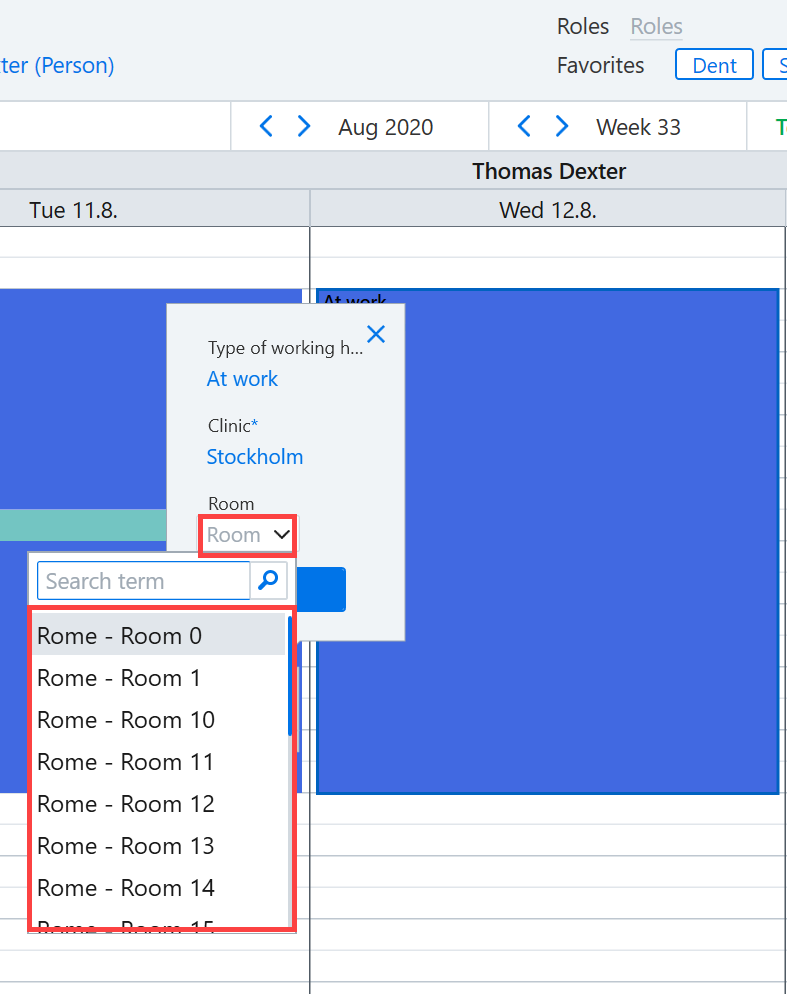
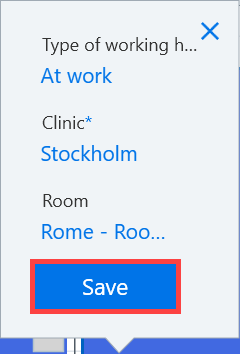
Select the type, clinic and, if necessary, the room for the working hours.
Save the changes by clicking Save.
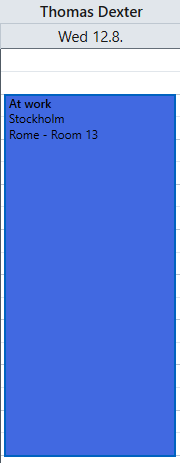
The working hours have been created and are displayed in the calendar.