Patient history summary view
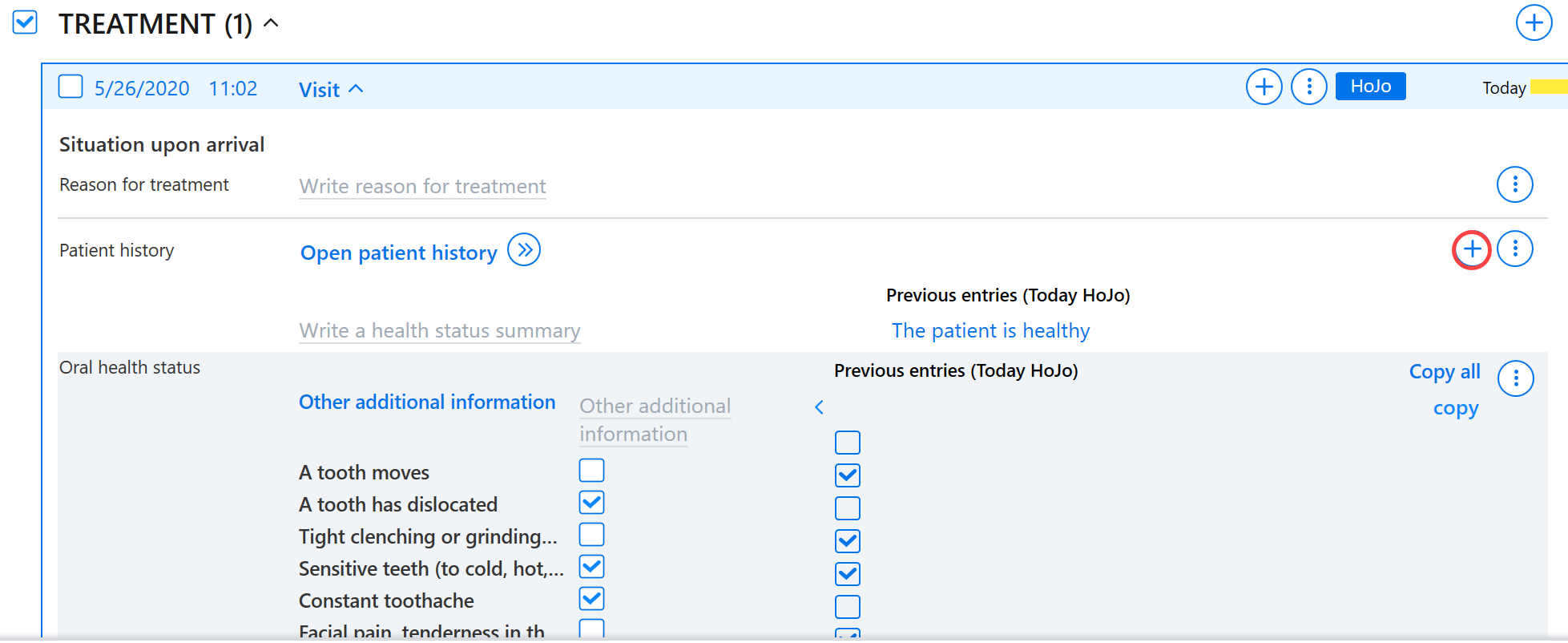
Once a visit for the patient has been opened, patient history data can be recorded in the summary view. The patient history data can be opened by clicking the Patient history button.
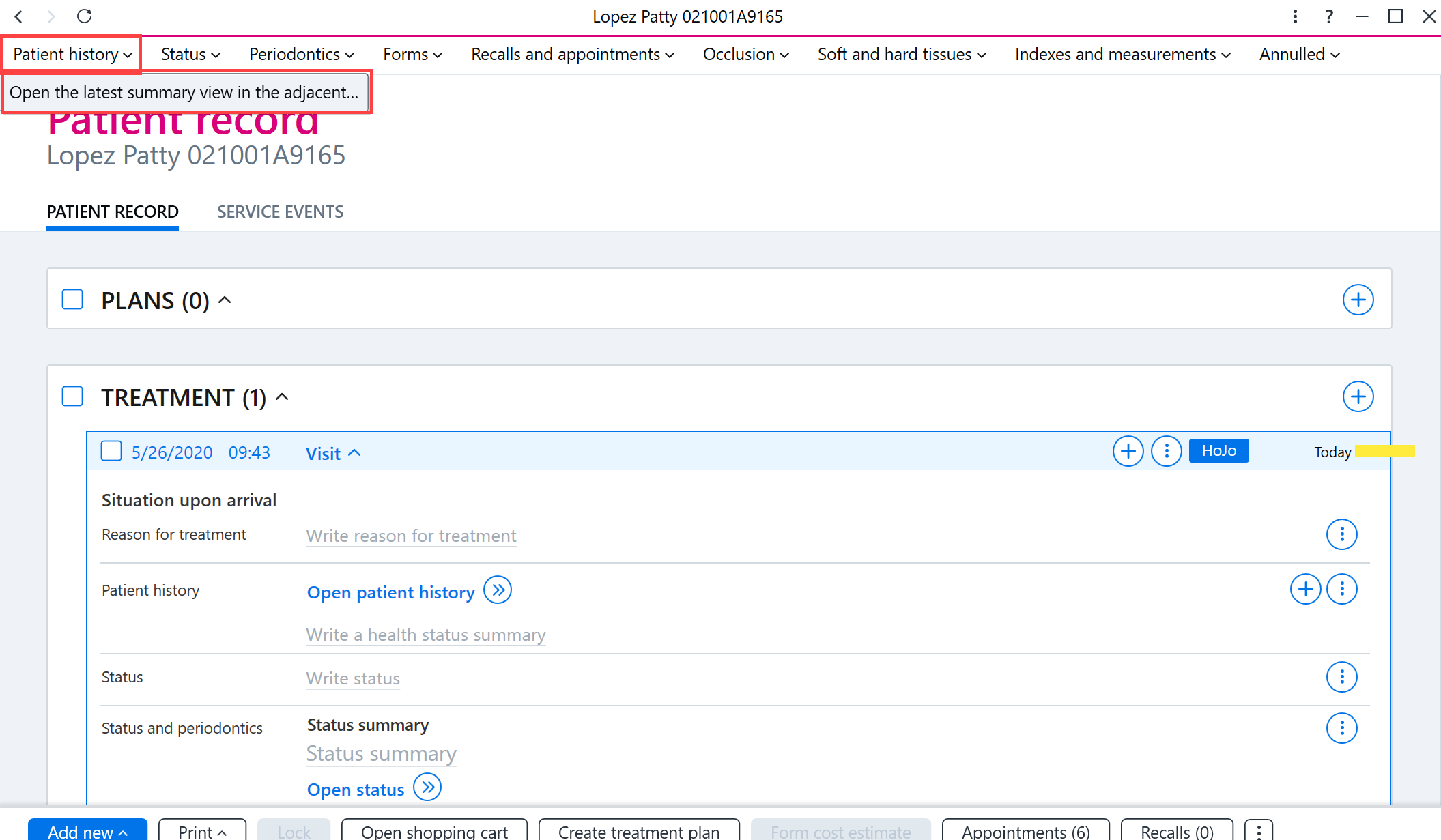
Adding patient history data
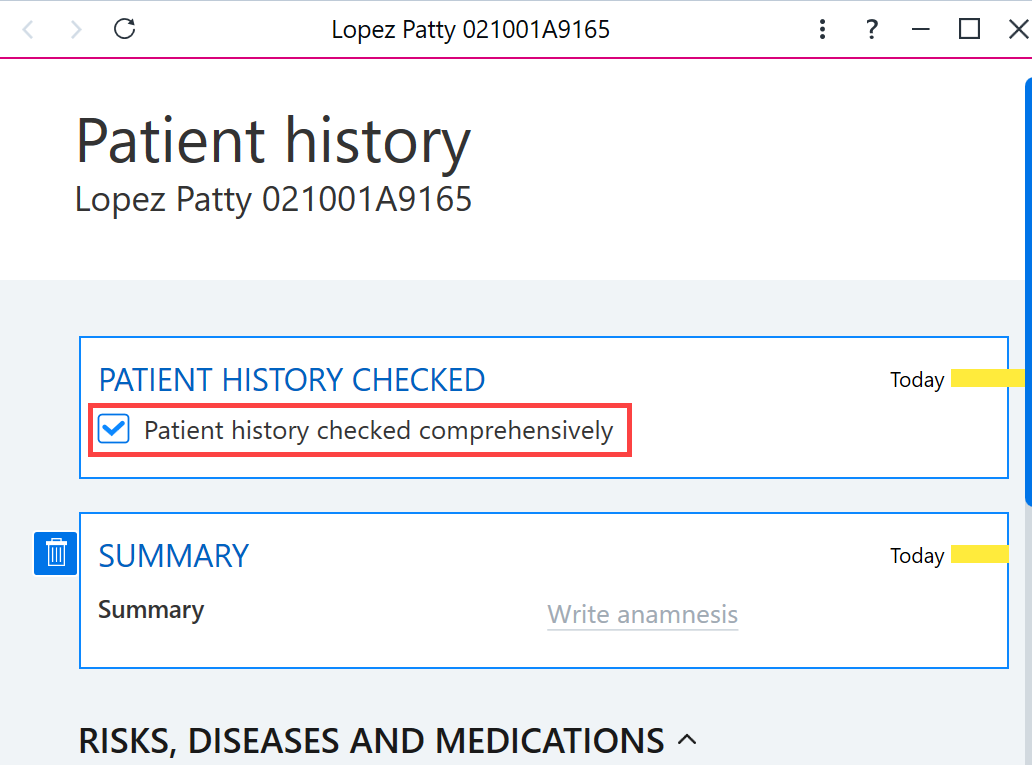
When all patient history data is being checked in one go, tick the check box for Patient history checked comprehensively.
A summary of the patient history data can be entered in the Summary field.
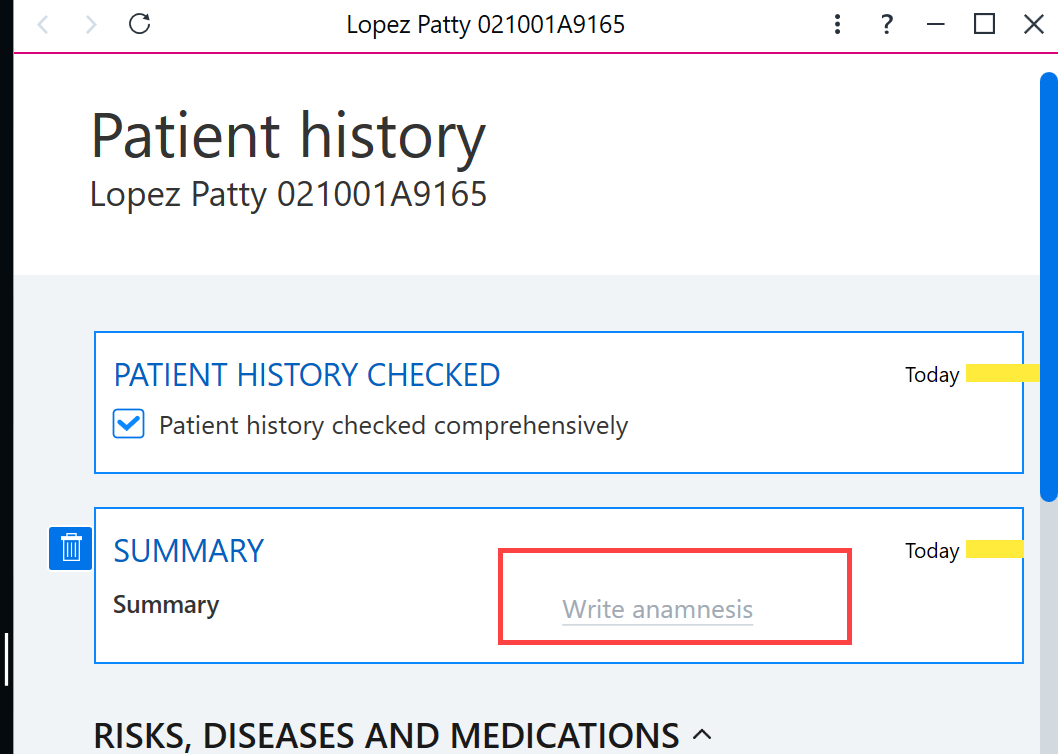
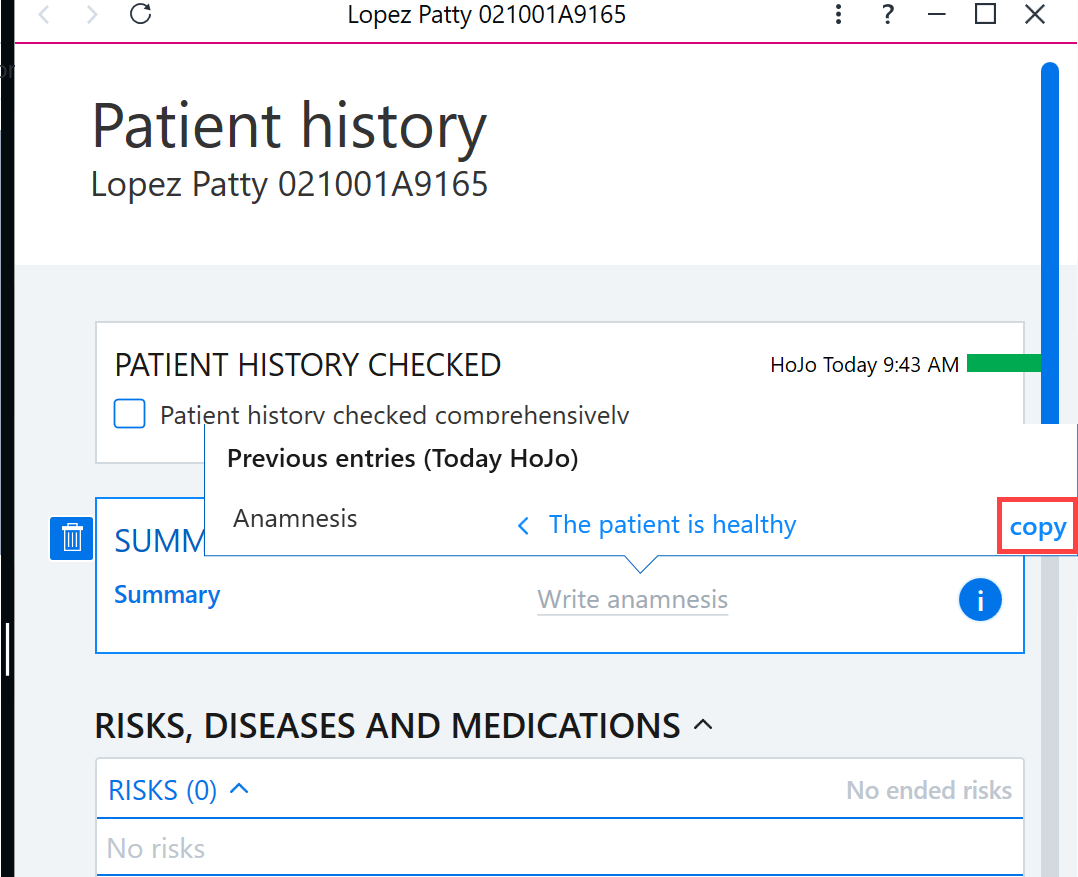
To copy the previous text entered in the patient history summary, hover the mouse over the field and select copy.
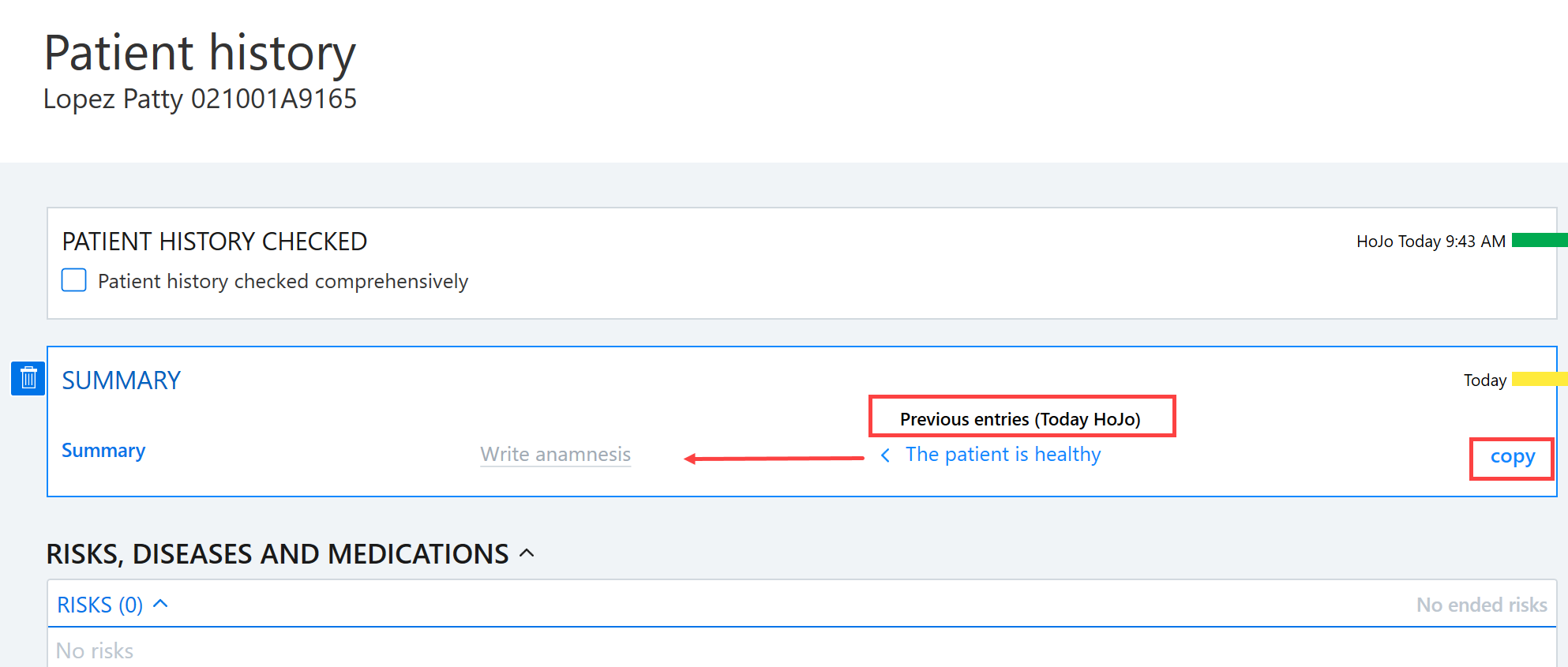
If the view is minimized, you can copy by hovering over the icon and selecting copy.
Risks
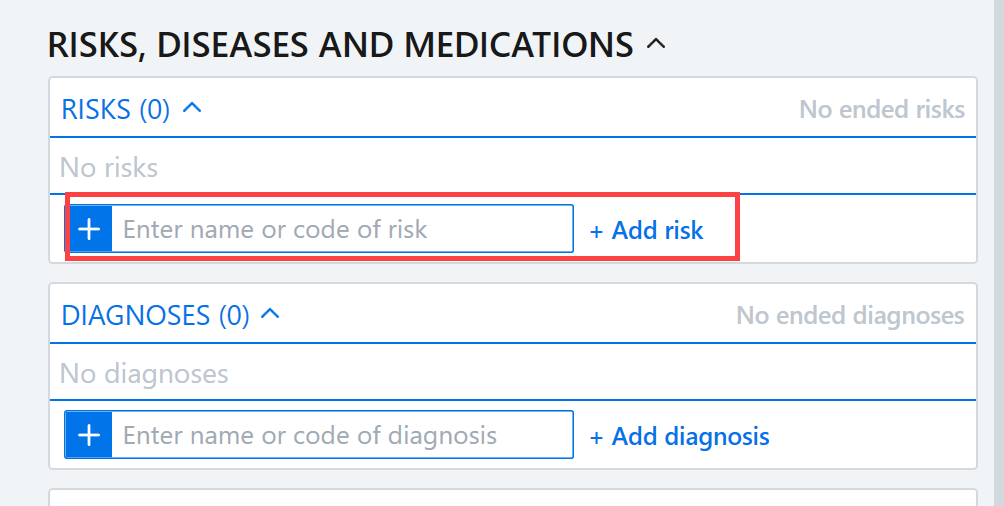
A new risk can be added either by entering the risk code or name in the search box or by clicking the + Add Risk button.
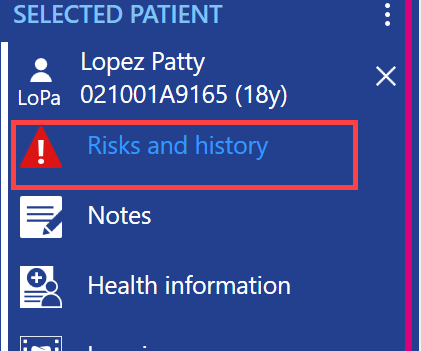
Note! The patient history data marked as risks appear in the Risks and History button on the patient control panel.
When you click the + Add Risk button, a dialog box opens in which you can either enter the risk code or name in the search field or select the type of risk from the list.
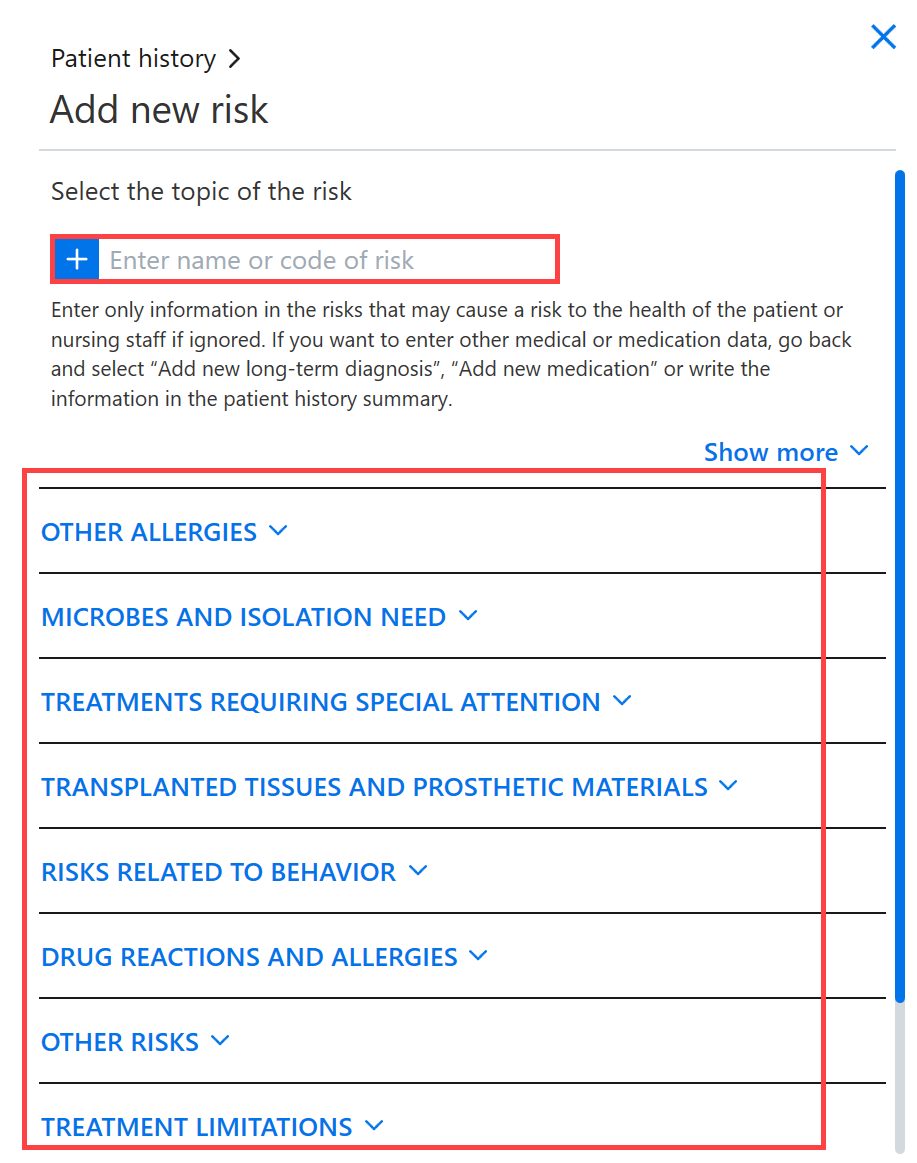
The required information for a risk in the Patient history view is the name, type, and degree of risk. The other risk information should also be checked and corrected if necessary.
Please note that you are able to manually specify the name of the risk if needed. In such cases, it is important to note that if the risk is recorded using a code, the freely-entered text must not deviate from the information content of the code in the risk information (the code and the name of the risk, if any, must correspond to each other and they must not be in conflict).
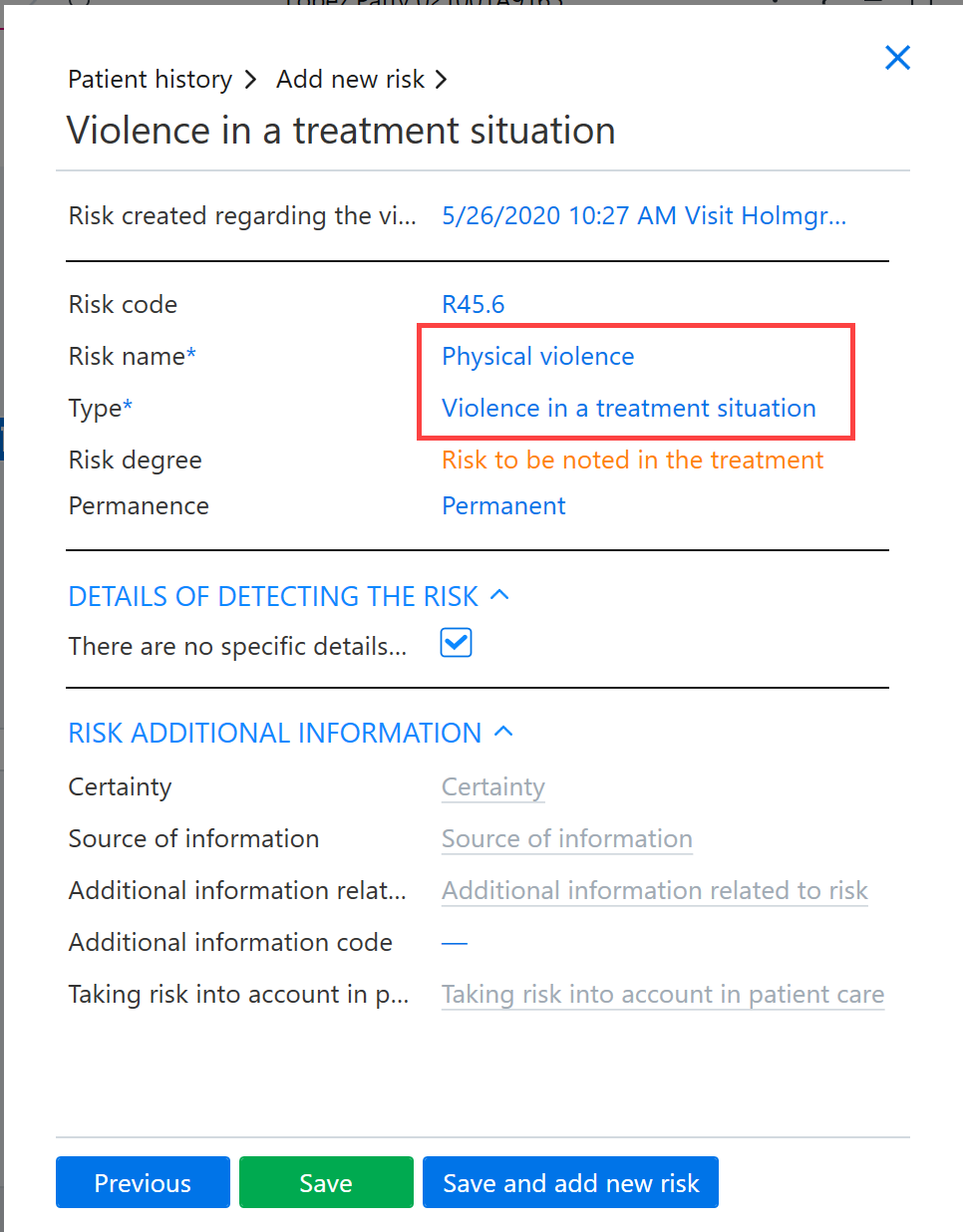
If the risk is to be taken into account in the treatment, you should select Risk to be noted in the treatment under Risk degree.
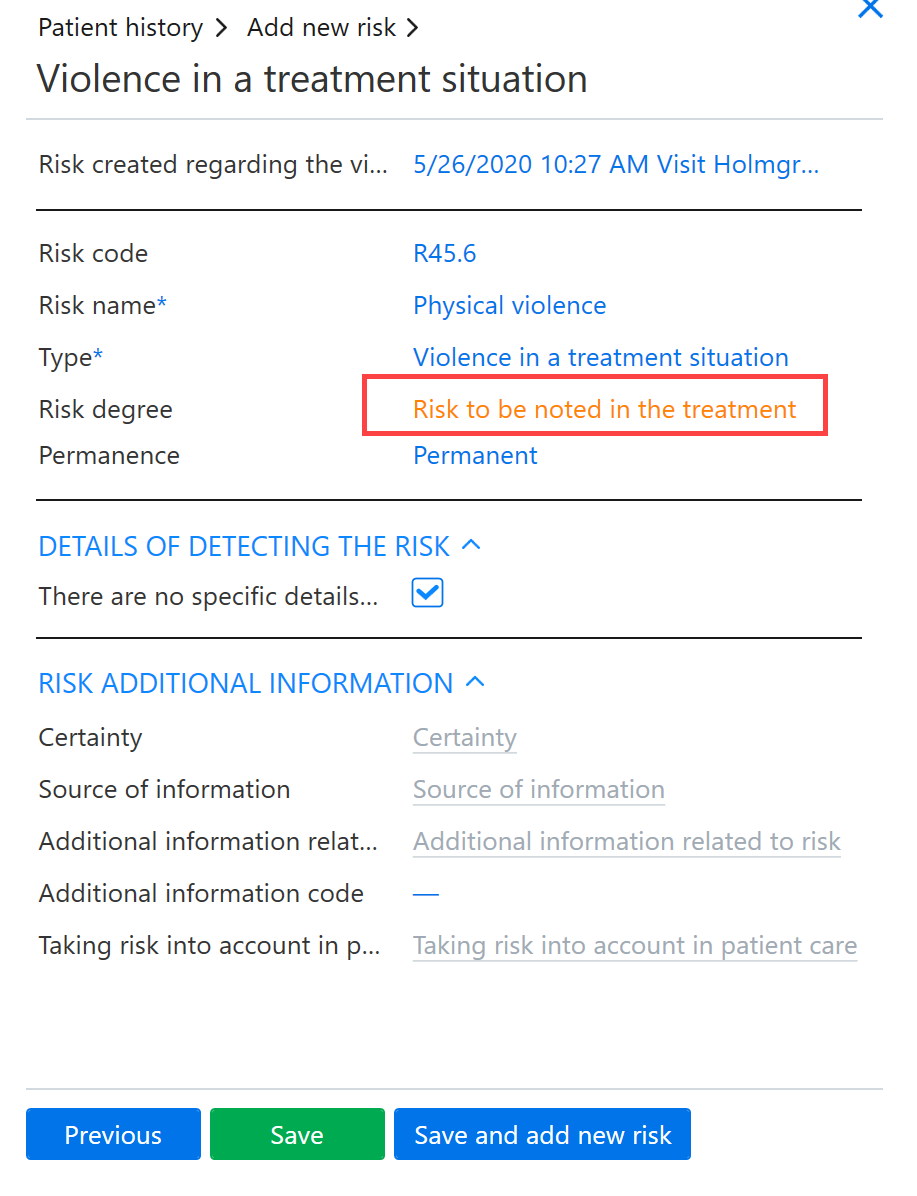
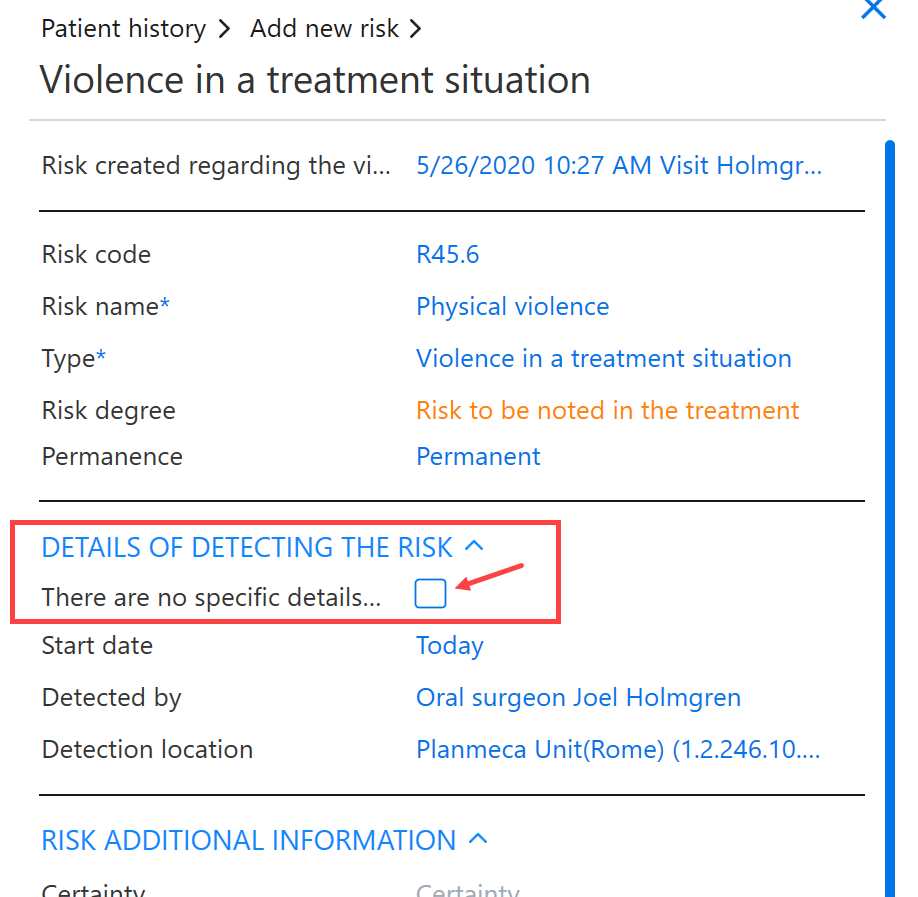
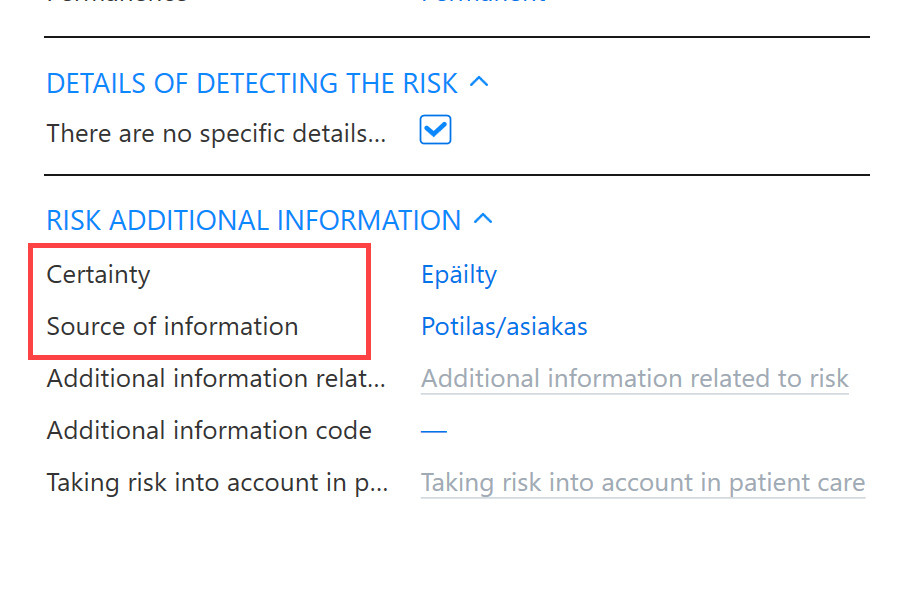
The person entered as having identified the risk is always by default the user who is logged in and recording the risk. If the person who created the visit is not the person who identified the risk, this information can be changed by hand. If the name of the risk identifier or other identifying information is not known, select There are no specific details regarding diagnosis. This option clears all risk identifier information.
You can also indicate where or from whom the information about the risk has been obtained in the Source of information field. If the field is empty, the information is taken to be from the organization providing treatment, even if this has not been separately indicated.
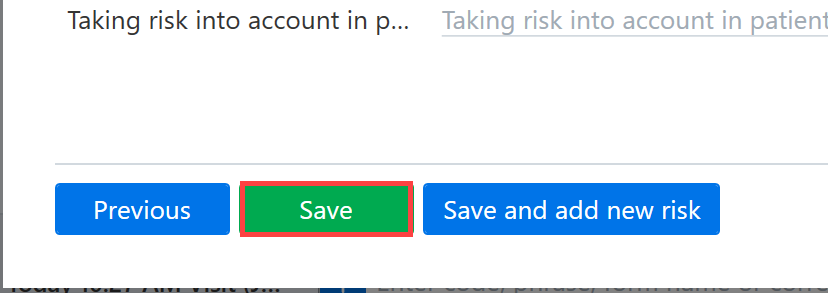
Finally, click Save to save the details of the risk.
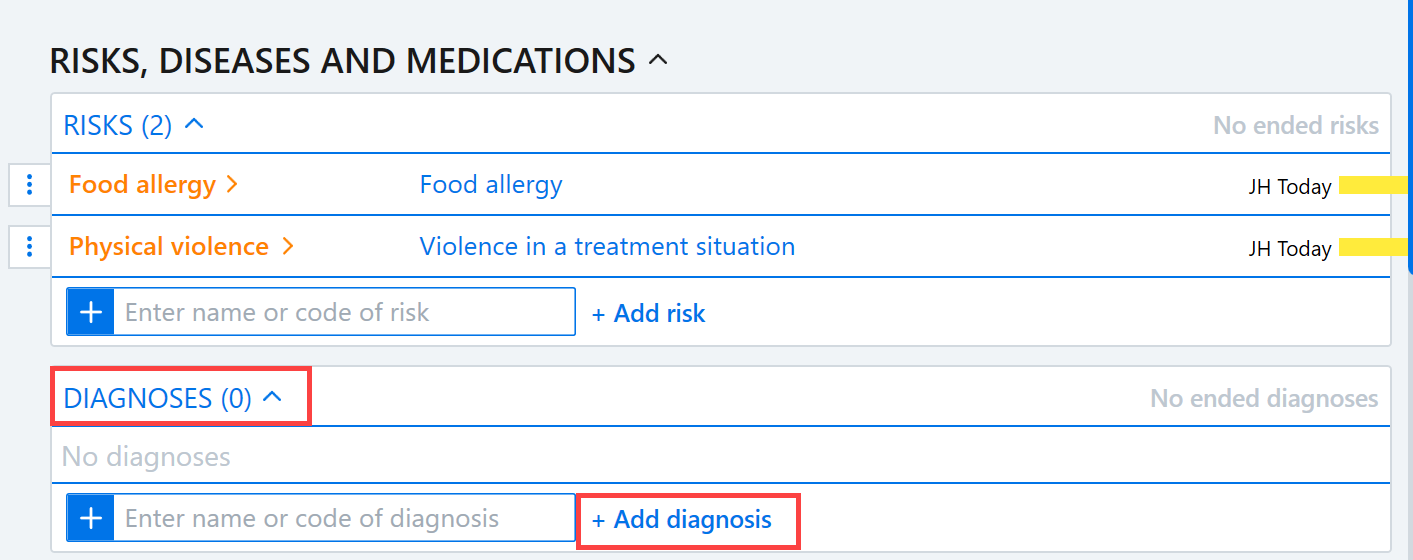
Diagnoses
A new diagnosis can be added either by entering the diagnostic code or name in the search box or by clicking the + Add diagnosis button.
When you click the + Add diagnostics button, a dialog box opens in which you can either enter the diagnostic code or name in the search field.
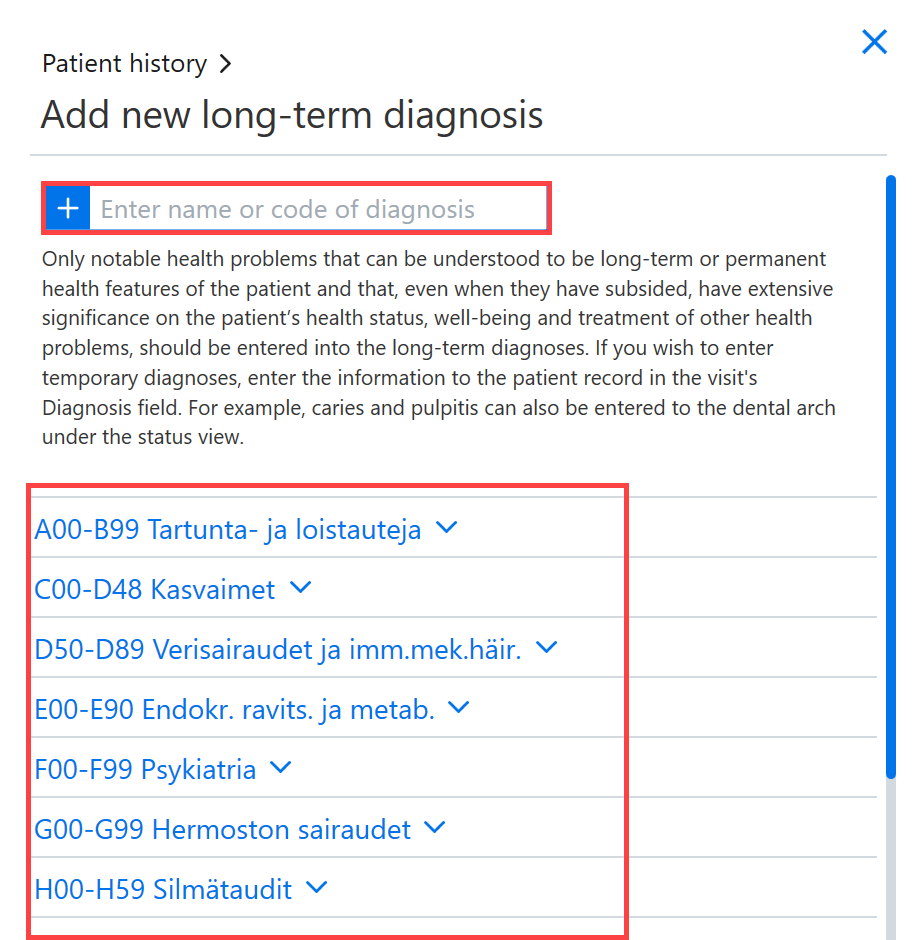
The required information for the diagnosis in the patient history view is the diagnosis code or name. The other diagnosis data should also be checked and corrected if necessary. Please note that you are able to manually specify the Diagnosis name if needed.
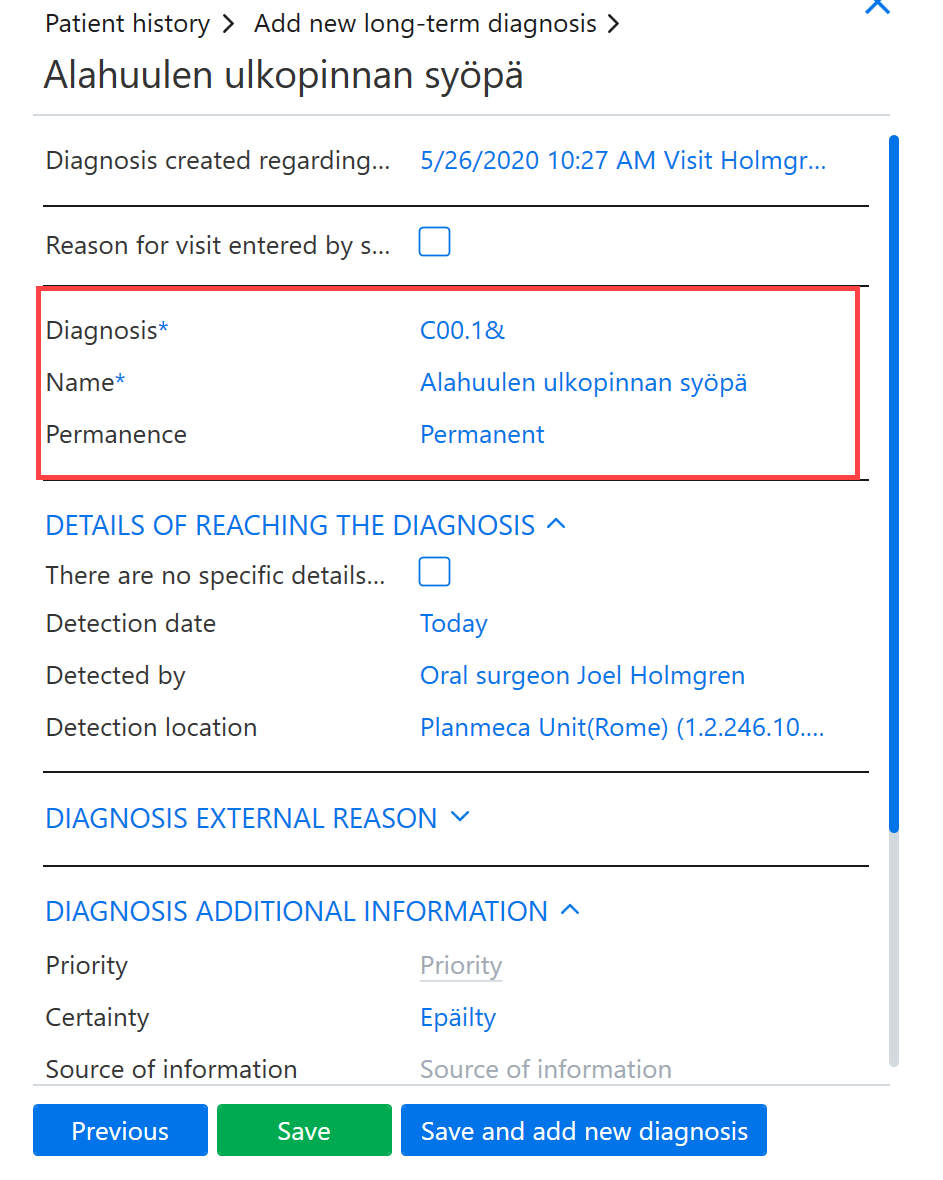
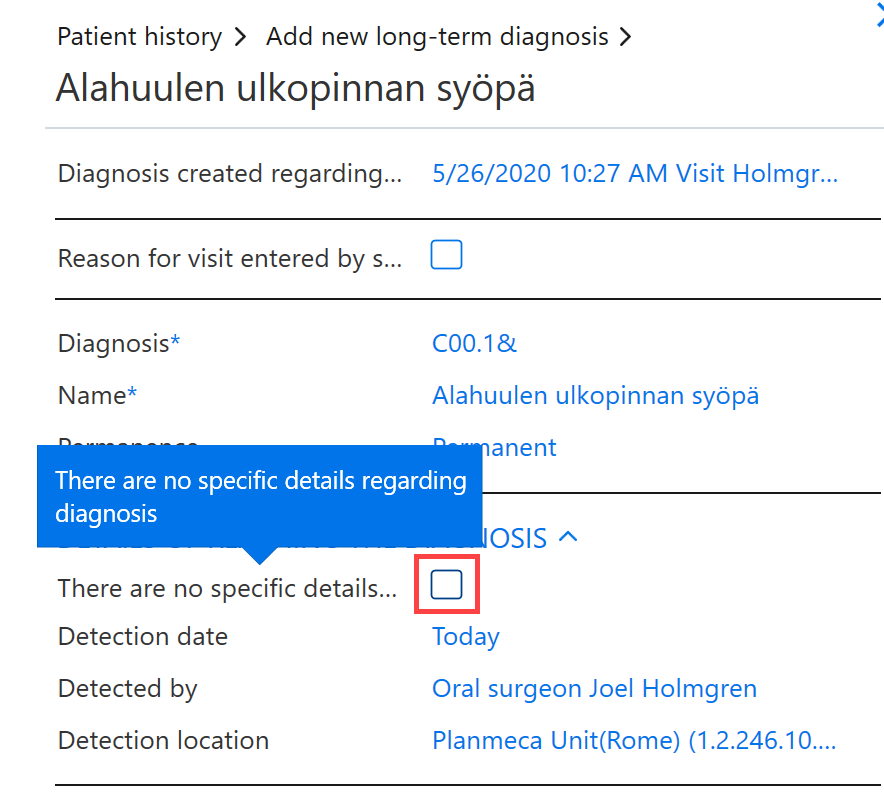
The person entered as having made the diagnosis is always by default the user who is logged in and recording the risk. If the person who created the visit is not the person who identified the diagnoses, this information can be changed by hand. If the name of the person making the diagnosis or other identifying information is not known, select There are no specific details regarding diagnosis. This option clears all information about the person making the diagnosis.
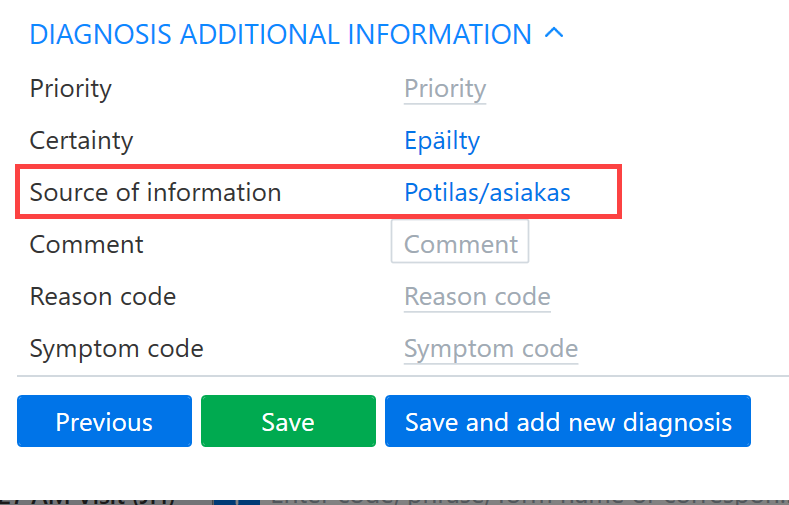
Also indicate where or from whom information about the diagnosis has been obtained in the Source of information field. If the field is empty, the information is taken to be from the organization providing treatment, even if this has not been separately indicated.
In addition to the above, the Diagnosis additional information section can be filled in if required. Comments related to diagnosis should be entered in the Comment field. Finally, the diagnosis should be saved.
Medications
New medications can be added either by entering the name of the medication or the active ingredient in the search box or by clicking the + Add medication button. Using the search field, you can search for products found in the pharmaceutical database.

When you click the + Add medication button, a dialog box opens in which you can either enter the name of the medication or the active ingredient in the search field or select the medication from the list.
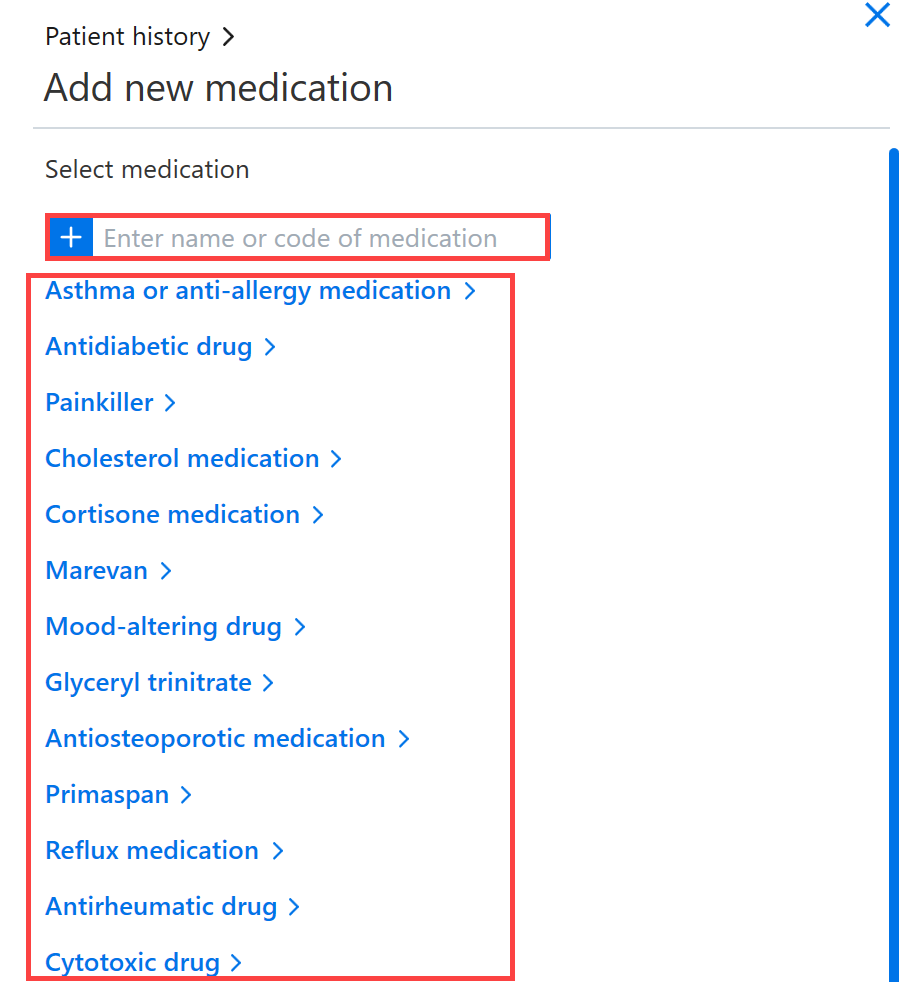
The mandatory information is the name of the medication, but the other medication information should also be checked and corrected if necessary.
If the person creating the visit is not the prescriber of the medication, the prescriber information can be changed. If the prescriber is not known, select There are no specific details regarding ordering.
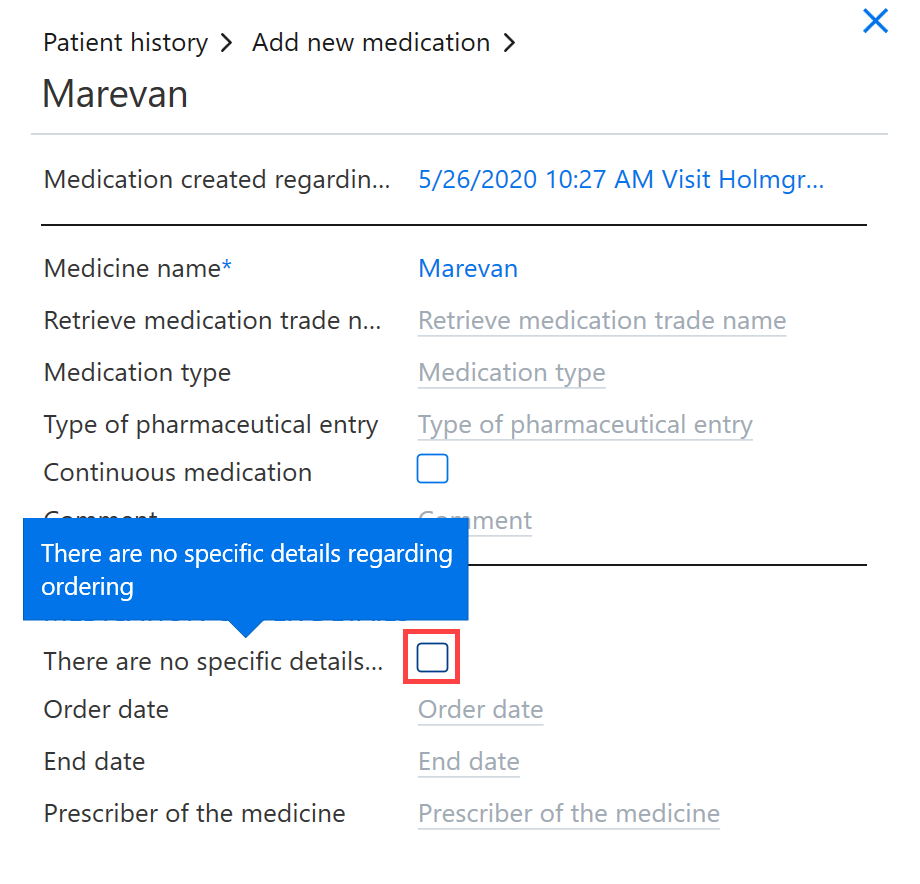
Finally, the medication information can be saved.
Other patient history information
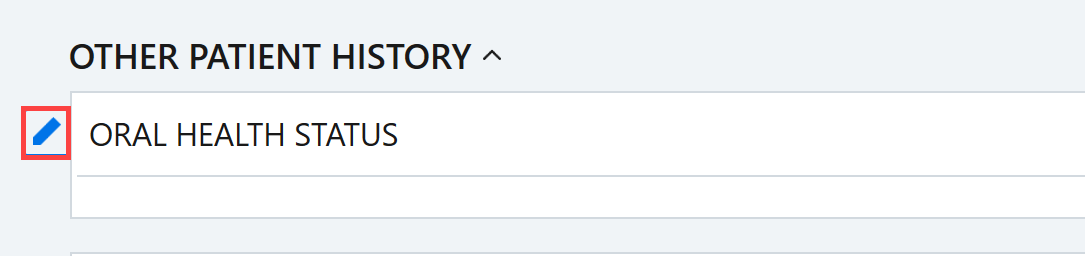
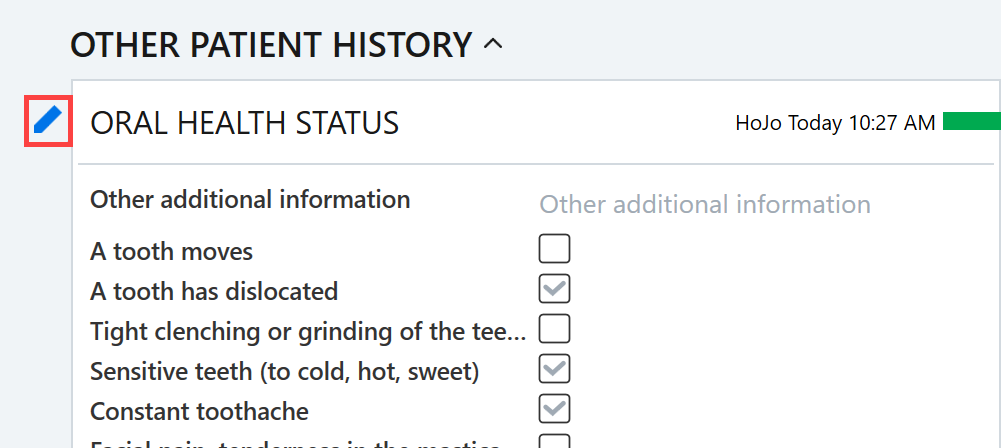
Other patient history information can be added by clicking the pen button next to the section you want to edit.
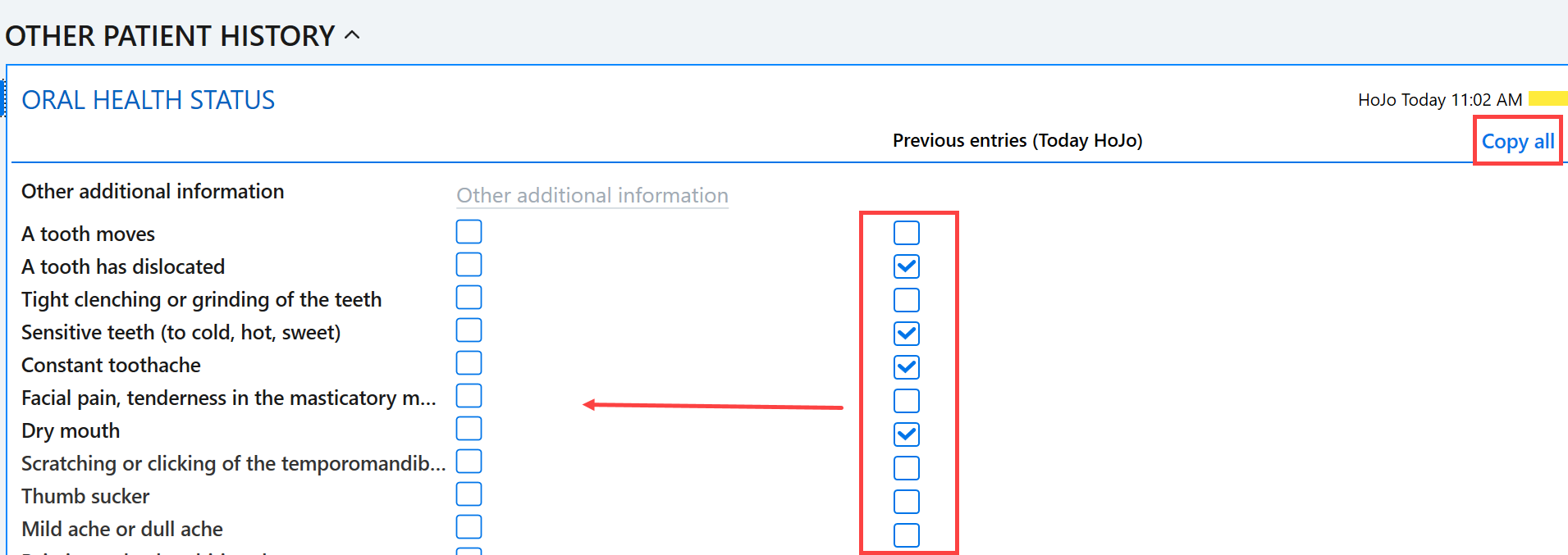
The view shows the current information and the details of the previous visit. The entries made during the previous visit can be copied by clicking the Copy all button.
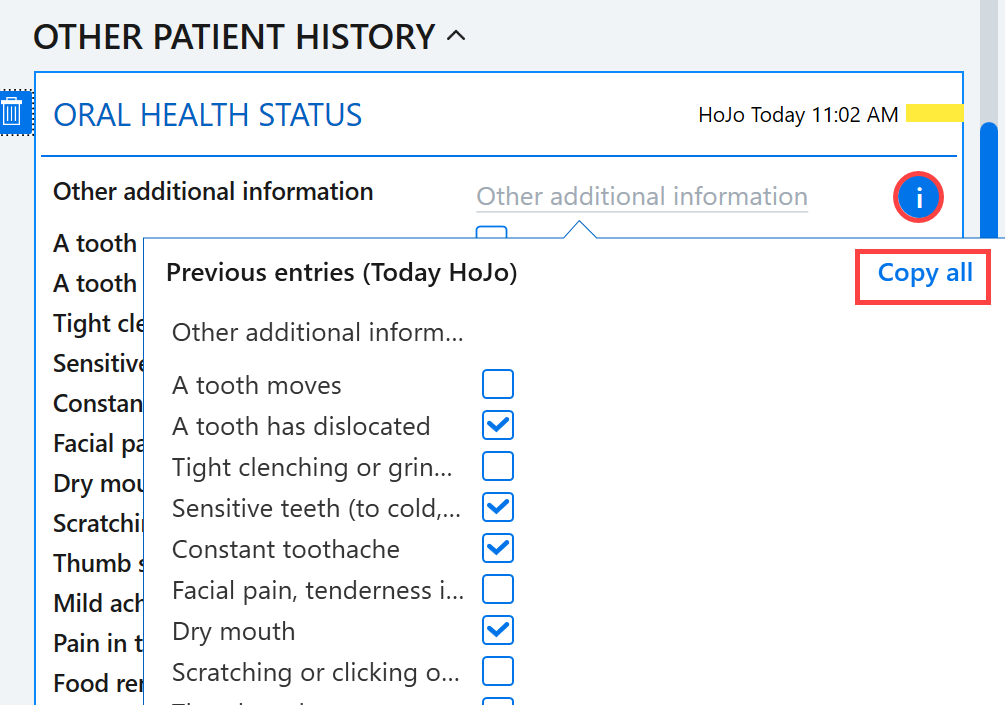
If the view is minimized, the entries can be copied using the i icon.
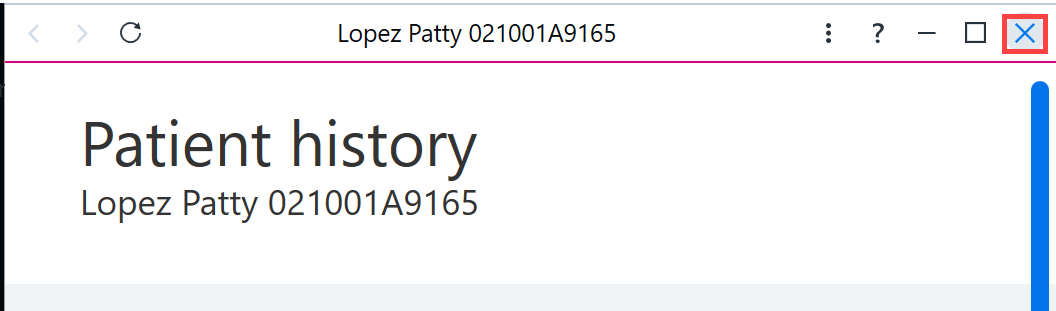
Once the patient history information has been entered, the view can be closed by clicking the x button.
Patient record and recorded patient history data
Within the patient record section, the patient history information recorded during the visit in question is displayed. You can also add presets directly from the patient record using the patient history + button.
Editing patient history data
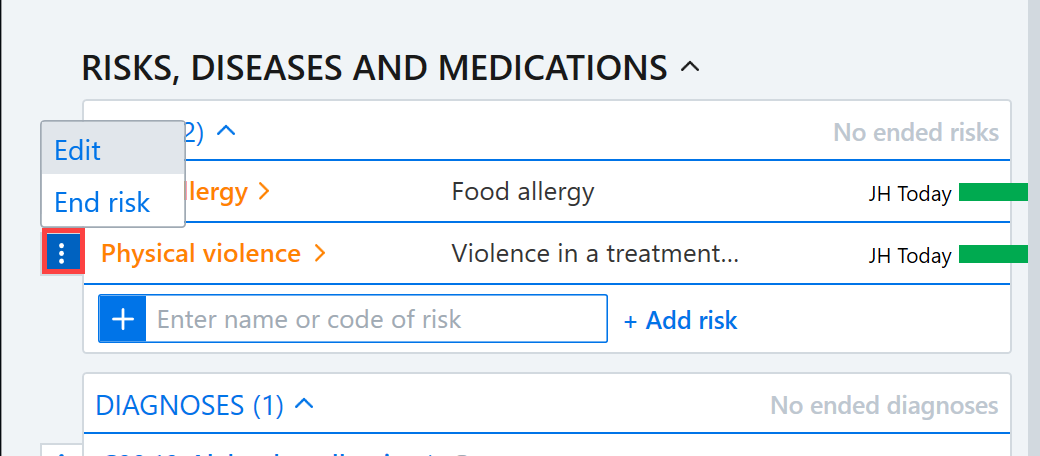
Once the view for the patient visit has been opened, the patient history data can be edited. Risks, diagnoses and medications can be edited by clicking the Additional functions button next to the risk and selecting Edit. At a later stage, the Edit function can be used to edit previously added risk and diagnosis entries.
Other patient history data can be edited by clicking the pen icon in front of the relevant section.
Ending risks, diagnoses and medications:
Risks, diagnoses and medications can be ended by clicking the Additional information button in front of the risk and selecting End risk.
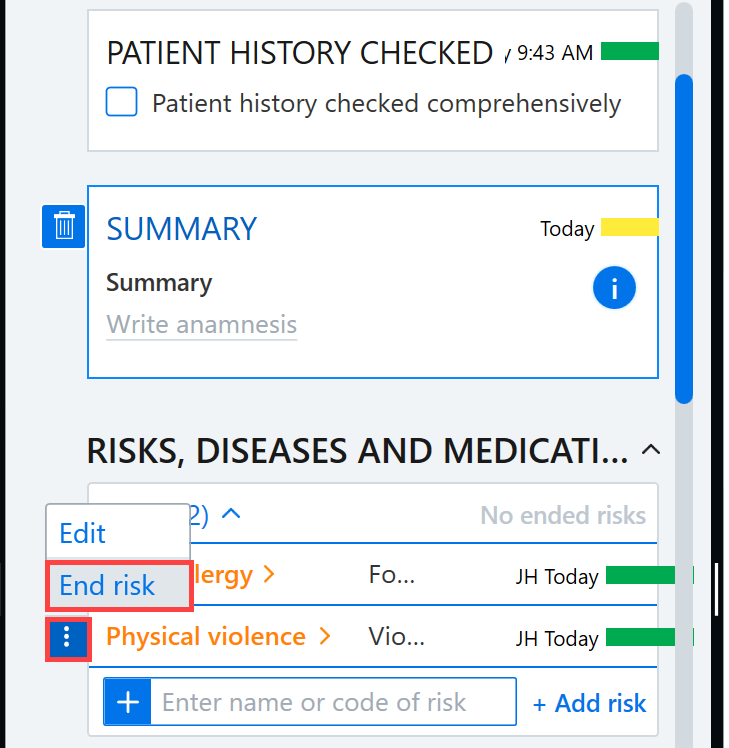
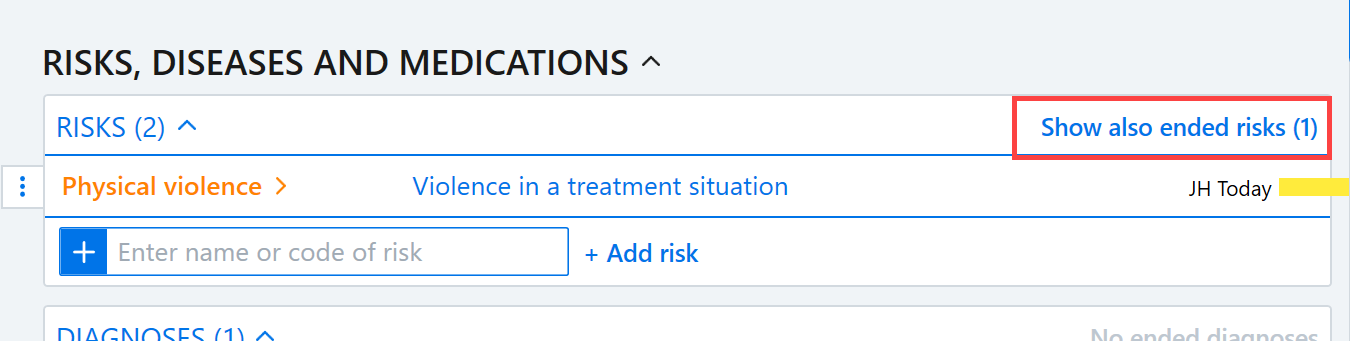
Previously ended risks, diagnoses and medications can be viewed by clicking on Show also ended risks.